Global Features - Grid windows
 Previous | Next | Print 

Throughout Ytria's software lineup you'll encounter a number of screens featuring a graphical user interface with rows and columns. In the Ytria Online Help database we call these screens 'grids.' To avoid confusion, any screens in Ytria that feature columns and cells but do not use this interface will be referred to as 'tables.'

Explained below are the features found in the grid screen interface:
  1. Group by column header
  2. Filter columns
  3. Sort column headers
  4. Export to file
  5. Paste rows to a spreadsheet or text editor
  6. Column freezing
  7. Contextual menu options

There are also grid-type screens in Ytria's software which, because of performance considerations, offer a more modest feature set. These screen will be referred to as 'Basic Grids.'

Grouping by column headers

^ Return to top

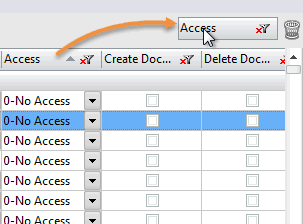
In grid screens you have the ability to group information by column headers. To do so, simply drag-and-drop a column header to the sorting area (which is labeled 'Drag a column header here to group by that content'). You can expand and collapse grouped items by toggling the +/- buttons that appear in rows.


One level of grouping:


You can group by more than one level. Multilevel grouping can offer a more meaningful presentation of your data. The example pictured below uses agentEZ. The information is grouped by (agent) Name and Database Title:


Filtering column headers

^ Return to top

This is another way to quickly see precisely what you want to see when dealing with large amounts of information. Just click the filtering icon on the column header and choose a filter. You can either choose from the following filter types (and it's possible to use any combination of filters simultaneously if desired):

Filter by Regular Expression: This allows you to enter a regex to filter the column
Value Filters: This allows you to specifically filter out discrete column values via checkboxes
The following filter types offer 'equal to';'not equal to'; 'greater than';'less than'; 'equal to or greater than'; and 'equal to or less than' variants:
Text Filters: Here you can enter simple text filters.
*Number Filters: Here you can filter using valid numerical input (i.e.: digits 0-9; comma ','; point '.'; e; K; M; or G).
*Date Filters: Here you can enter date filters in yyyy/mm/dd format.
*Time Filters


* Introduced in the EZ Suite version 11 updates introduced

Columns with active filters won't have the red 'x' on the filter icon:


You can remove any active column filters with the Clear Filters command found the Contextual menu of most grid windows.

Sorting information in ascending or descending order

^ Return to top

If you click on a column header, it will display items in ascending order; click once again and it display the information in descending order.


If you hold Shift and click another column header you can add a secondary level of sorting. For example if you first sorted a column named 'Type' you could then Shift + click the column header for 'Name.'

Export to file

^ Return to top

Grid screens in Ytria tools allow you to export data via the Grid Action>Export to File... option in the right-click menu. You must select a file path, and choose between ASCII or Unicode output. You have the following format options:

  • HTML
  • Pre-Formatted Text file
  • HTML (Selected Row)
  • Pre-Formatted Text file (WYSIWYG)
  • Pre-Formatted Text file (Export Only Children)
  • Pre-Formatted Text file (Selected Rows Only)
  • Pre-Formatted Text file (Export Only Children of Selected Rows)


Pictured below is an example of grid screen data exported to HTML:


Copy and paste selected rows to a spreadsheet or text editor

^ Return to top

Grid screens also offer a quick way to see your information in a spreadsheet application such as IBM Lotus Symphony, Microsoft Excel or OpenOffice.org Calc or even a text editor like Notepad. Simply select some rows in a grid screen and press Ctrl+C to copy unicode data to your clipboard. Then paste the information into your spreadsheet. Note that any checkboxes will appear as '1' if enabled or '0' if disabled.

Copy information from a grid window...


... and paste it into a spreadsheet:


Tip

Only information that is being currently being displayed in the row will be copied to the clipboard. This means that you can activate filters or add/remove columns before copying to get a very precise data collection to the clipboard.

Column Freezing

^ Return to top
Column header freezing was introduced in the EZ Suite 10.5 update. You can use this feature to 'freeze' or lock one or more columns so that they can remain visible as you scroll horizontally. The rightmost 'frozen' column will will display a red vertical bar.
This feature works in a similar manner to the freezing functionality found in most modern spreadsheet applications.
The commands related to column freezing can be accessed by right-clicking and choosing the Grid Action submenu. The following options are available:
Freeze Up To "x" (Ctrl + F4): This option lets you 'freeze' or lock all columns starting from the lefthand side up to the currently selected column.
Freeze Columns ( F4): This option will give you a dialog box where you can 'freeze' or lock all columns up to the last fully visible column on the righthand side of the grid (if the last visible column on the right is only partially shown, it will not be available for freezing).
Unfreeze (Ctrl + Shift + F4): This option will 'thaw' or unlock the frozen columns in a grid.


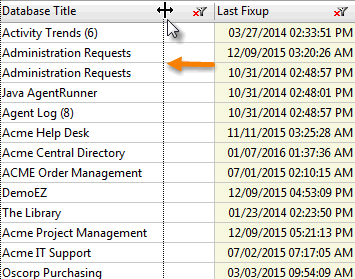
.

Contextual (right-click) menu options in grid screens

^ Return to top


The contextual menu in any Ytria tool's grid screens will always display a Grid Action submenu and a Grid Columns submenu. The contextual menu may also contain application-specific options (see the individual product's help pages for information on these options).


  • Grid Columns submenu: This option's submenu lets you toggle column headers on and off.
  • Grid Action submenu options:
    • Collapse All (Shift + -): This will collapse any column header groupings.
    • Expand All (Shift + +): This will expand any column header groupings.
    • Ungroup All (Ctrl + Shift + G): This will take away any column header groupings.
    • Group by this Column : This will group by the column that is currently selected (i.e. a cell under this column has been selected in the grid).
    • Freeze up to "x" (Ctrl + F4): This will 'freeze' any columns up to and including the column you currently have selected. Freezing allows you to keep one or more columns anchored to the lefthand side of a grid so that they remain visible as you scroll.
    • Freeze Columns ( F4): This will 'freeze' all columns that are currently visible on your screen.
    • Unfreeze (Ctrl + Shift + F4): This will 'unfreeze' or unlock all columns in a grid.
    • Select All (Ctrl+A): This will select all the rows in a grid screen.
    • Copy (Ctrl+C): This command will copy any selected grid data to the clipboard where it may easily be pasted into a spreadsheet or text editor program. (Note: Column headers are automatically copied to the clipboard in addition to the selected rows).
    • Copy Settings: This launches a dialog where you can customize the delimiters, separators and rules used to copy grid data to the clipboard. The default settings work well with most modern spreadsheet programs including IBM Lotus Symphony, Microsoft Excel and OpenOffice.org Calc. Any changes made to copy settings are written to the registry; this means changes will be remembered the next time a Ytria tool is launched. The copy settings dialog offers a Reset button if you wish to revert to default settings. It's also worth noting that copy settings are shared for all Ytria tools that use the grouping grid.
    • Export (Ctrl + Shift + E): This will launch the Export to File dialog box.
    • Sort Groupings by Count: When this option is enabled, column header groupings will be sorted by the number of elements in each group rather than alphabetically.
    • Find All (Ctrl+F3); Find First (Ctrl+F) ; Find Next (F3): Options for searching within grid screens. You have the option of searching by regular expression.
    • Clear Filters (Ctrl + K): Removes any filters applied to column headers.
    • Show Filters: Toggles the display of column header filters on and off.
    • Group By Box: This allows you to toggle the entire "Group by Column Headers" section on and off.
    • Field Chooser: This dialog lets you drag-and-drop column headers into the grid screen. Any available column headers not being used will appear in the Field Chooser dialog box. You can also drag-and-drop column headers off of a grid screen to remove them (any column headers you've removed will appear in the Field Chooser dialog box).
    • Remove this Column: This command lets you remove the currently selected column from the grid. You can also drag-and-drop column headers off of a grid screen to remove them (any column headers you've removed will appear in the Field Chooser dialog box

    Basic grid screens

    ^ Return to top

    Certain grid screens in Ytria tools will offer a more limited feature set (usually because of performance considerations though sometimes because the more advanced grid features are unnecessary in a given context). These screens will be referred to as 'basic grids' in Ytria's Help documentation.
    Basic grids support sorting by alphabetical order as well as sorting by text filters.