
How to report permissions for all your Entra ID (Azure Active Directory) app registrations

Over time, app registrations accumulate a messy mix of delegated and application permissions granted by both users and admins.
For Microsoft 365 admins, it can be a challenge to create a single report of all Entra app registrations and their Graph and other API permissions, especially when you want to:
- Spot risky permissions like Directory.ReadWrite.All or User.ReadWrite.All across all applications.
- Keep an eye on permissions that Microsoft has deprecated or plans to retire.
- Identify application owners.
You can create this report in the Entra portal, but it quickly becomes a tedious manual process. Microsoft Graph PowerShell is a better option, but it still requires scripting and post-export processing. In this article, I’m not walking through a full PowerShell script. I’m focusing on why the native approach is more manual and why sapio365 is faster.
Curious how sapio365 really speeds things up? Jump to the sapio365 section or watch the video to see it in action.
App registrations in the Microsoft Entra admin center
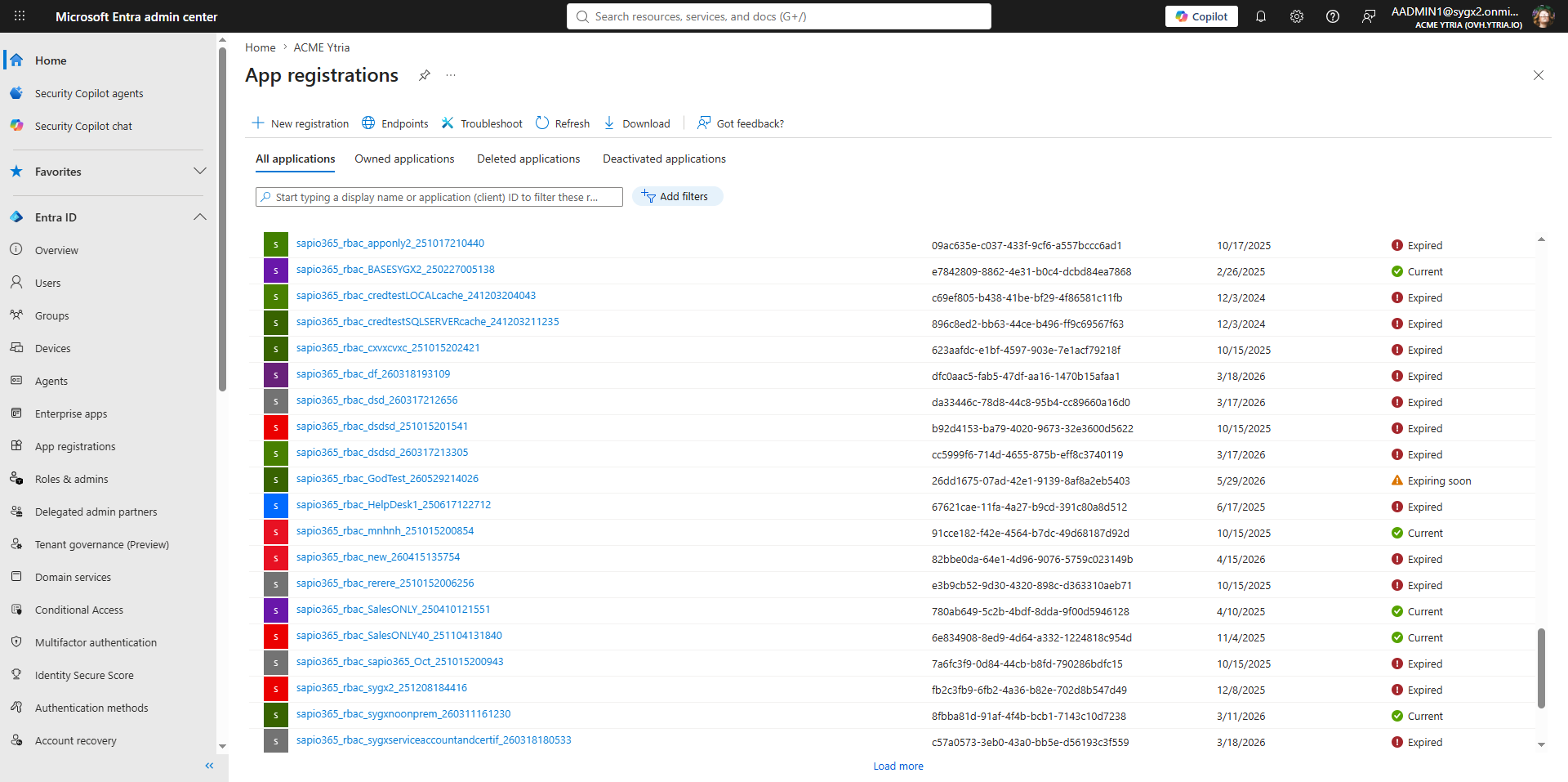
You can look up all your app registrations in the Microsoft Entra admin center under App registrations, where you’ll see a paginated view of key application attributes such as the app name, app ID, creation date, and whether certificates or secrets have expired or are close to expiring. Because the list is paginated, you have to keep loading more to see everything, which makes it hard to get a full overview when you’re cleaning up a large number of app registrations that have accumulated over the years.
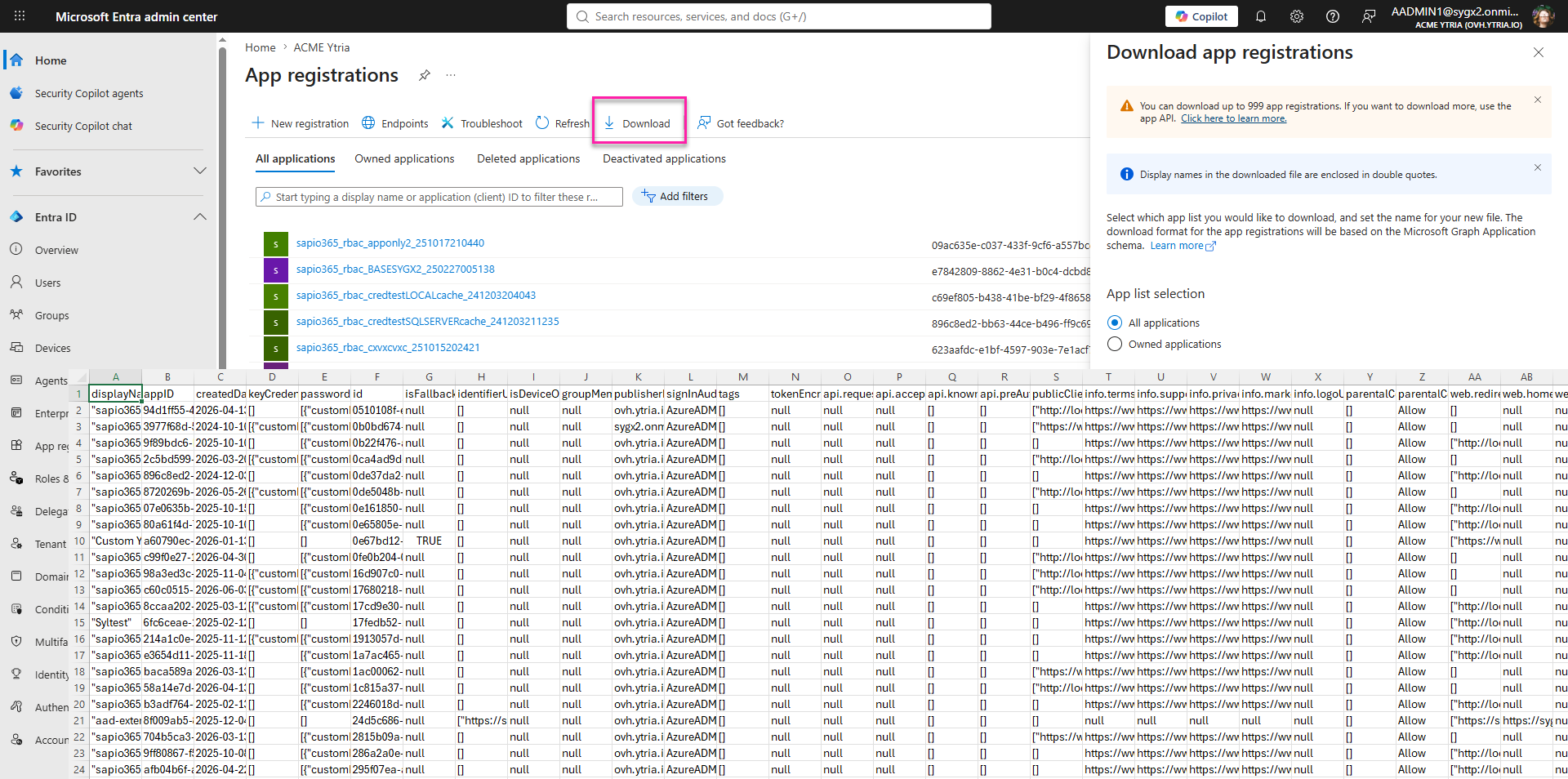
To see more properties, you can export the list to CSV, but that still won’t include the permissions assigned to each app. That makes sense, since an app can have many permissions that wouldn’t fit well in a simple Excel grid.
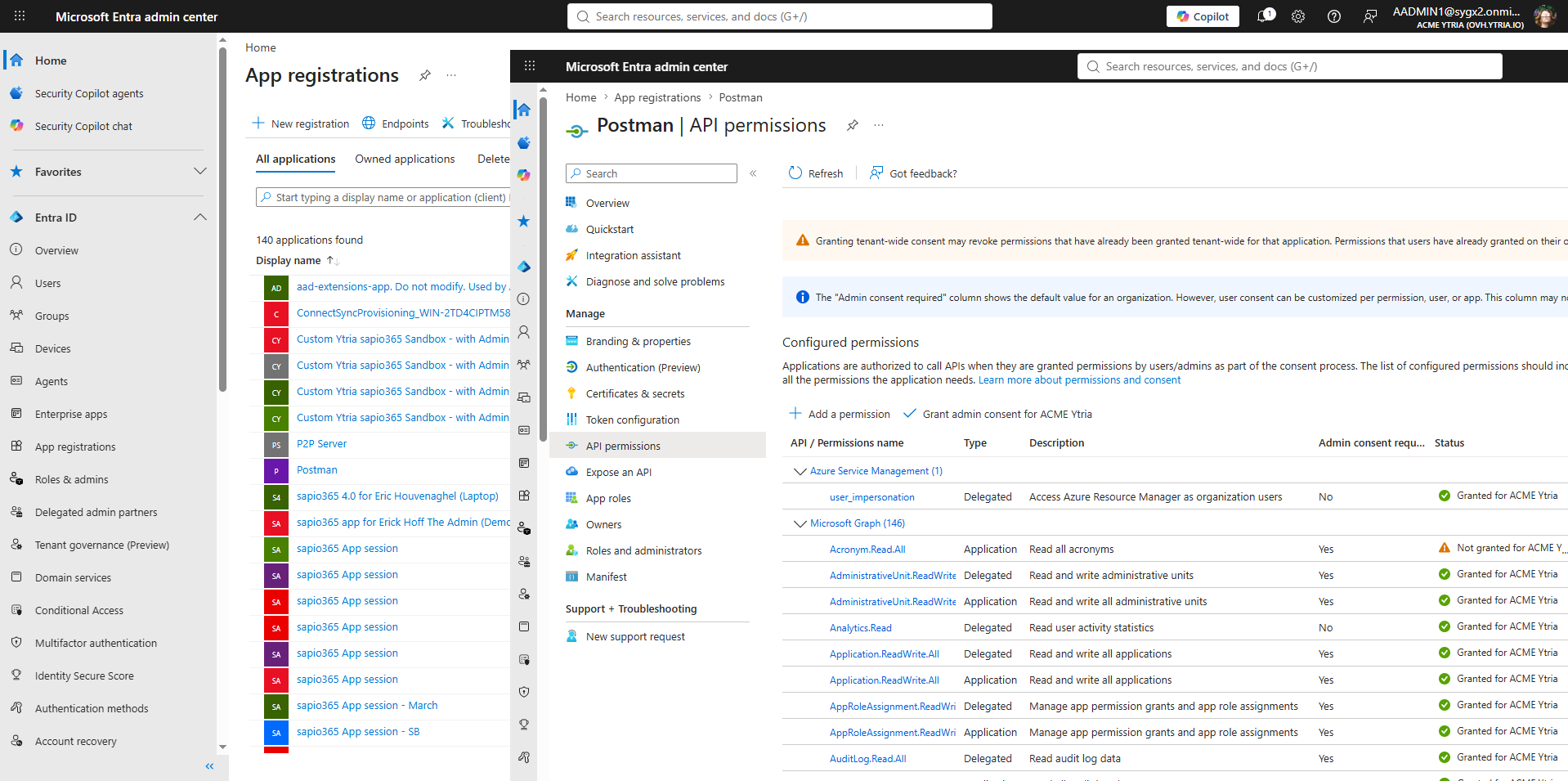
To review permissions, you need to open each app registration and go to API permissions. There, you’ll see the full list of delegated and application permissions for that app. You can search for specific permissions to check whether they’re actually used, but if you want a full report, you have to manually select and copy the data because there is no download option.
Repeating that process for every app registration is time-consuming, and increases the chance of copy-paste errors. Microsoft Graph PowerShell is a more flexible option, but it still requires scripting, maintenance, and post-export processing.
Exporting all app permissions with Graph PowerShell
For a complete report, Microsoft Graph PowerShell can do the job, and you can build a custom script around the ‘Get-MgApplication -All’ cmdlet to list all app registrations.
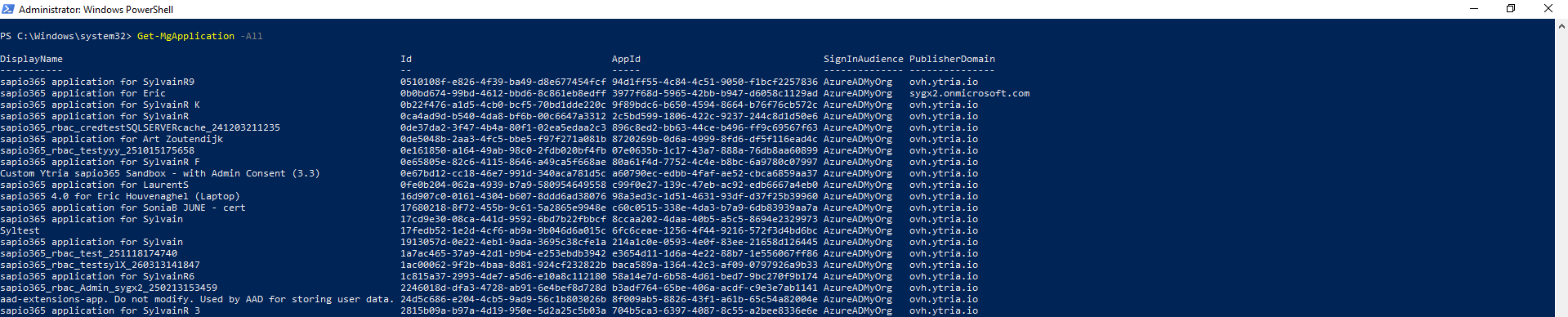
This approach is powerful, but it comes with some important challenges:
You need to install, configure, and maintain Graph modules, scripts, and scheduled execution.
PowerShell and Graph often return only permission IDs, not readable permission names, so you either write extra code to resolve them or learn the IDs by heart. Neither is ideal for a simple report.
The script logic can get complex when you want to combine owners, sign-in data, consent details, and risk indicators into one accurate report.
There is no interactive view, so you often need to re-export CSV files just to refine filters and checks.
Not every Microsoft 365 admin has the time or scripting experience to build and maintain this kind of report.
That’s where sapio365 comes in, as I’ll show next.
Get a full app registrations permissions report with sapio365
If you want the same tenant-wide visibility without building and maintaining a script, sapio365 is the easiest route.
sapio365 is a third-party tool that connects to Microsoft 365 and retrieves directory data in a fast, Excel-style interface, while handling the Graph calls and data relationships behind the scenes. The goal of sapio365 is to give admins a single-pane, grid-based view of Entra data, including app registrations and their permissions, with instant filtering, analytics, and no scripting.
Here’s how easy it is to create a permissions report for all Entra app registrations.
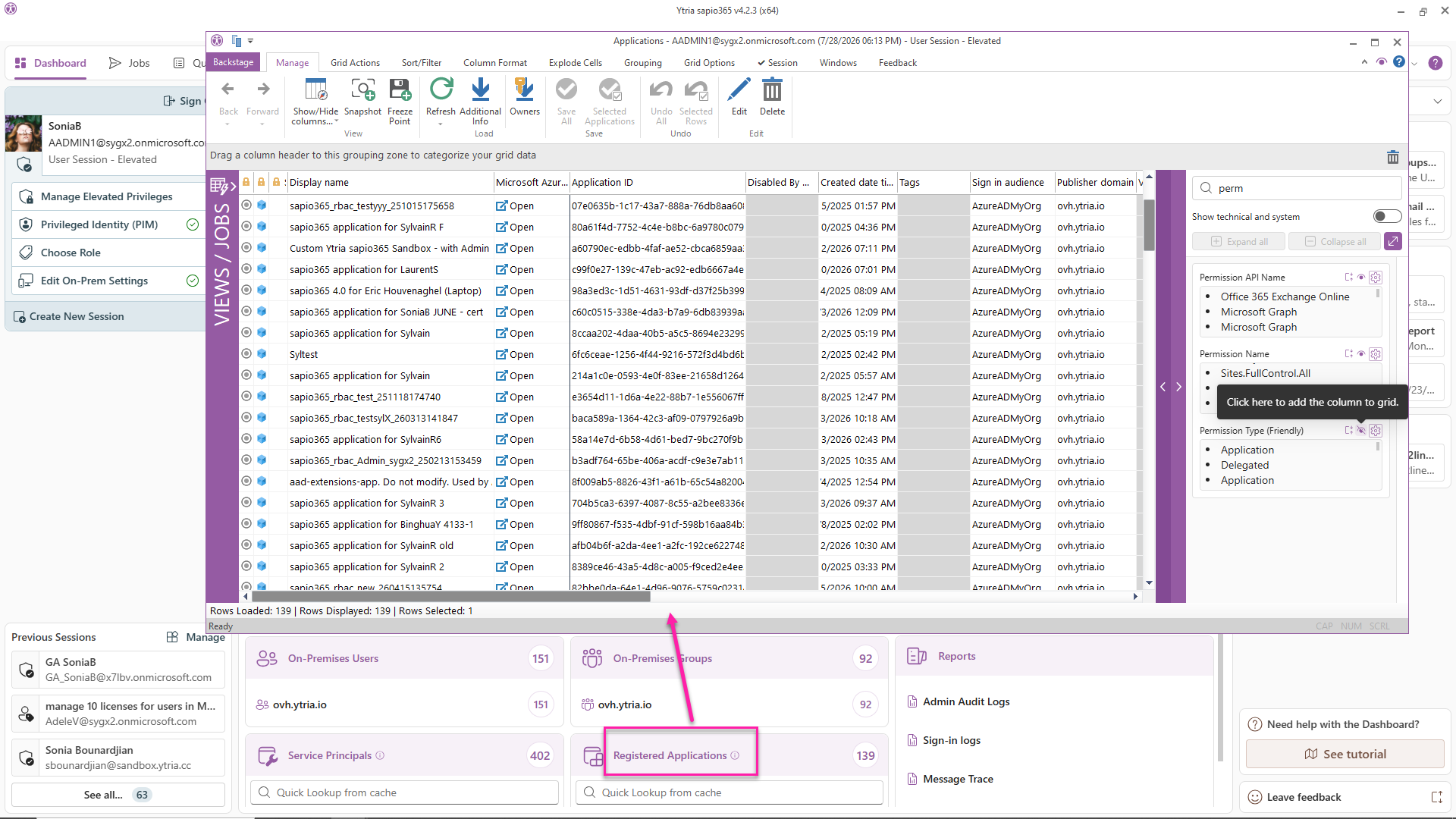
A full, non-paginated view of all apps and permissions
With one click in sapio365, you get a full list of app registrations and key properties such as:
- Creation and modification dates.
- App owners.
- App descriptions.
- App ID.
- Expiration dates for secrets and certificates.
- Delegated and application permissions, including scope and role names.
- Much more.
You can also customize the view by showing or hiding any of these columns.
Instantly filter and flag risky permissions
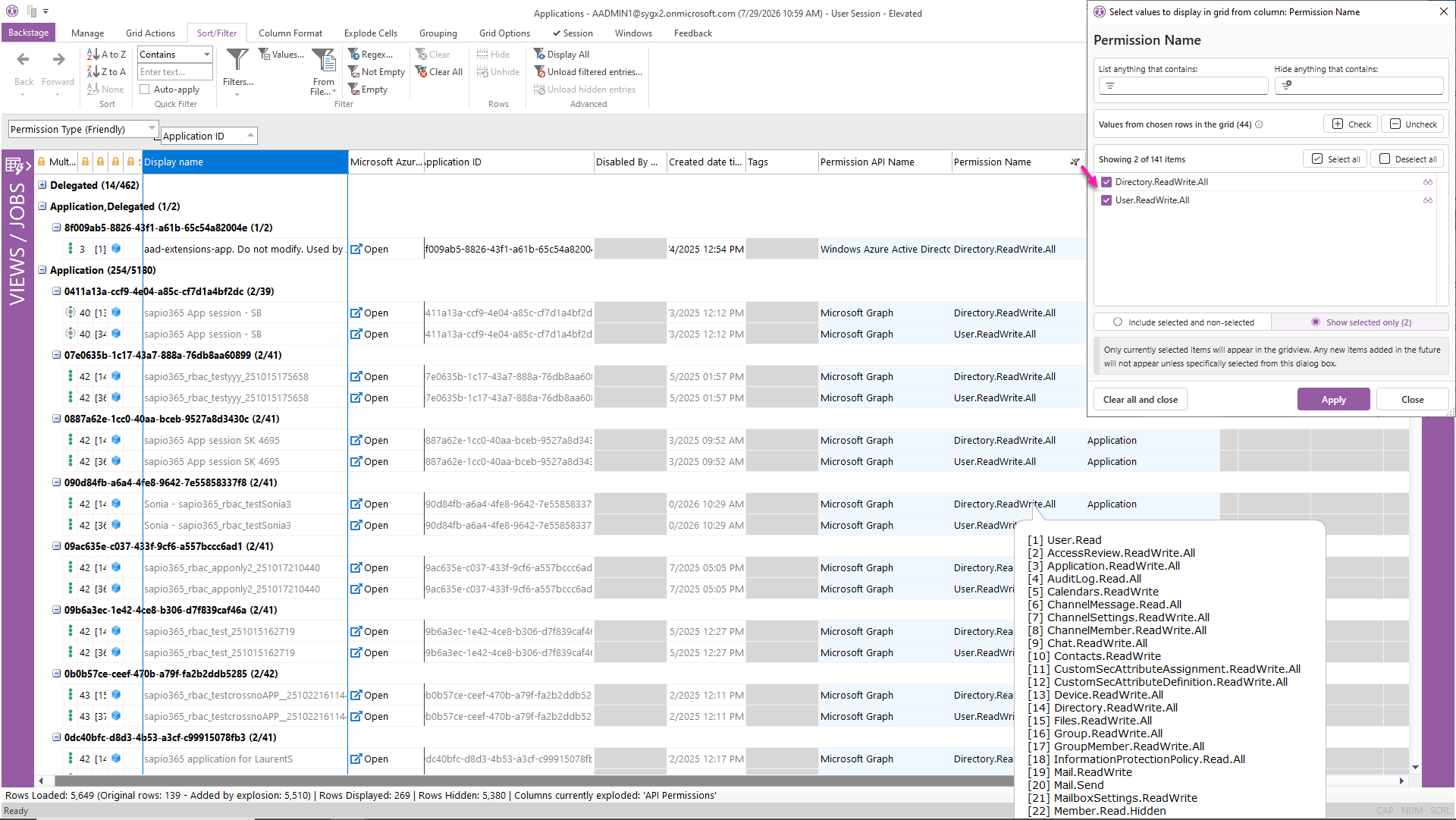
Because sapio365 is designed for custom reporting, you can filter the grid or group apps by permission to quickly isolate risky entries such as Directory.ReadWrite.All and User.ReadWrite.All, as well as permissions that Microsoft has deprecated or plans to retire. All of this happens interactively, so you can sort, group, and filter with clicks instead of re-running scripts.
Export and share a documented permissions report
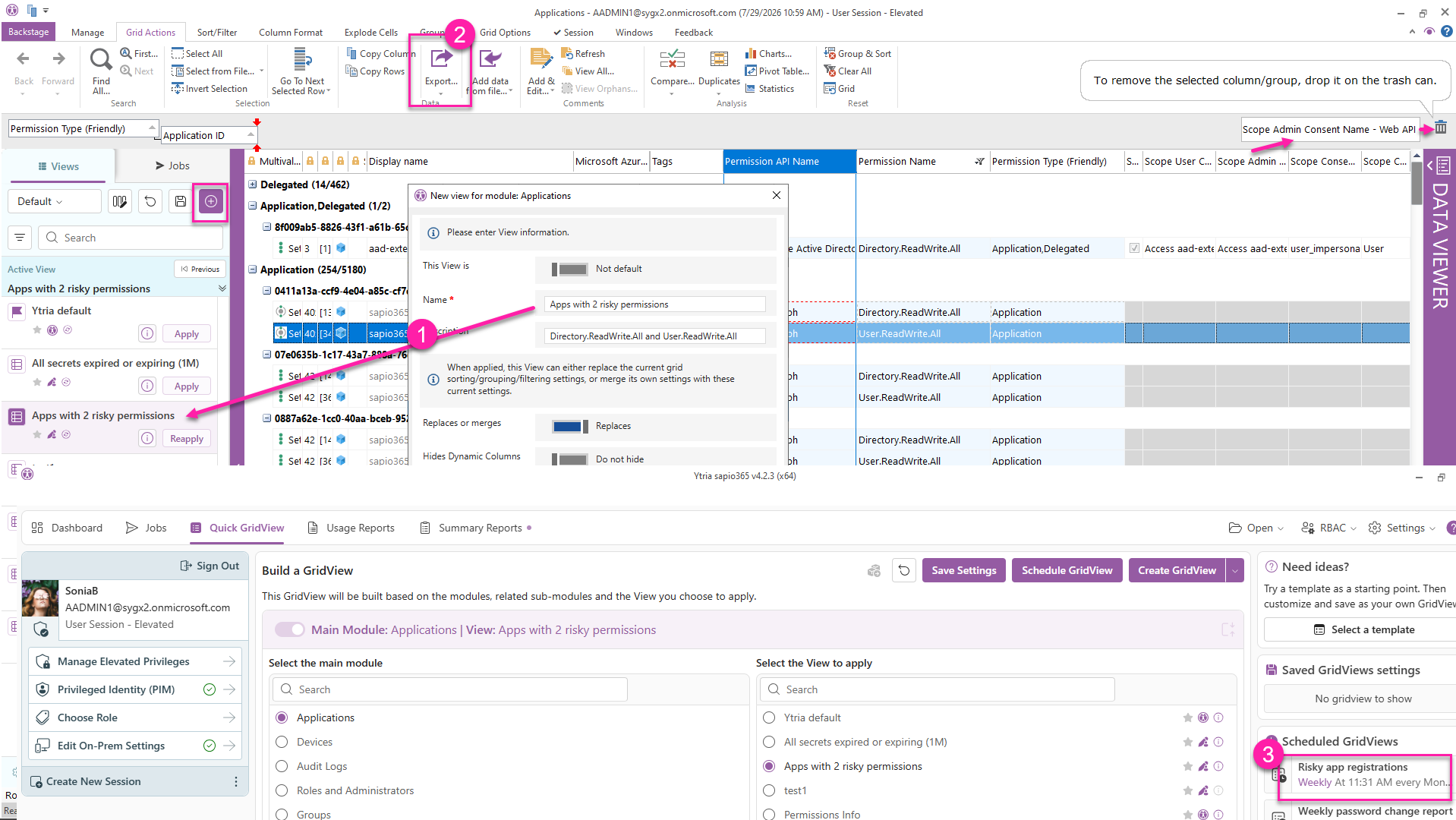
Once you’ve narrowed down what you want to present to your security or governance team, you can:
- Keep only the relevant columns, such as permission names and permission type, and save that view for later.
- Export the full grid or just the filtered rows to CSV or Excel.
- Schedule the customized report to run weekly and send the exported file to yourself or others automatically.
- Use scheduled reports as exception alerts so you’re notified when app registrations have permissions outside your defined scope.
That turns your report of permissions for all Entra registered apps into a reusable audit instead of a one-off PowerShell project. You can create as many custom reports and exception-based alerts as you need.
Go beyond permissions
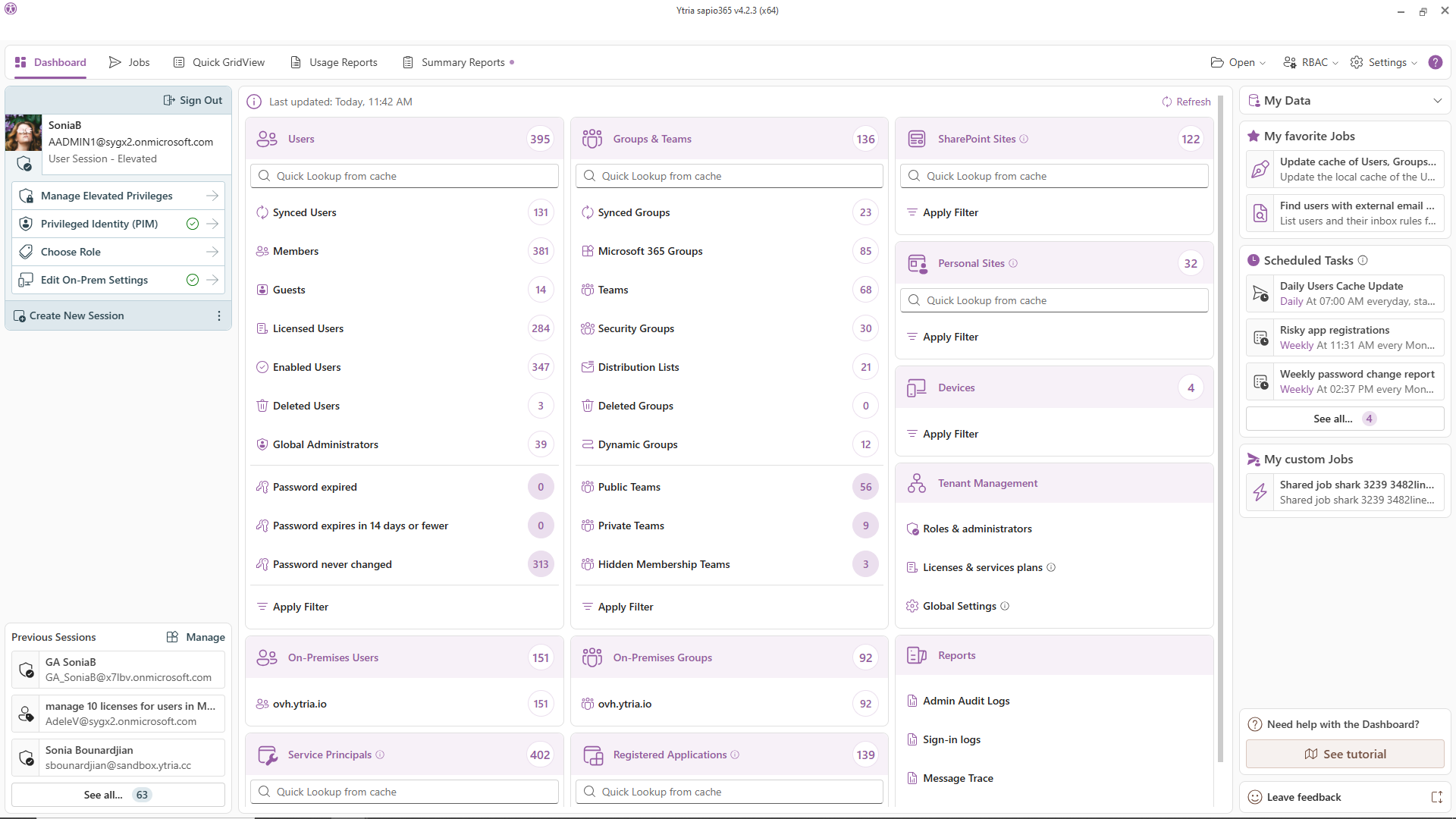
Because sapio365 also exposes other Microsoft 365 directory objects, you can use it for broader security checks too. For example, you can cross-check app owners and their admin roles, review last sign-in dates for service principals to find unused apps, and audit other Entra and Microsoft 365 data without switching between PowerShell scripts or modules.
Bulk action on risky apps
If you’re ready to act on certain apps, you can do it directly from sapio365. You can disable or delete apps by selecting them and applying the action in a few clicks, and sapio365 gives you a preview of the changes before you commit them.
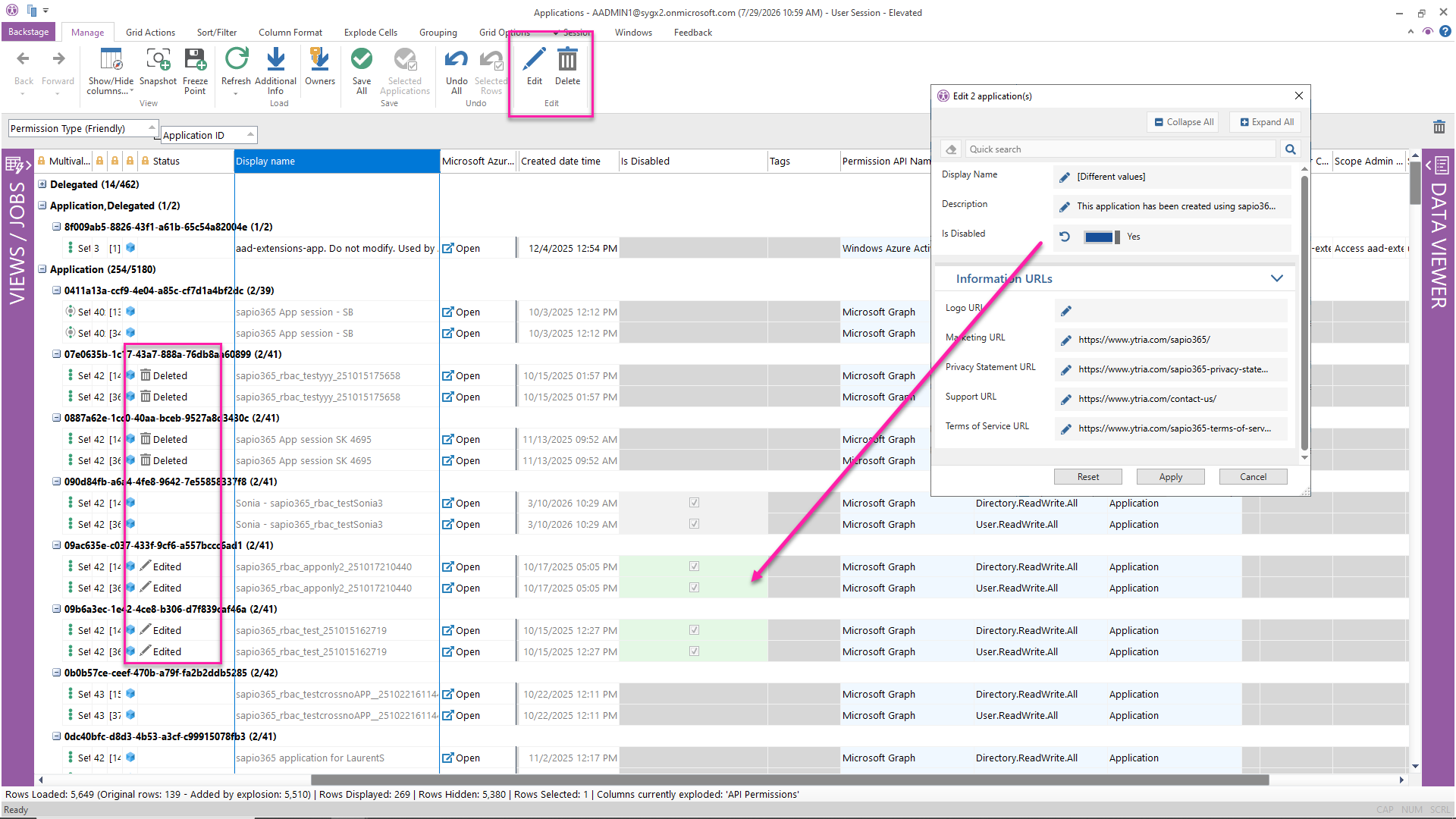
This is where admins often realize that sapio365 is not just a report generator, but a broader IT administration and auditing tool.
Microsoft 365 Admin Centers vs PowerShell vs sapio365
Here’s a quick side-by-side view of the three approaches.
Reporting permissions for all Entra registered applications with native Microsoft 365 tools is possible, but it is slow and fragmented when you need a tenant-wide audit. sapio365 makes the same task faster, interactive, and easy to repeat without scripting.
| Capability | Entra portal | Microsoft Graph PowerShell | sapio365 |
|---|---|---|---|
| See all app registrations at once | Limited, paginated views | Yes, with scripting | Yes, in a single grid |
| View app permissions | Per app, manual review | Yes, but requires scripting | Yes, built into the report |
| Export permissions report | Not really for a full tenant view | Yes, usually to CSV | Yes, to Excel |
| Filter risky permissions | Manual | Yes, if you build logic for it | Yes, interactively |
| Include owners and sign-in context | Partially, with more manual steps | Yes, if scripted | Yes, alongside permissions |
| Repeat the report regularly | Manual repetition | Yes, but scripts must be maintained | Yes, save and schedule reports |
| Skill required | Low | High | Low |
| Best for | Spot checks | Custom automation | Fast tenant-wide auditing |





Submit a comment