
sapio365 4.2: More control for Microsoft 365 admins

Take advantage of new sapio365 features that speed up message investigations and user lookups, deepen security and usage insights, and give you tighter control over mailboxes, file sharing, apps, licenses, and more.
For busy Microsoft 365 admins, version 4.2 puts more of the key information in one place and makes it easier to act on it. A new Message Trace in the Tenant dashboard, targeted mailbox Search Queries that reuse Microsoft Purview‑style criteria, and clearer views of MFA usage, registered applications, service principals, and file sharing help you spot issues and risks faster.
You also get smoother control over SharePoint and OneDrive drives, broader access to SharePoint subsites, simpler RBAC scope configuration, and grid and UI refinements that make large‑tenant administration feel more manageable day-to-day.
Watch the video below for an in-depth look at the latest features in sapio365 4.2.
Scroll down to see highlight details or click on the links below:
- Investigate Microsoft 365 mail flow faster with the new Message Trace
- Run a targeted mailbox Search Query using Microsoft Purview-style criteria
- New insights into internal vs external file sharing
- Get SharePoint and OneDrive file sharing permissions faster, with more precision
- See and update custom directory extension attributes for users and groups
- Open a user or group directly in the Microsoft Entra admin center
- A lighter User License grid for faster Microsoft 365 license management
- Choose exactly which SharePoint or OneDrive drives to load
- See when service principals last signed in and remove inactive ones
- Look up registered applications faster and manage them with more context
- Load SharePoint Online subsites in elevated, app, and role sessions
- See when each MFA authentication method was last used
- Identify groups with Viva Engage communities in one click
- Manage on-prem users and groups from unrelated domain connections
- Filter from the rows you select
- Better multivalue data analysis and management
- Labeled side panels make sapio365 easier to learn
- Easier sapio365 RBAC scope configuration
Investigate Microsoft 365 mail flow faster with the new Message Trace
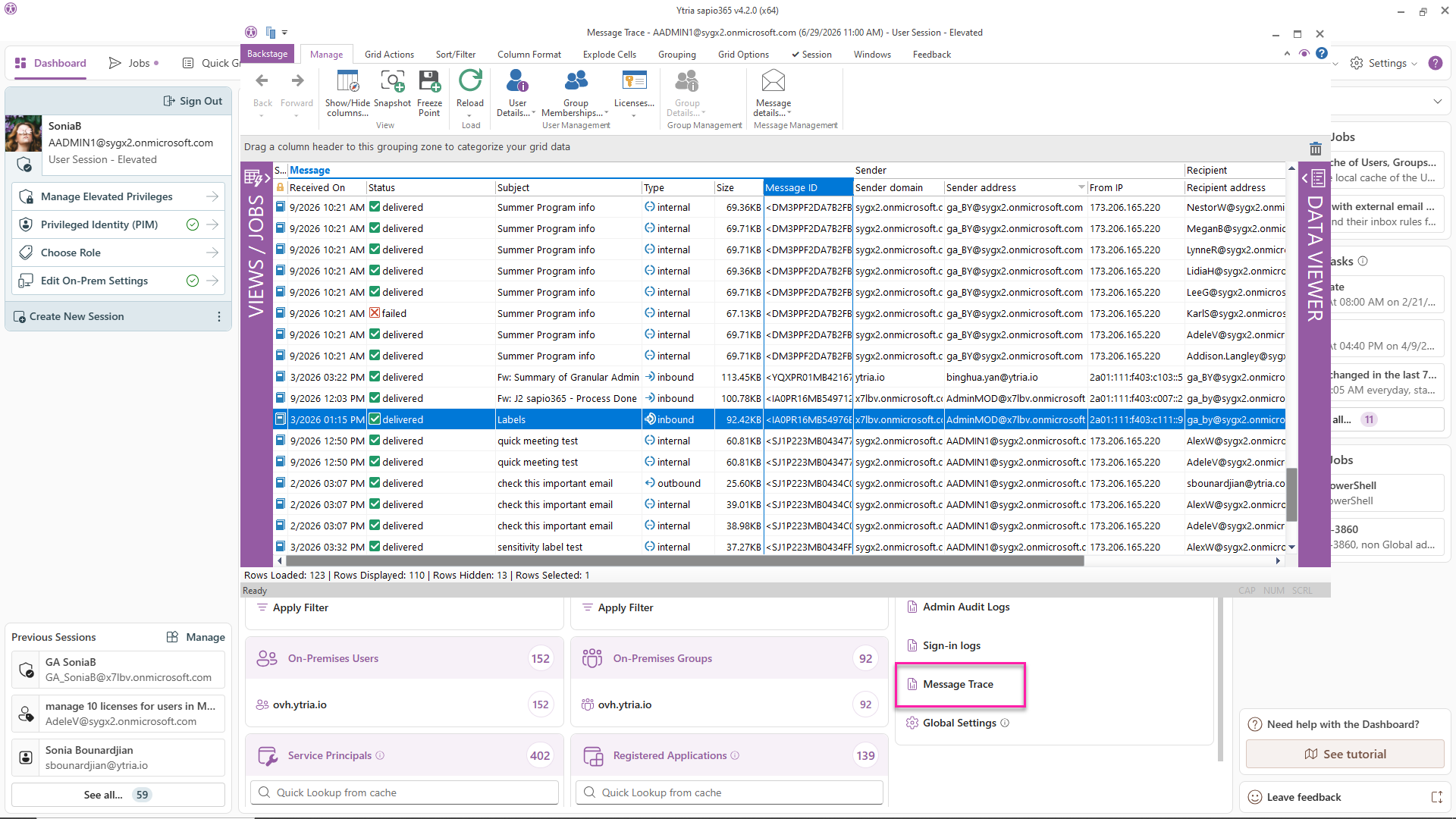
The new Message Trace module in the sapio365 Tenant Dashboard helps Microsoft 365 admins troubleshoot Exchange Online mail flow without leaving sapio365. You can list messages, review delivery status such as delivered, failed, quarantined, and filtered as spam, and analyze the results directly in the grid.
You can quickly identify whether messages are internal or external, inbound or outbound and then retrieve selected messages from internal sender or recipient mailboxes for follow-up actions such as deleting or copying them.
Like Message Trace in the Exchange admin center, sapio365 supports searches across up to 90 days of historical data, with up to 10 days per search, plus advanced filters to narrow down the exact messages you need.
For recurring checks, such as reviewing quarantined messages each week, you can save a filtered view and schedule it through Quick GridView.
Run a targeted mailbox Search Query using Microsoft Purview-style criteria
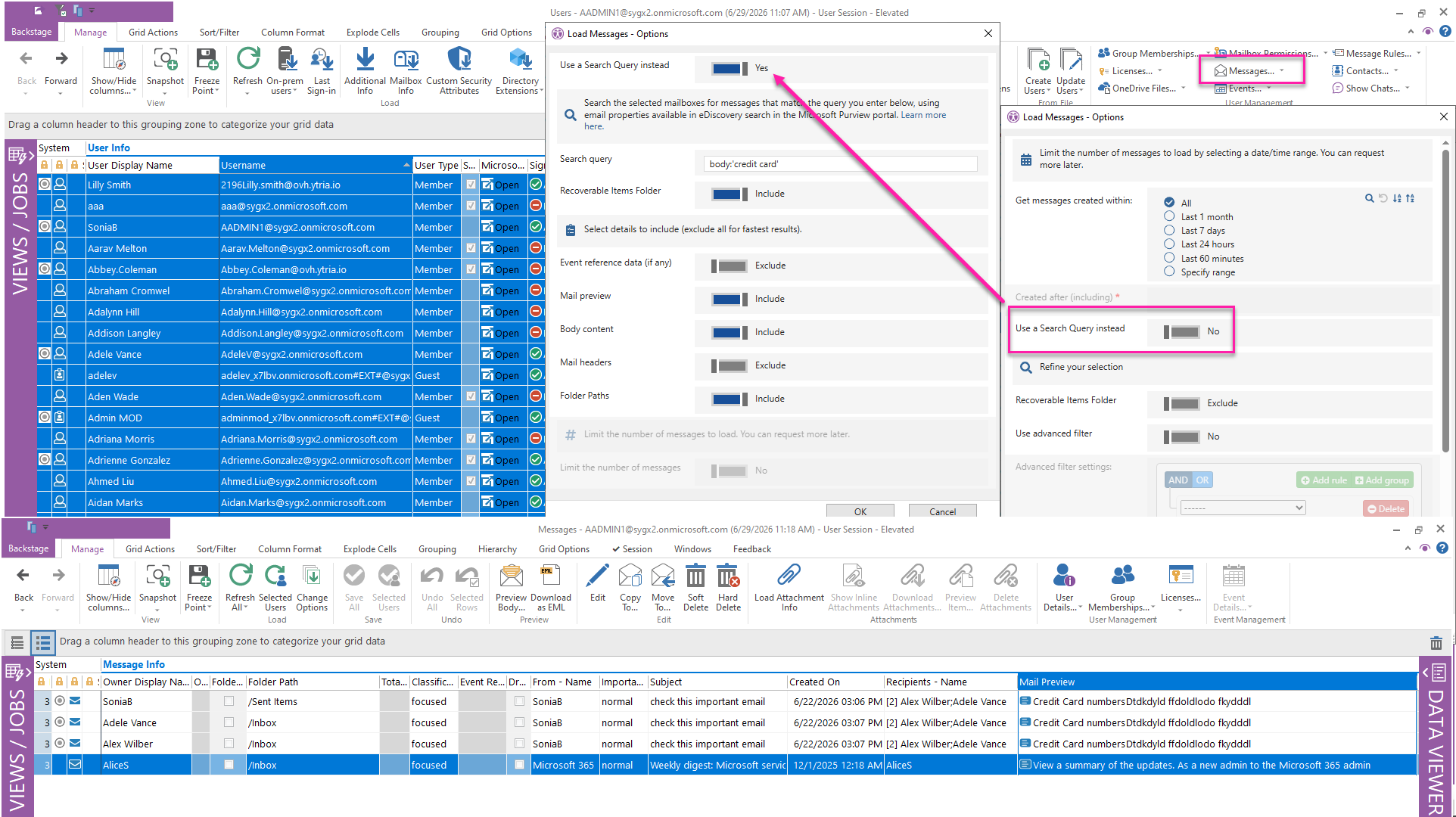
When loading users’ mailbox messages in sapio365, Microsoft 365 admins can now use a Search Query option to return only the messages that match specific criteria. The query uses the same email properties supported by eDiscovery in the Microsoft Purview portal, which makes it easier to perform focused mailbox investigations and content searches across selected mailboxes.
Turn the option on, enter your query, and run it against the mailboxes you selected to narrow results to the messages that matter most
New insights into internal vs external file sharing
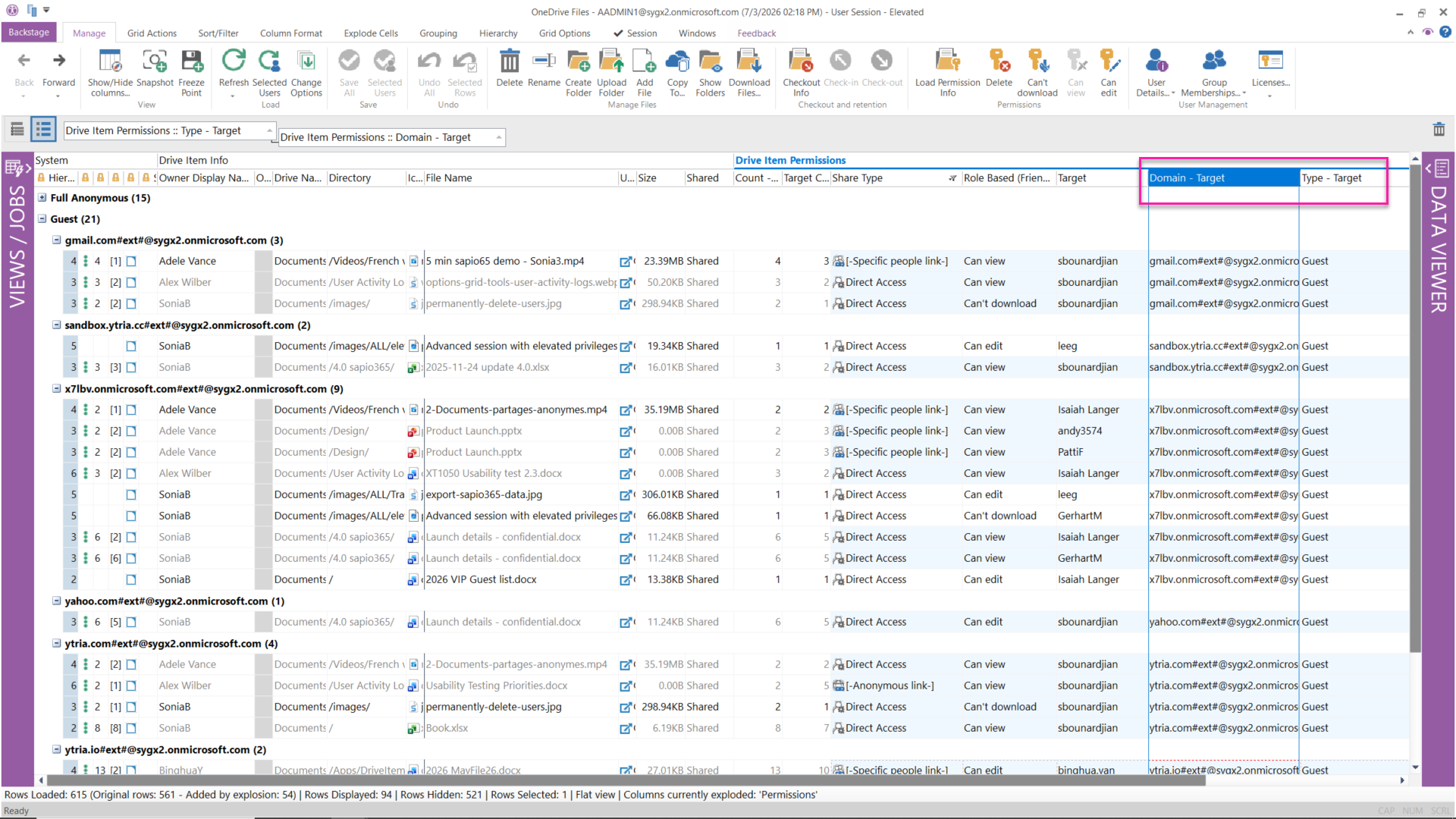
Building file sharing reports just got easier with the addition of two columns in the Files module that show whether a file was shared internally or externally as soon as you load its permissions. The new Target Domain column displays the domain of the user or group the file was shared with, while the new Target Type column uses that domain information to label external file sharing as Fully Anonymous when there are no specified targets, or as Guests when there are. Internal sharing is broken down by whether the target is a user, a group, or the entire organization (internal link). With a quick grouping by these two columns, you can see exactly which organizations have access to your files.
Get SharePoint and OneDrive file sharing permissions faster, with more precision
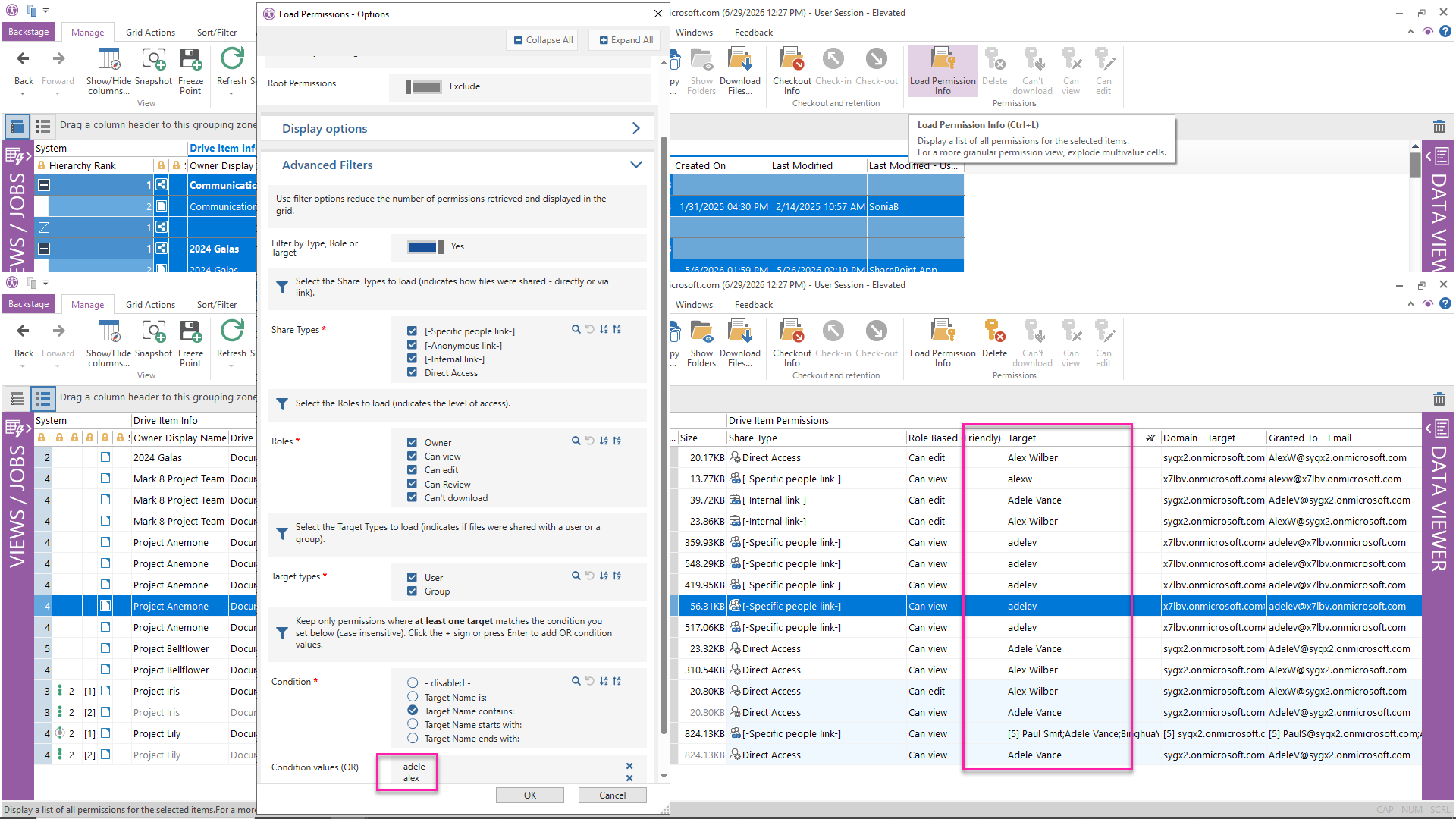
Speed up shared file reporting in sapio365 with more precise filters for SharePoint Online and OneDrive file permissions. Exclude inherited root permissions such as Members and Visitors to focus on non-standard sharing and surface the exceptions that matter.
Filter by sharing type, including direct shares, anonymous links, internal links, and specific people links, and by permission role to see whether users can view or edit a file.
You can also focus on specific users or groups that received access, while the target type and domain columns help you quickly identify internal versus external sharing.
See and update custom directory extension attributes for users and groups
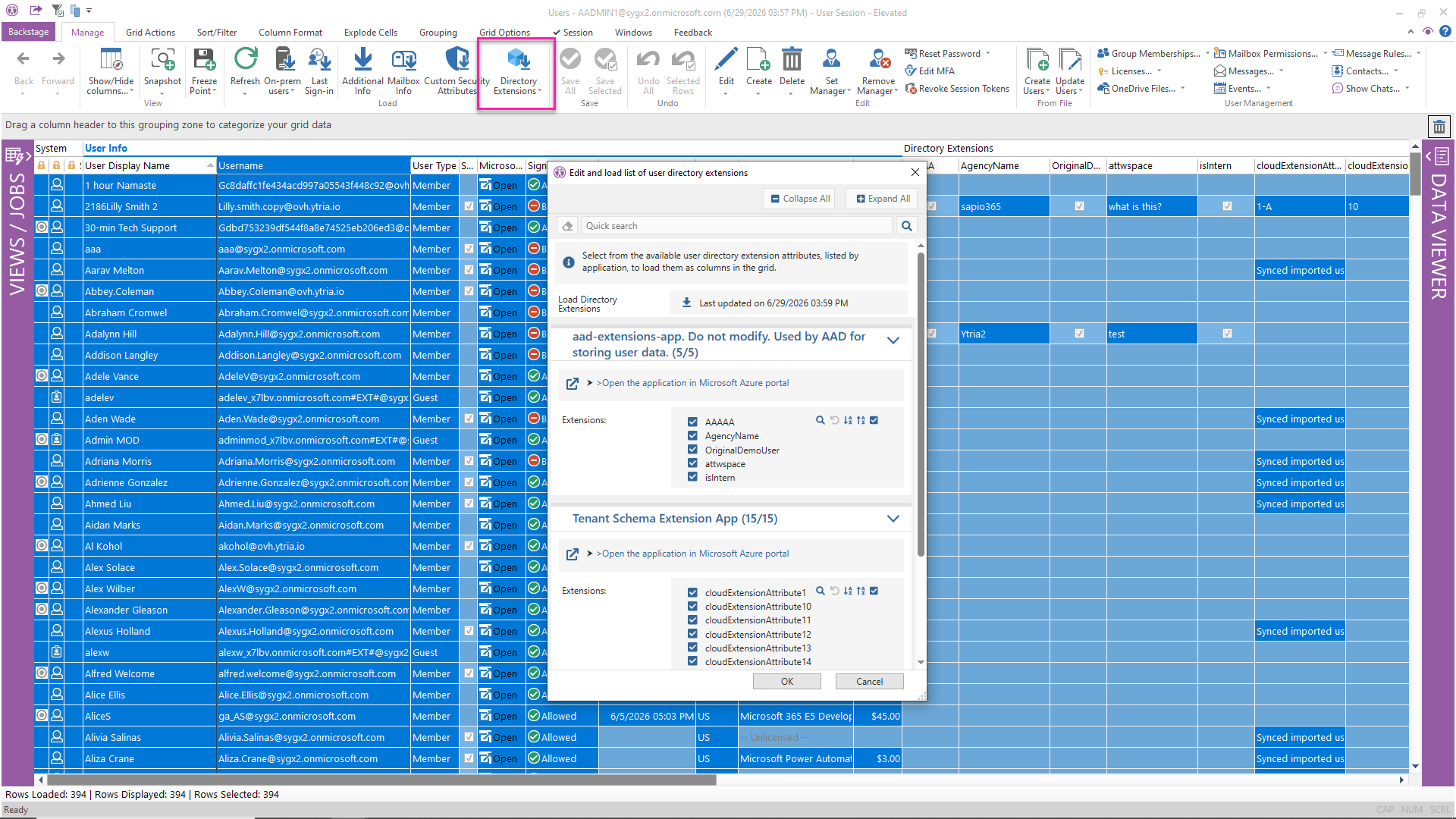
Bring custom Microsoft Entra directory extension attributes into the sapio365 grid for selected users and groups, making it easier to view and manage extended directory data in one place.
For supported cloud-managed values, admins can update the attributes directly in sapio365. For synced user attributes from on-premises Active Directory, you can still load the attributes to identify the correct attribute name and use the job ‘Edit custom on-premises attributes’ to update the values you need.
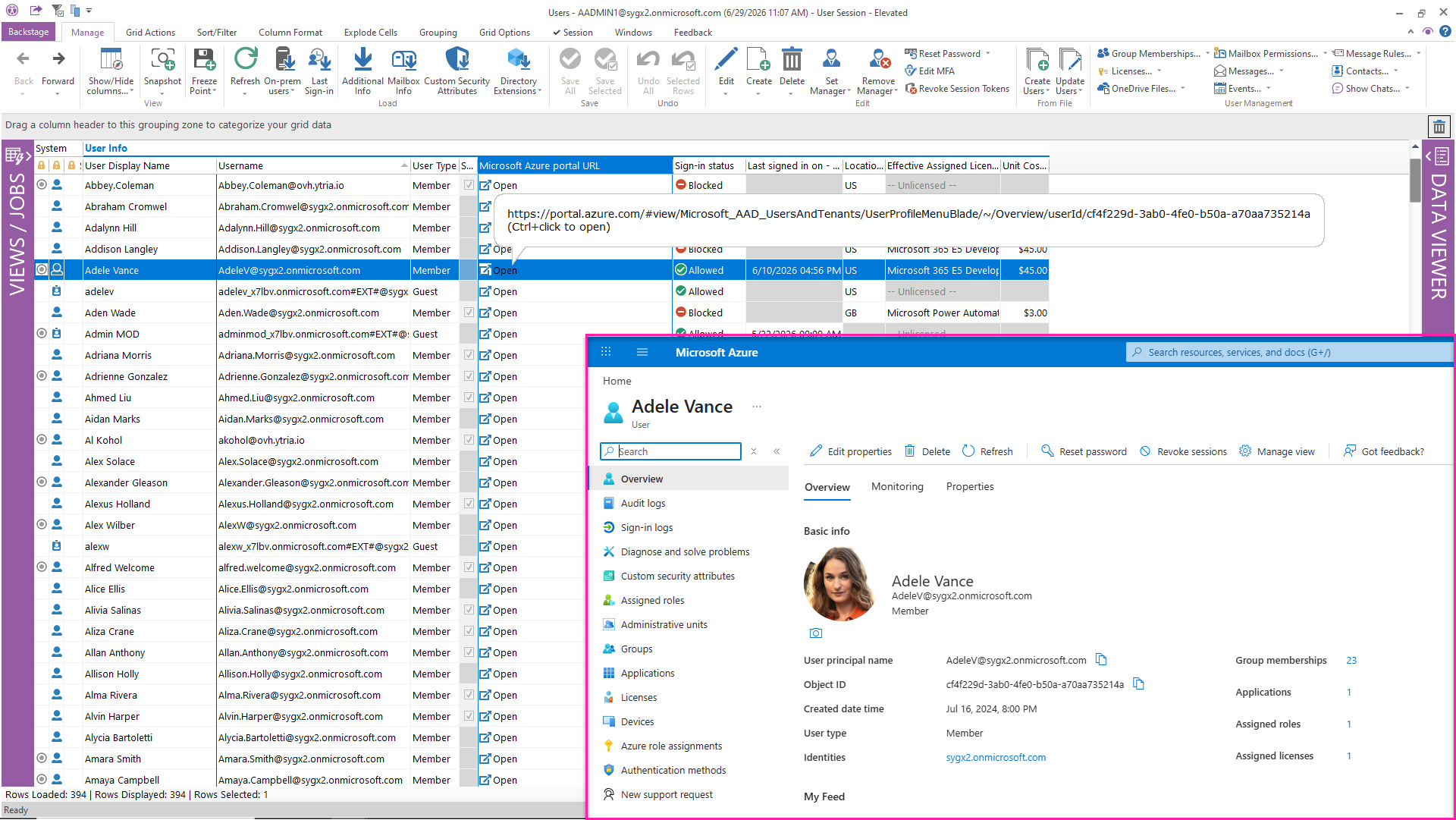
Open a user or group directly in the Microsoft Entra admin center
Jump directly from sapio365 to the selected user or group in the Microsoft Entra admin center using the new Microsoft Azure portal URL column. It’s a quicker way for Microsoft 365 admins to investigate directory objects without extra searching in the portal. Use Ctrl+click to open the link in your default browser.
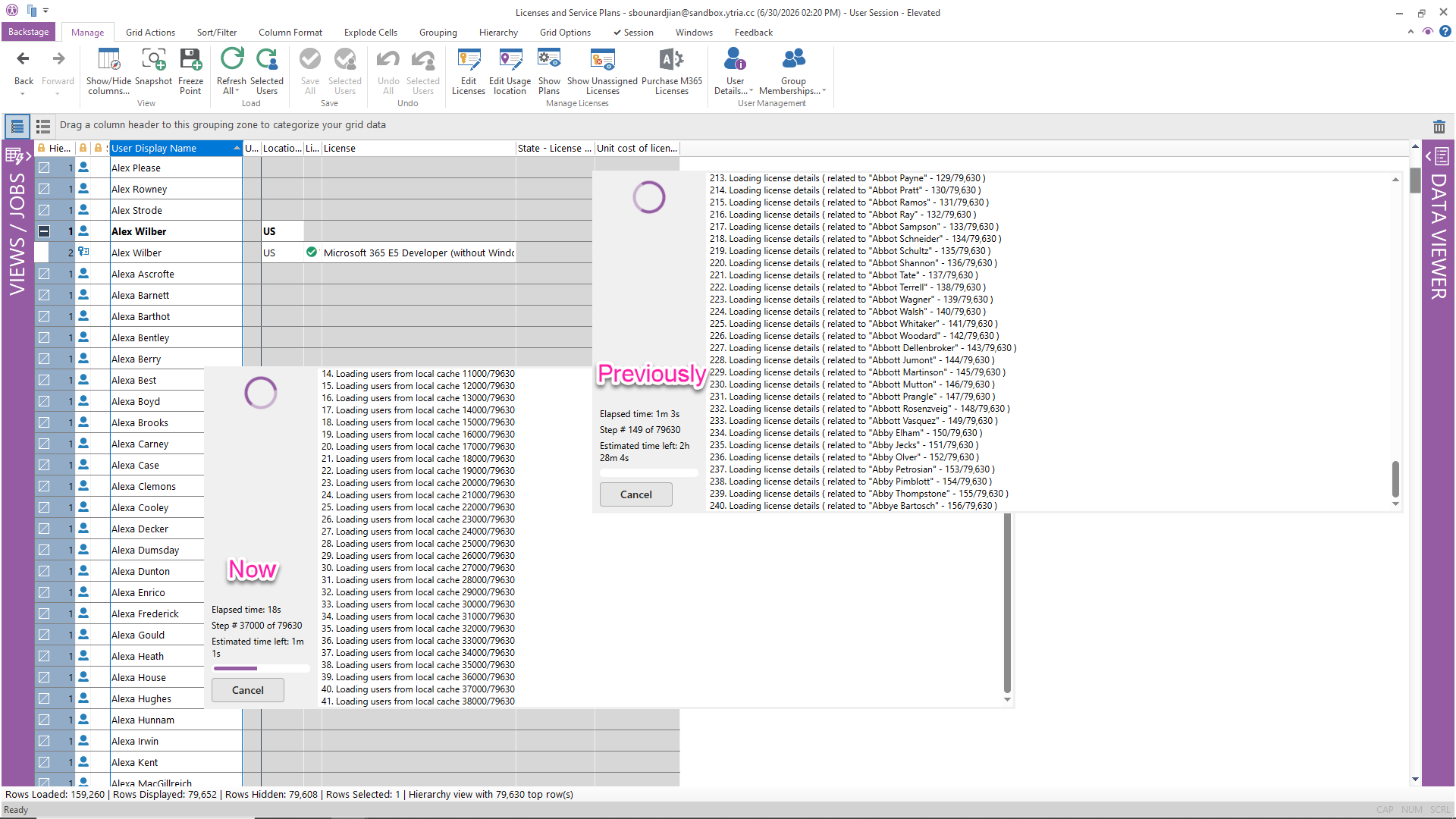
A lighter User License grid for faster Microsoft 365 license management
sapio365 now skips users with no assigned licenses when loading the User License grid, which speeds up loading and reduces grid size. For Microsoft 365 admins managing large numbers of licensed users, that means a cleaner view and easier license assignment work at scale.
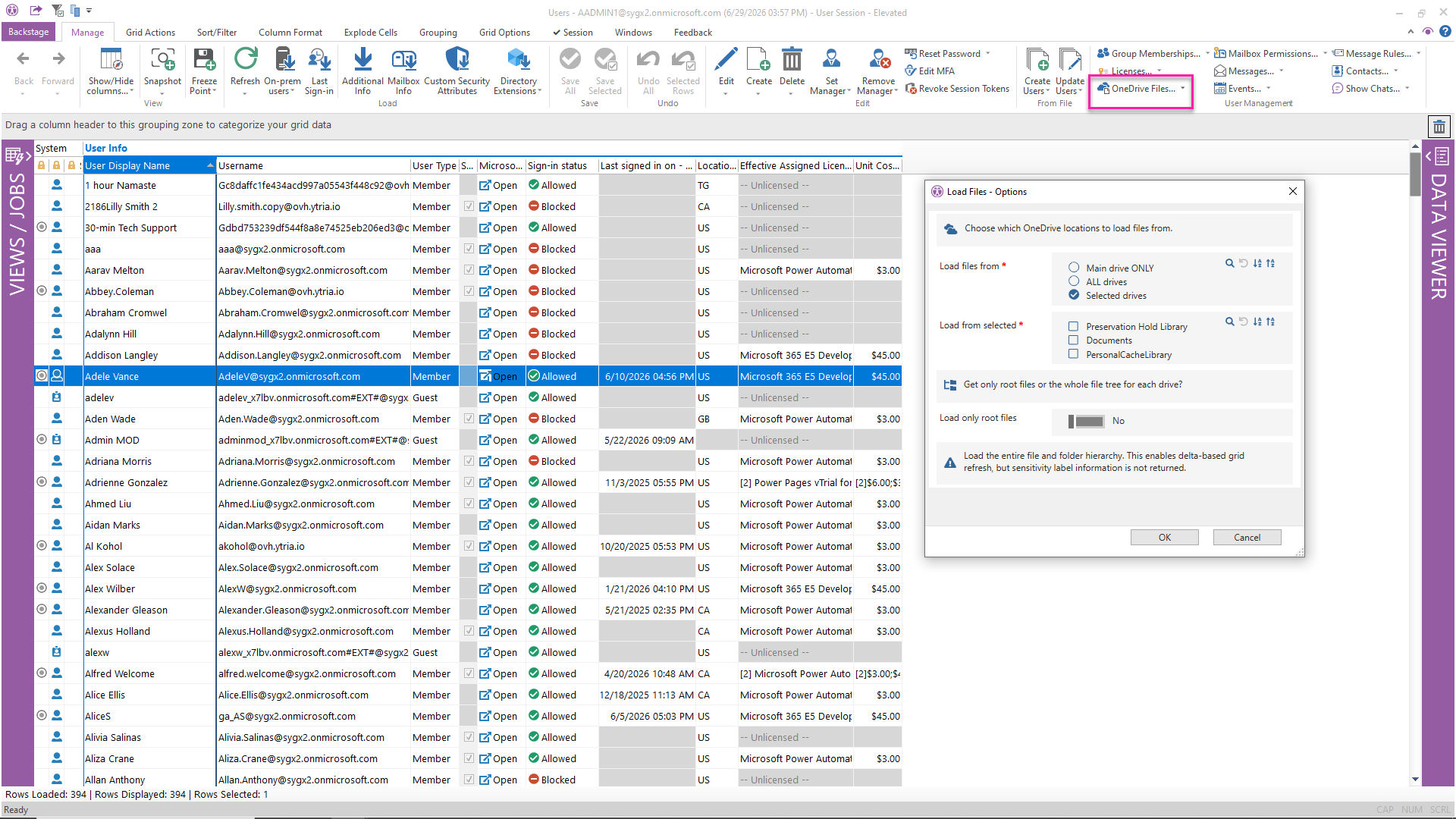
Choose exactly which SharePoint or OneDrive drives to load
sapio365 now gives Microsoft 365 admins more control when loading files from SharePoint Online and OneDrive. For a single site or OneDrive, you can choose which drives to include, while multi-site and multi-user loads still support the existing default-drive or all-drives options.
When you load the full file and folder hierarchy, sapio365 also uses a faster delta-based grid refresh for follow-up loads. However, sensitivity label information is not included with that option.
See when service principals last signed in and remove inactive ones
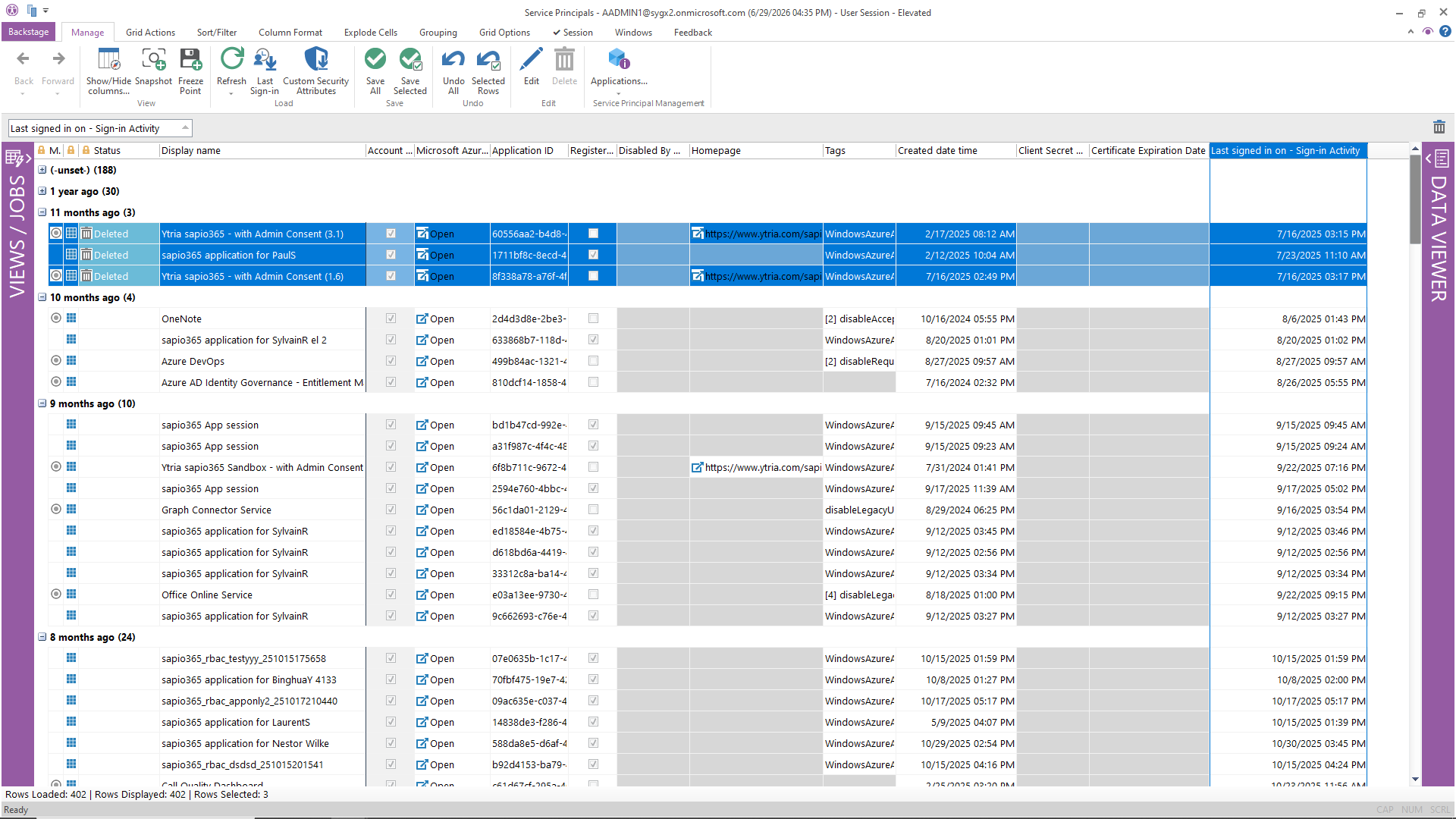
sapio365 now makes Microsoft Entra service principal cleanup easier by adding a Last Sign-in column you can load on demand, helping Microsoft 365 admins spot inactive or unused service principals faster.
Once identified, unneeded service principals can be deleted directly from sapio365 to streamline tenant hygiene and application governance.
Look up registered applications faster and manage them with more context
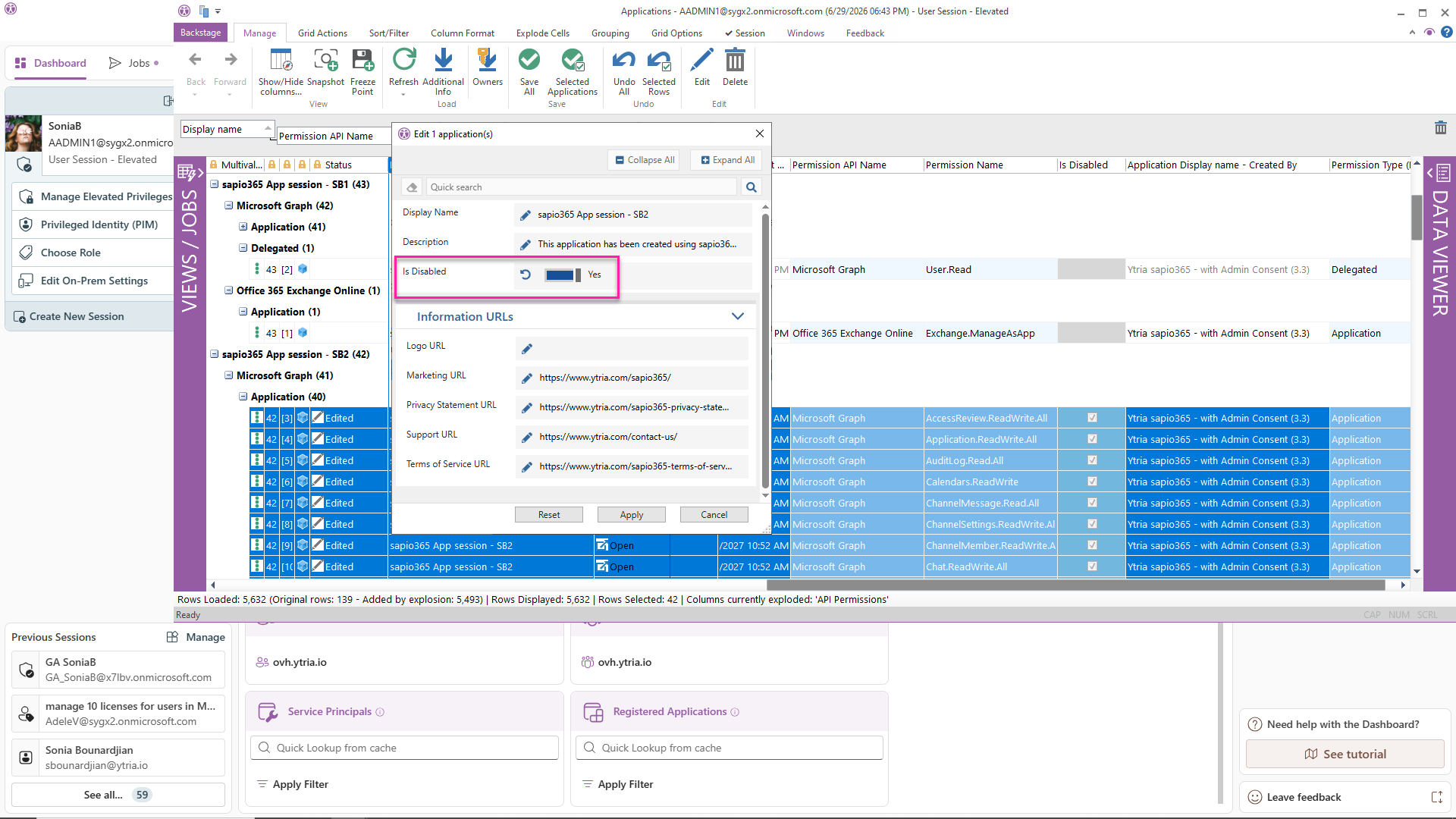
sapio365 improves Microsoft Entra app registration management by enabling faster lookups, clearer ownership details, and better permission visibility for Microsoft 365 admins.
You can now activate or deactivate registered applications directly, use cached Quick Lookup results to search faster, and see who created each application through the new ‘Application Display name – Created By’ and ‘Application ID – Created By’ property columns. The Registered Applications view also shows the friendly name of each permission API alongside its permission API ID, making application permissions easier to review and understand.
Load SharePoint Online subsites in elevated, app, and role sessions
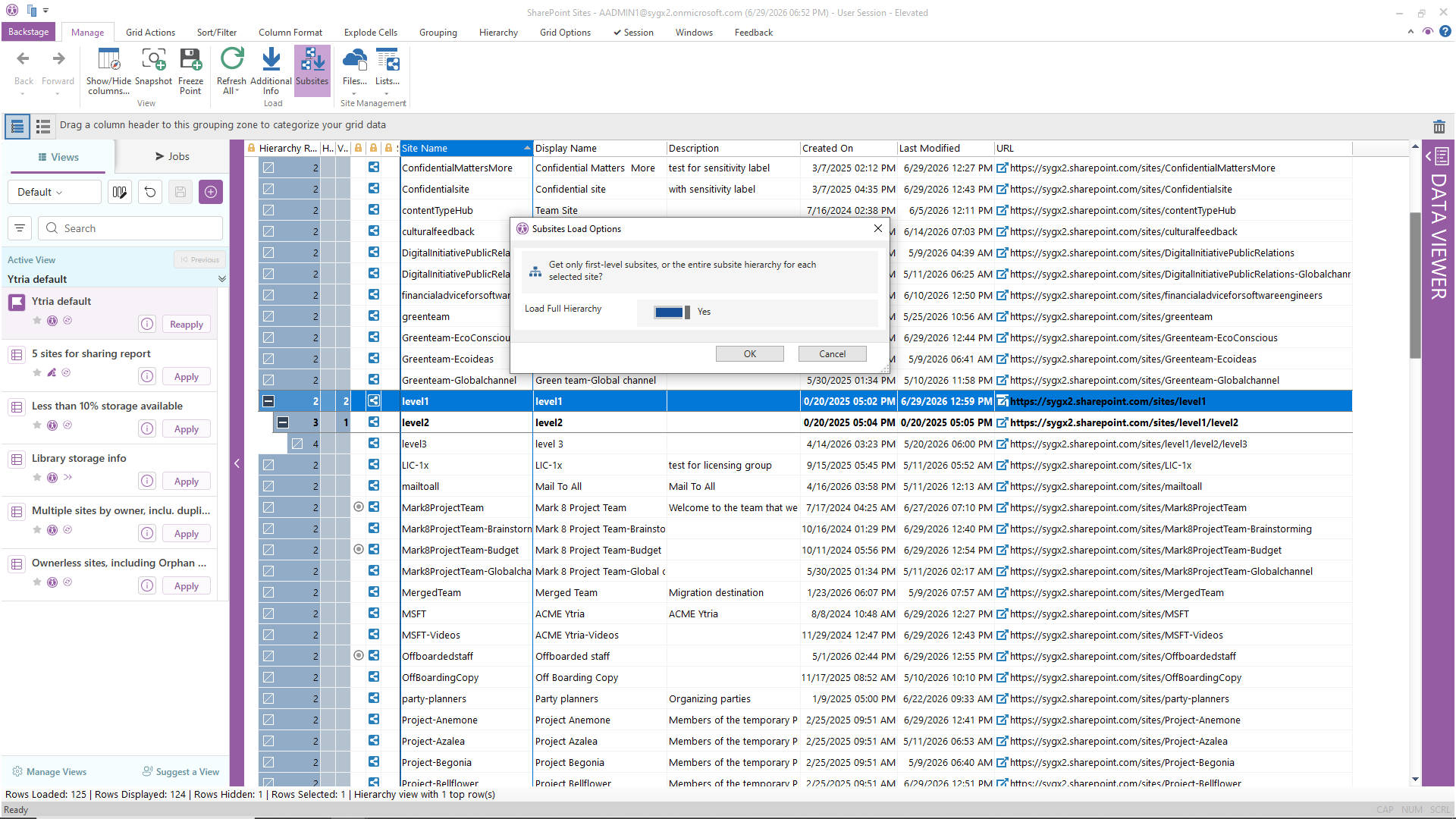
sapio365 expands SharePoint Online subsite access by letting Microsoft 365 admins load subsites in elevated, app, and role sessions. That makes it easier to inspect and work with SharePoint site hierarchies across different administrative and application-based contexts. You can load either the full subsite hierarchy or just the first level, depending on the scope you need.
See when each MFA authentication method was last used
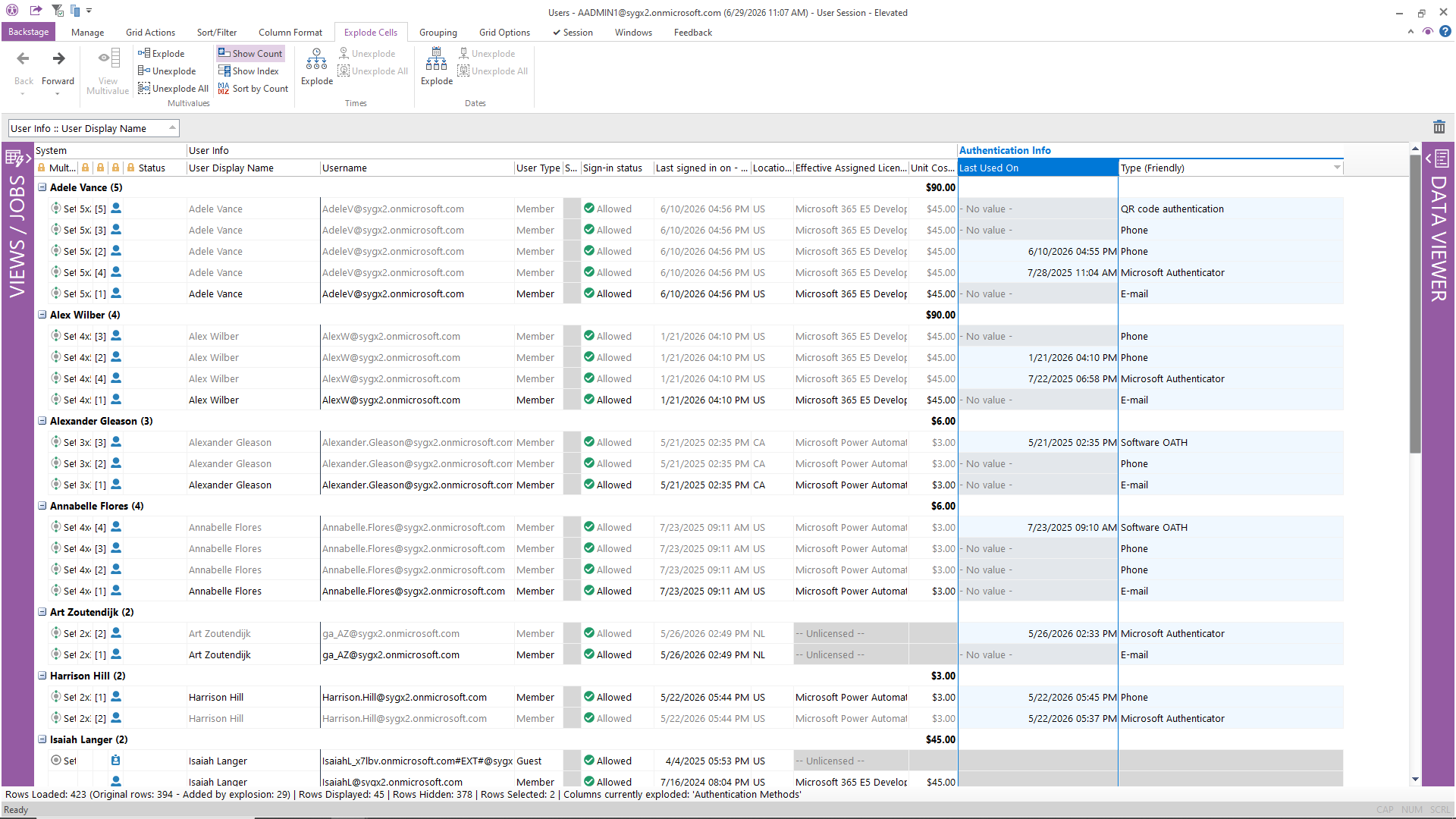
sapio365 now adds the ‘Authentication Info :: Last Used On’ property to user views, helping Microsoft 365 admins see when each MFA authentication method was last used for sign-in activity.
It’s a useful way to spot stale or rarely used MFA methods, review authentication behavior, and strengthen Microsoft Entra authentication security across your tenant.
Identify groups with Viva Engage communities in one click
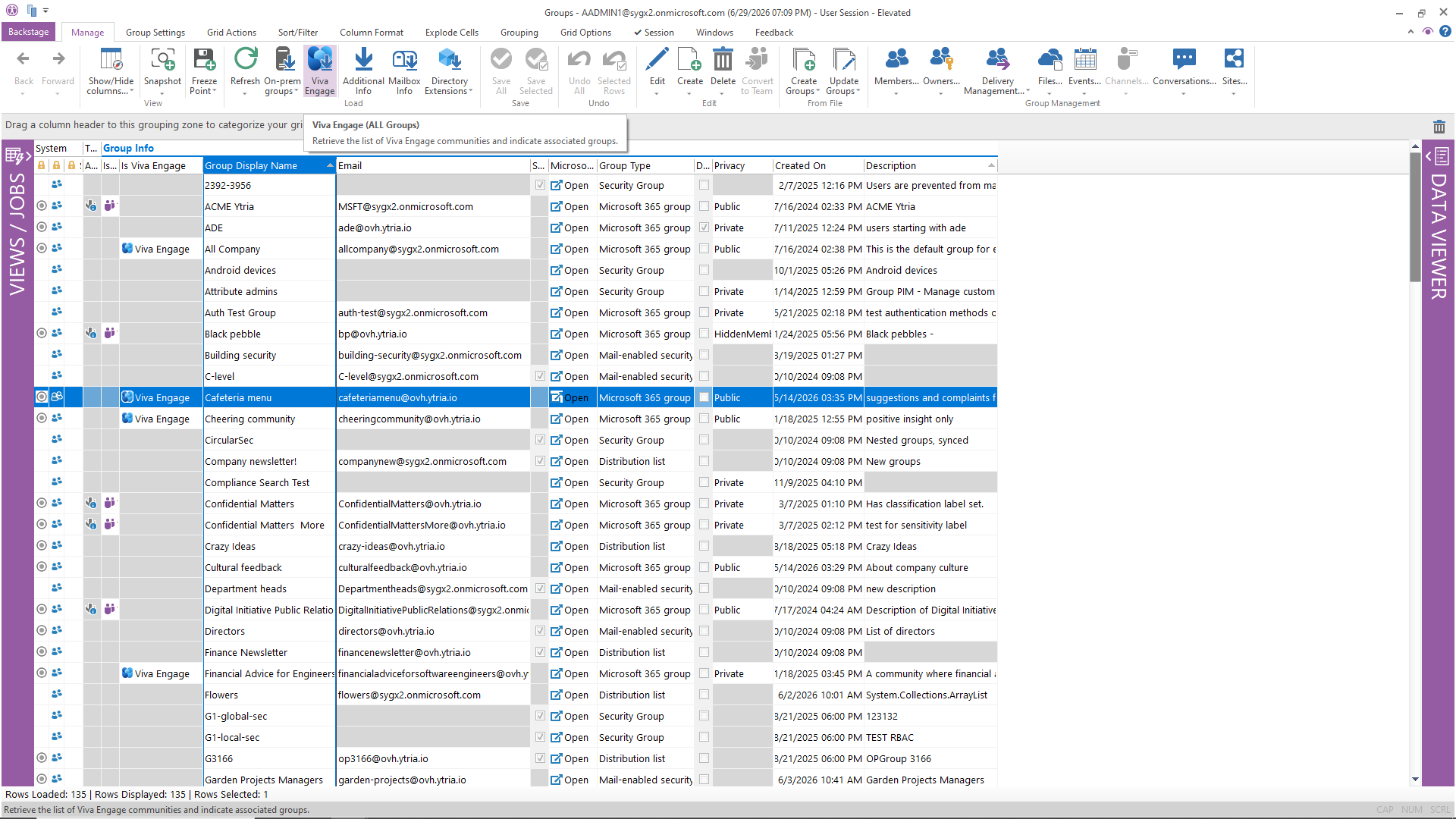
Groups with Viva Engage communities are now easier to spot in sapio365 thanks to a dedicated Viva Engage button on the Load ribbon. Instead of running Viva Engage lookups on selected groups only, this button retrieves Viva Engage data for all groups in a single operation, making it faster to identify which Microsoft 365 groups are backed by Viva Engage communities.
Manage on-prem users and groups from unrelated domain connections
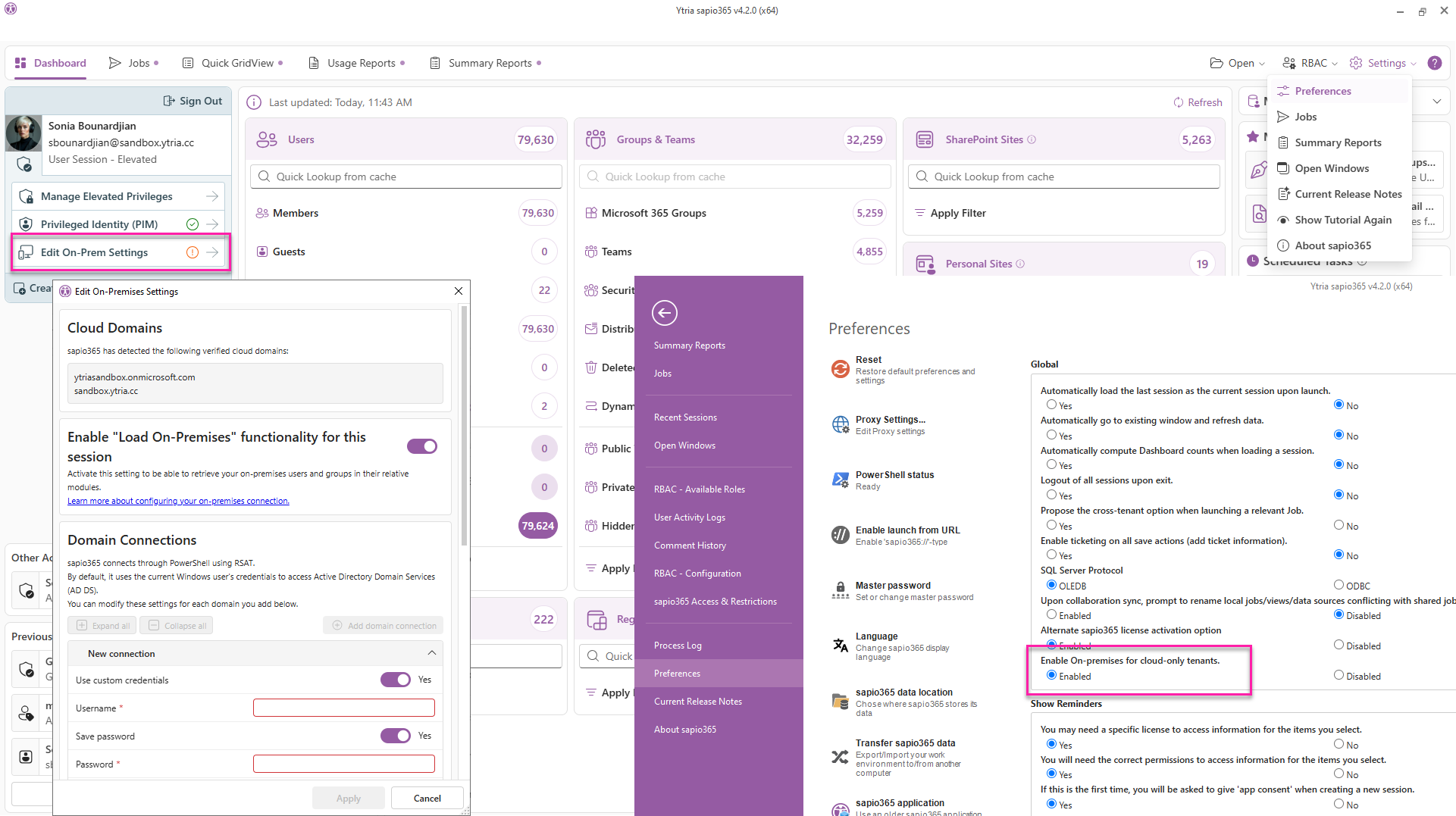
A new ‘Enable On-premises for cloud-only tenants’ preference lets you add on-premises Domain Connections even when you’re working in a cloud-only tenant session, a capability that was previously limited to hybrid tenants. This makes it easier to manage on-premises users and groups from sapio365, even when the domains are not directly tied to the tenant.
Filter from the rows you select
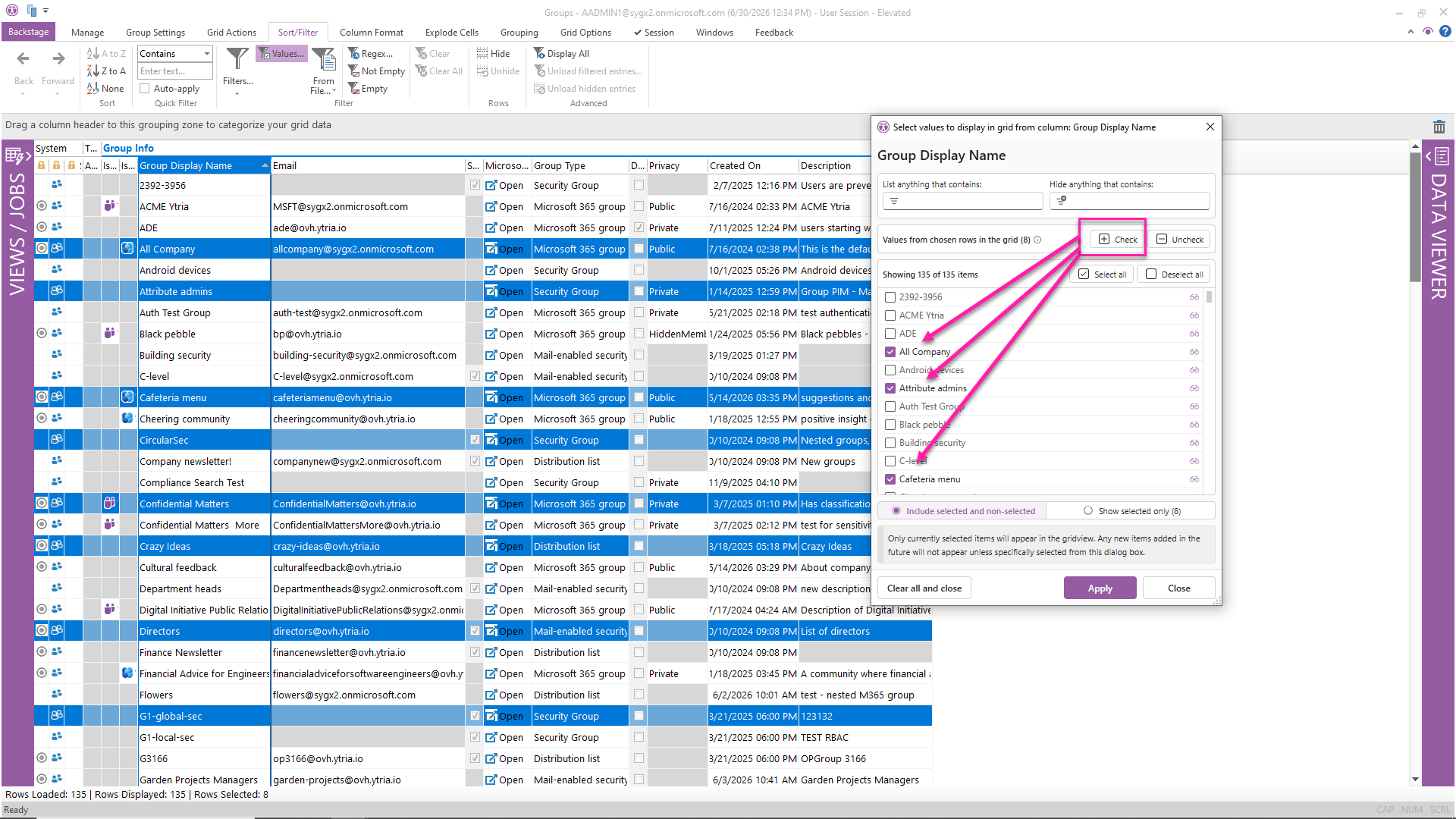
sapio365 simplifies grid filtering by letting you work directly from the rows you already selected. Open the value filter dialog, confirm how many rows are selected, and apply the filter without the extra reverse-selection step.
Better multivalue data analysis and management
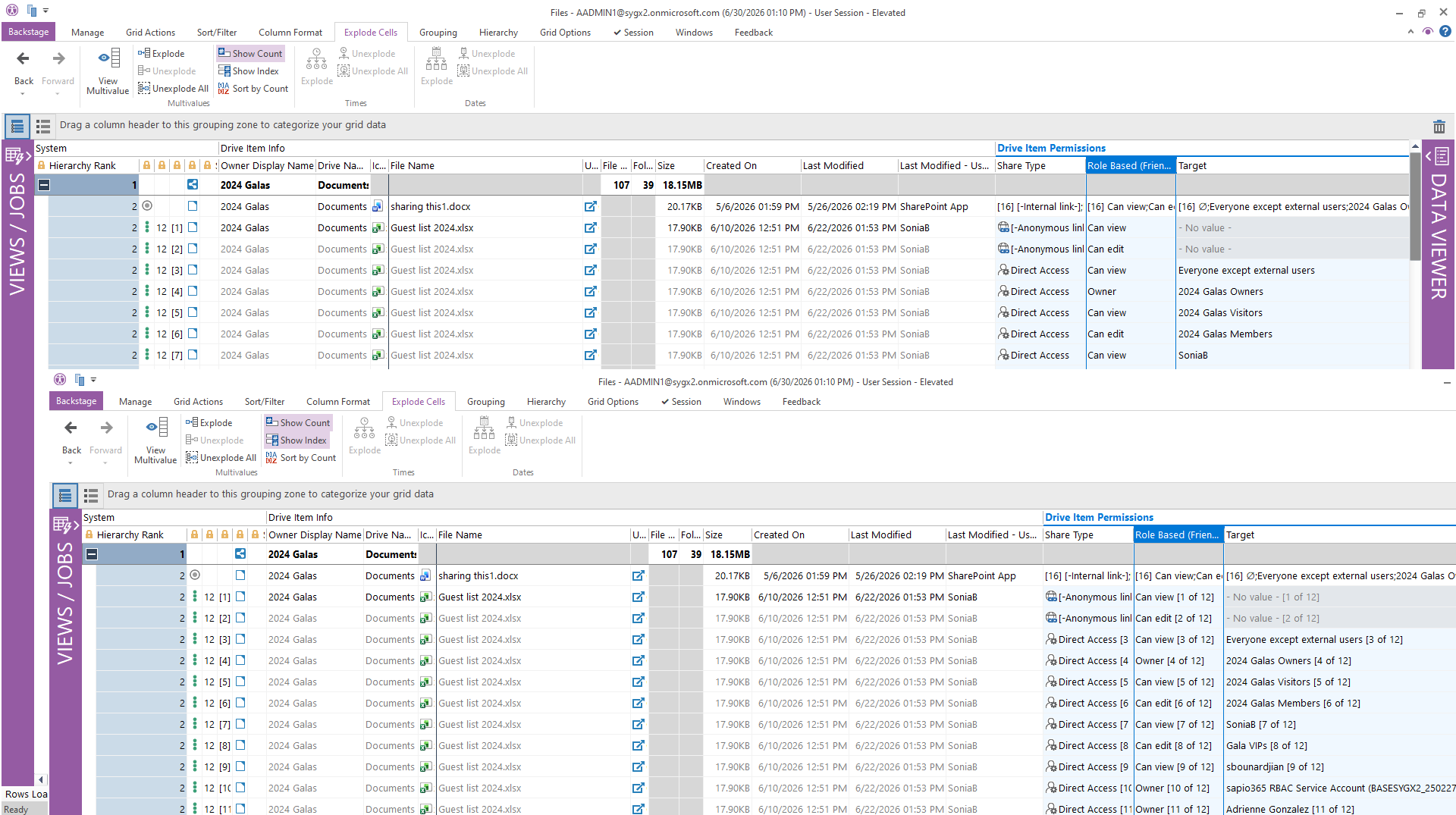
sapio365 adds easier multivalue controls to the Explode Cells ribbon with new ‘View Multivalue’ and ‘Show Index’ buttons. You can now open multivalue data faster from the ribbon, show the index for each exploded value, and use ‘Show Count’ to display how many values are stored in an unexploded cell.
That makes complex data such as file permissions and license assignments easier to inspect and understand in the grid.
Labeled side panels make sapio365 easier to learn
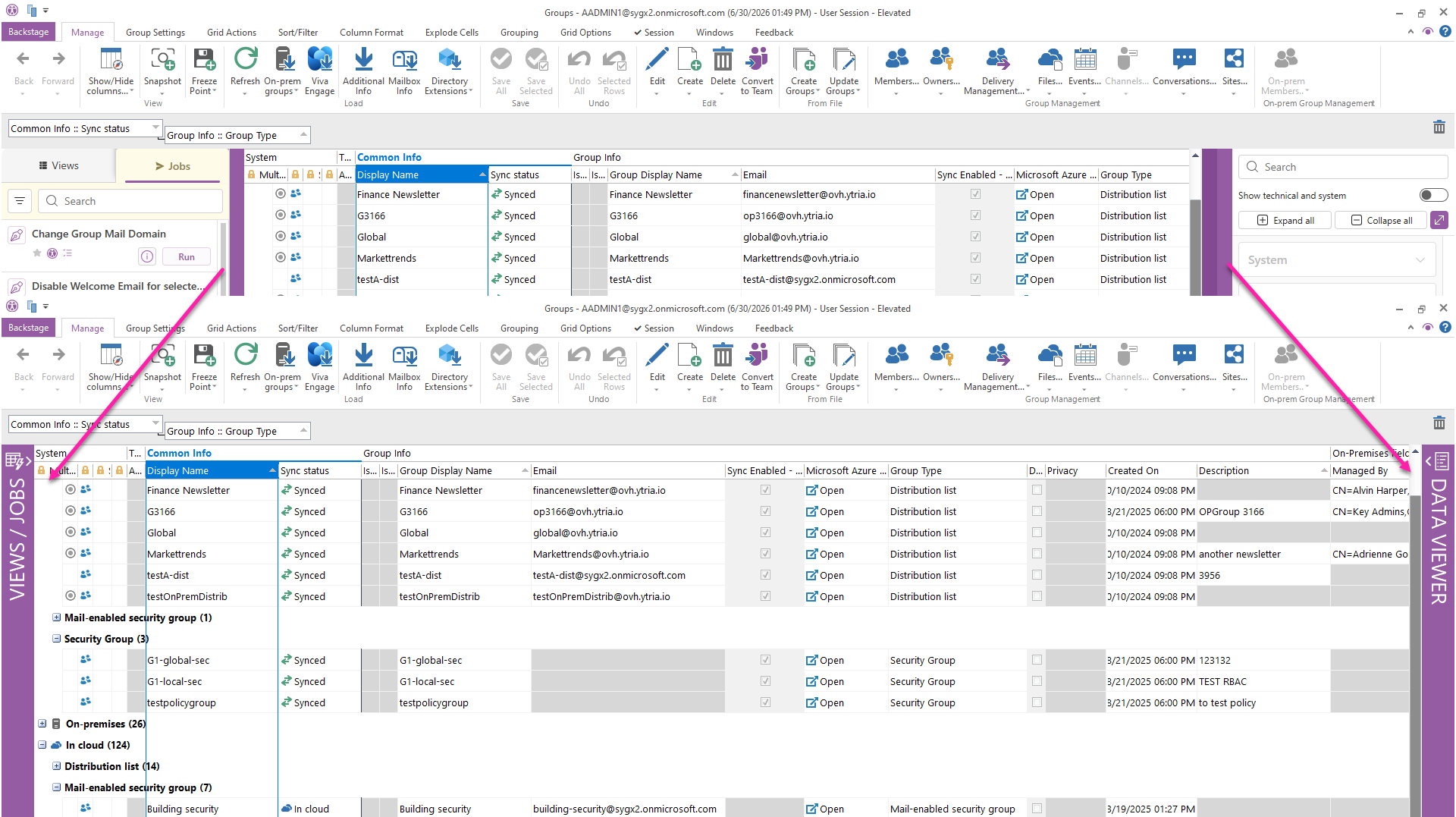
sapio365 now labels the closed grid side panels directly, making it easier for new and returning users to understand what is available at a glance. The Data Viewer and Views/Jobs bands are now labelled on the panels themselves, making each area easier to recognize before opening it.
Easier sapio365 RBAC scope configuration
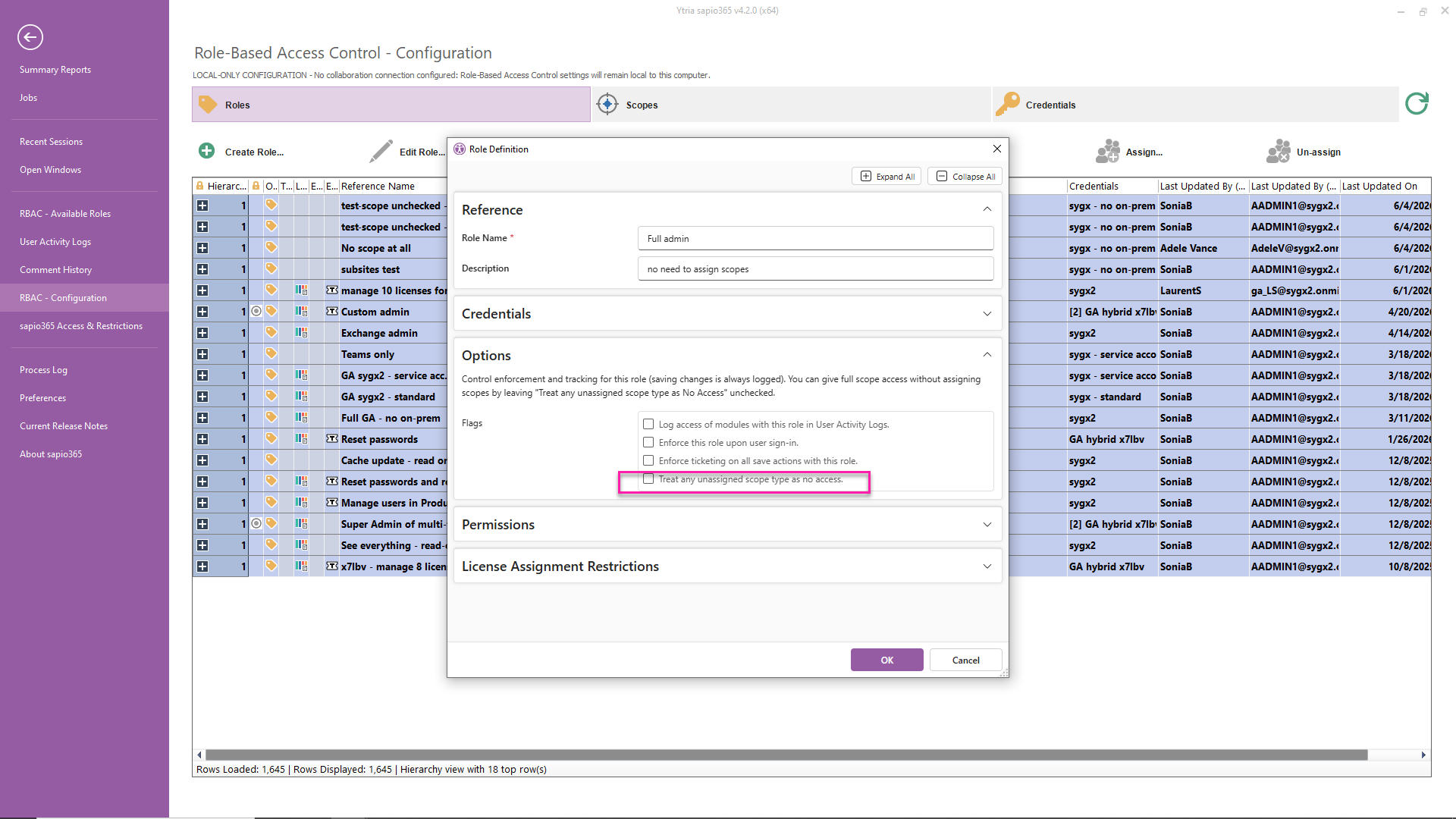
sapio365 now makes it easier to create broad-access RBAC roles by allowing full-scope access without explicit scope assignments. Simply leave ‘Treat any unassigned scope type as No Access’ unchecked to allow the custom role to apply across all unassigned user, group, and site scopes. That reduces RBAC setup effort while making role configuration faster and easier to understand.





Submit a comment