
How to Audit Entra Dynamic Groups for the Retiring memberOf Rule

Microsoft is retiring the memberOf rule operator in Microsoft Entra ID on November 3, 2026. If your organization uses this rule in dynamic groups, you need to identify the affected groups, understand what they control, and replace their rules before automatic membership updates stop.
This may seem like a one-time cleanup task. It’s also a good opportunity to create a repeatable Entra dynamic group audit process. That process can help you review group rules, ownership, membership, and processing health long after the memberOf deadline has passed.
The Problem: memberOf Rules Must Be Replaced
The memberOf operator lets an Entra dynamic group include users or devices according to their membership in another group. This convenient way to create group-based membership is being retired on November 3, 2026, so any affected dynamic groups need a new rule before automated membership updates stop.
After the retirement date, groups using this rule can keep their last calculated membership. This means that users or devices that should be added may not receive the right license, access, or policy. And those who should be removed could retain access.
Your first step is to report every dynamic group that contains memberOf. Then you can review what each group controls and prepare a replacement rule.
Solution 1: Audit Dynamic Rules with Entra and PowerShell
For a quick manual check, open the Microsoft Entra admin center, then go to Entra ID > Groups > All groups.
Apply a filter for dynamic membership to see your dynamic user and device groups. Open a group, then review the Dynamic membership rules section to see whether its rule contains memberOf.
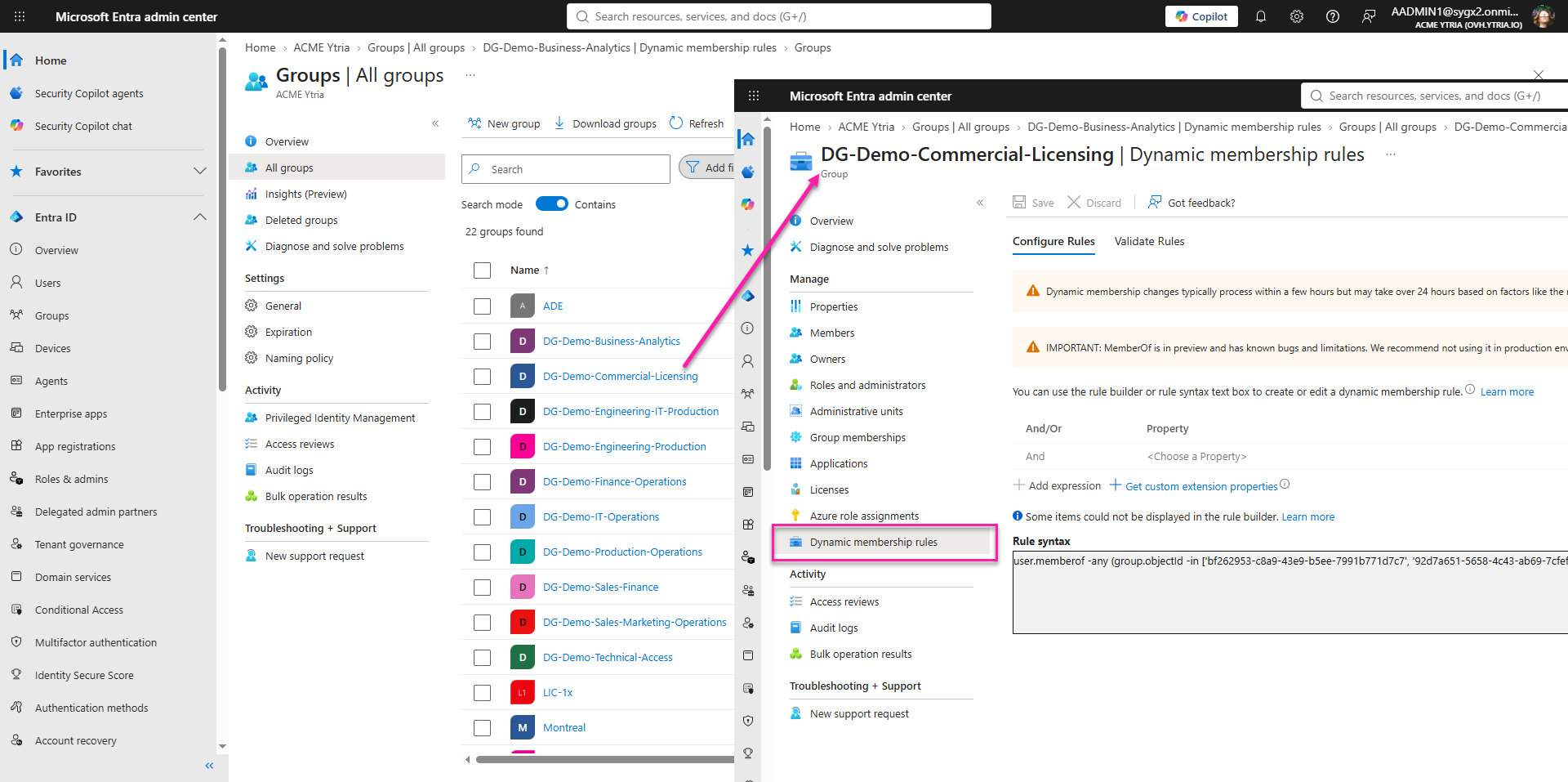
This method works for a small environment or a quick spot-check. However, it is difficult to scale. You need to open groups one at a time, inspect each rule manually, and record your findings separately. That takes time and increases the risk of missing a group.
For a tenant-wide Entra dynamic groups report, Microsoft Graph PowerShell is a more scalable native option. The following example finds groups with a membership rule that contains memberOf:

You can export the results to CSV and use that report to plan remediation for each affected group.
However, PowerShell reporting is only the first step. You still need to investigate what each group controls, identify an appropriate replacement rule, and update the groups. You may also need separate scripts to make bulk changes, export results, and schedule regular audits.
For future reviews, you will need to maintain the script, test it after changes, and arrange a recurring process to generate and distribute the report.
Solution 2: Make Dynamic Group Audits Easier with sapio365
Instead of maintaining scripts and repeatedly combining CSV exports with spreadsheets, Microsoft 365 admins can use sapio365 to review, organize, report on, and update Microsoft 365 data from one interface.
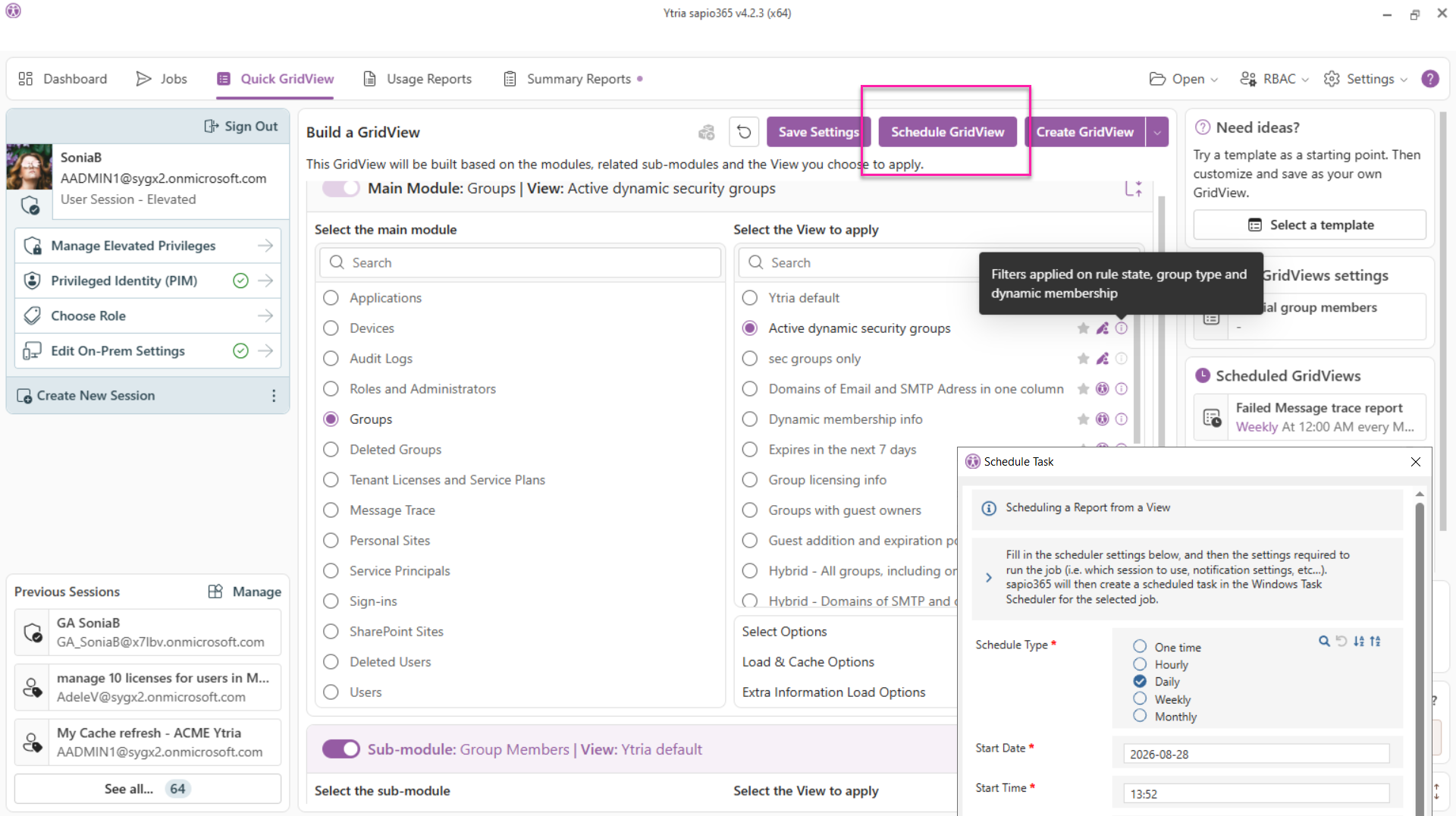
sapio365 lets you load Entra groups, view group properties such as dynamic membership rules and owners, filter the data, export results, and take action directly. This makes it easier to create a reusable Entra dynamic group report for the memberOf retirement project and for ongoing governance.
Create a Custom Dynamic Group Report
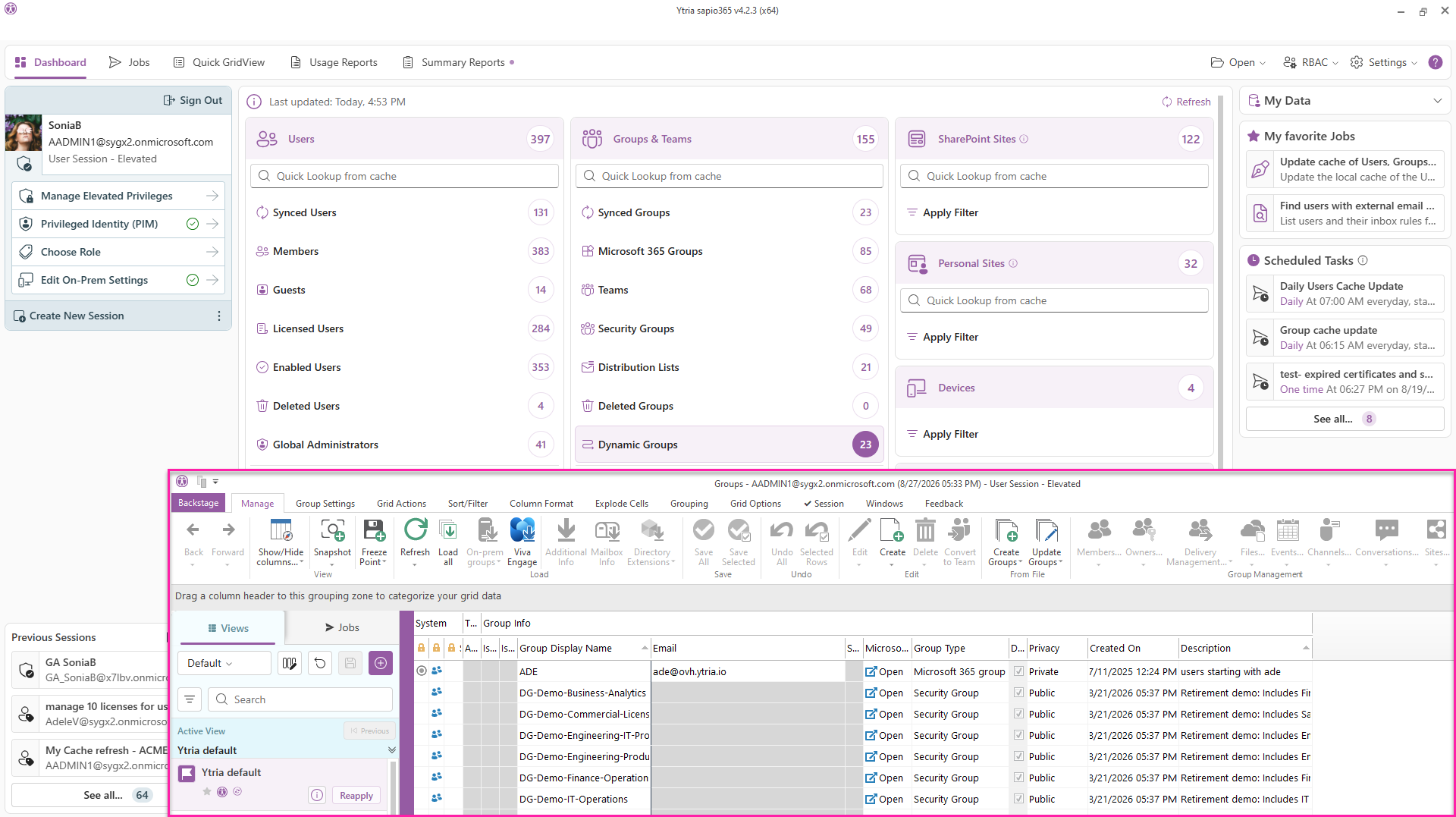
The sapio365 Dashboard already shows your Entra dynamic group count, making it an easy place to start.
Load your dynamic groups to see the full list, including basic properties such as group type and creation date.
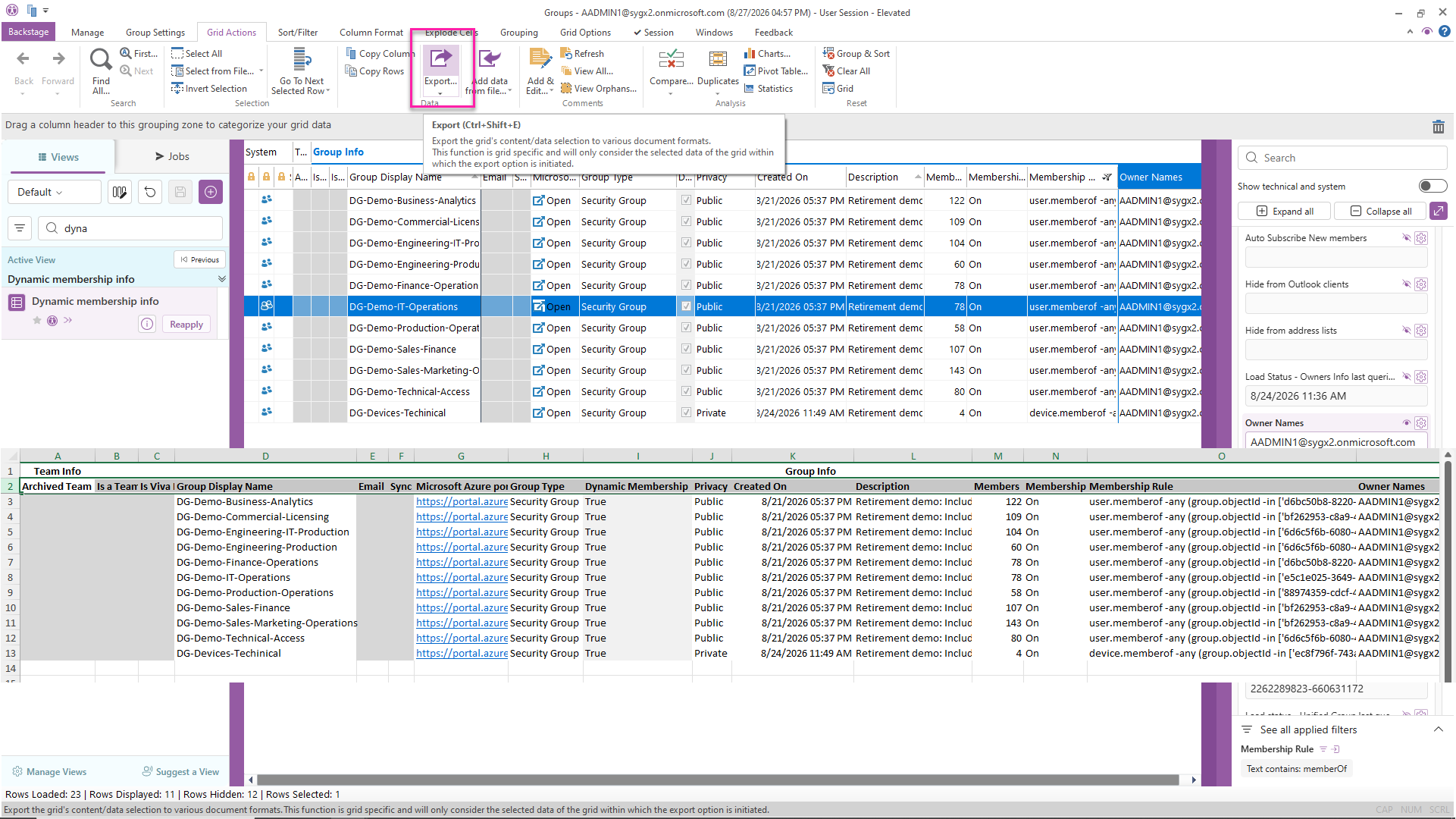
Add the group details you need to the GridView, such as the membership rule, processing state, owners, and member count. Then filter the Membership Rule column for memberOf and export the affected groups to Excel.
You can save this filtered view and reuse it later for future Entra dynamic group audits.
Update Dynamic Rules in Bulk
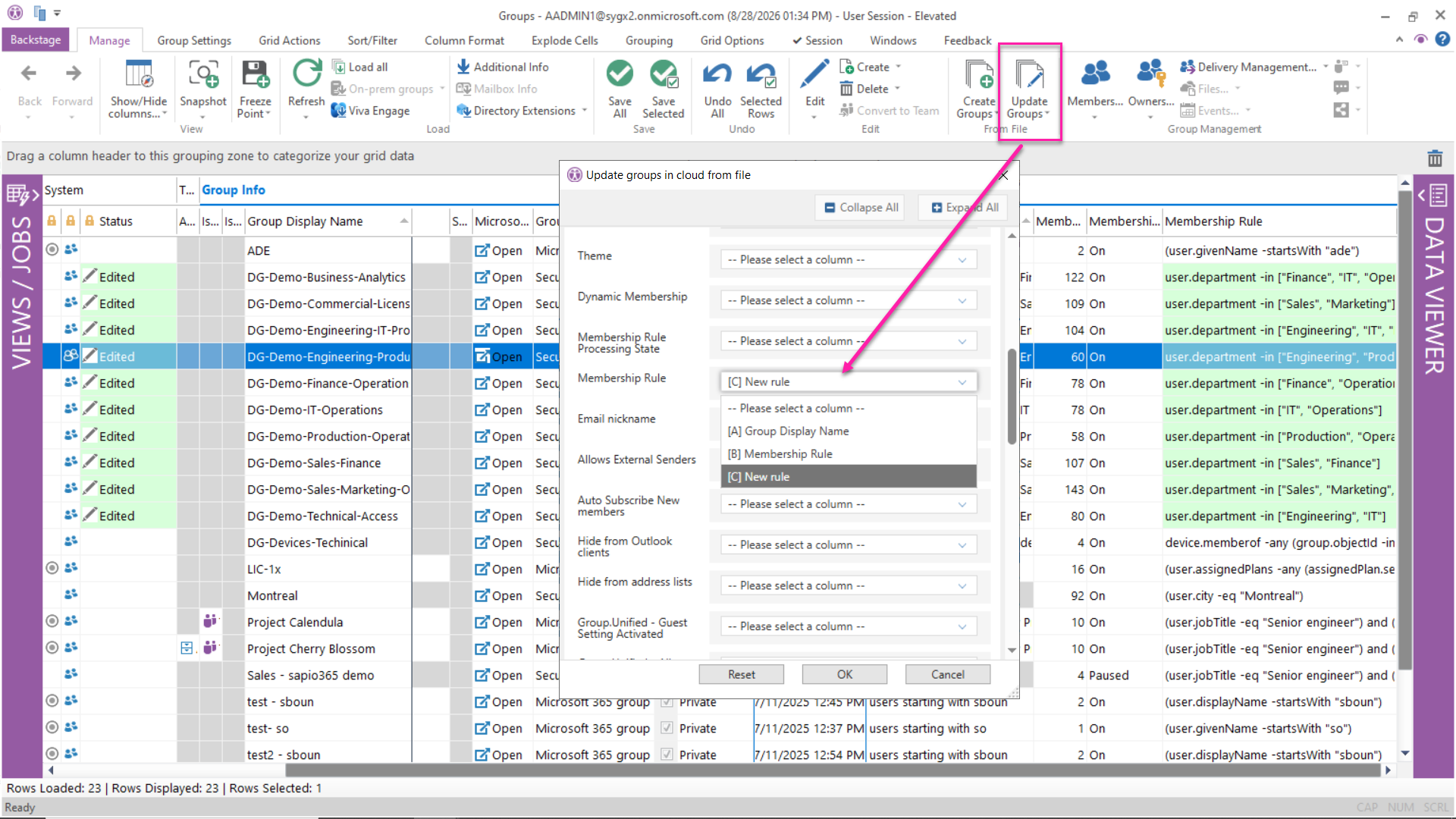
After you identify the affected groups, export the report to Excel and add a column for the replacement rule. For example, you can replace a memberOf rule with an attribute-based rule if a reliable user or device attribute identifies the same members.
Use the exported Excel file to prepare the new rules for each affected group. Then use sapio365 to update the dynamic membership rules across multiple groups at once.
Before applying the updates, sapio365 provides a preview so you can review the proposed changes and confirm that they are correct.
Create and Schedule Unlimited Custom Reports
The memberOf retirement may only require a one-time report. However, the same process can help you create as many custom Entra dynamic group reports as you need in the future.
For example, you might save separate views to review dynamic groups by membership type, groups with specific rule operators, groups without owners, or groups with membership-processing issues.
With sapio365 Quick GridView, you can schedule each view as a recurring report, with the Excel file delivered automatically to the people who need it.
You can also create a separate custom view for the members of the groups in a saved group report. This makes it easier to monitor group membership over time and support recurring access reviews.
Entra Dynamic Group Audits: Native Tools vs. sapio365
Both Microsoft Entra and PowerShell can help you find dynamic groups that use the retiring memberOf rule. However, sapio365 makes it easier to turn that one-time task into a repeatable reporting and remediation process.
The table below compares the native approach with sapio365 for auditing, updating, and monitoring Entra dynamic groups.
| Task | Entra admin center | Microsoft Graph PowerShell | sapio365 |
|---|---|---|---|
| Find memberOf rules | Open and inspect groups individually | Use a custom script to filter dynamic membership rules | Filter the Membership Rule column in a visual group report |
| Review all dynamic groups | Manual, group-by-group review | Retrieve and format properties in code | Load and review group properties in one GridView |
| Export results | Manual collection or limited export options | Create and maintain CSV export logic | Export filtered data to Excel in a few clicks |
| Investigate group details | Open each group separately | Expand the script with more properties | Add owners, rules, descriptions, member counts, and other properties to the report |
| Prepare replacement rules | Track changes in a separate file | Build or adapt another script | Add replacement rules to the exported Excel file |
| Update multiple groups | Update groups individually | Create, test, and maintain bulk-update scripts | Preview and apply bulk updates from the file |
| Save a reusable audit view | Not available as a custom reporting workflow | Save and maintain scripts | Save custom GridViews with selected columns and filters |
| Schedule recurring reports | Manual review required | Set up and maintain external scheduling | Schedule saved reports and automatically email exported Excel files |
| Best fit | Small, one-time checks | Administrators comfortable maintaining scripts | Ongoing audits, remediation projects, reporting, and bulk administration |





Submit a comment