
sapio365 4.0: Fresh Design, Powerful New Features

Experience the all-new sapio365 4.0, featuring a modern interface and powerful enhancements
Curious about the all-new features and enhancements in sapio365 version 4.0? You’ll love that now you can activate PIM straight from sapio365, manage data from multiple on-prem domain connections in one unified view, and schedule your tasks seamlessly—no more PowerShell authentication interruptions.
The upgraded Data Viewer makes it a breeze to filter, sort, group, and analyze any property, giving you instant clarity into every active filter in one spot. Plus, thanks to user feedback, managing distribution list senders, organizing device groups, and copying files with full version history are easier than ever—and there’s so much more waiting for you to explore!
Watch the video below for an in-depth look at the latest features in sapio365 4.0.
Scroll down to see highlight details or click on the links below:
- Manage data on multiple on-premises Domain Connections (hybrid AD)
- Directly activate your eligible Privileged Identity (PIM) role
- Schedule automated jobs that require Exchange PowerShell without having to sign-in
- Manage columns directly in the Data Viewer
- See which filters are active in your view
- Try the new, easier way to add and manage comments in your grids
- Use Conditional Formatting to add colour to your grid view
- More flexible value filters
- Manage authorized mail senders for distribution lists and mail-enabled security groups
- Manage Microsoft 365 group email aliases
- View individual recurring calendar events
- See Teams channel counts faster
- Microsoft 365 Copilot and Graph API Usage Report Updates
- Disable welcome emails and other options for newly created groups
- See and manage devices as group members
- Open a device in Intune or Azure
- Load only first-level files and folders
- Preserve version history when copying files
- Set up sapio365 RBAC credentials without a service account
- Use MFA for your sapio365 Master password for greater security
- More storage options for collaboration data and shared cache
- sapio365 supports M365 tenants in China operated by 21Vianet
Manage data on multiple on-premises Domain Connections (hybrid AD)
If your hybrid tenant syncs from more than one on-premises Active Directory, you can now manage your on-prem Users and Groups on all of them from the same view. Simply go to ‘Edit on-prem settings’ to add more connections to your sapio365 session.
Directly activate your eligible Privileged Identity (PIM) role
You can now activate (or deactivate) your eligible Privileged Identity Management (PIM) roles directly in sapio365 for faster access. When you activate a role, you will be asked to enter a reason and other policy requirements. You’ll also see your currently assigned active Entra roles.
Schedule automated jobs that require Exchange PowerShell without having to sign-in
If you’re using a certificate instead of a secret for the application tied to your elevated session, you can now let that app connect to Exchange PowerShell for you. This means sapio365 won’t ask you to sign in when you manage things like distribution lists or mailbox settings. It also makes it easy to schedule automated tasks and reports that used to need a manual sign-in. You can use this setup with elevated sessions, app sessions, and RBAC credentials.
Manage columns directly in the Data Viewer
The Data Viewer now makes it easier to customize your columns. You can show or hide columns, apply or clear filters, and manage sorting, grouping, and formatting—all right from the Data Viewer.
See which filters are active in your view
Besides managing filters on property columns in the Data Viewer, you can now easily spot which columns are filtered in your current view. Just check the bottom section of the Data Viewer for a full overview of all active filters and directly manage them from there.
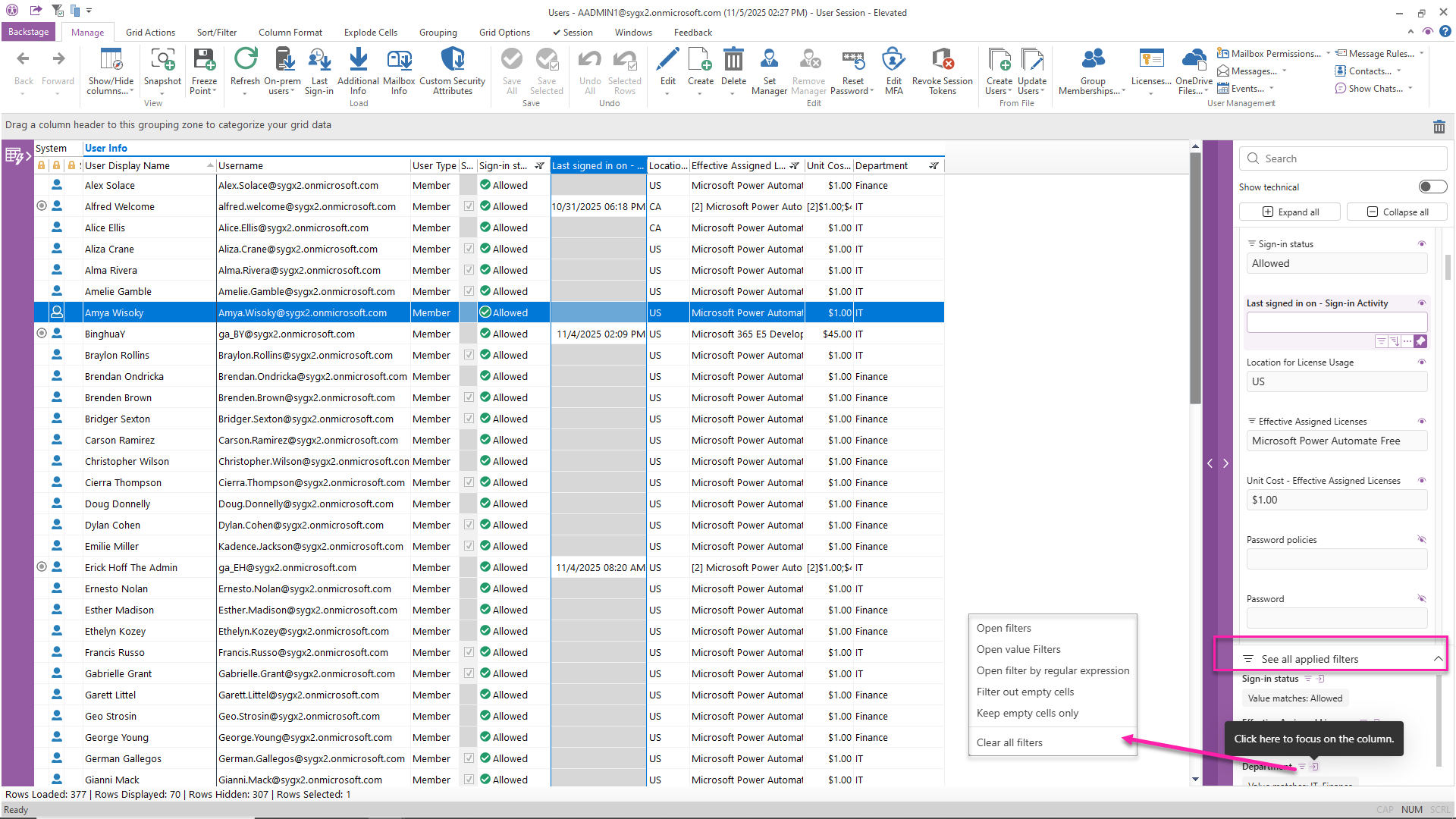
Try the new, easier way to add and manage comments in your grids
Creating custom views with grid annotations or comments is now easier and more intuitive. You can clearly see whether you’re adding a cell comment or a column comment, and whether it’s temporary or permanent. You can also add a title and even reuse a previous value when creating a new comment. And feel free to add some colour to your values afterwards with conditional formatting!
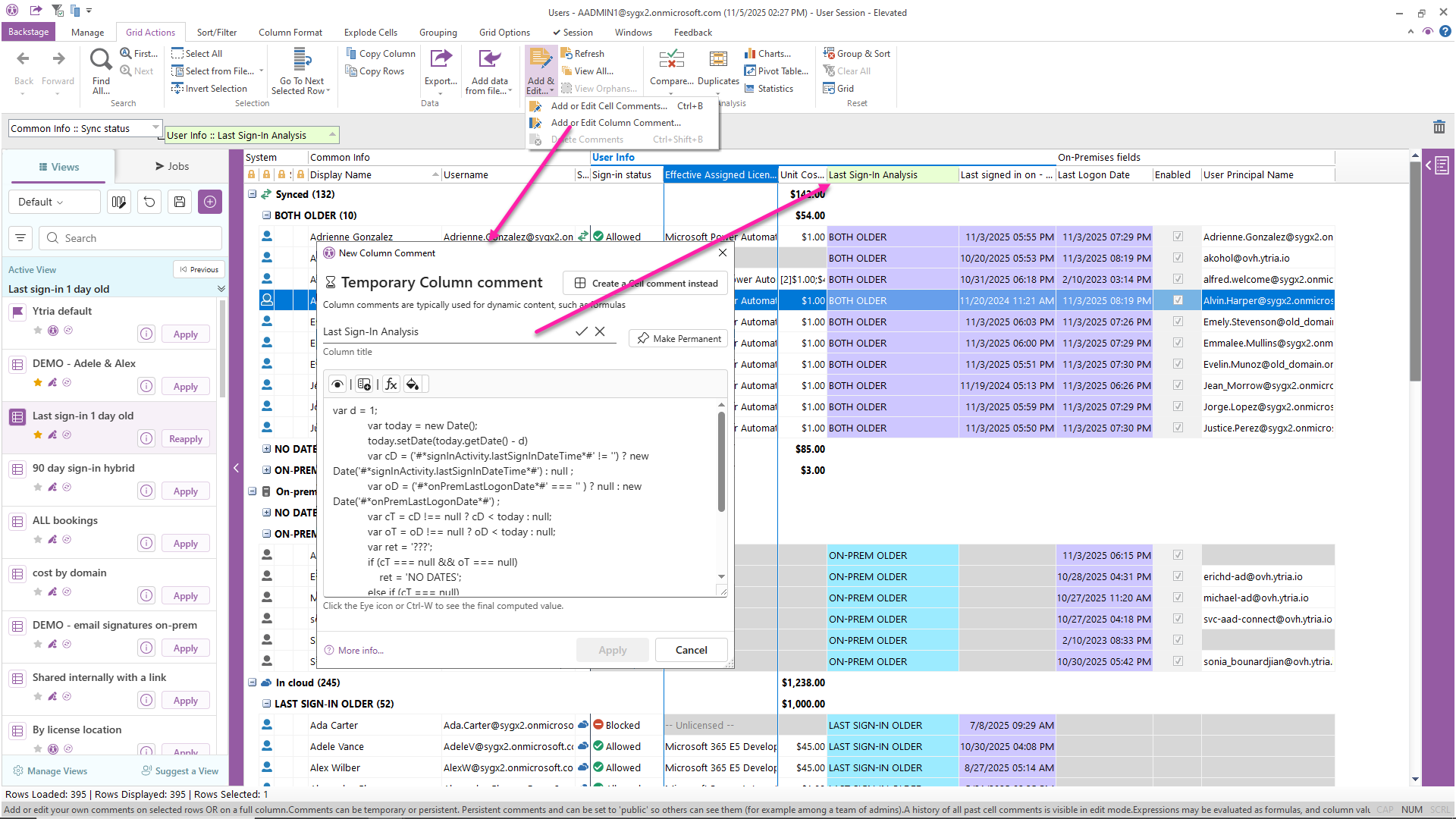
Use Conditional Formatting to add colour to your grid view
Now you can apply conditional colour formatting to columns based on your chosen criteria—just like in Excel. Save these formatting rules with your custom views, and access the feature from 3 places: the Column Format tab, under each column in the Data Viewer, or through the right-click menu.
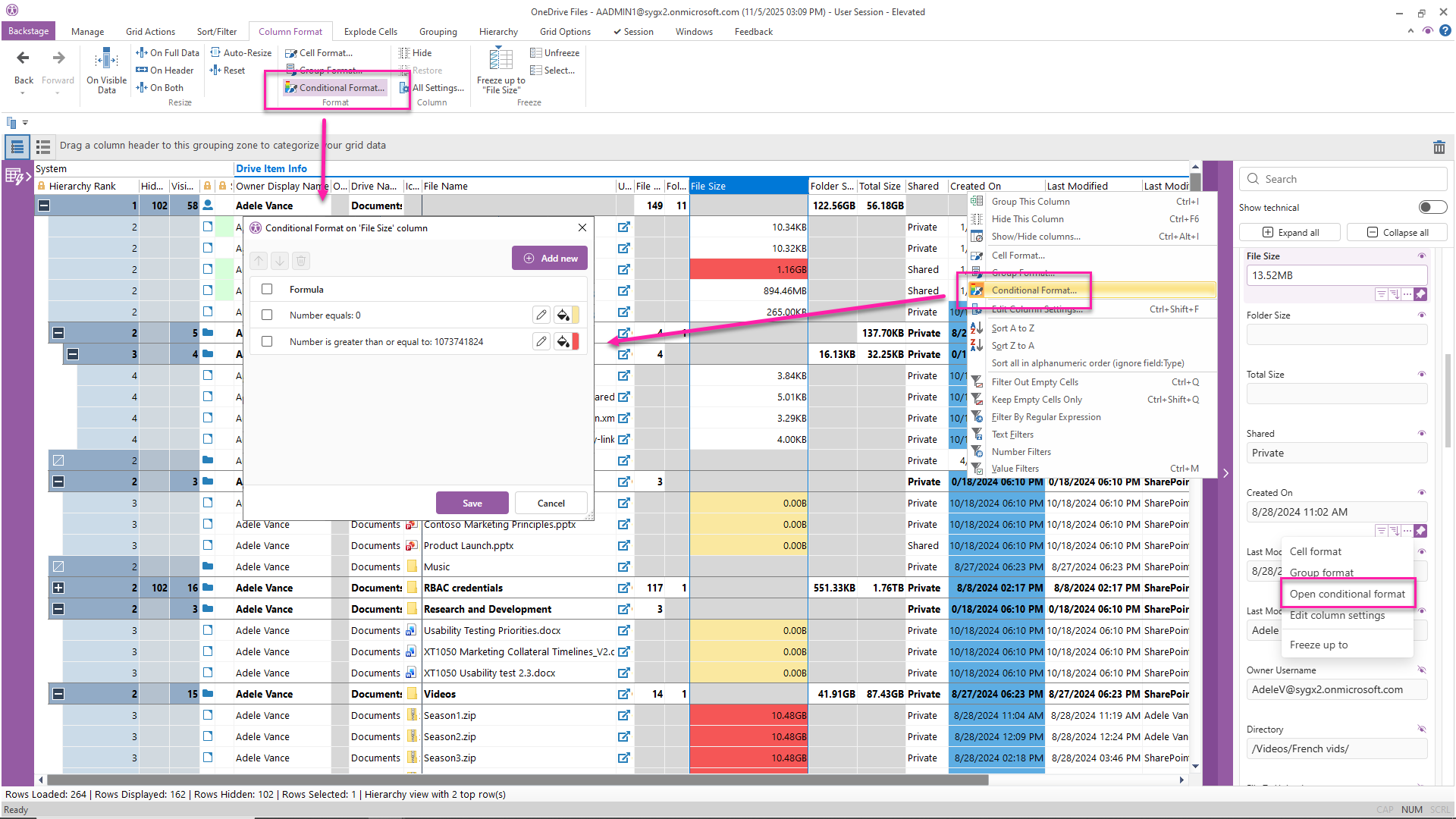
More flexible value filters
Managing value filters is now simpler thanks to a redesigned dialog. You can choose to display all possible values, only values currently visible in the grid, or just the values you select. Every filter dialog now also includes a bottom section—like in the Data Viewer—showing all filters currently applied to the grid.
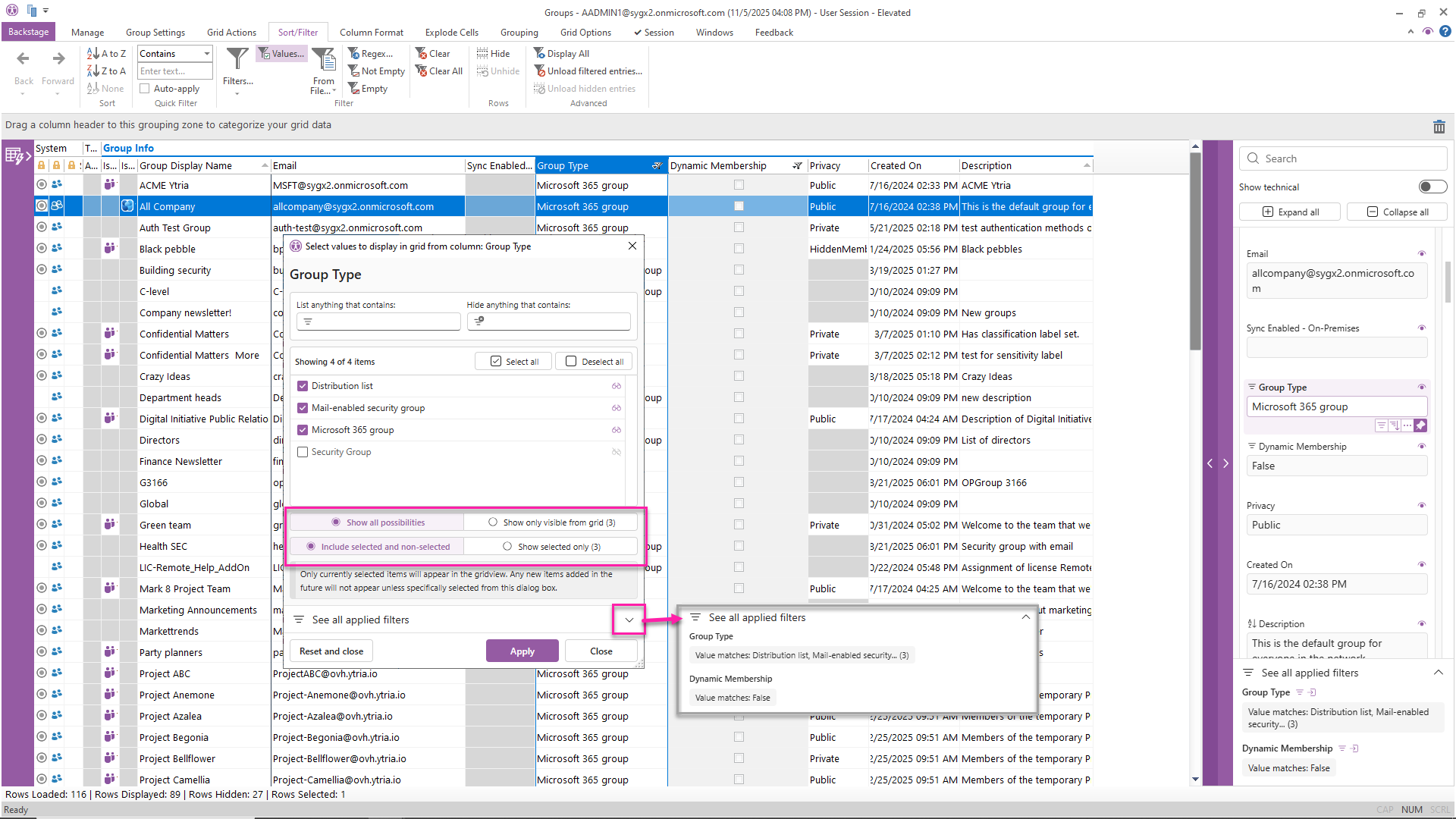
Manage authorized mail senders for distribution lists and mail-enabled security groups
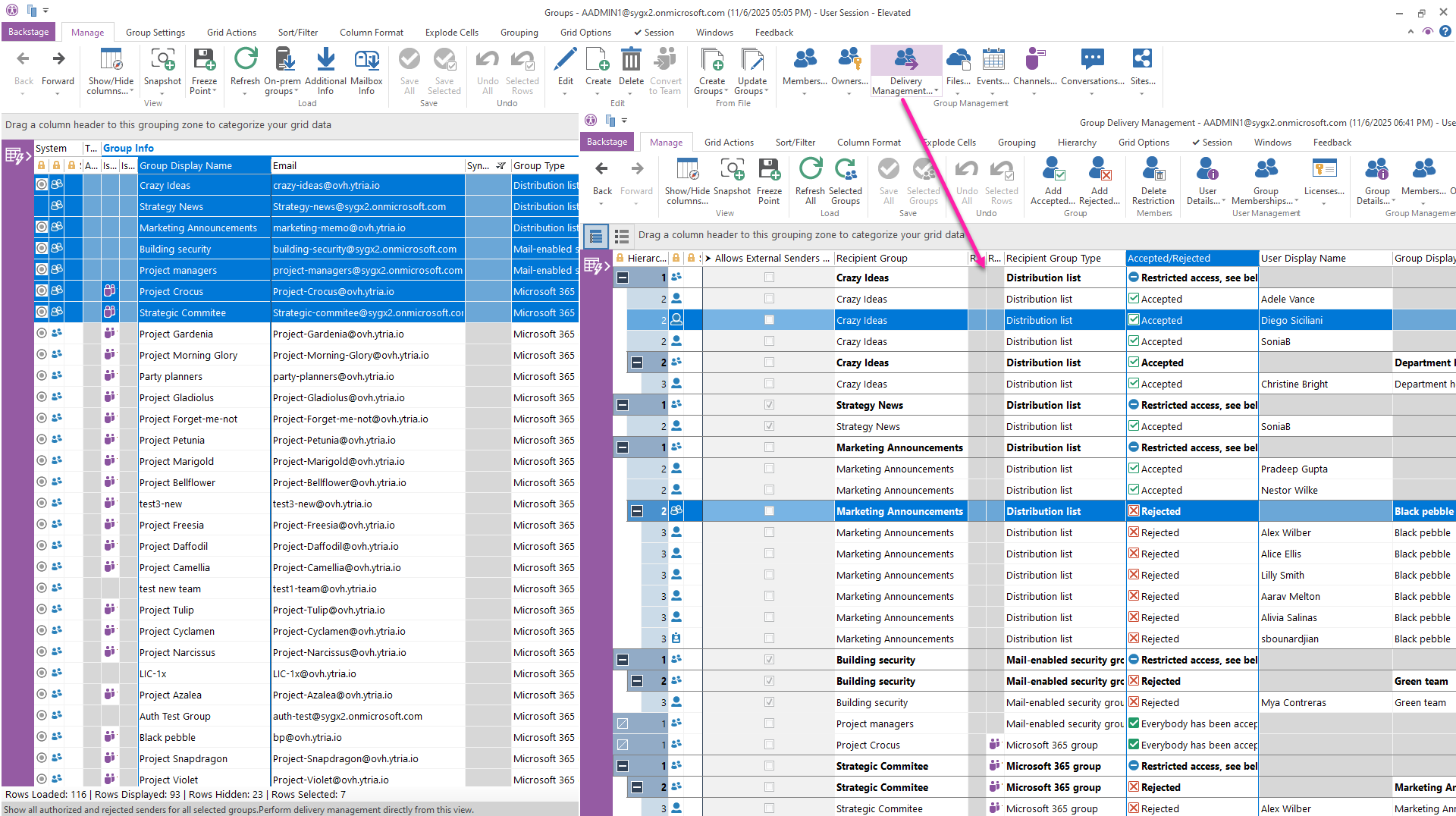
Along with managing Microsoft 365 groups, the ‘Delivery Management’ feature now lets you retrieve and control authorized senders for distribution lists and mail-enabled security groups. This gives you greater flexibility in controlling who can send messages to these groups.
Manage Microsoft 365 group email aliases
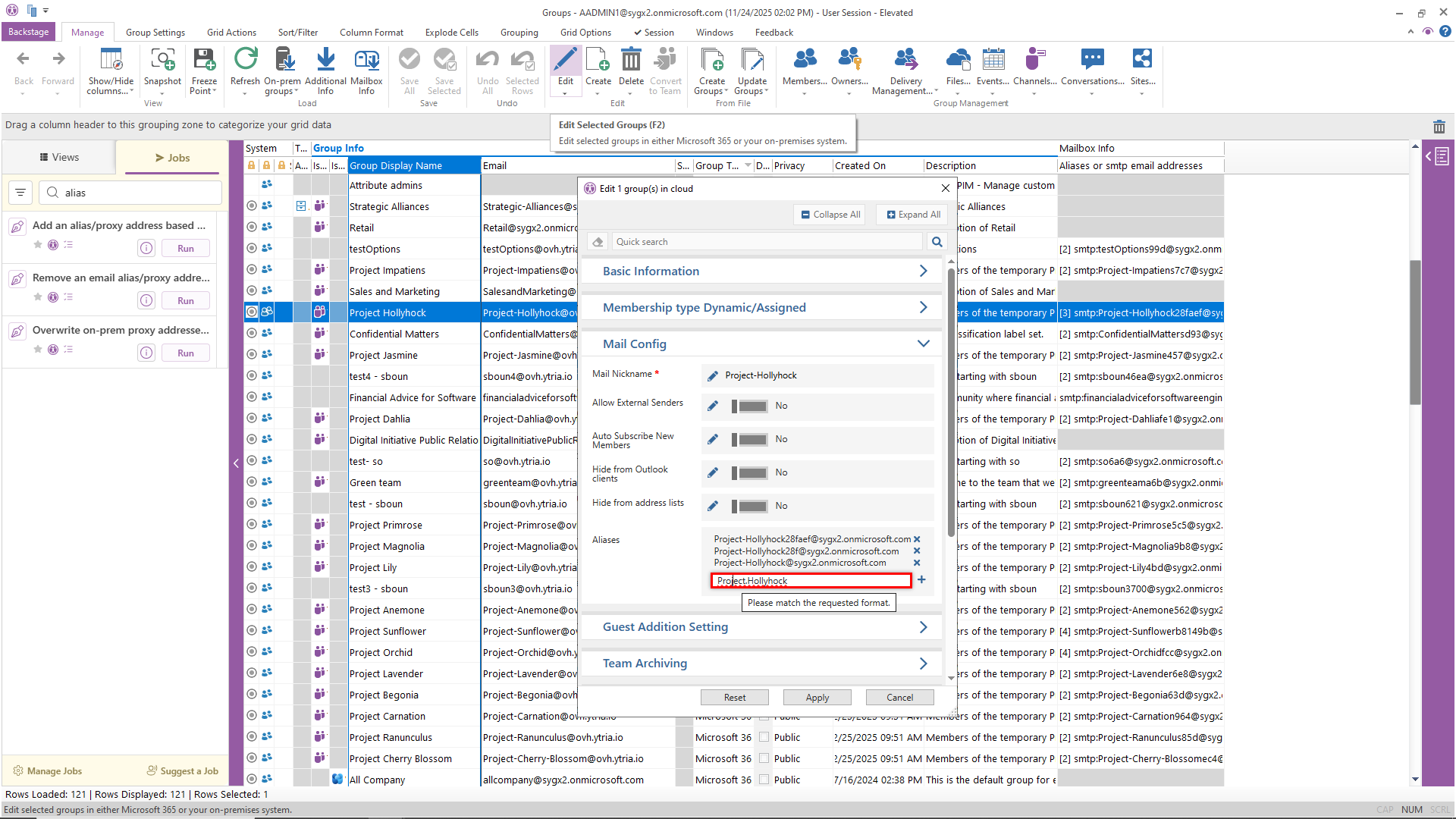
In addition to automated jobs for managing Microsoft 365 group email aliases, you can now manually update a group’s email aliases list using the edition dialog. Remember to load the latest information first by clicking the ‘Mailbox Info’ button.
View individual recurring calendar events
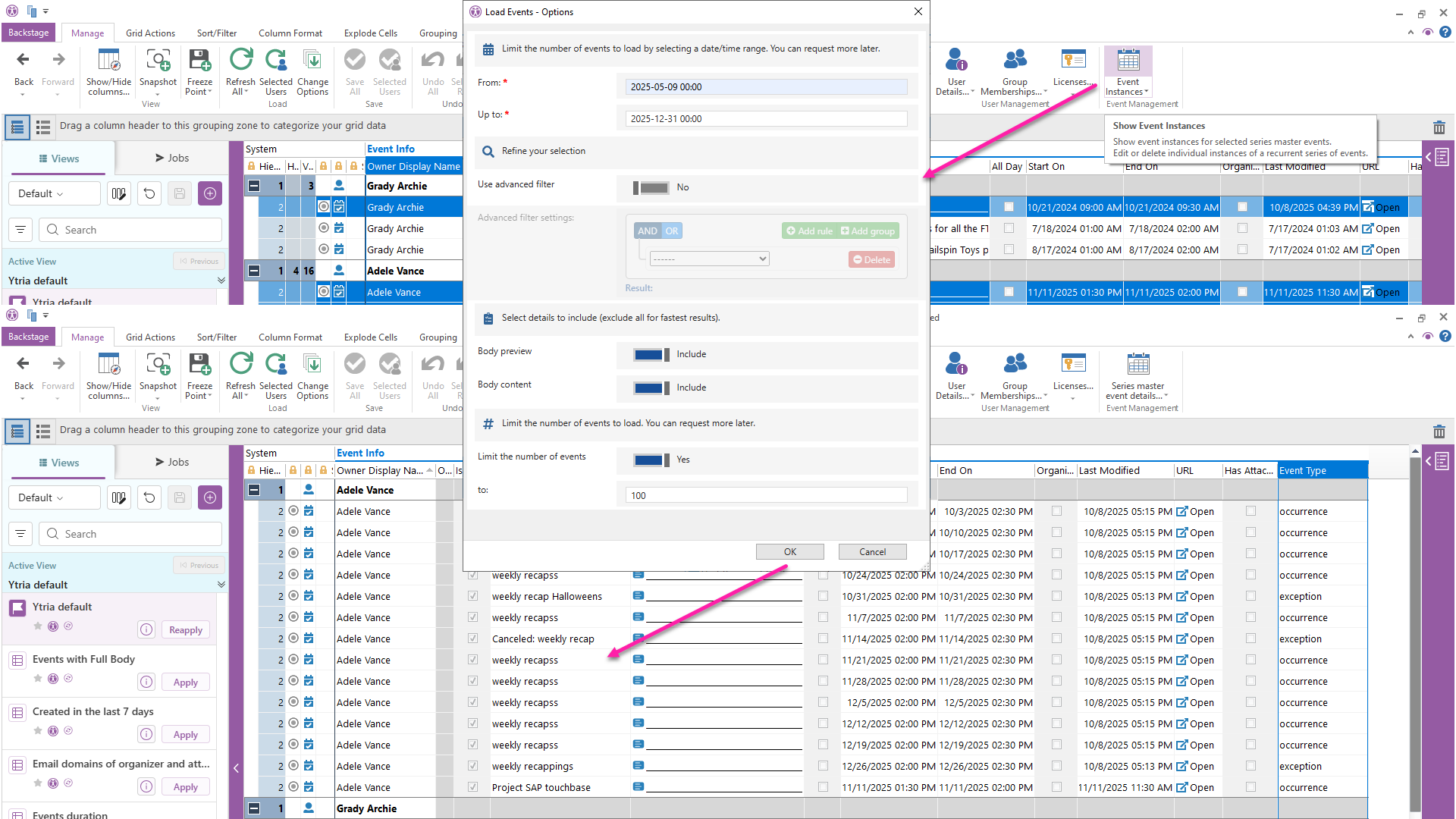
Previously, you could retrieve details about an event series from a single calendar event instance. Now, you can go the other way: list and manage specific occurrences within a recurring event series for greater control over calendar events.
See Teams channel counts faster
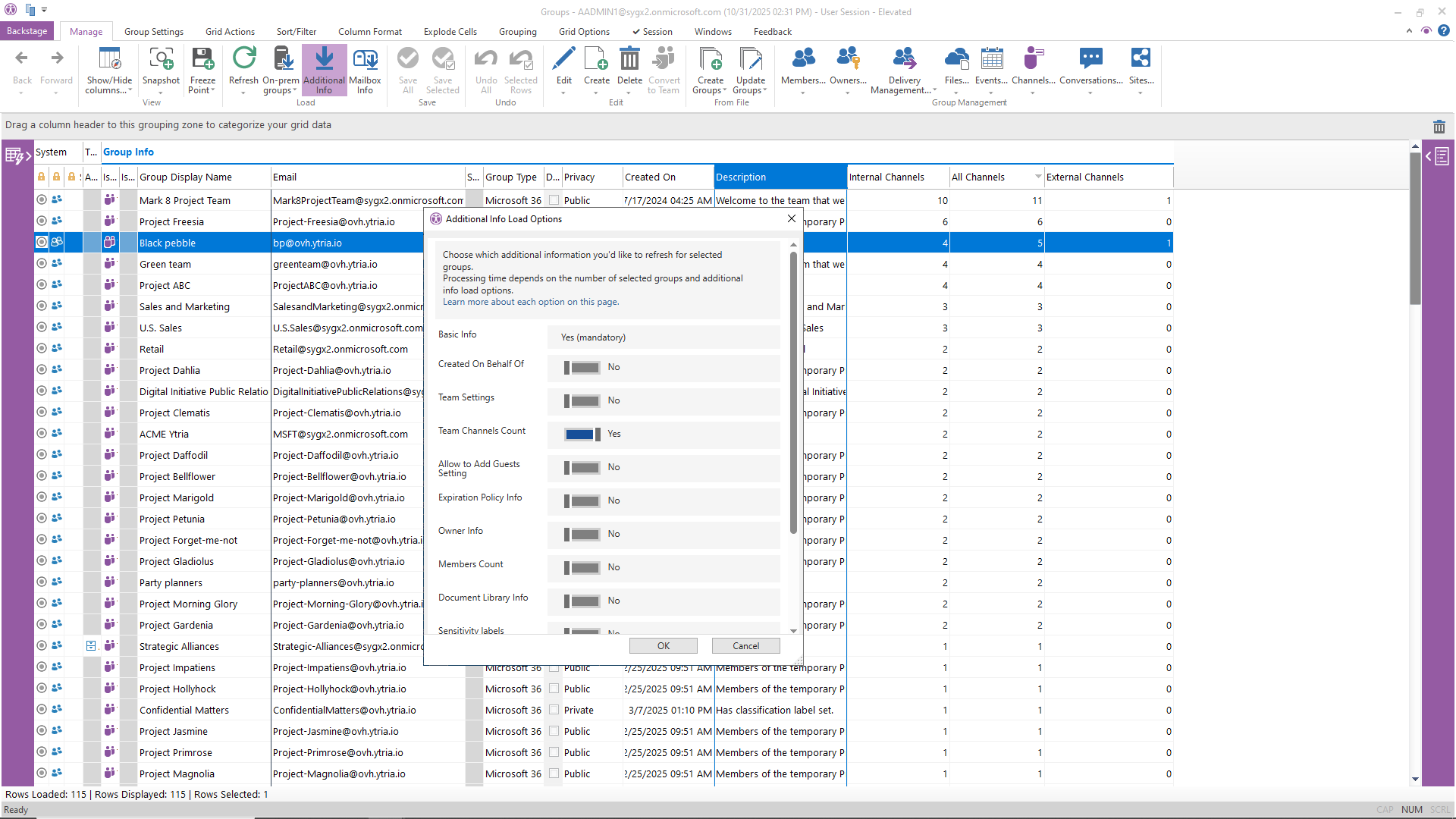
Check how many channels each Team has before you load them, and find out which ones are external. Just pick ‘Channel Count’ under Additional Info to get these details.
Microsoft 365 Copilot and Graph API Usage Report Updates
The Microsoft 365 Copilot User Count Trend report is now available to help monitor adoption rates. Additionally, the Graph API Usage report now lets you include Service Principal properties as “Extra Info from cache,” enriching the report and simplifying application identification.
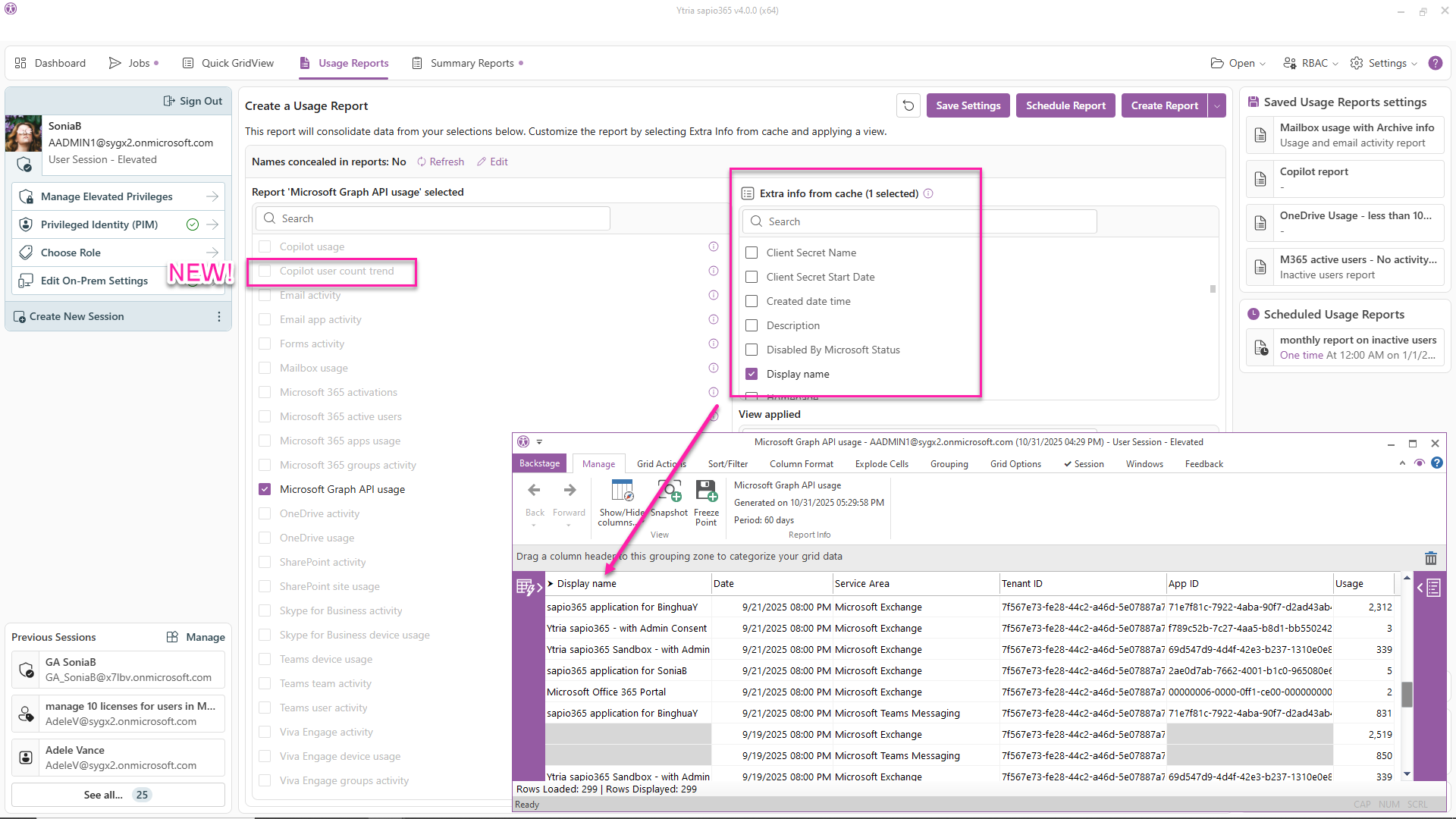
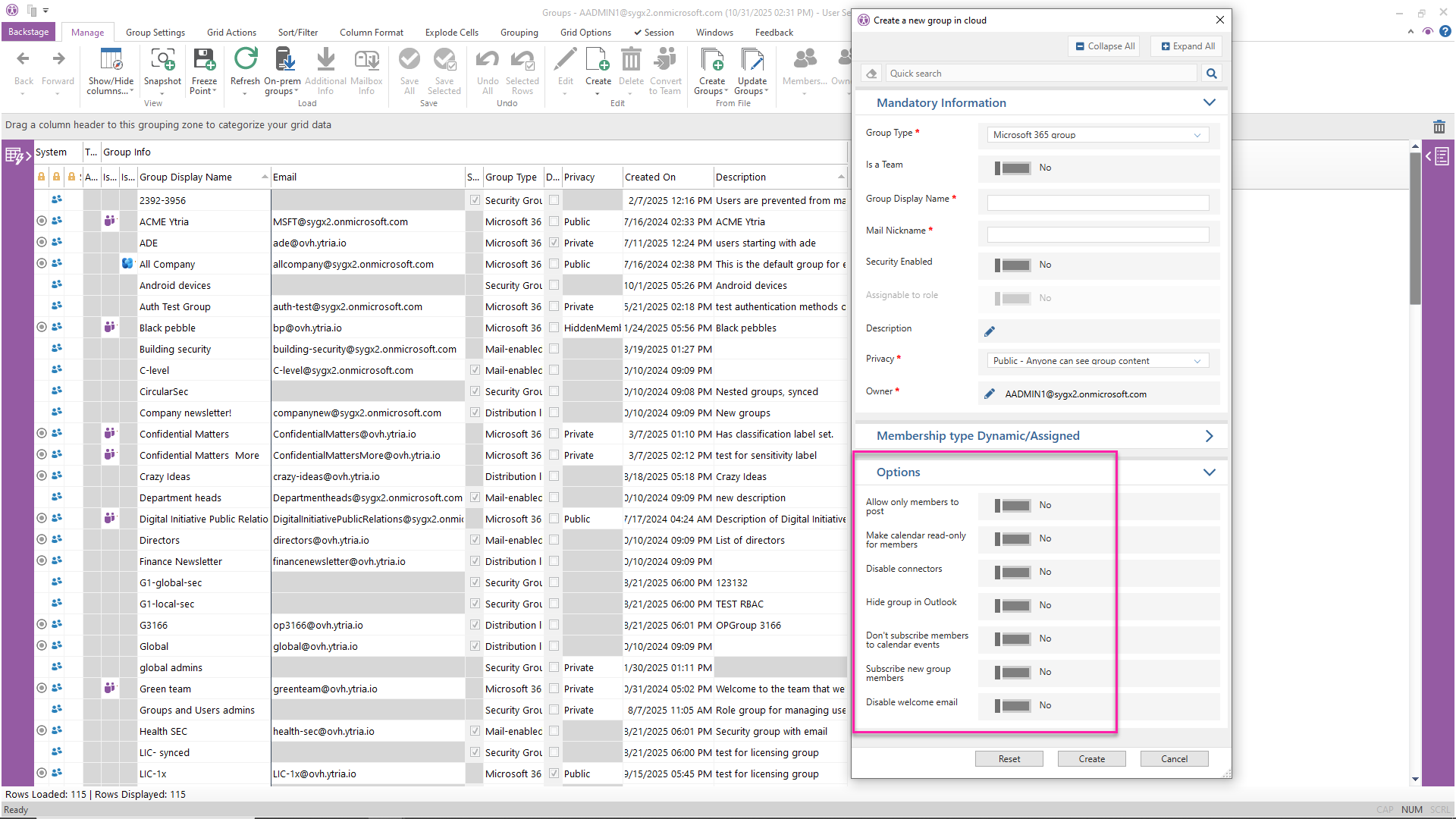
Disable welcome emails and other options for newly created groups
You now have more options when creating a new Microsoft 365 group in sapio365. For example, you can turn off the welcome email that’s usually sent to new members.
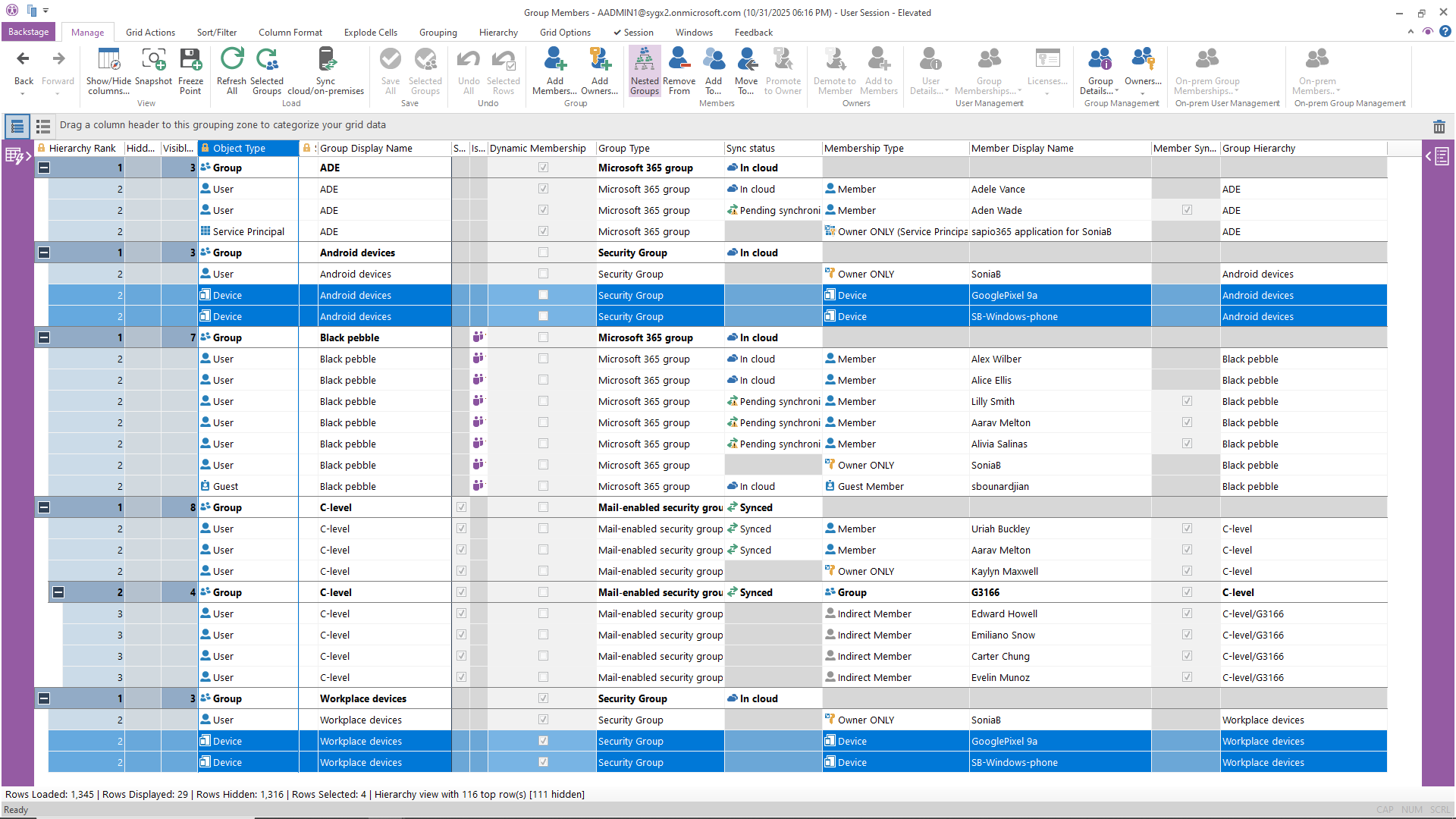
See and manage devices as group members
The Group Members submodule now lets you view devices that belong to groups. You can remove, copy, or move devices between groups, but selecting devices directly from the directory isn’t available just yet.
Open a device in Intune or Azure
We’ve added two new columns to the Devices module: Intune URL and Microsoft Azure portal URL. These columns give you quick links to open a selected device straight in Intune or the Azure portal.

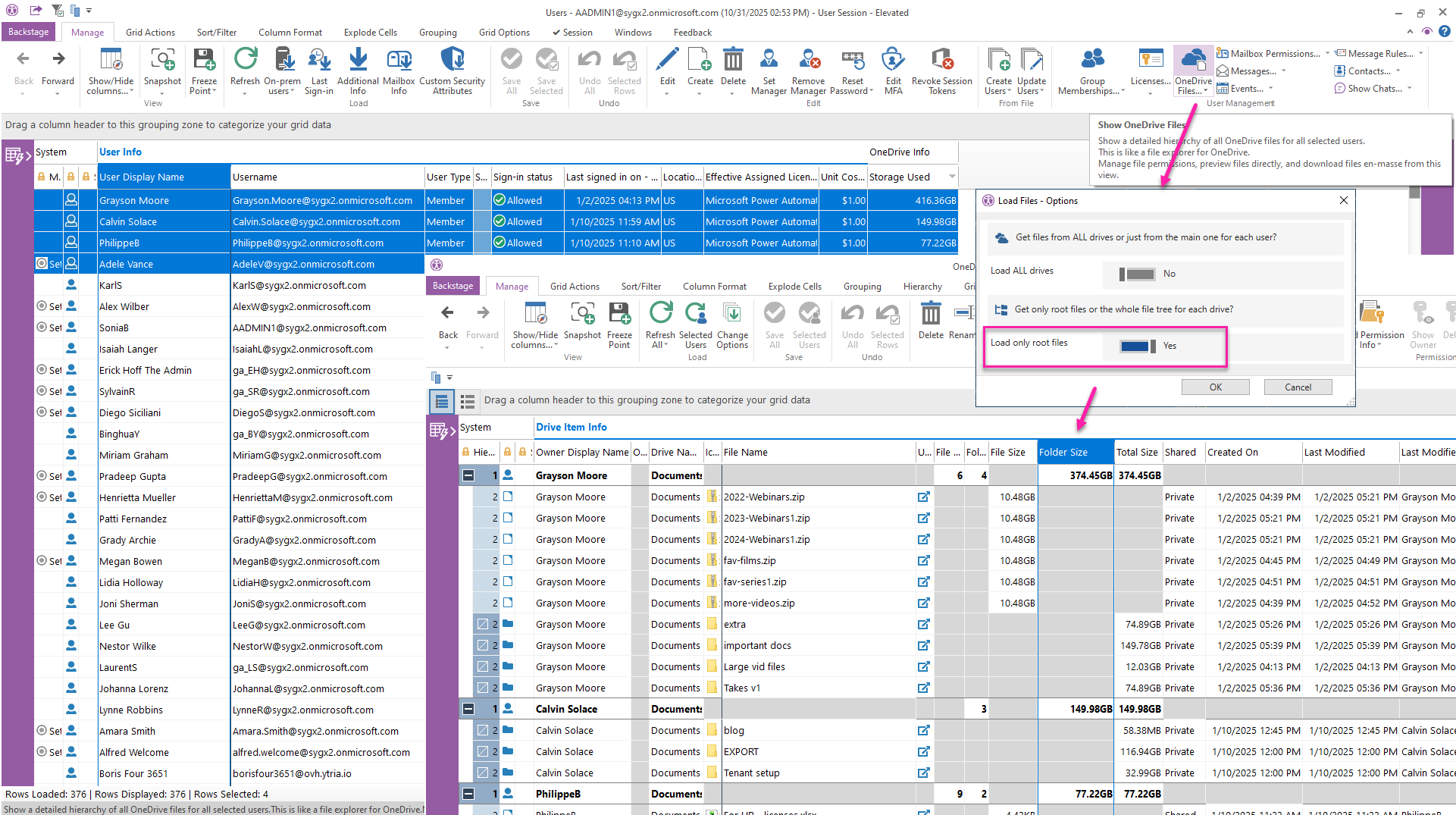
Load only first-level files and folders
Want a quick top-level look at your users’ OneDrive? You can now choose to load just the first-level files and folders to see root folder sizes. This same option is available for loading files from SharePoint Sites, Groups, and Channels too.
Preserve version history when copying files
When you copy files from users’ OneDrive, group document libraries, or SharePoint Online sites, you can now keep all previous versions. Just select the ‘Preserve version history’ option.

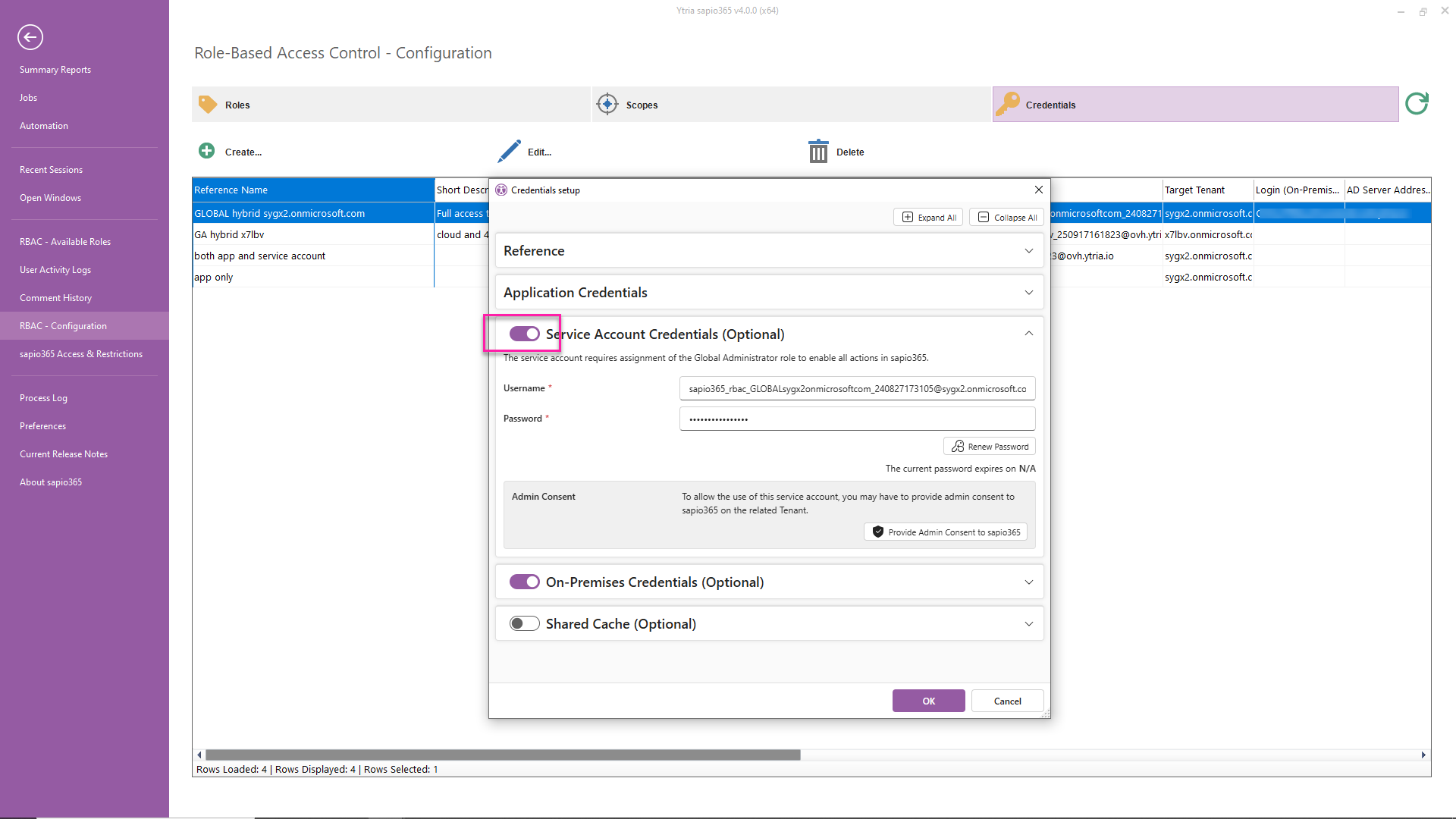
Set up sapio365 RBAC credentials without a service account
If you don’t want to use a dedicated service account with your sapio365 credentials anymore, you can leave it out. And when you set up a new set of credentials, you have the option to skip creating a service account altogether.
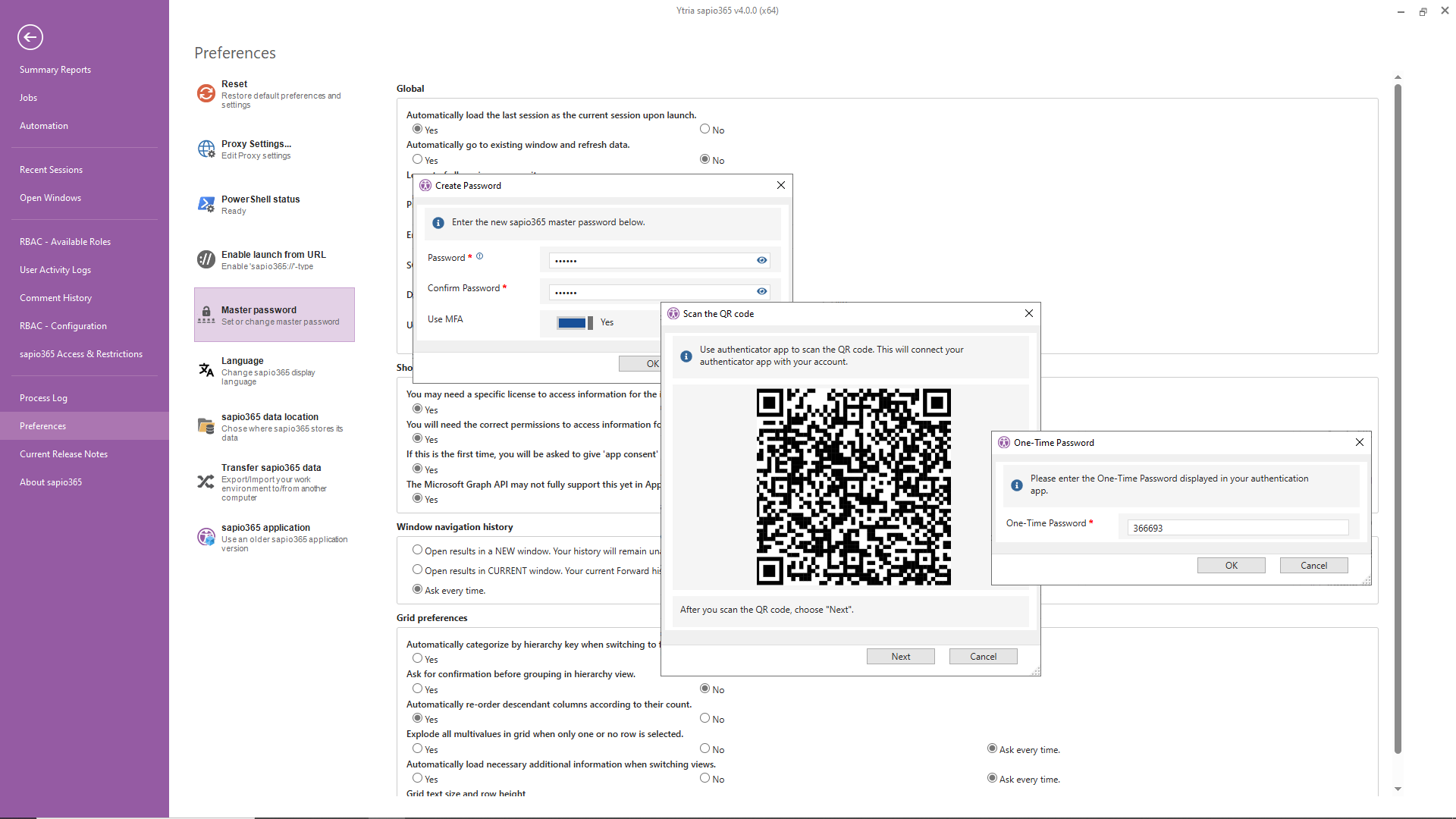
Use MFA for your sapio365 Master password for greater security
If you prefer entering a password each time you open sapio365, you can now add MFA for added protection. Simply scan the generated QR code with any authentication app to include Ytria sapio365 in your account list (note that the QR code pasted in the image below leads you to our help documentation!).
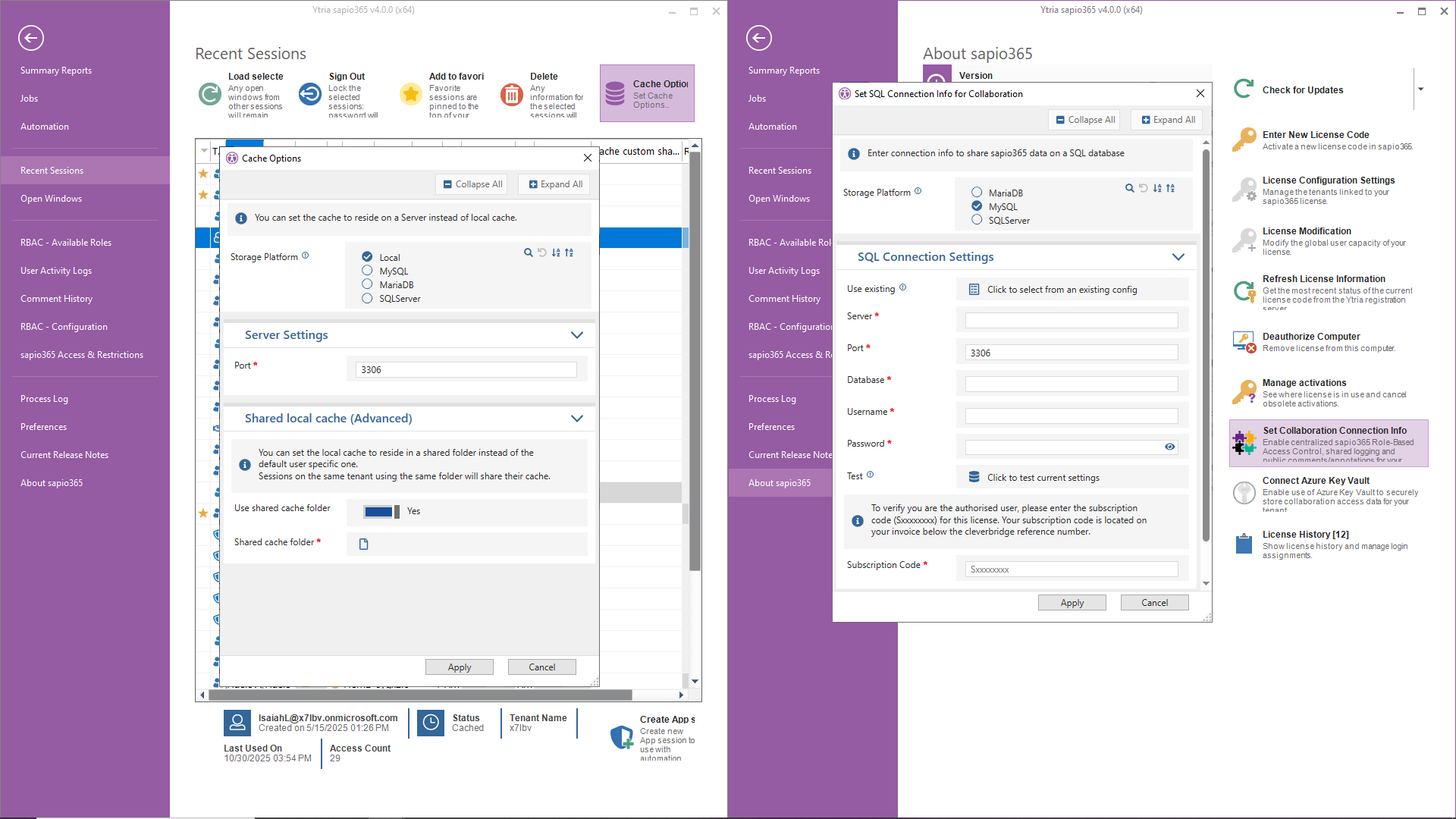
More storage options for collaboration data and shared cache
If you use sapio365 RBAC, shared views, comments, or jobs, you now have extra choices for where to keep your collaboration data. Alongside Azure Cosmos DB and Microsoft SQL Server, you can also use MariaDB as a storage location. Plus, when sharing cached data for Users, Groups, Sites, or Service Principals, you can now choose to store it in MariaDB, Microsoft SQL Server, or in a shared local folder.
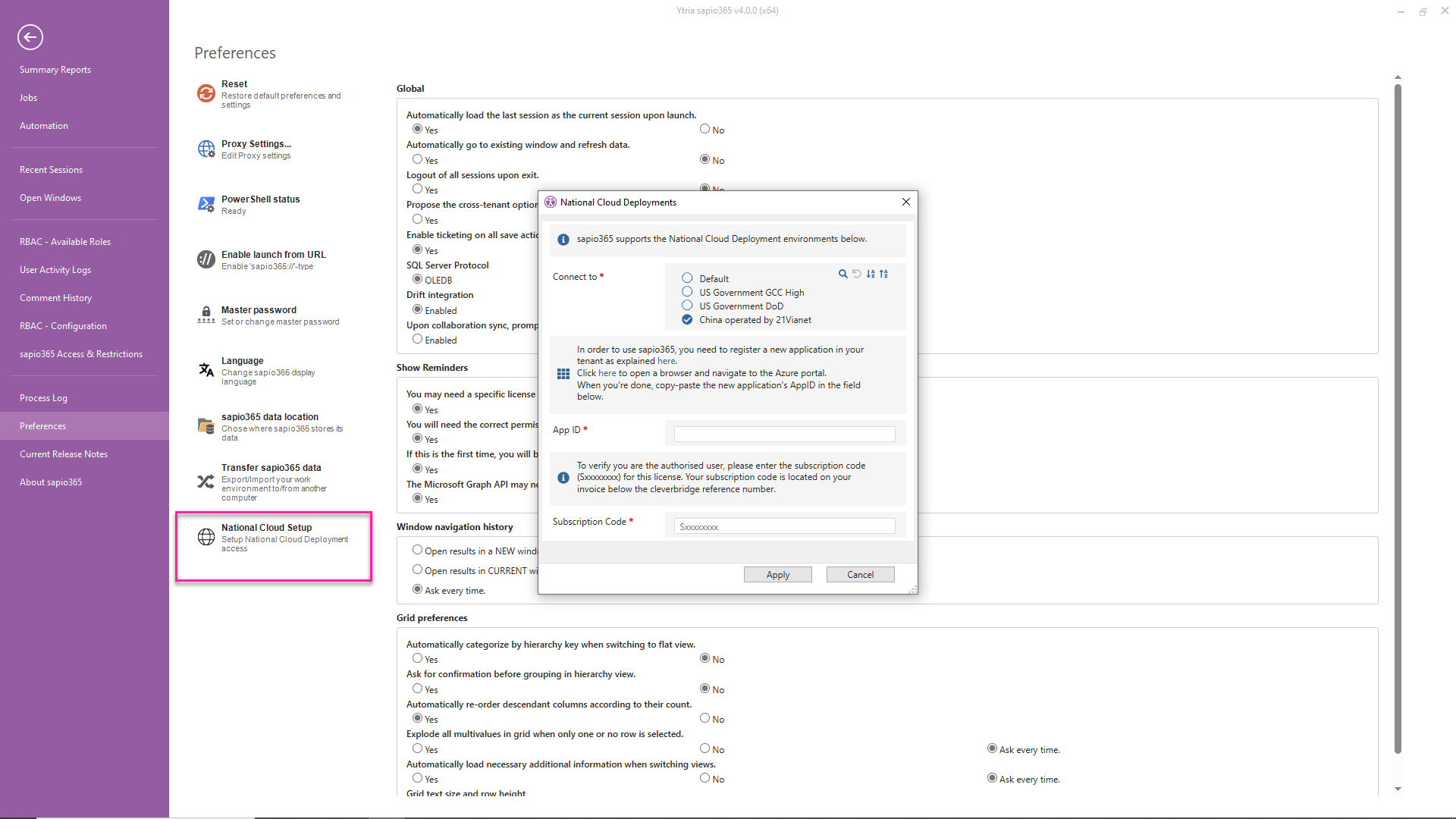
sapio365 supports M365 tenants in China operated by 21Vianet
If you manage a tenant in China operated by 21Vianet, sapio365 now supports this National Cloud Deployment, along with GCC High and DoD environments. Please note that enabling this option requires a special license.




Submit a comment