
How to get distribution group members with and without PowerShell in Microsoft 365

Creating a membership report of all your distribution groups doesn’t have to be painful, even when you have lots of nesting. You can get distribution group members with native tools and PowerShell, but there is a much easier way with sapio365.
This guide shows several ways to get distribution group members in Microsoft 365, from the admin centers and Microsoft Graph PowerShell to a no‑code approach with sapio365.
This post walks through:
- What you can do in the Entra and Exchange admin centers.
- How to get distribution list members (including nested) with Microsoft Graph PowerShell.
- How to get a complete, exportable report of all distribution list members in a few clicks with sapio365.
Distribution list members in the admin centers
If you try to get distribution group members using only the admin centers, you quickly hit limitations, especially with nested groups. Let’s look at what you get in each place.
General and Exchange admin centers
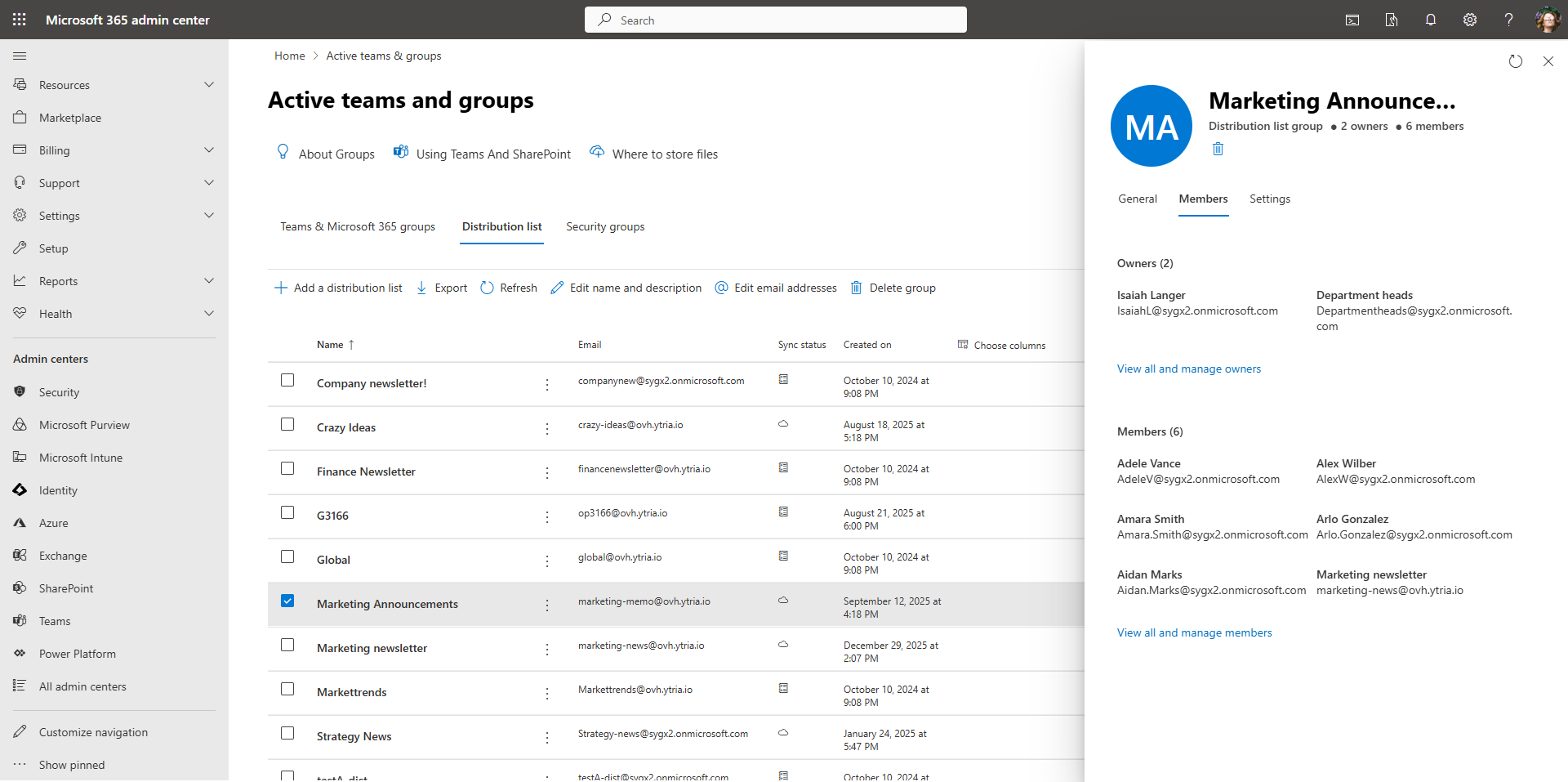
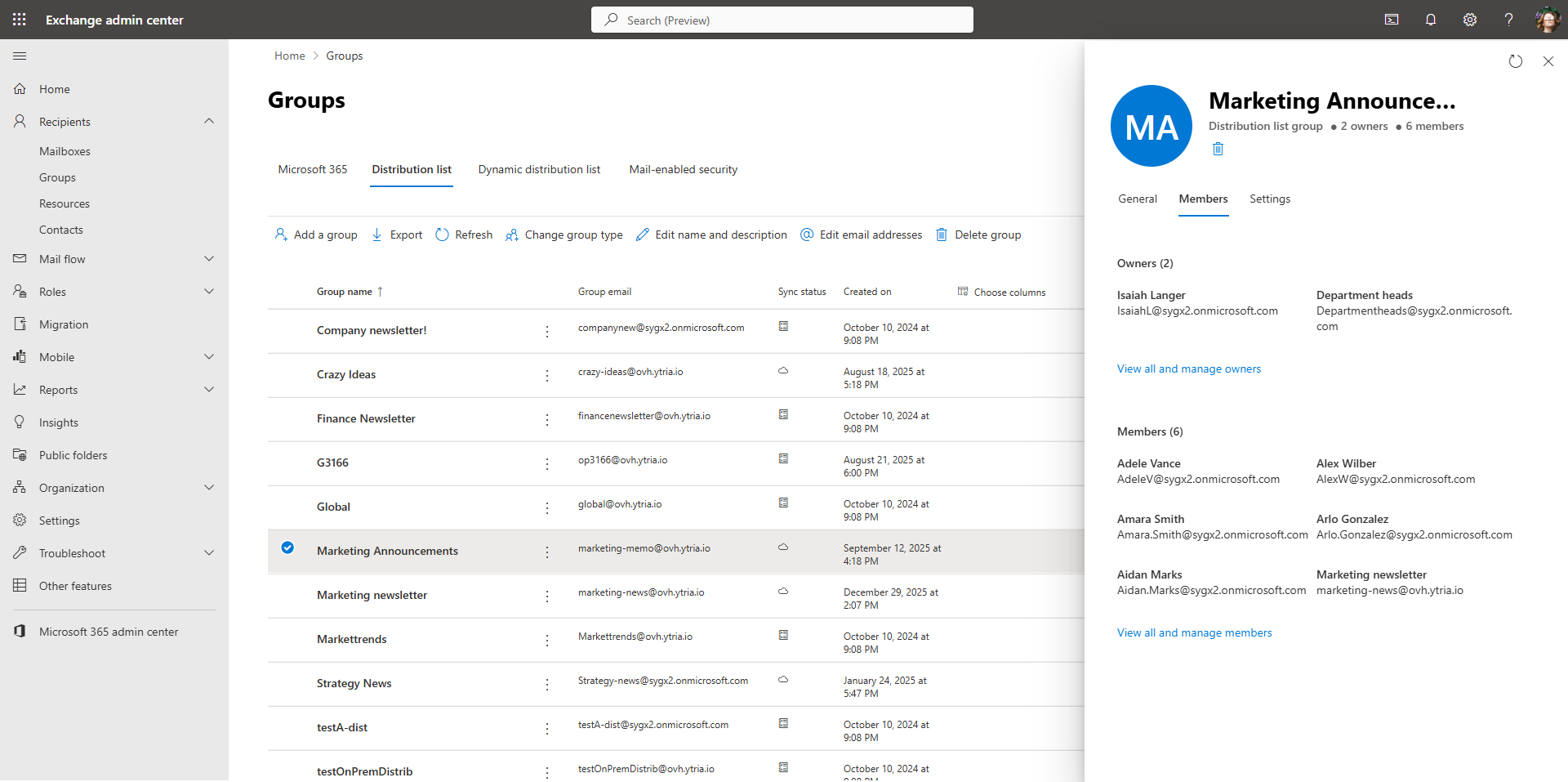
In both the Microsoft 365 admin center and the Exchange admin center, you can list and export your distribution groups, and you can filter that list. However, you have to open each group to see its direct members, and you cannot just grab a clean, copy‑and‑paste list of all members across all groups.
- You only see direct members for the selected group.
- You must open each nested group in a separate window to see who is inside it.
- There is no built‑in way to export all members of all distribution groups in one go.
Entra admin center
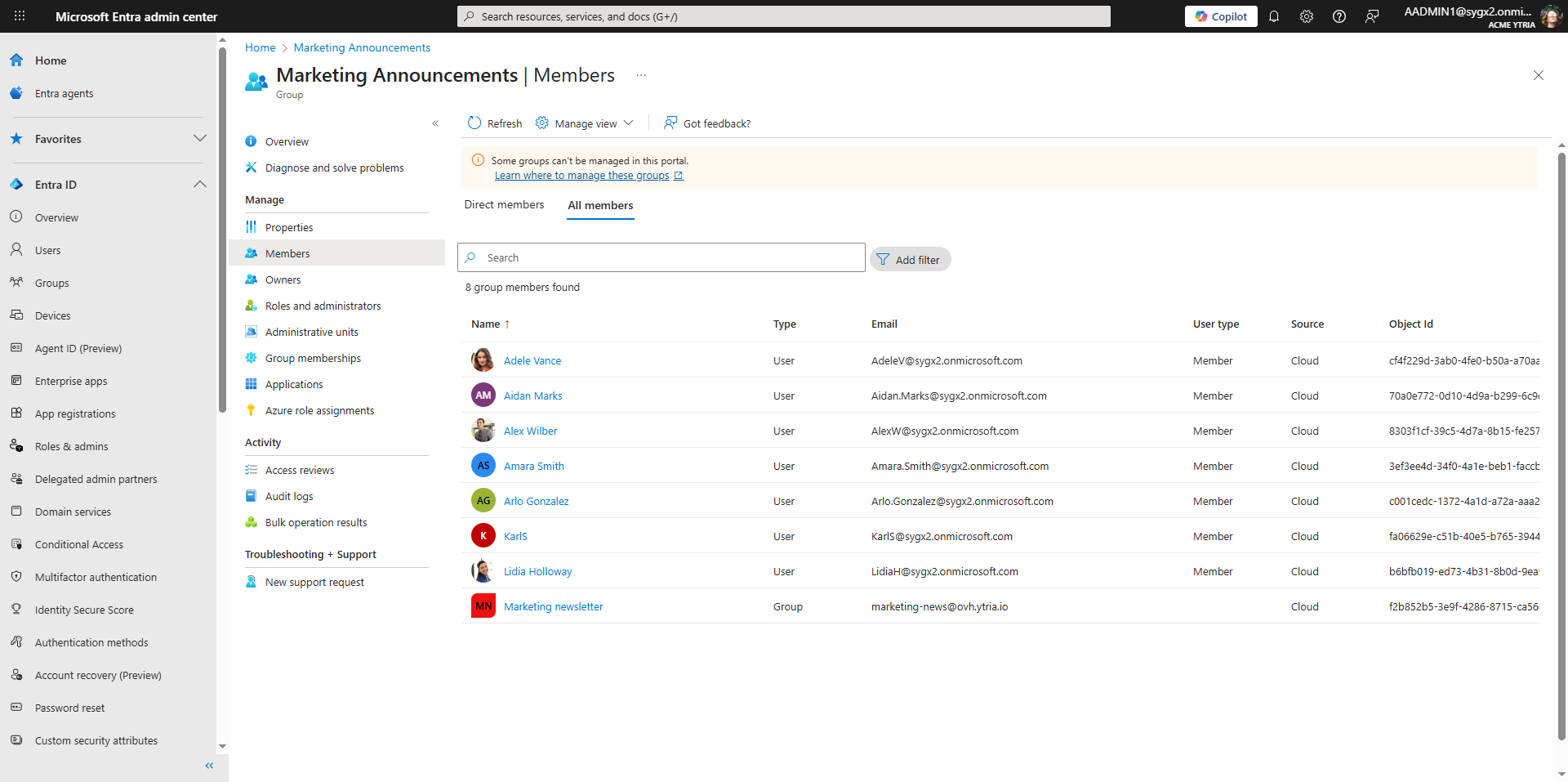
The Entra admin center gives you a slightly different angle on group membership. You can select a group and choose to see either direct members or all members (including nested), and from that list, you can copy/paste the results.
But there are still some gotchas:
- You cannot filter the group list to show only distribution groups; the group type filter is only available for Microsoft 365 and security groups.
- Even when you choose to see all members, you do not see which users are coming from which nested group.
- To understand nesting, you still have to click into each “group” type member and repeat the process.
All these limitations and repeated drill‑downs are a big reason so many admins fall back on PowerShell.
Using Microsoft Graph PowerShell to get distribution group members
PowerShell is often the next stop when you need to get distribution group members at scale, especially when nested groups are involved.
Using Get-MgGroupTransitiveMember
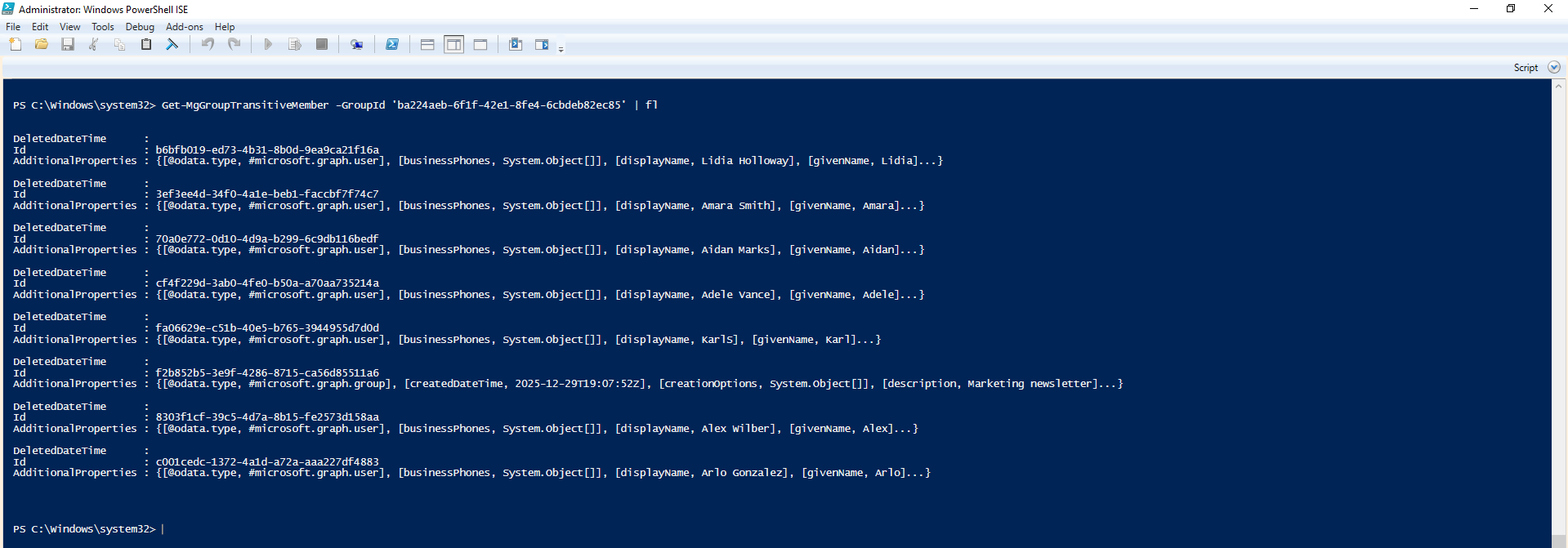
If all you care about is “who ends up in this group” and you don’t need to see the nesting structure, the Microsoft Graph PowerShell cmdlet Get-MgGroupTransitiveMember is the quickest way to get both direct and indirect members.
- It returns a flat list of all nested members, so you get everyone who ultimately belongs to the group.
- Earlier versions required extra work to resolve IDs into names, but newer SDK versions return member details in AdditionalProperties, which makes life easier.
The downside is that the result is flattened: you don’t see which user came from which nested group, so you lose visibility into the membership hierarchy.
Using Get-MgGroupMember with recursion
If you need a more accurate picture of the structure of your distribution list, you can build a recursive script that uses Get-MgGroupMember.
A typical approach is:
- Call Get-MgGroupMember to retrieve the direct members of the group.
- For each member that is a group, call the same cmdlet again on that group to retrieve its direct members, and so on.
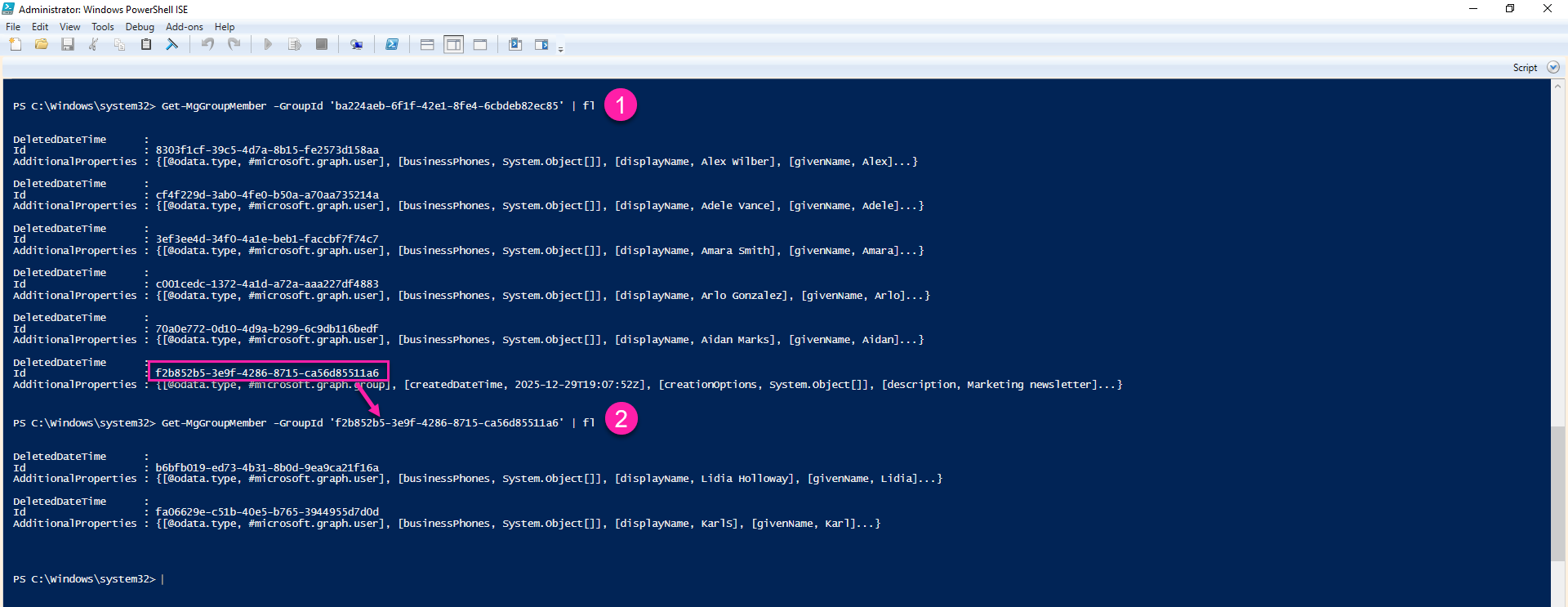
Whether you write this script from scratch, adapt one from the community, or ask an AI to generate it, you still need to:
- Test the script in your tenant.
- Adjust it for your preferred output format and properties.
- Maintain it when APIs, modules, or your reporting requirements change.
This works, and for many admins it’s the default. But it’s a lot of work for what is essentially a membership report. That is where sapio365 can really help.
Use sapio365 to get distribution group members faster
With sapio365, you skip the scripting and drill‑downs and go straight to a complete, customizable membership report of all your distribution groups, making it easy to get distribution group members in minutes. You see users, groups, nesting, and extra attributes all in one place, and you can export the result with a single click.
Here is what the workflow looks like.
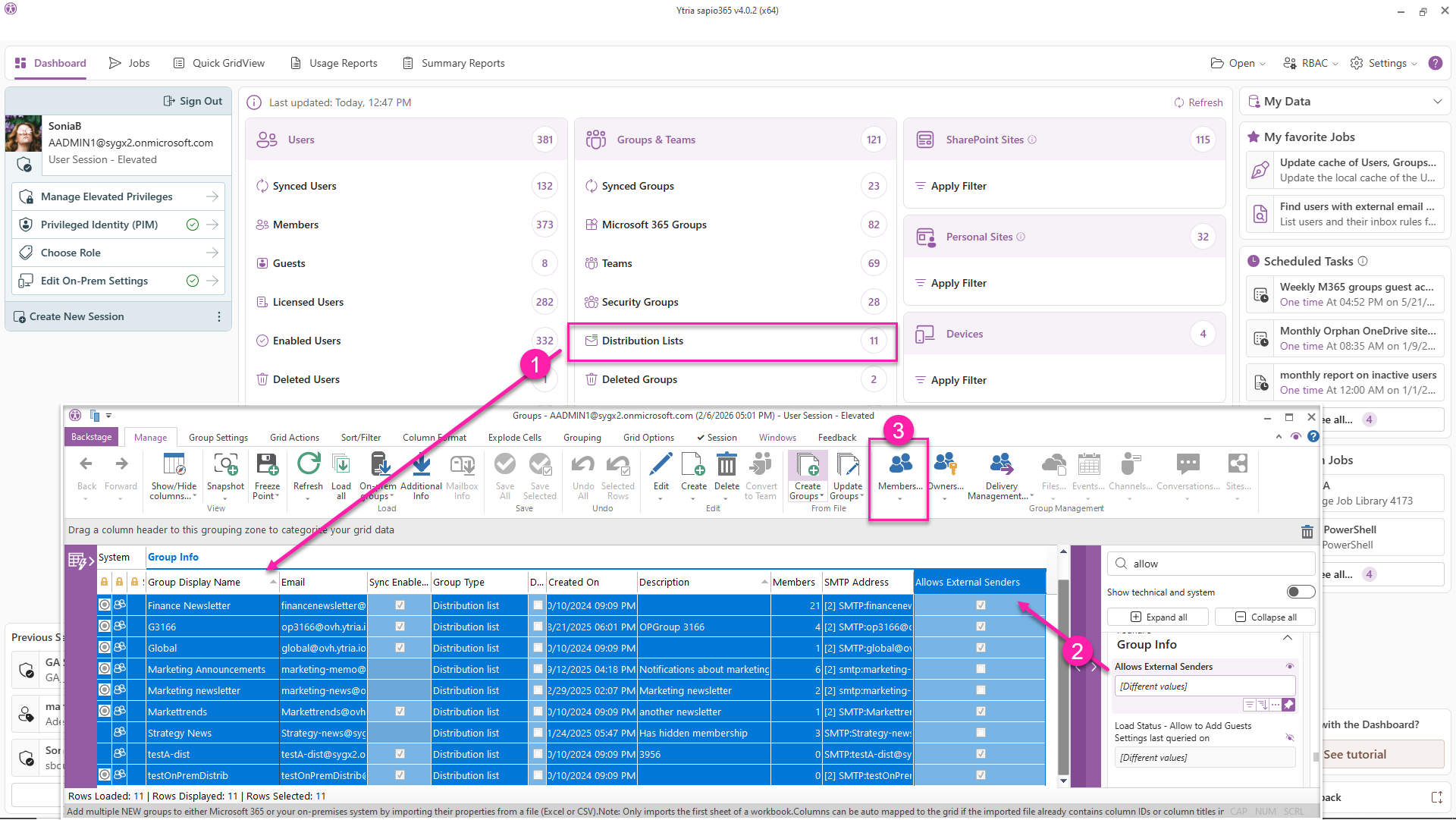
A. Get your full list of distribution groups
Start from the sapio365 Dashboard and load your distribution groups. You can:
- See every distribution group in one grid.
- Add any group properties you want to include in your report (for example, if the group is hidden from the address list, if external senders can email the group, etc.).
- Select all groups so you are one click away from their members.
B. View members and owners across all groups
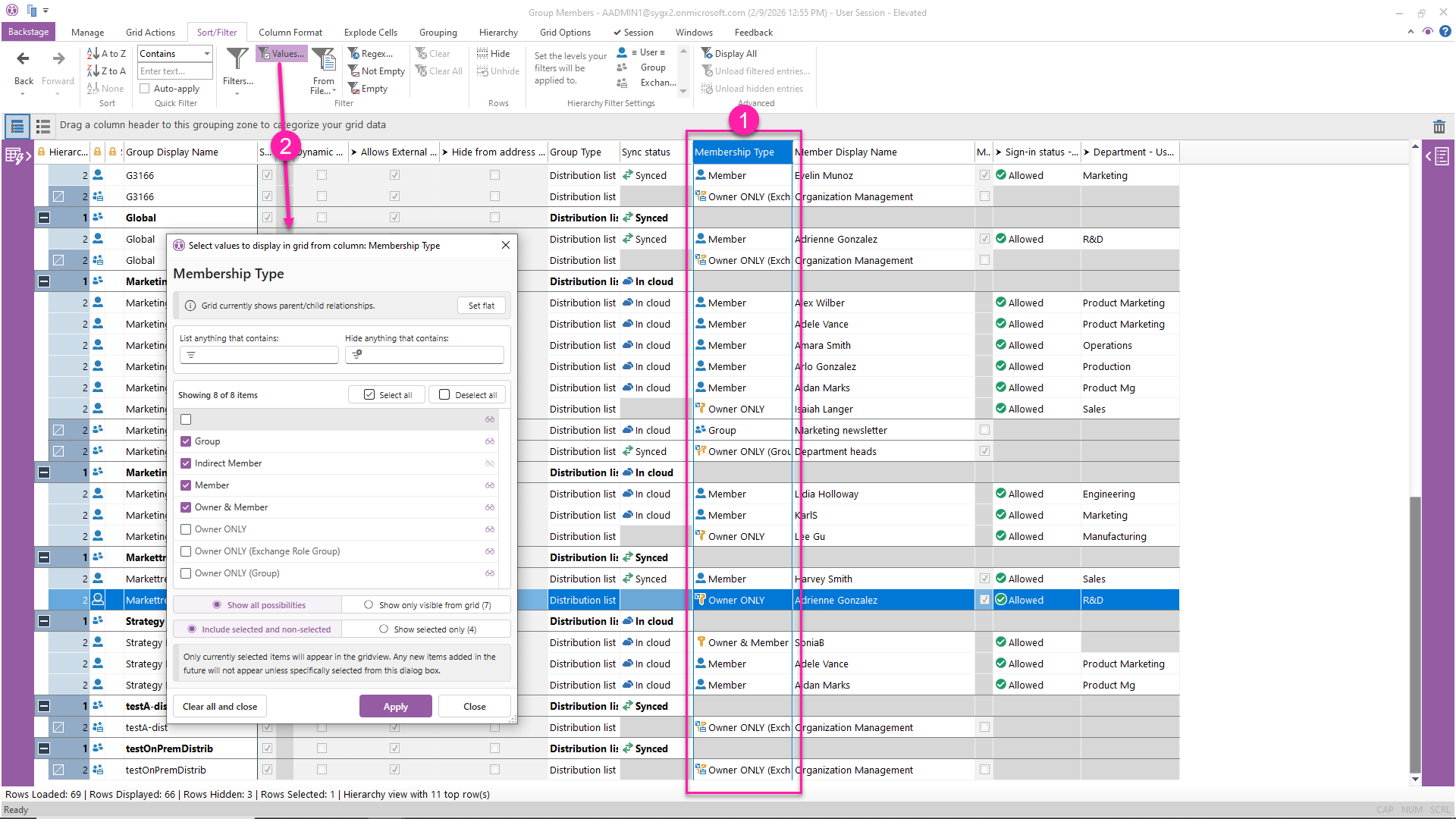
From there, you can load the members and owners of all selected groups into the grid. If you only want members, you can simply filter out the owners.
- Owners and members are visible in the same view, with clear indicators for each.
- You can quickly filter, group, or sort the grid to focus on what matters, like members only, or users from a particular department or region.
C. Expand nested membership with a click
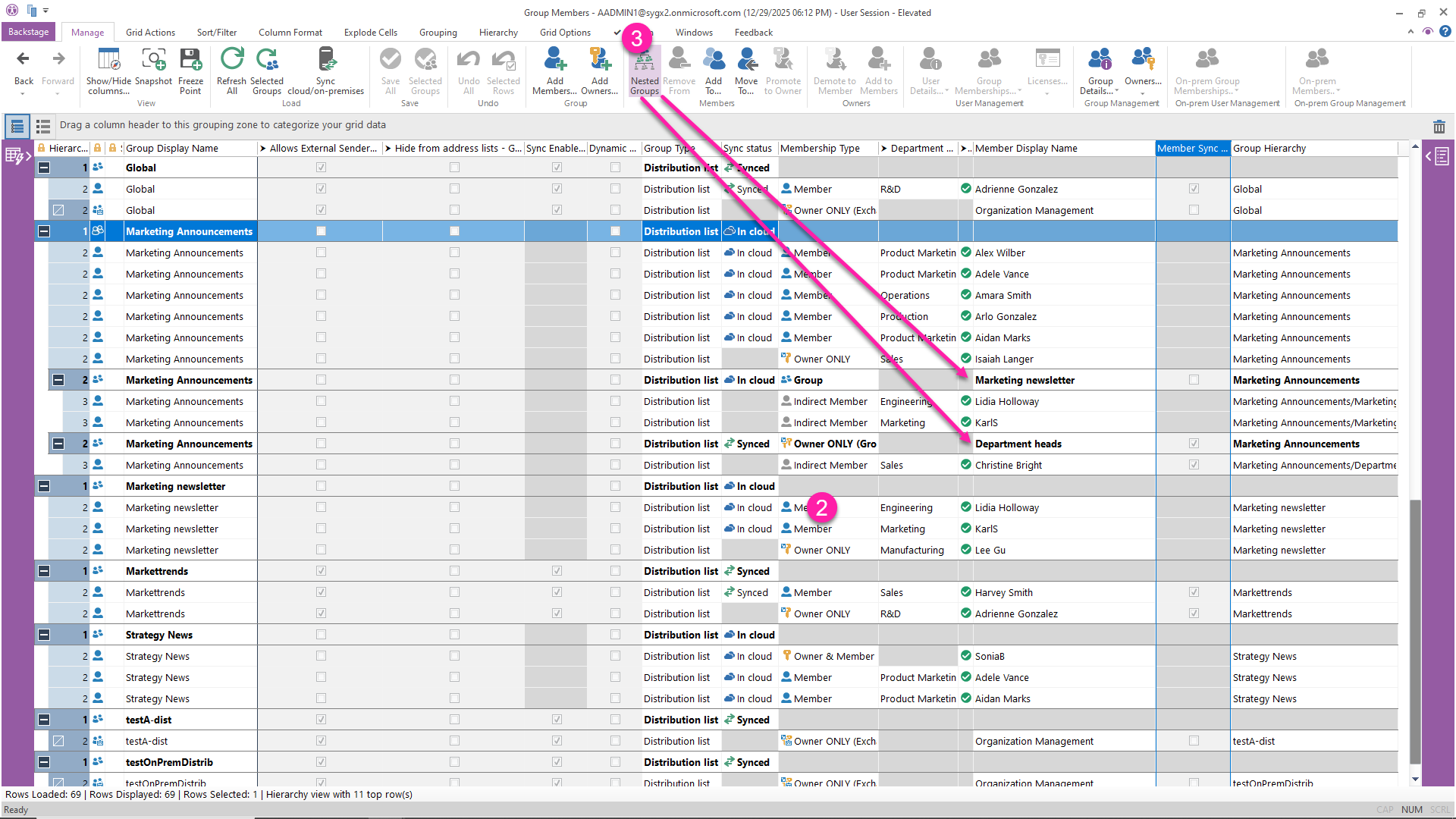
Instead of recursive code, you just expand the membership hierarchy.
sapio365 lets you:
- Expand nested groups with a click to reveal their members, so you get a full picture of who is in each distribution group, including nested lists.
- Enrich the report with extra user properties (for example, sign‑in allowed) and group properties (for example, whether external senders are allowed) as shown in the image below.
D. Export your report in one step
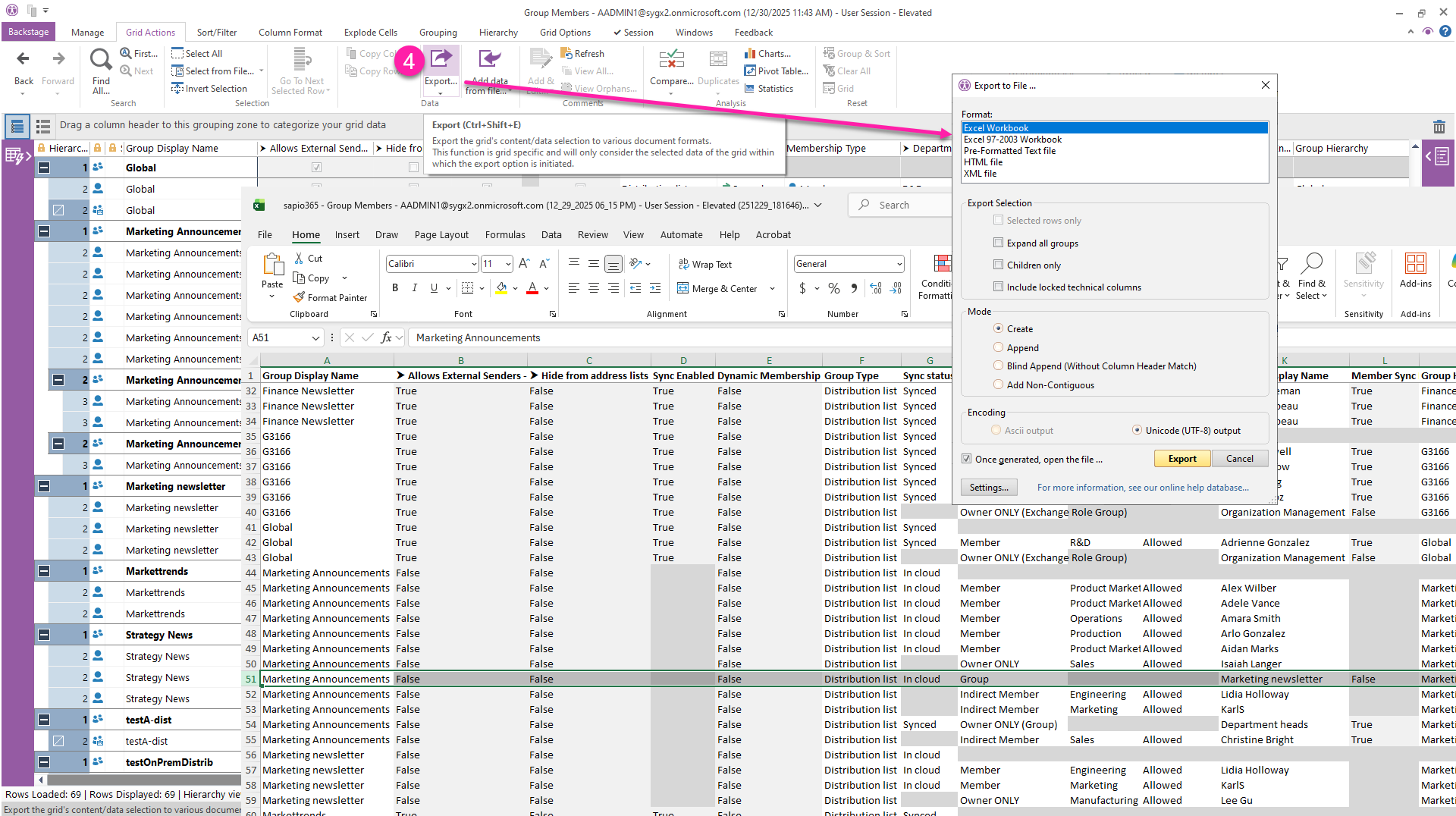
Once the view shows exactly what you need (groups, members, nesting, and any extra fields), you can export it.
- Export to Excel with one click or choose another format.
- Save the view to apply it later for a fresh report.
Microsoft 365 Admin Centers vs PowerShell vs sapio365
Here is a quick side‑by‑side view of the three approaches discussed above.
| Aspect | Feature/Capability | ADUC | Admin Centers |
|---|---|---|---|
| See members of one group | Yes: direct members per selected group. | Yes: using Get-MgGroupMember or Get-MgGroupTransitiveMember. | Yes: across one or many groups in a single grid. |
| Include nested groups | Limited: you must click into each nested group manually. | Yes: via transitive or recursive queries, but it requires scripting. | Yes: expand nesting with a click and see the full hierarchy. |
| Export all members of all DLs | Not in one step: requires opening each group and/or manual exports. | Yes: with a script that loops through all groups and exports to CSV. | Yes: load all groups, their members, and export directly from the grid. |
| See which nested group a user comes from | No: “all members” view is flat and doesn’t show the nesting path. | Possible, but only if your recursive script captures and formats that information. | Yes: nesting is visible and expandable in the UI. |
| Add extra properties (user/group) | Very limited: few columns and no custom combinations. | Yes, but you must select and join properties in code. | Yes: add any exposed properties to the grid with a few clicks. |
| Skill and time required | Low skill, but high time investment for large or nested groups. | Medium to high skill, plus time to test and maintain scripts. | No scripting: most of the work is point-and-click configuration. |
| Best fit use case | Quick spot checks on a small number of groups. | Automated or repeatable exports when you are comfortable with PowerShell. | Fast, rich reporting and ongoing management of many distribution groups. |
If you just need a quick look at a single distribution list, the admin centers may be enough, even if they are a bit clumsy with nested groups. When you want more control and automation, Microsoft Graph PowerShell can give you comprehensive results, provided you are willing to invest the time to script and maintain your solution.
But if you’re looking for the easiest way to get a clean, complete report of all your distribution list members, including nesting and rich properties, sapio365 lets you get distribution group members in a few clicks without any code. For day‑to‑day reporting and management of distribution groups at scale, sapio365 can save you a lot of effort and a lot of PowerShell.




Submit a comment