
sapio365 4.1: Make everyday Microsoft 365 administration faster!

Take advantage of new sapio365 features that speed up user lookups, sharpen usage insights, and give you tighter control over licenses, mailboxes and more.
Managing Microsoft 365 at scale means juggling user lookups, licenses, mailboxes, apps, and hybrid directory data, all while keeping performance snappy and governance tight. This latest sapio365 update focuses on doing more of that heavy lifting for you, with faster ways to reach the right users, richer usage insights that make license decisions easier, and new controls that help you keep mailbox retention, group communications, and app permissions aligned with your policies.
At the same time, we have smoothed out everyday tasks like exporting data, adjusting columns, and reloading large grids, so you spend less time waiting or clicking through options and more time actually managing your Microsoft 365 environment.
Scroll down to see highlight details or click on the links below:
- Speed up Microsoft 365 user lookups
- Track Microsoft 365 Visio and Project usage
- Streamline Microsoft 365 license assignments
- Review Microsoft 365 license assignment dates faster
- Control welcome emails for Microsoft 365 groups and Teams
- Get richer mailbox usage insights
- Enforce mailbox retention policies consistently
- Spot risky app permissions quicker
- Add the columns you need to your grid faster
- Monitor service plan provisioning errors automatically
- See how long your last load took
- Save clicks when exporting grid data
- See counts of your on-prem user accounts and groups
- Control how sapio365 handles hybrid Active Directory data on multiple domains
Speed up Microsoft 365 user lookups
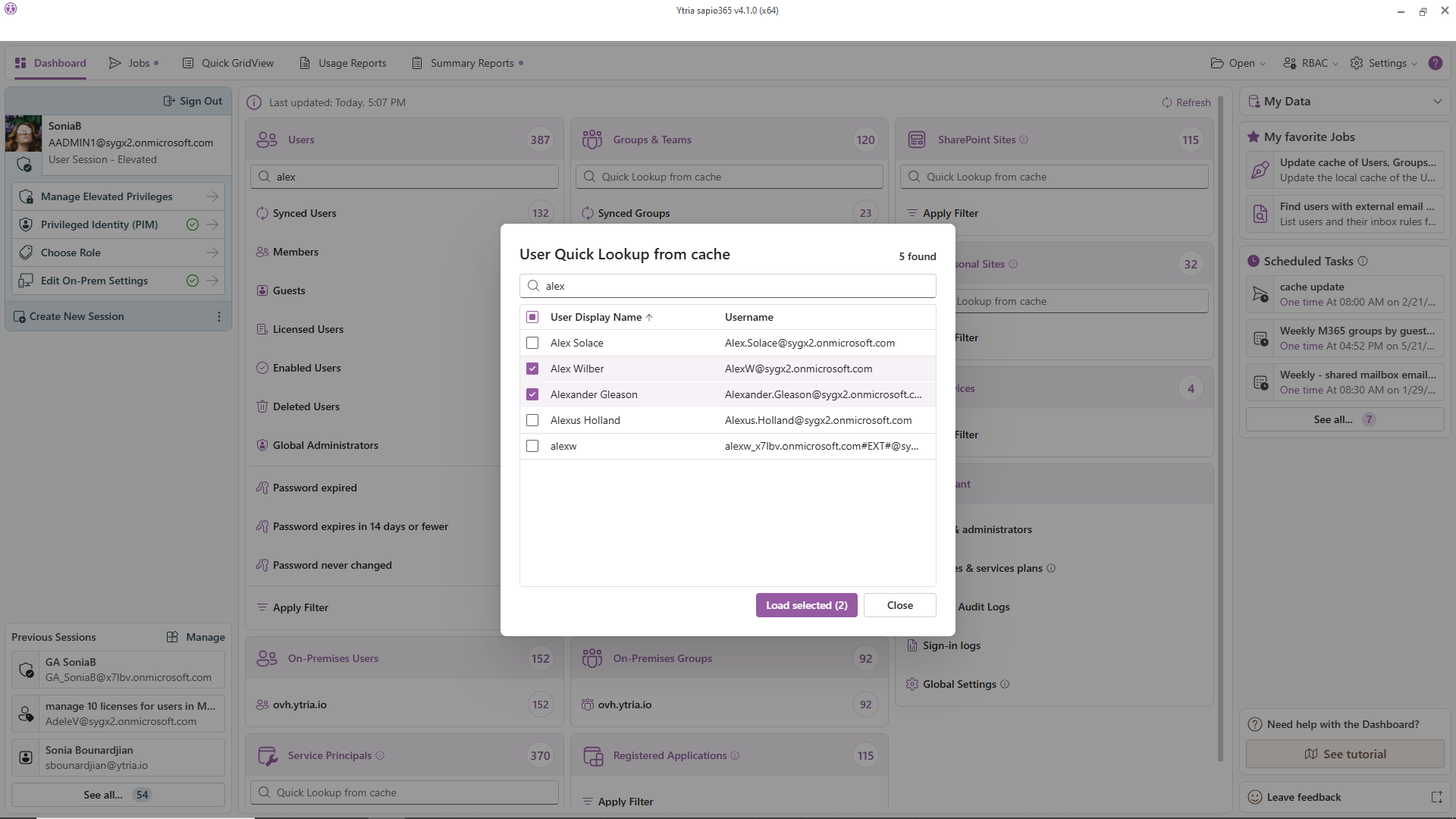
Skip the Dashboard’s prefiltered views when you just need to manage a few Microsoft 365 users. With the Quick Lookup from cache option in the sapio365 Dashboard, you can run a ‘contains’ search that returns a preview of up to 100 cached Microsoft 365 users, groups, sites, and service principals, then choose exactly which ones to load in the grid so you get to the right objects much faster.
Track Microsoft 365 Visio and Project usage
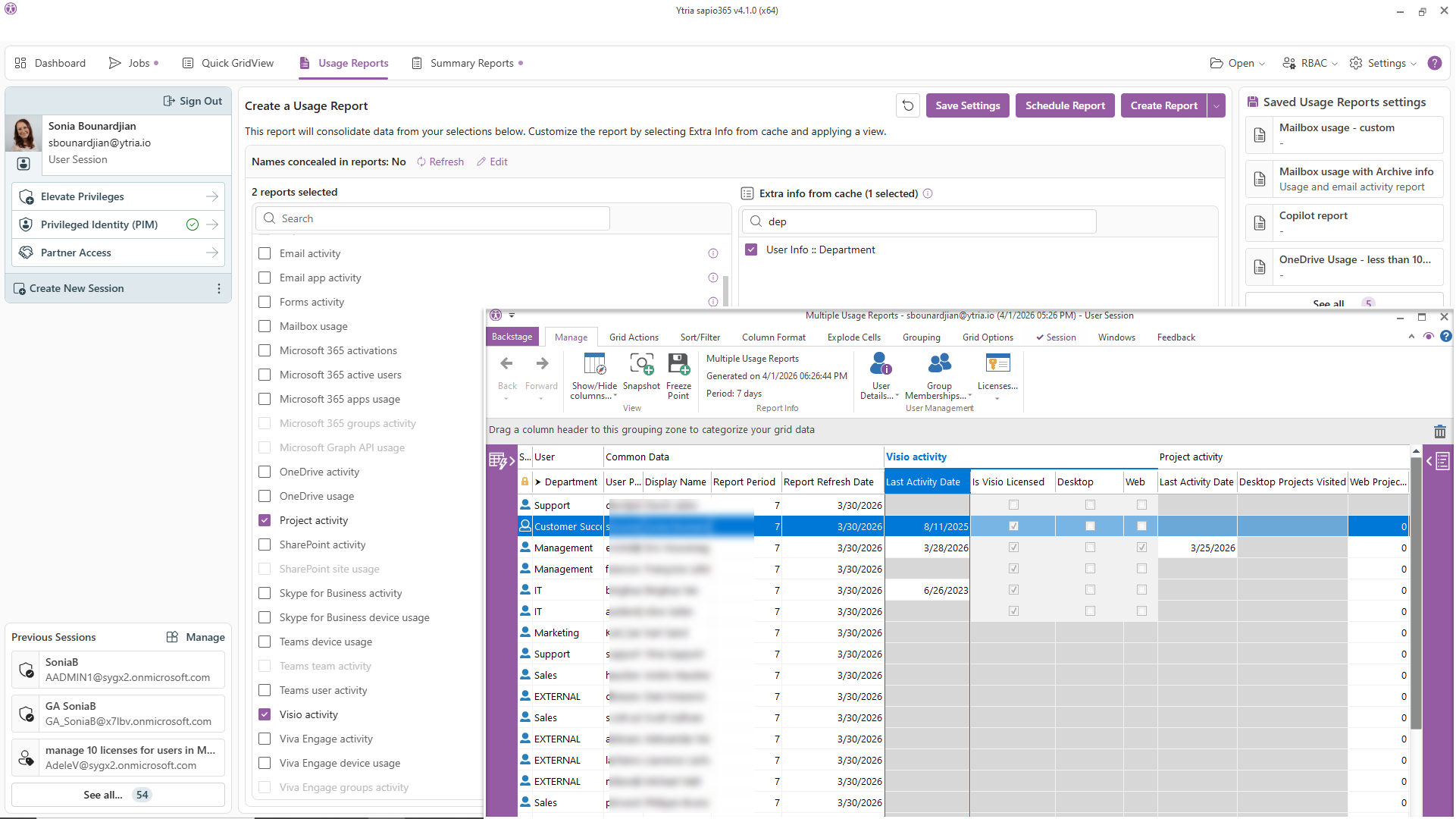
The Usage Reports section in sapio365 now includes detailed Visio and Project activity, so you can see exactly how active your Microsoft 365 users are on these services. You can enrich these reports with cached user details like department or location, and even combine them with other user‑based activity reports to get a clearer picture of adoption and license value.
Streamline Microsoft 365 license assignments
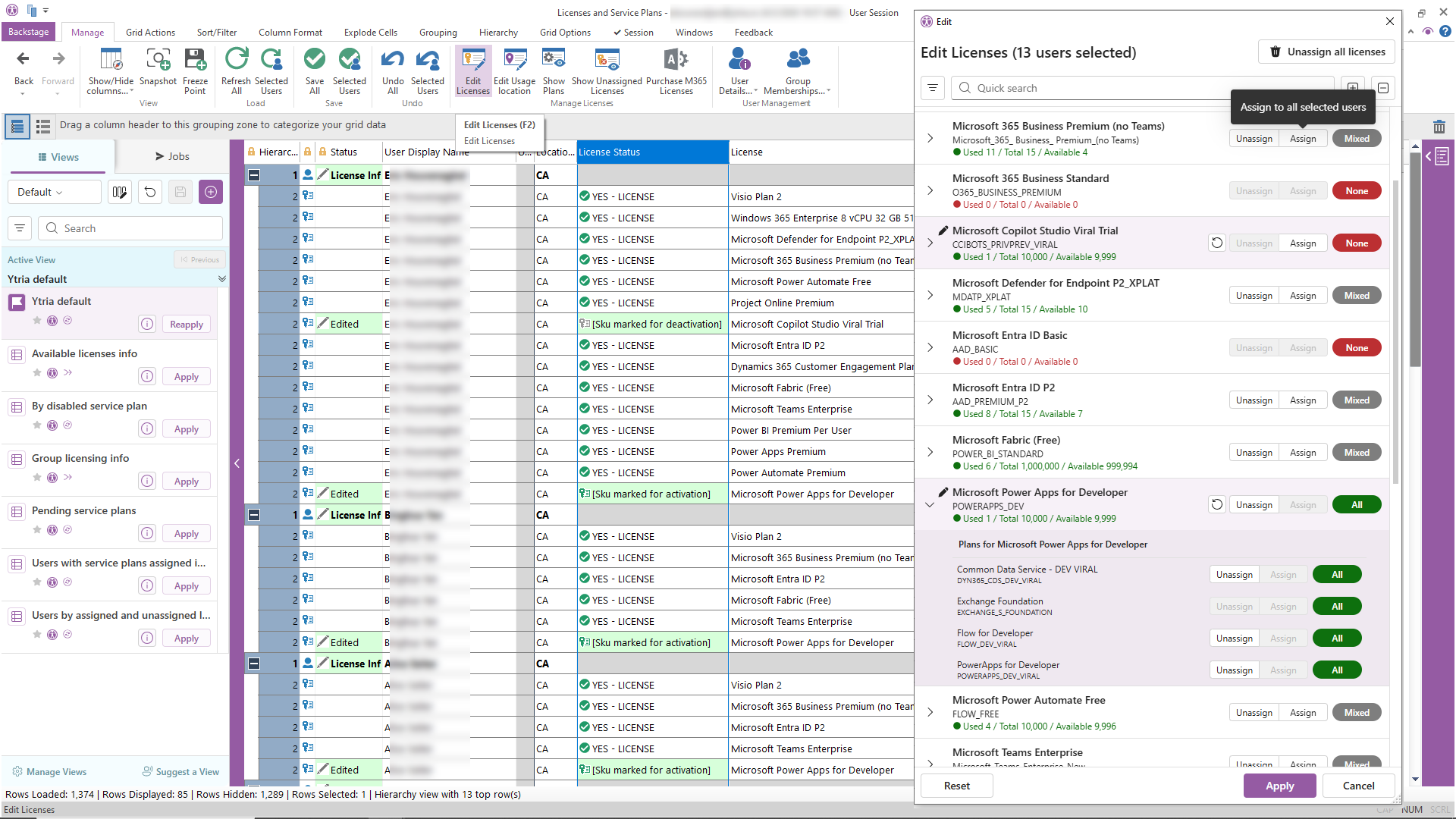
Editing Microsoft 365 license assignments in sapio365 is now easier with a redesigned license editing dialog that’s cleaner, more modern, and faster to work with. License assignment grids are lighter and respond more quickly because service plans are shown only for assigned licenses, helping Microsoft 365 admins focus on what actually matters.
Review Microsoft 365 license assignment dates faster
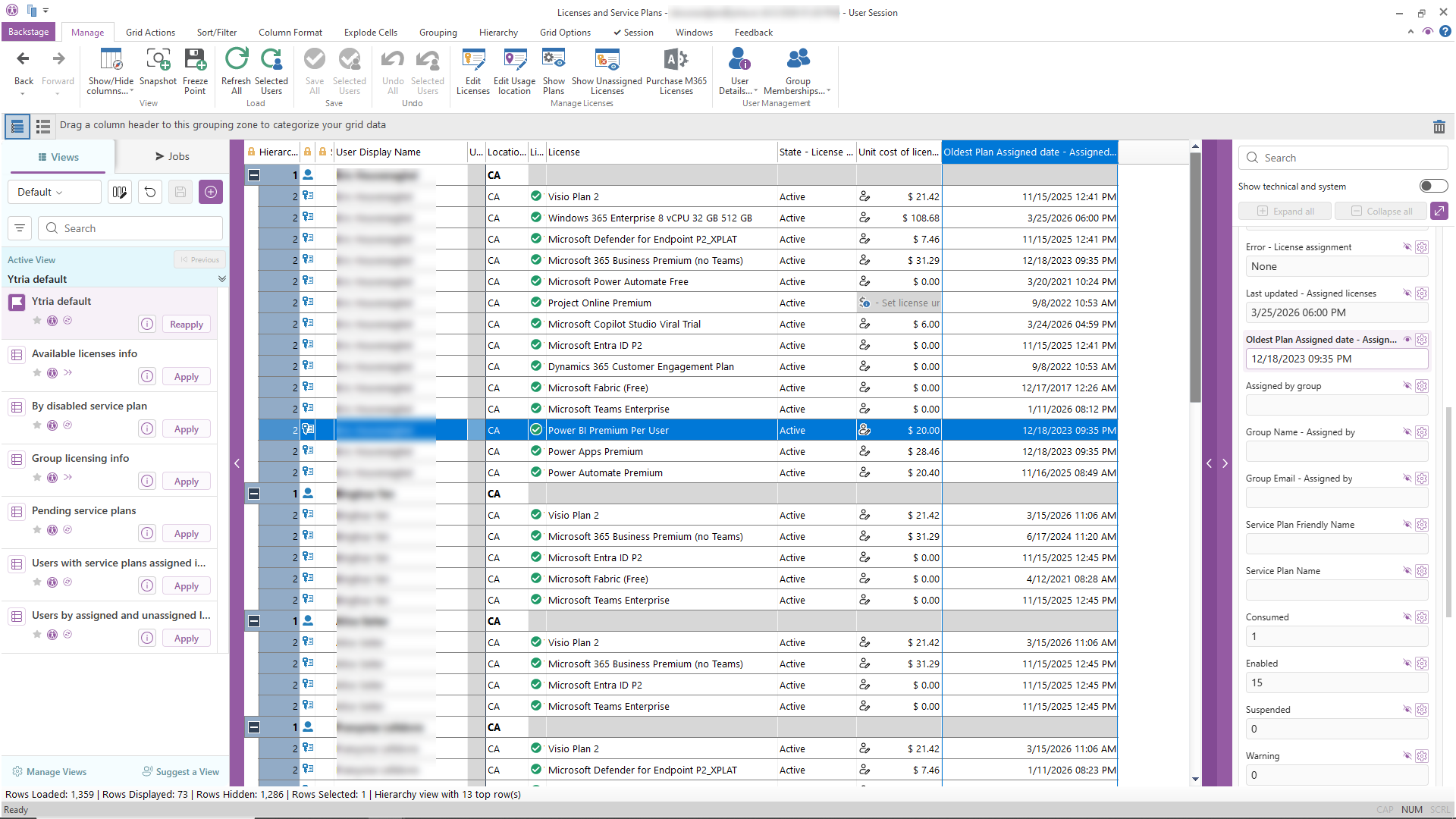
When you manage users’ Microsoft licenses in sapio365, you can now use the new Oldest Plan Assigned date column to immediately see how long each license has been in place. This lets you avoid loading detailed service plan information, keeping your view light and focused on licenses while still flagging potential candidates for cleanup or optimization.
Control welcome emails for Microsoft 365 groups and Teams
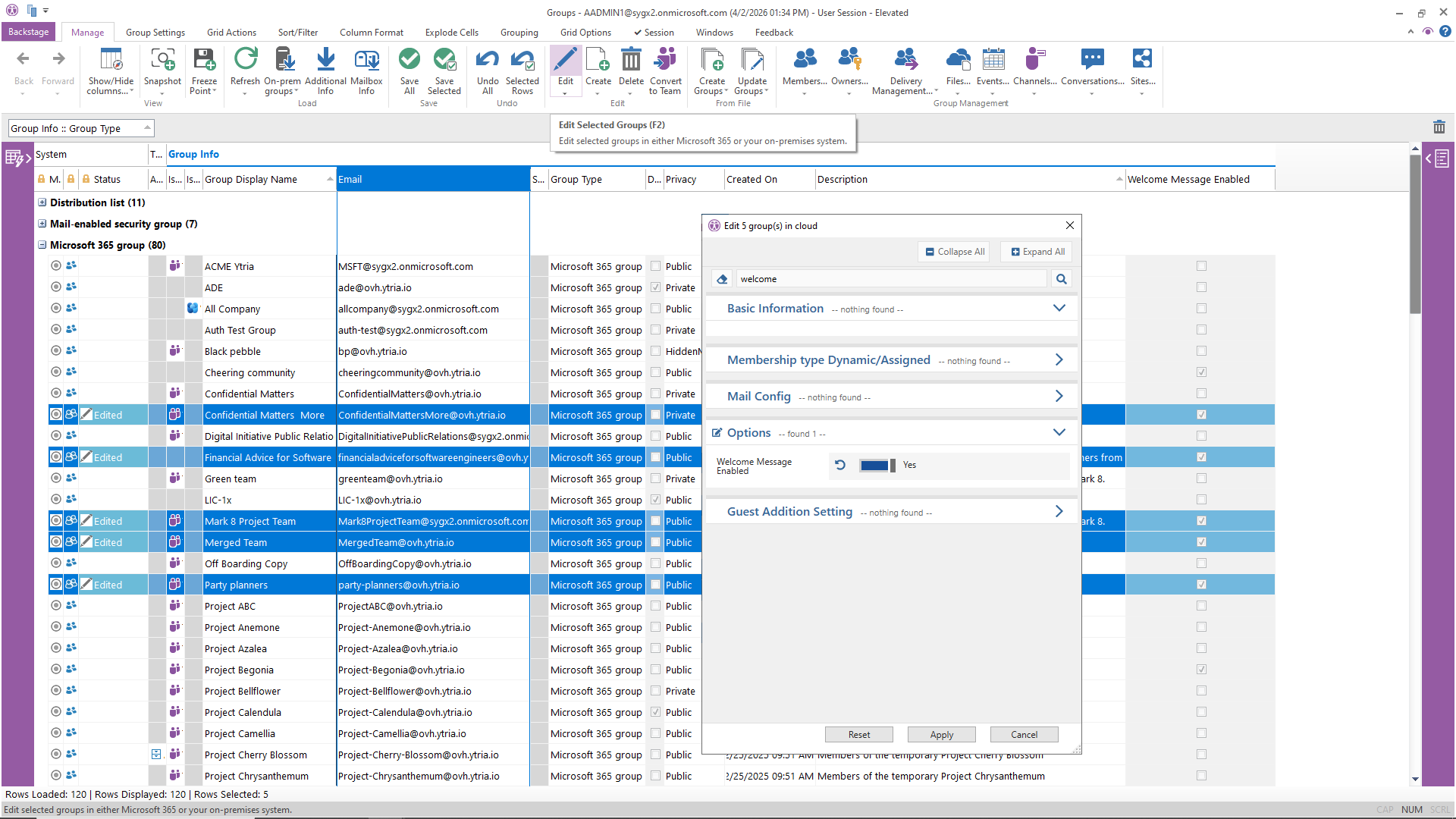
You can now edit the Welcome Message setting for the Microsoft 365 groups and Teams you select, so you decide whether new members automatically receive a welcome email or not. After loading Additional Info to retrieve the current value, simply update the Welcome Message option in the edition dialog to align communications with your governance policies.
Get richer mailbox usage insights
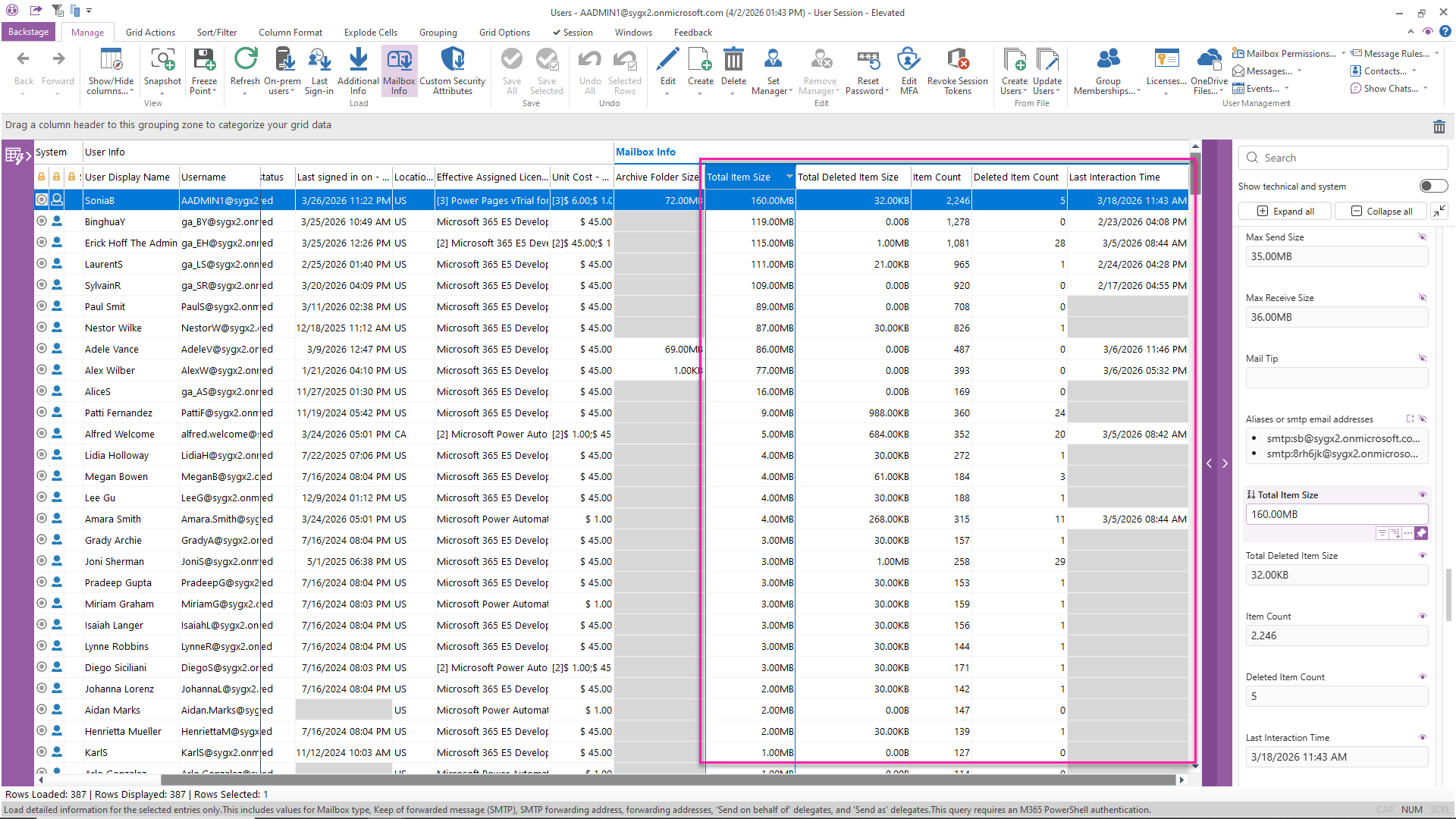
Users and Groups modules now include detailed mailbox stats like the total size of all items in the mailbox (Total Item Size) and the total number of items (Item Count), covering emails, calendar items, contacts, and more. You’ll also see how many items sit in the Recoverable Items folder (Deleted Item Count) and their total size (Total Deleted Item Size), so you know what’s still recoverable within the retention period. On top of that, a new Last Interaction Time shows the most recent activity by the mailbox owner or a delegate, and you can load Mailbox Info to pull all of this into your grid and get a clear, global view of your mailbox landscape.
Enforce mailbox retention policies consistently
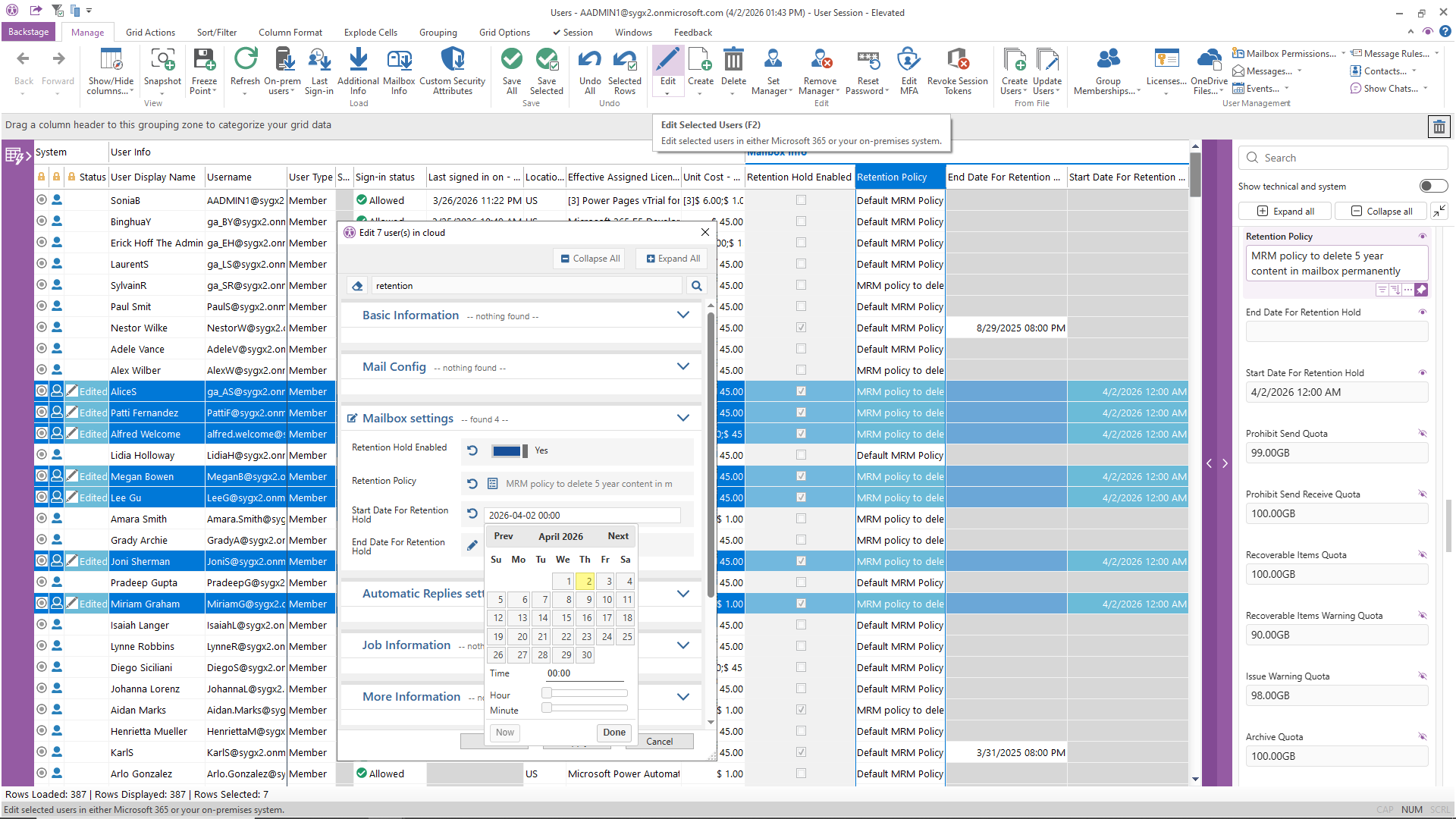
You can now set or change retention policies for selected users’ mailboxes directly in sapio365, helping you enforce your organization’s Microsoft 365 data retention standards at scale. sapio365 retrieves the full list of available retention policies in your tenant so you can select approved policies only and apply them to the right mailboxes in a controlled way. To change a retention policy, first load the current retention and hold data with Mailbox Info on the mailbox, then update the policy from there so your configuration always reflects your compliance requirements.
Spot risky app permissions quicker
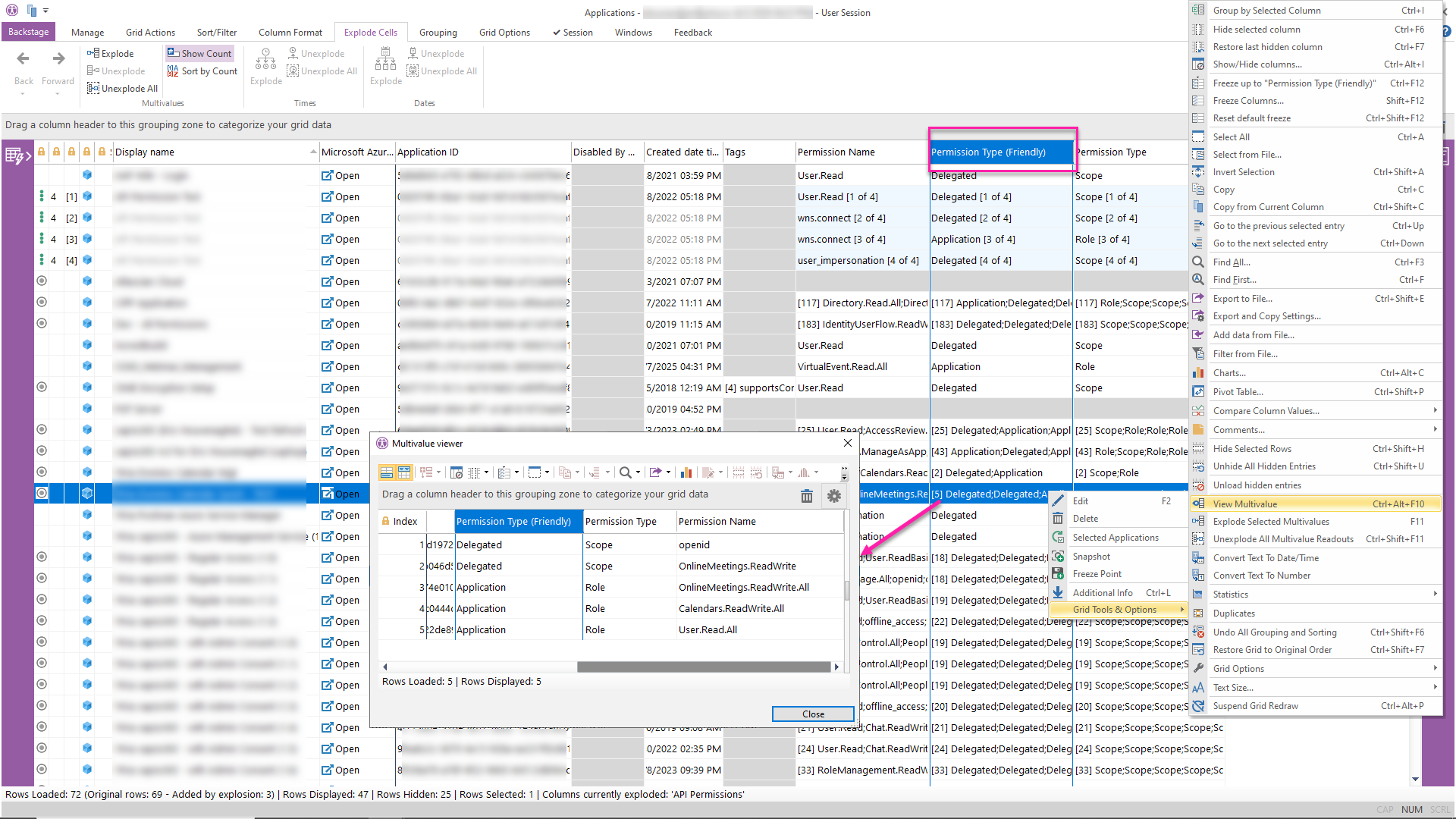
The Registered Applications module now includes a new Permission Type (Friendly) column that clearly shows whether each permission is Delegated or Application, making it easier to spot apps with higher‑impact access. Explode the list of permissions for selected applications to review their effective exposure in bulk, or use the View Multivalue right‑click option to inspect all permissions for a single app when you need a deeper security review.
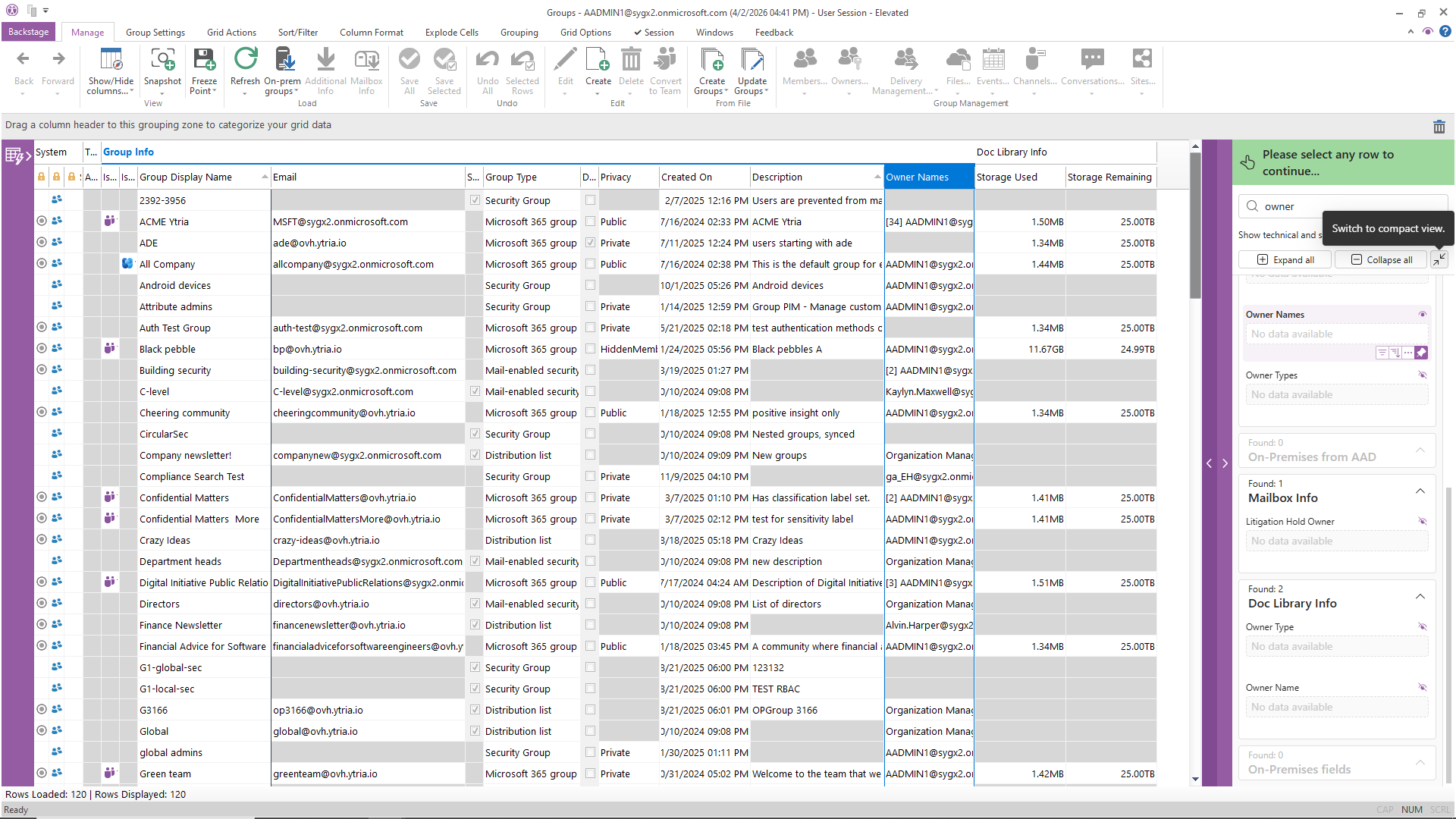
Add the columns you need to your grid faster
The sapio365 Data Viewer now always shows the list of available columns, even when nothing is selected, so you can add or remove columns from your grid without breaking your workflow. You can also switch between compact and normal spacing for the fields, making it easier to scan property names and values at a glance.
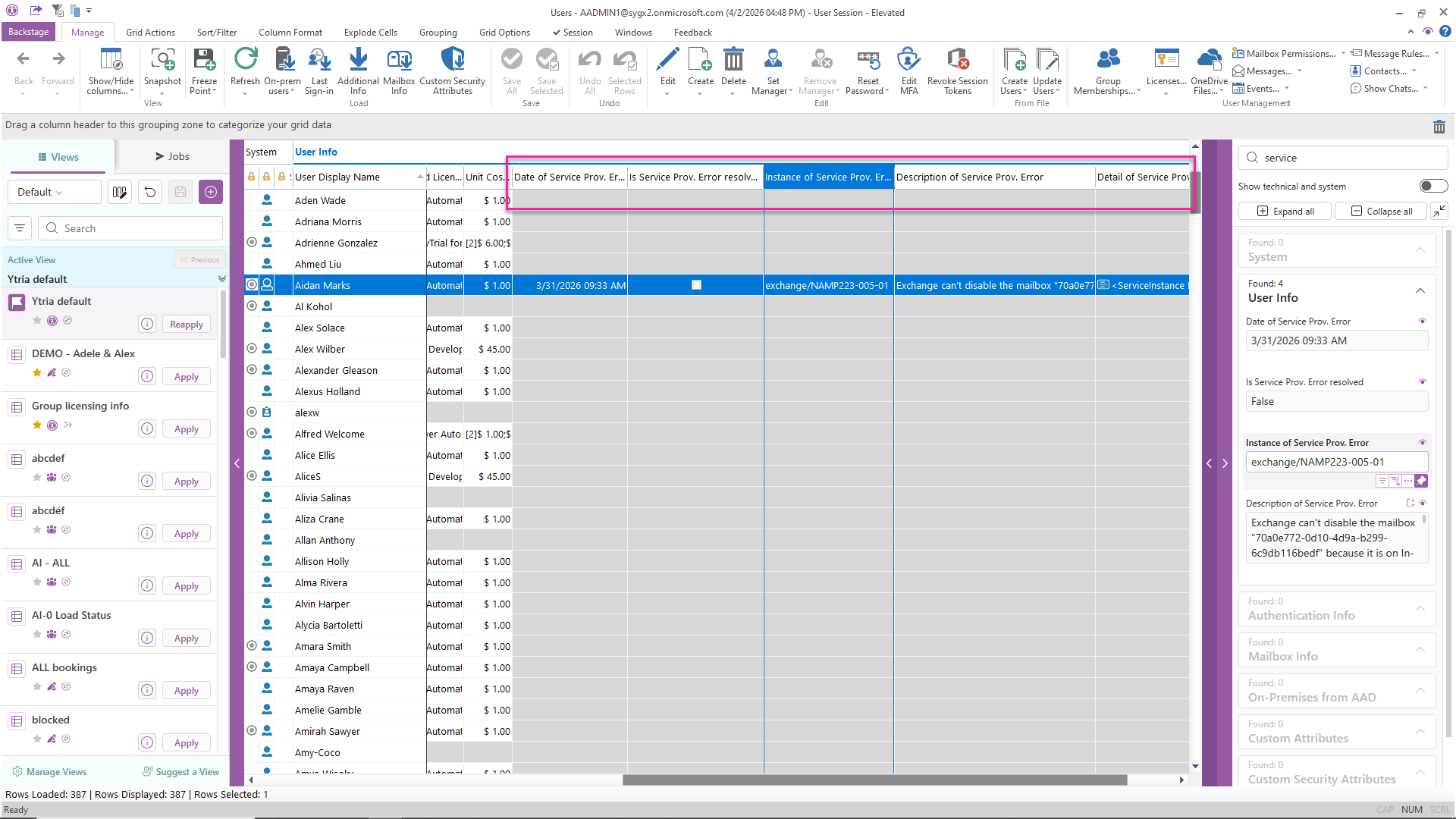
Monitor service plan provisioning errors automatically
New Service Provisioning Errors columns in the Users and Groups modules help you keep an eye on license assignment issues before they spread. You can set a scheduled report based on a custom view that runs weekly and emails you a list of affected accounts, so you stay ahead of problems instead of waiting for users to open tickets.
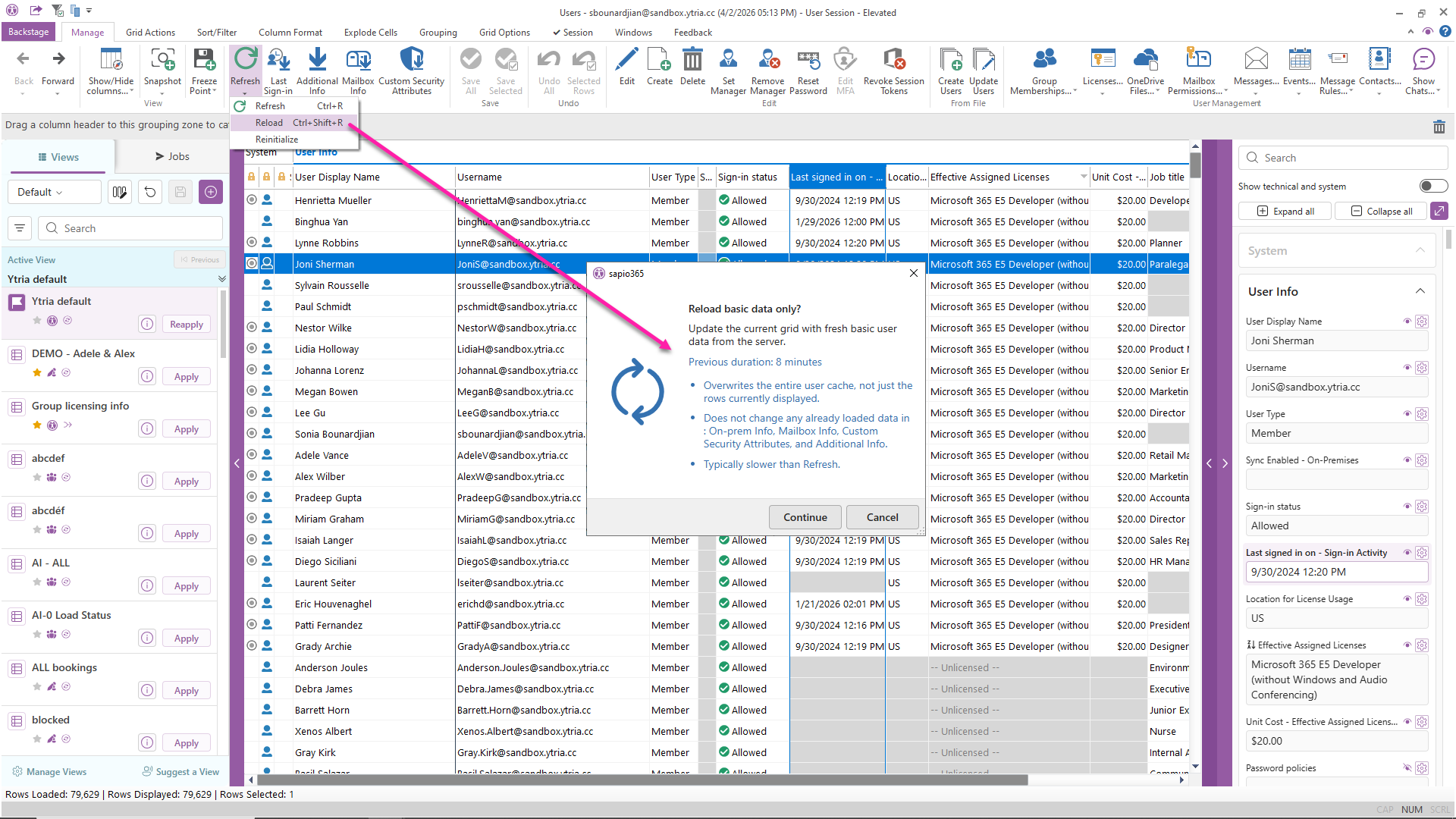
See how long your last load took
Refreshing a grid uses a delta when possible to make the process faster, but sometimes you still need to overwrite the cache or do a clean reload with Reinitialize or Reload. With these options, you’ll now see how long the last grid load took, making it easier to judge the impact of running them again for your current view. Knowing the previous duration is especially helpful when you’re working with large volumes of entries, where these processes can take significant time to complete.
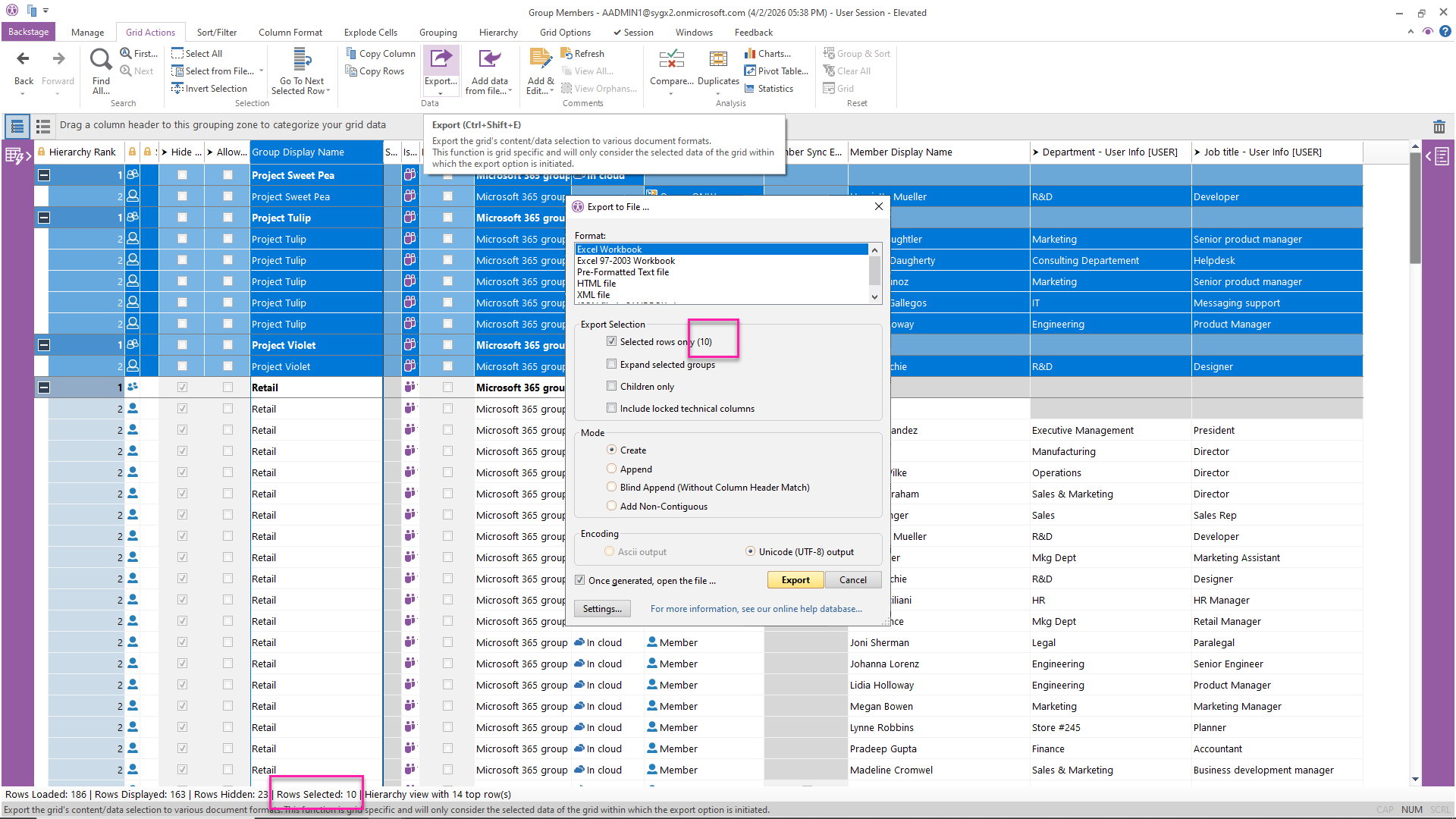
Save clicks when exporting grid data
Exporting sapio365 grid data comes with a lot of options, so we’ve cut down the clicks by adjusting default settings based on how many rows you select. Locked technical columns are no longer included by default, and when you export a single row—the most common scenario—it no longer forces “only selected rows,” so you can just hit export. With multiple rows selected, you’ll see exactly how many will be exported, so you can confirm everything in one glance instead of tweaking options first.
See counts of your on‑prem user accounts and groups
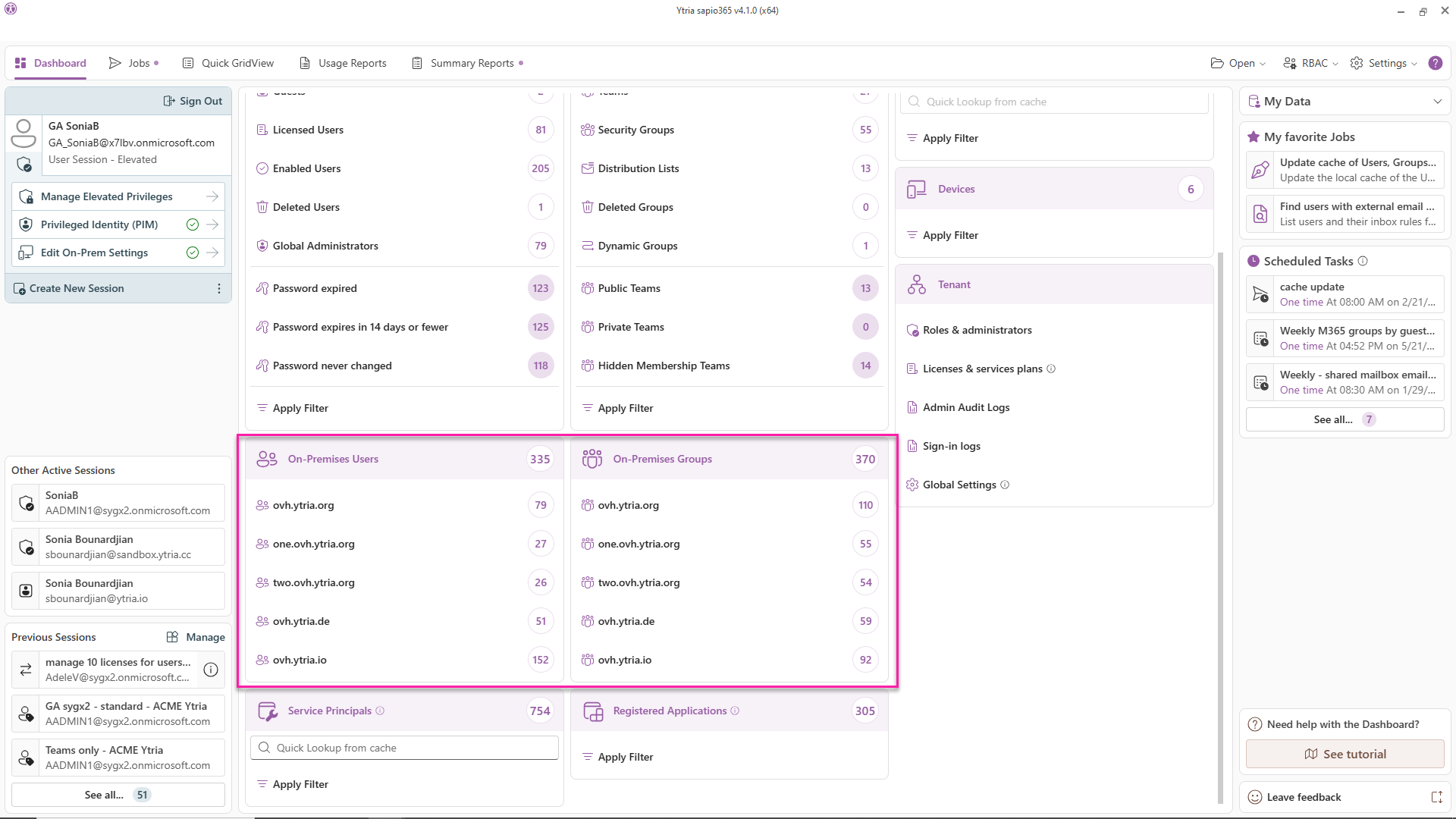
The Dashboard now shows how many on‑premises user accounts and groups you have in your hybrid Microsoft 365 environment, so you always know the size of your setup. If you have several domain connections configured, you also get a breakdown by domain for both Users and Groups, giving you a clear overall view of your on‑prem Active Directory landscape.
Control how sapio365 handles hybrid Active Directory data on multiple domains
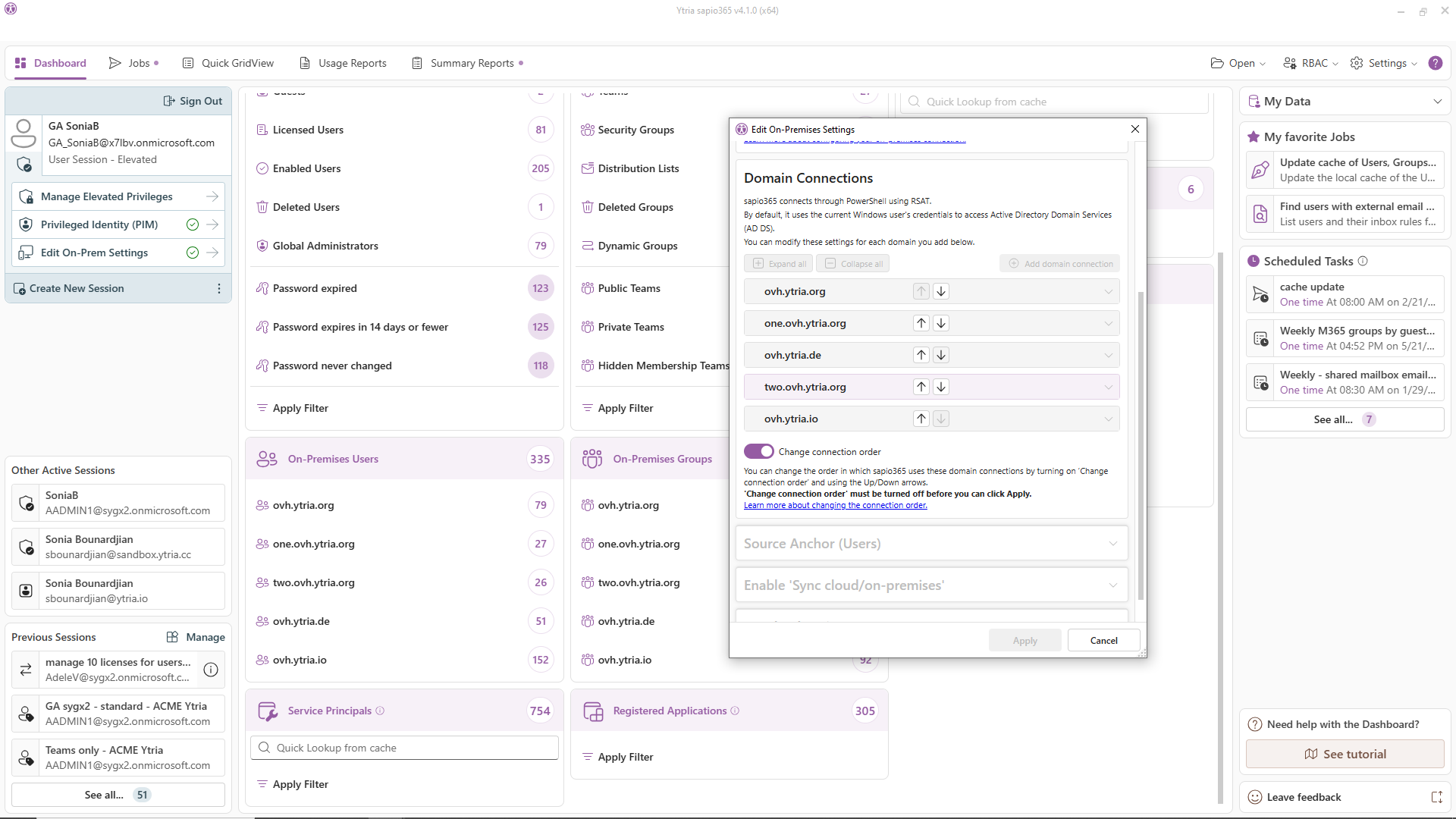
If you manage a tenant with multiple domains syncing to it, you may already use sapio365’s multiple domain connection settings to manage your on‑prem users and groups. You can now reorder these connections so that the last one in the list wins whenever information overlaps. In a hybrid multi‑domain environment, this lets you match sapio365’s connection order to your actual sync topology, because each connection overrides the ones before it and the last connection takes precedence for overlapping on‑premises data.





Submit a comment