
How to Assess Your Costs Before Renewing Microsoft 365 Licenses

The first thing I help new clients with is gaining a clear, big-picture overview of their Microsoft 365 licenses, so they can make informed decisions about renewing Microsoft 365 subscriptions. We start by answering questions such as:
- What is the total cost of all purchased licenses?
- What is the cost of consumed (assigned) licenses?
- What is the cost of available (unassigned) licenses?
- How much will it cost to renew licenses that are expiring soon?
- What is the cost of licenses assigned to inactive or disabled user accounts?
You might expect this information to be readily available in the Microsoft 365 Admin Center. The reality is a bit more complicated. I’ve already covered the last point in a previous article “How to find inactive Office 365 licenses“. Let’s now examine how Microsoft’s native tools compare to these questions—and how the alternative admin tool, sapio365, can streamline the process.
Solution 1: Reporting Purchased Licenses with Native Microsoft Tools
While the Microsoft 365 Admin Center is key to learning about how much you spend on your licenses, you may need to resort to PowerShell to fill in the blanks. Let’s take a look!
Microsoft 365 Admin Center
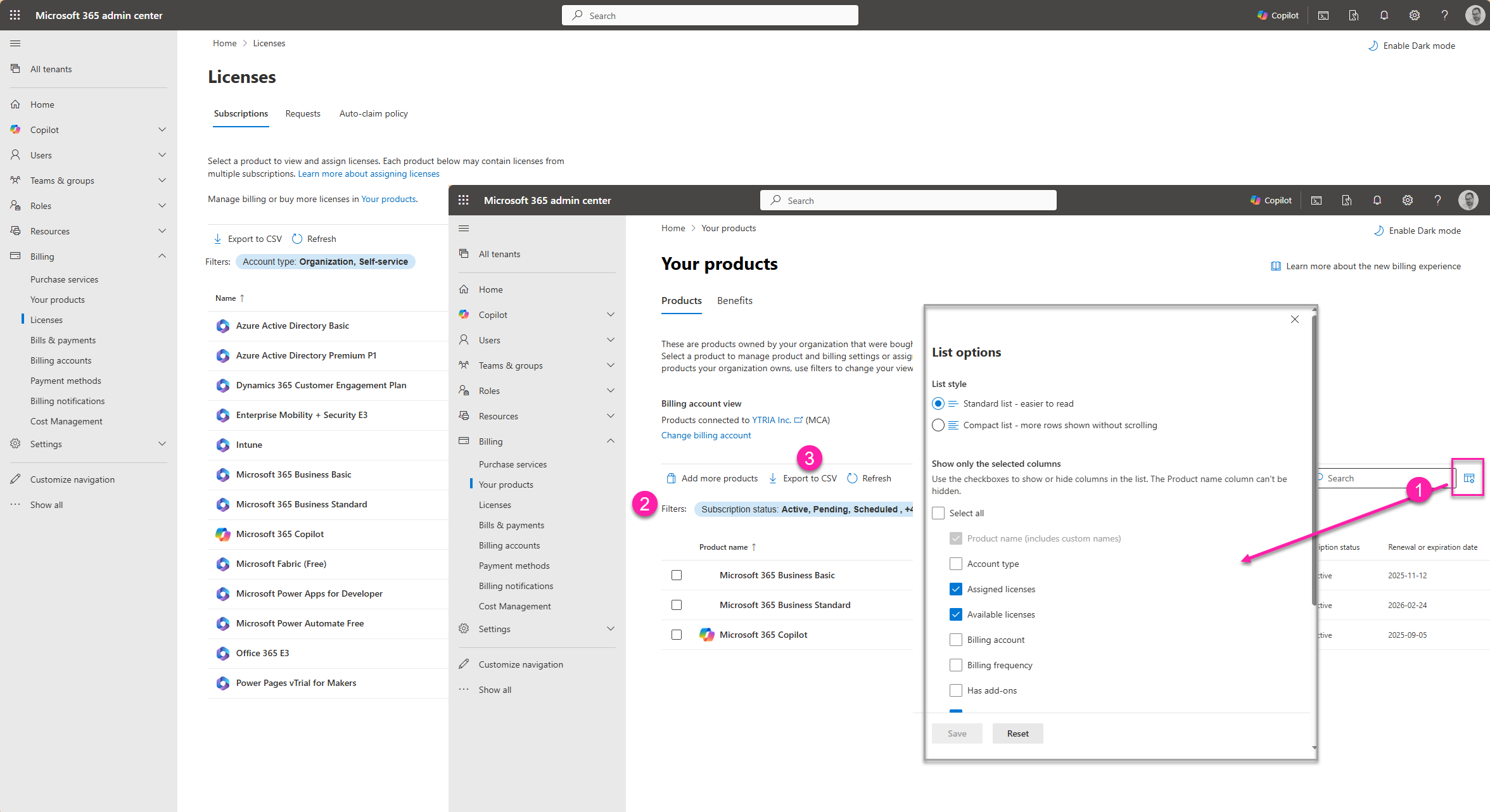
You’ll find a summary view of your purchased licenses in the ‘Your products’ section under Billing. Here, you’ll find information about each product, including the renewal date for each and the number of licenses available or assigned.
- You can add license properties for your report.
- Use (limited) filters on the Subscription status, Product type and Pricing model
- And then export it to a CSV file.
- Convert to Excel and add formulas to calculate costs, or add date filters to isolate renewing Microsoft 365 licenses.
However, compared with the view in the Licenses section, some data may be missing. In the Licenses section, this simplified list of all your licenses requires you to click each one to view details, then click Purchase Details to see the renewal/expiration date. You’ll need to compile this info for each one manually.
If your list of licenses is a long one, you’ll need to use PowerShell to format your report. Not to mention that working in Excel can sometimes result in accidental changes to data.
PowerShell
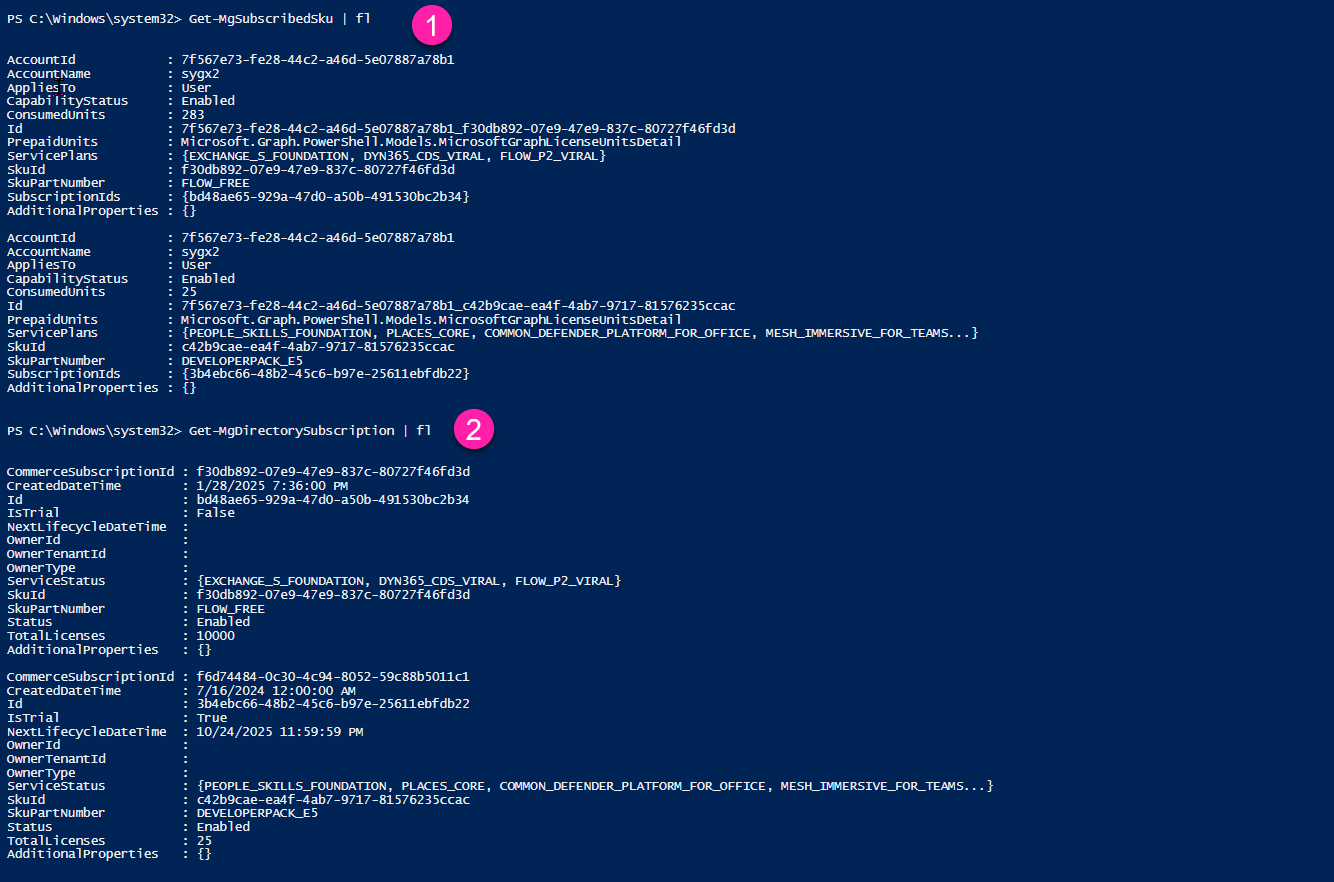
If you’re up to scripting, you can combine Microsoft Graph PowerShell cmdlets to retrieve, format and export this data.
- To get basic license information: Get-MgSubscribedSku
- To get the renewal dates: Get-MgDirectorySubscription
On the other hand, you can make your life easier by letting sapio365 do the work automatically.
Solution 2: Getting a Clear Picture of M365 License Costs with sapio365
In this section, I’ll show you what I show clients. Unlike Microsoft’s native tools, sapio365 makes license and spending analysis fast, flexible, and truly actionable.
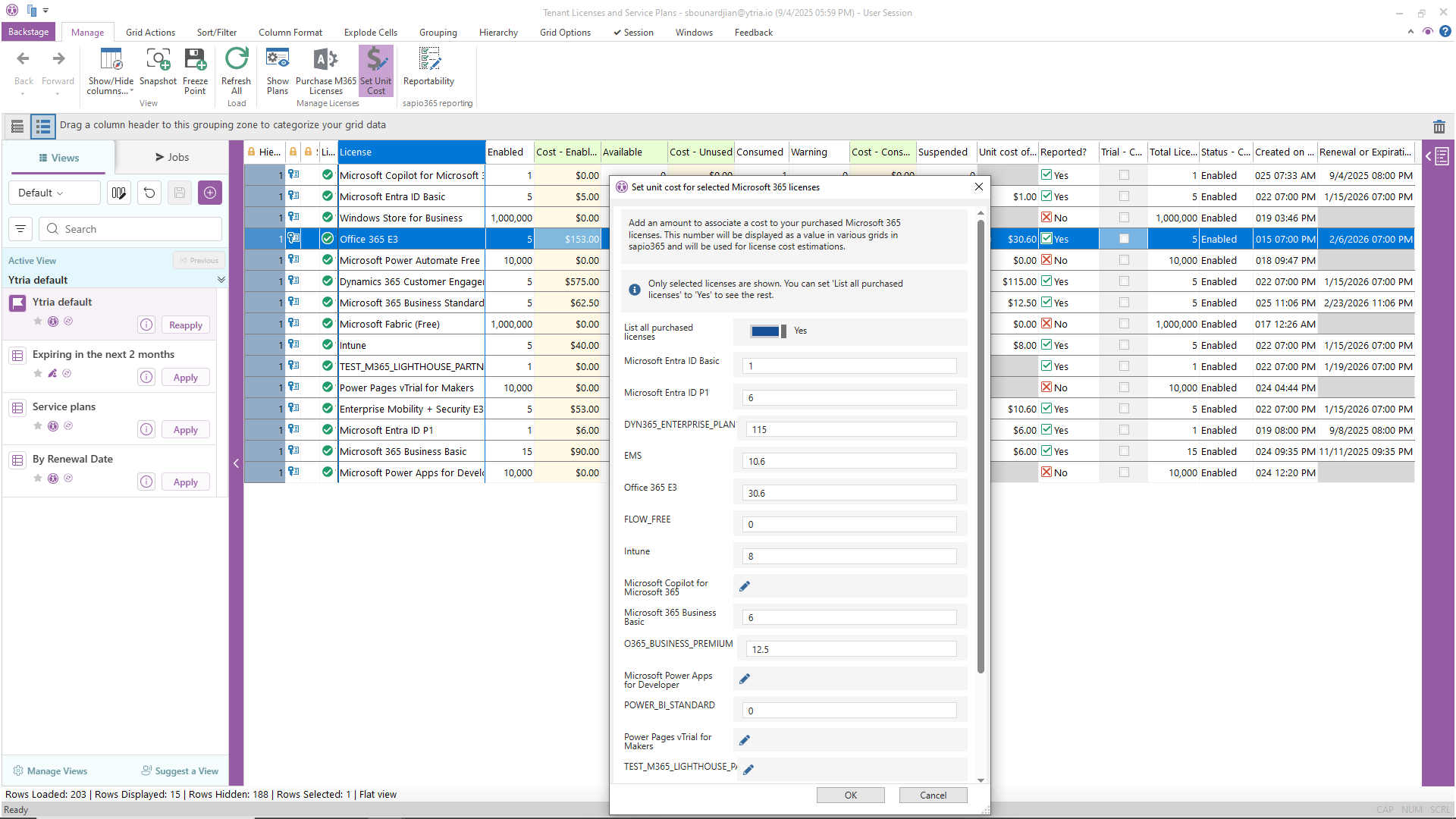
Once you’ve loaded the tenant licenses, you’ll see all your purchased licenses, how many have been assigned and how many are available, as well as their state and renewal/expiration dates.
Note that some licenses already have a unit cost set while others don’t. sapio365 provides these numbers based on public information for some of Microsoft’s most common licenses. You can adjust this amount to match what you pay, as shown in the screenshot below.
Customize and export your view
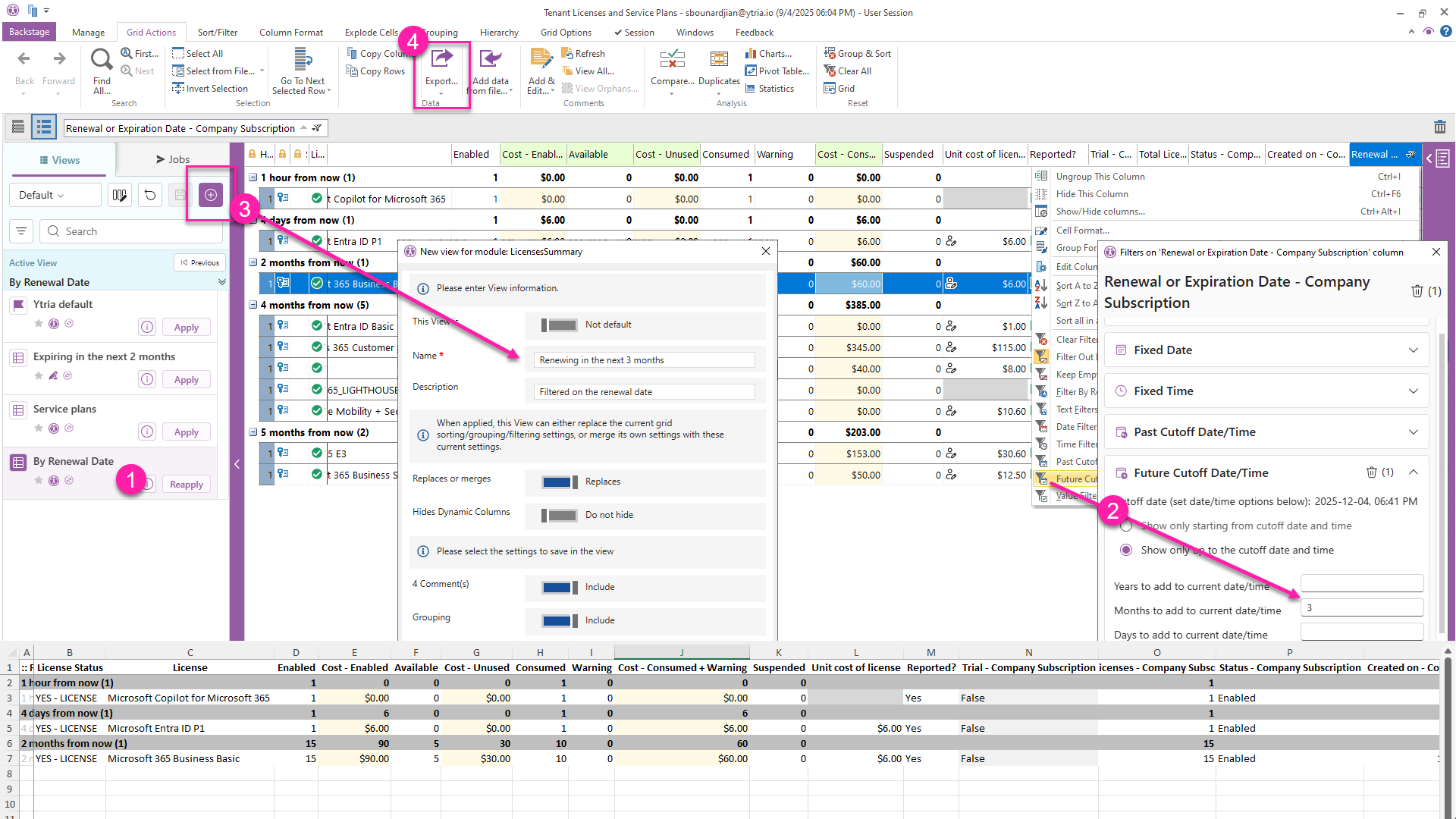
To prepare your report on upcoming license renewals, here are the steps you can take, as shown in the image that follows.
- Apply a ready-made view that categorizes each license by its renewal/expiration date.
- You can further customize the view by setting a filter on the renewal date from the right-click menu.
- Save as a new view which you can apply later.
- Export the view to Excel.
Now you have an overview of your licenses by their renewal/expiration dates, which makes it easier for your team and purchasing department to plan ahead.
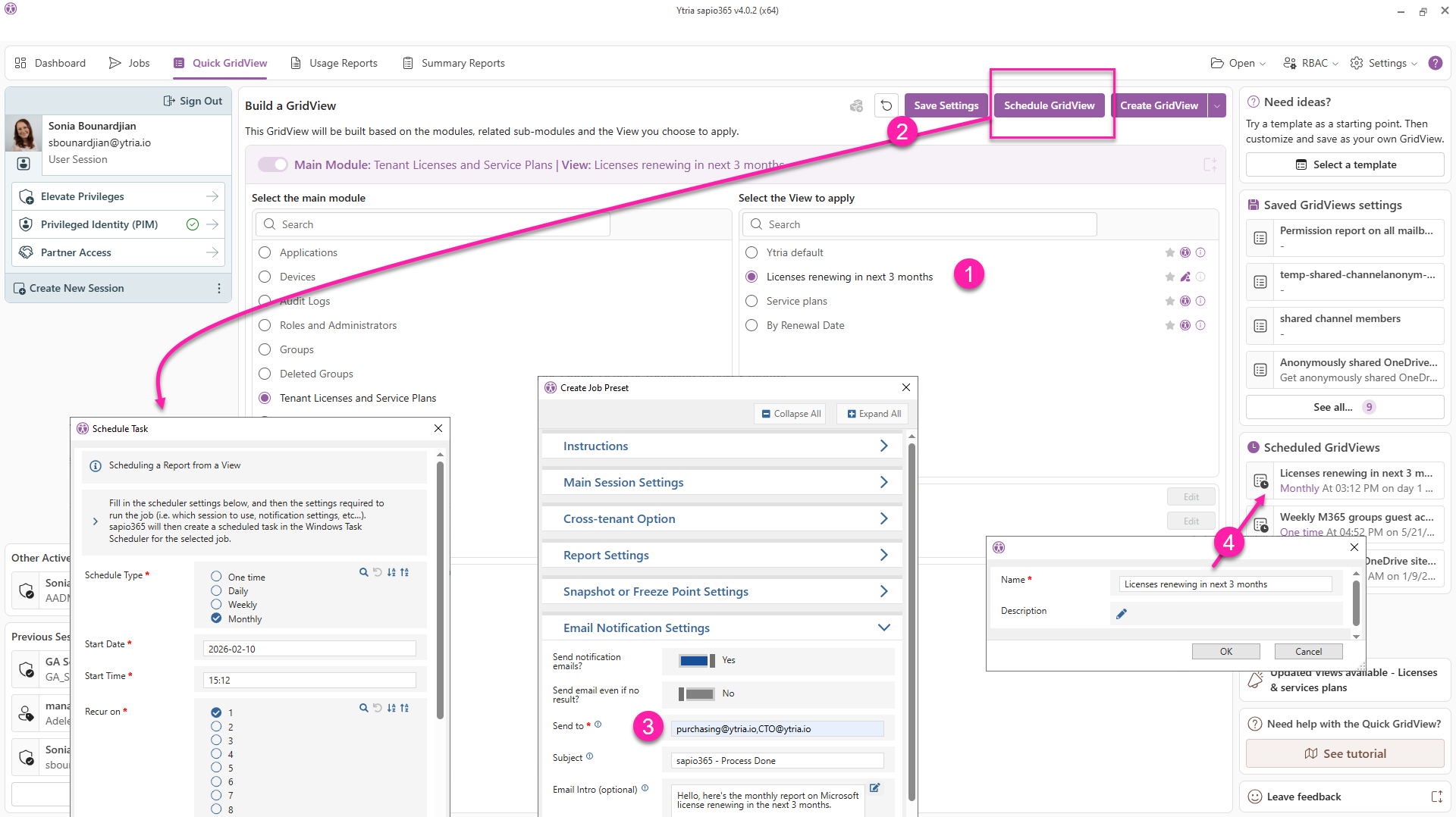
Schedule a monthly sapio365 report
This part is even easier.
- Just pick the view you want to export. It could be the built-in one or one you’ve saved.
- Click on ‘Schedule’ and decide when, where and how often to send it.
- Add recipients and a note.
- Save it and see it listed on the right side.
If auto-emailing reports is not your thing, you can delegate read-only access to this particular view to non-admins with sapio365’s built-in role-based access control (RBAC).
Here is a quick comparison to illustrate some key differences in assessing your spending when it comes to renewing Microsoft 365 licenses:
| Feature/Capability | ADUC | Admin Centers |
|---|---|---|
| Real-Time License Inventory | Basic, manual | Comprehensive, instant |
| Customizable & Cross-Tab Reporting | Very limited | Highly flexible, filters by any attribute |
| Read-only role | Too broad | Granular |
| Scheduled/Automated Reports | PowerShell required | Just a few clicks away |
Don’t settle for partial visibility or tedious, manual reporting when analyzing Microsoft 365 costs. With sapio365, generating your comprehensive license summary report is quick and effortless.
Why wait? Try sapio365 for yourself and discover your full cost breakdown in just a few clicks!





Submit a comment