
sapio365 - SharePoint sites

Use Ytria’s sapio365 to audit your SharePoint sites; auditing includes their lists, metadata, and document libraries
Full visibility into all levels of your SharePoint site details means a more thorough understanding of SharePoint usage and document storage. Easy reporting capabilities let you integrate detailed audits into your workflow in just a few clicks.
This type of SharePoint visibility at an org-wide scale just hasn’t been possible until now. Now with sapio365’s features, collection of audits of SharePoint sites has never been easier. With all of its helpful characteristics, this online software will allow you and your office 365 users to work more efficiently. What’s more, sapio365 doesn’t require coding – just point and click to explore the intricacies of SharePoint structures and data.
At Ytria we provide a service that is unparalleled to our competition, we are there every step of the way for you and your team to help with the compliance of the software within you day to day. Choose Ytria’s sapio365 to make your job and that of your employees easier.
Access to unparalleled productivity and compliance for you and your team with sapio365
Gain 360-degree visibility for SharePoint online sites
See all site collections, sites, document libraries, and file permissions—centralized, in only a few clicks. Turn what you see into a report, instantly. The information and documentation acquired with sapio365’s auditing of SharePoint sites will allow for thorough and final job delivery.
Accelerate the management of your SharePoint audit workflow
Wrangle even the most complex SharePoint site audit task into a clear and detailed report in only a few clicks. No PowerShell needed, which means less time spent scripting and testing your work.
sapio365 enables you to automate common administration jobs
sapio365 comes with a selection of SharePoint audit scenarios—such as finding sites with shared files, anonymous sharing, or org-wide file queries--pre-programmed for you. This feature with sapio365 will allow you and your team to save substantial amounts of time and energy. In addition, delegation of tasks amongst different departments and levels of understanding has never been easier creating strong workplace compliance.
Ensure file and document sharing best practices throughout your organization
With full visibility into the document libraries and sharing information, you can help ensure best practices, keeping collaboration smooth and security risks low. Reinforce policies and company security amongst employees through cognitive learning. With more visibility you can manage site activity to decrease data leaks or office mishaps. Knowing who has access to what will increase problem solving positively.
sapio365 makes our life easier!
With sapio365, I bring my cloud and on-premises accounts together in one place. I no longer have to search for them in one tool and then another – it really helps to avoid errors and problems. sapio365 makes our life easier!
 Stéphane Bergeron – IT Director
With sapio365’s SharePoint site auditing access you get better visibility without any code, including…

Basic SharePoint Information
- Site names and descriptions
- Site creation and modification dates
- Site URLs
- Data locations
- Host tenant names
Site List Information
- List descriptions, URLs, privacy, etc.
- List items
- SharePoint IDs
- Parent reference IDs and metadata
- System list information
List Item and Columns Information
- Basic column information
- Column setup properties
- Item names, descriptions, and IDs
- Item creation and modification dates
- Last access information (device, application, etc.)
And that’s only the beginning.
Explore other unique capabilities of sapio365
Want to know more?

sapio365 - Security log audits and monitoring
Enhance your Security on Microsoft 365 – Audit Logs and Create Reports with sapio365
No matter the size of your Microsoft 365 tenant, sapio365 provides unmatched visibility into recorded events. Enhanced sign in and audit logs are available within a couple clicks to shed light on who is accessing your tenant and all changes made to files and structures. Work efficiently and quickly with sapio365.

Efficient Microsoft 365 access, security log audits and monitoring
sapio365 is your central access point to comprehensive insights into every session, as well as the who, what, where, why, and how of actions performed. All of this can be managed and accessed in one place, without having to code.
Whether for one-off forensic approaches to finding a specific user action, or to keep an overall view on what is happening for operational (or even legal) purposes, sapio365 gives you the tool to achieve it quickly and easily.
Unparalleled productivity with sapio365’s
Microsoft 365 audit logs
sapio365 possesses many functionalities to assist clients in their Microsoft 365 daily tasks. We understand that Microsoft Office 365 can be difficult to surf and manage at times and that is why sapio365 was created. With this tool, you and your team will be able to audit logs and assert security and compliance issues within your company.
Gain 360-degree visibility and improve your activity management
See a full view of audits and sign-in logs, from a high-level overview to a deep dive—all in one place and at an unmatched scale. Microsoft 365 audit logs can provide you with valuable insights for better security and user management.
sapio365 enables you to rapidly record and craft detailed reports of your tenant and user data
With sapio365’s FlexyView grid, what you see is what you get in terms of reporting. Simply copy and paste directly from the UI, or export data to charts, spreadsheets, HTML, or CSV.
Search audit log by leveraging preset data for quick insights
sapio365 gives you a variety of preset data views and scenarios to choose from to view and export as is, or to enhance by adding in comments, custom categorizations, and more. Not only does sapio365 provide reports of data, it works through Microsoft 365 logs in a short amount of time. These quick insights provide users with additional time to focus on more pressing issues. This increase in data access and visibility can be delegated outside of management and other admin users, allowing a unified workforce within a company.
Clarify and manage your administration workflow in clicks without any coding
Call up all data and explore it fast thanks to the FlexyView grid’s various built-in analysis tools. With this platform there is no PowerShell needed. Users will have access to audit logs without any background in coding needed. sapio365 was created to be user-friendly, and to allow anyone to perform any type of tasks (complex or not) with a couple of clicks.
sapio365 makes our life easier!
With sapio365, I bring my cloud and on-premises accounts together in one place. I no longer have to search for them in one tool and then another – it really helps to avoid errors and problems. sapio365 makes our life easier!
Stéphane Bergeron – IT Director
Easily leverage and audit deep Microsoft 365 security logs to quickly access crucial information, data and reports
Access tenants and user sign-in, as well as, session information
- Basic user information
- Geographical information
- Session statuses, dates, and times
- Devices IDs and classes
- Conditional access policies
Securely access Microsoft OneDrive file details and audit them
- Creation and modification dates
- File sharing details
- File properties and metadata
- SharePoint IDs
- Access permission details
sapio365 does not compromise
on your company’s information security
At Ytria, we take security seriously. We provide a viable solution for companies in need of organization with Microsoft 365 and doing so we provide protection for all data. Members of the administration department are given the possibility to choose and select which users get access to what information. This reduces unnecessary exchange of data, increases security, and allows your organization to work faster and more efficiently.
sapio365 offers ample protection of your organization’s security and compliance audit logs
Choosing sapio365 to help manage your company’s Microsoft 365 accounts will only increase your workplace and workforce productivity as well as efficiency. We strive to differentiate ourselves from our competitors by providing the best software to our customers. Reassure yourself with our helpful customer service department who always satisfies any questions or concerns our clients have. Our team at Ytria is carefully selected to ensure a positive customer relationship.
And that’s only the beginning.
Explore other unique capabilities of sapio365
Want to know more?
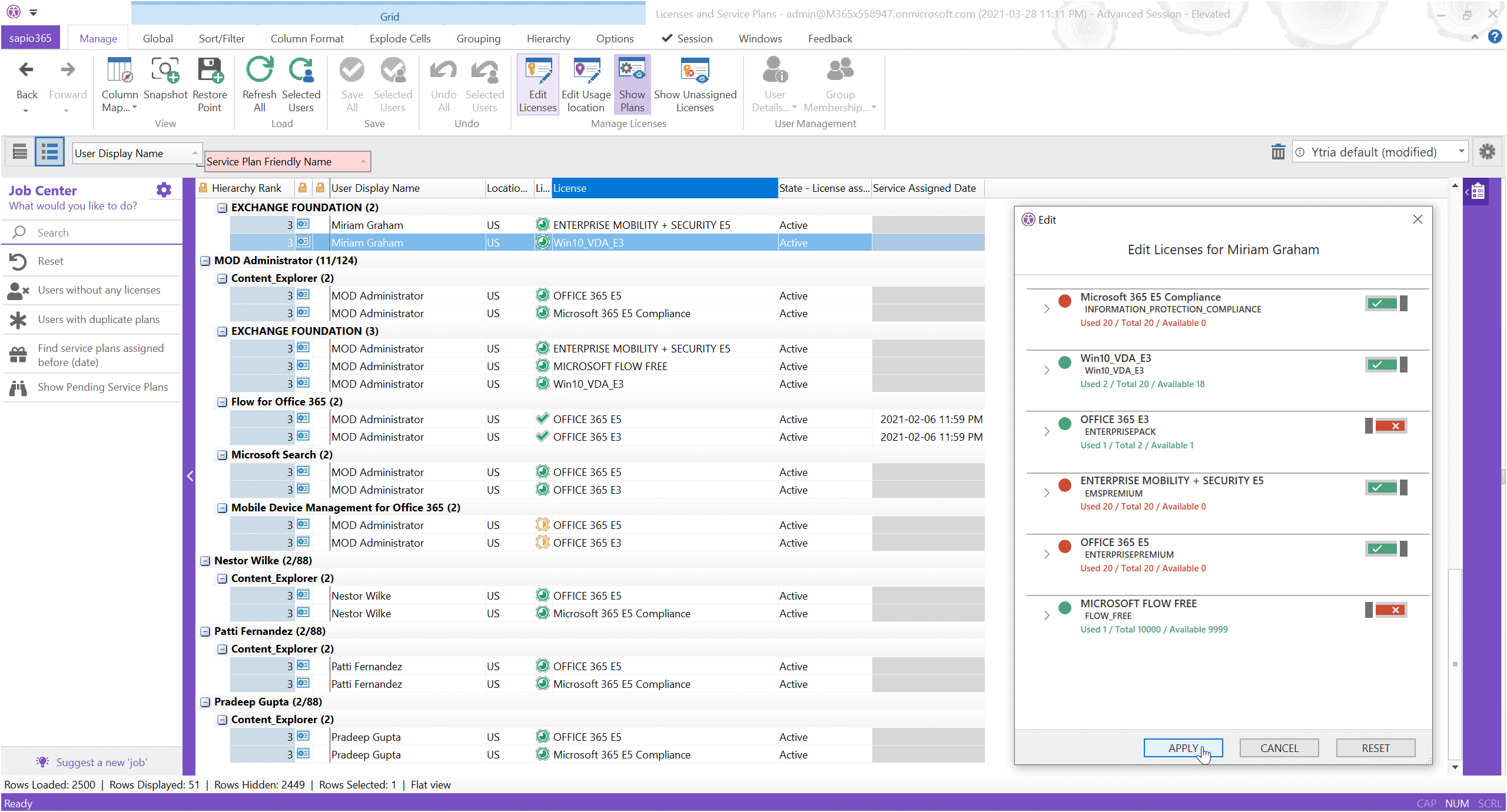
sapio365 - Microsoft 365 license and service plan management
Microsoft 365 License Management – Manage your Service Plan and Licenses with Full Visibility
Whether you need to audit an entire organization’s Microsoft 365 license inventory, or deep dive into an individual user’s or group’s license information, sapio365 is your one-stop platform to see and manage everything about licenses–at any scale.

Choose sapio365 for your Microsoft 365 license management
You’ll have full visibility of all license information in one place. From license ID information, to provisioning statuses, to service plans, work with it all without having to code a single line of PowerShell, thanks to sapio365’s patented FlexyView grid.
Licenses are, naturally, at the heart of an organization’s costs related to Microsoft 365. And proper license assignment is crucial for not only for your bottom line, but also a productive workforce—enabling them with the applications and services they require to do their job. Keep an eye on this essential aspect easily, with sapio365.
Unparalleled productivity for you and your team when managing Microsoft licenses and service plans with sapio365

Gain 360-degree license visibility of your licenses
With this increased license management option, your administrators will have360-degree visibility over the many licenses. Choosing sapio365 as your Microsoft 365 management platform will allow you to see all licenses, service plans, provisioning statuses and more, from any angle you want.
Due to the large number of licenses owned by many businesses, IT departments and administrators often spend significant amounts of time keeping them organized. With sapio365 you can monitor which licenses are active, observe which licenses can be removed, and finally identify easily your new licensing needs. Inactive licenses can be costly in the long run, that’s why proper management is necessary to remove them. Save on both license and administration thanks to sapio365.
Automate common administration jobs
sapio365 comes with a selection of license administration scenarios—such as finding users without licenses or users with duplicate service plans—pre-programmed for you. These automated tasks will help your business and users focus on the more pressing issues. Take advantage of functions such as selecting all licenses when assigning or removing them in the edition dialog to improve your workflow.
Ensure secure proper provisioning and monitoring throughout your organization for your users
Make sure that users and groups have the proper licenses and service plans assigned to them, enabling your workforce with the tools they need to do their job. By making sure that tasks are assigned to the right users, employees will be able to work more efficiently. Licensing management has never been easier than with sapio365.
Secure user and business information
At Ytria, we understand how important your security is. When using sapio365 for your business, your administration is able to individually pick which users have access to which information. With this solution, your administrators are able to monitor all users that have access to sensitive information through a Microsoft 365 license.
Multi-tenant Consumption License Analysis
In charge of multiple tenants? Getting a global picture of the effective license consumption on each tenant can be quite cumbersome and can take a lot of your precious time. Let sapio365 do the hard work for you and go through all the tenants under your responsibilities to generate a final report of all the tenants together focusing on what matters: these licenses that are paid for but not yet assigned. And for the tenants for which you set a unit cost, get an immediate cost summary. This Job can be scheduled to get a frequent report and stay on top of it.
Accelerate your Microsoft Office 365 license management workflow
Perform even your most complex group administration tasks in only a few clicks. With all its functionalities, sapio365 is able to help you manage and expand your business. Focus on the things that matter most and easily delegate jobs by making complex tasks easy. PowerShell scripts are no longer needed, which means less time spent scripting and testing your work and more time spent on your core competencies.
See users’ effective licenses and their sources
Users can be assigned Microsoft 365 licenses directly or through groups. Getting the global picture can be difficult using the Admin Portal. We reorganized how the information is provided in sapio365, so you get a quick and 100% clear image of the situation, with effective licenses and origin of these for each user.
Set a cost to your Microsoft 365 licenses
sapio365 gives views of who has which license assigned, how many licenses are unused and how many are underused. We have ready to use jobs to get you to the answer quickly instead of having to reach for that calculator to process those numbers. You will see the unit cost of the licenses in the already familiar views and reports: simply set a unit cost to your licenses through Licenses & Services and you will see those numbers in ‘Unit Cost’ columns wherever there is license information.
Once this is set, building any report about effective license cost, may it be per department, country, or anything you see fit, is quick and easy.
sapio365 makes our life easier!
With sapio365, I bring my cloud and on-premises accounts together in one place. I no longer have to search for them in one tool and then another – it really helps to avoid errors and problems. sapio365 makes our life easier!
Stéphane Bergeron – IT Director
Handle all aspects of Microsoft 365 licenses easily without any code
Efficient integration of modules and applications such as sapio365 will positively impact your employee’s effectiveness within your company. Not only is licensing made easier, it is also entirely manageable from a central platform offering complete visibility. Take advantage of sapio365 for easy access to all kinds of license and service plan information, including associated user information, license assignment information and service plan information.
Associated User Information
- Display names
- Usage location information
- User IDs
- User account names
- Use detail drilldowns
License Assignment Information
- License statuses
- Group assignment information
- Assignment errors
- License consumption information
- SKU part numbers
Service Plan Information
- Provisioning statuses
- Plan IDs
- Assignment dates
- Global provisioning statuses
- Plan names (friendly)
- Unit cost to any licenses
And that’s only the beginning.
Explore other unique capabilities of sapio365
Want to know more?
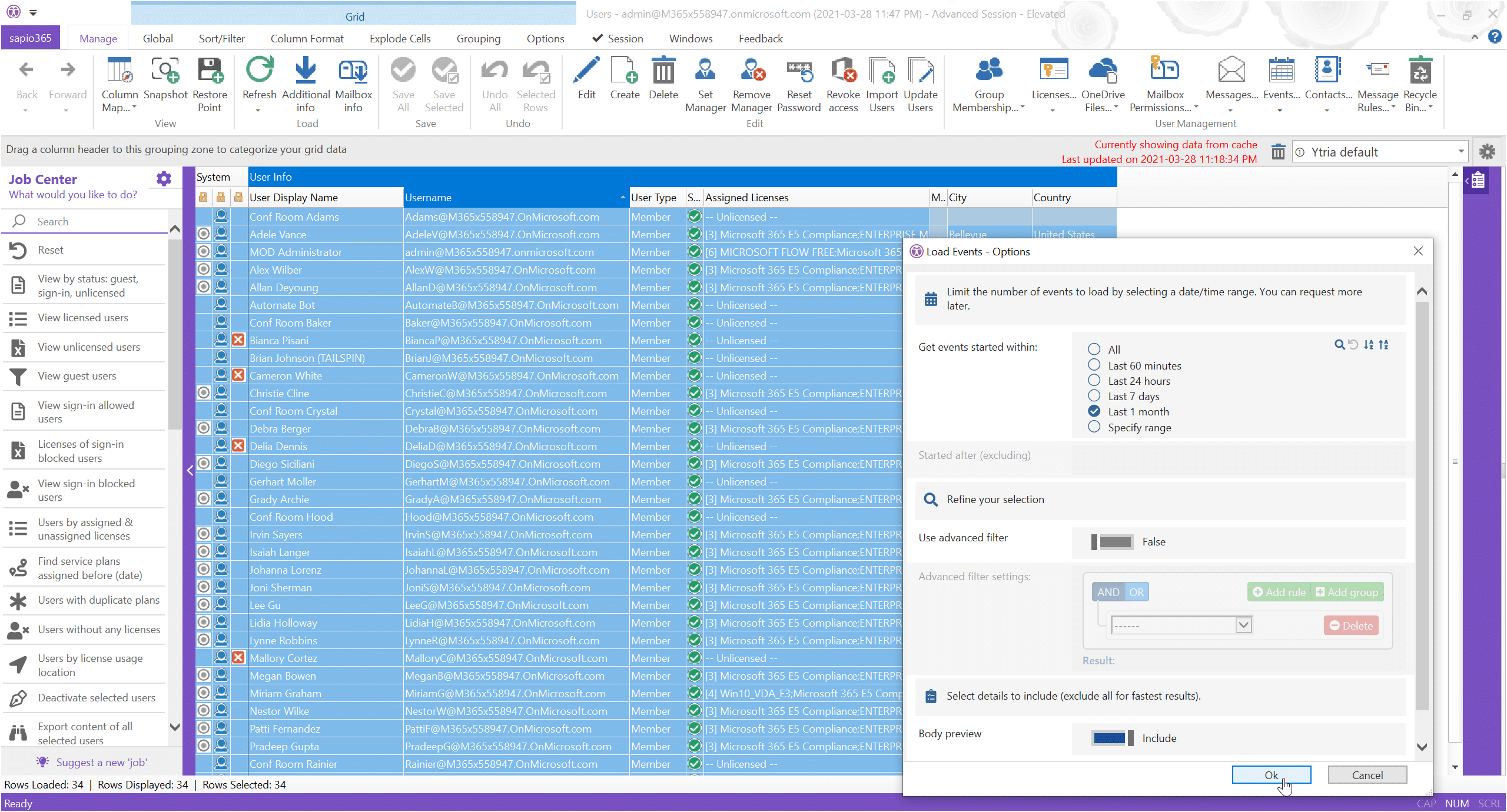
sapio365 - Microsoft 365 Mailbox and Calendar Management
Microsoft 365 Mailbox and Calendar Management – sapio365 offers Unmatched Visibility into your Data
From full overviews of users’ mailbox information, to deep dives into message details and content, to complete audits of group and user calendar events, sapio365 gives you a central platform to manage mail and calendar data in Microsoft 365.

sapio365 is your central point of access to manage the entire range of properties and settings that govern mail and calendar events for users and groups. What’s more, you’ll have access to mail and event information—such a mail and event body content–on a scale that is unmatched by other solutions—and this without having to write a single line of code*.
Mail and calendar functionality are crucial areas of Microsoft 365 administration. With sapio365 your oversight on mail and calendar information is easier and more thorough, and actionable in a mere fraction of the time. Communication is very important in a business and it is at the center of the company’s wellbeing, with errors in communication amongst departments leading to many issues. sapio365 improves and simplifies your understanding of your mail and calendar data, helping you to achieve more for your company.
*Access to PowerShell required for some features such as mailbox permission retrieval. All necessary components will be installed when needed. However, no coding is required from you to carry out actions.
Complete distribution and shared management of mailbox and calendar management with sapio365
Keep track of the distribution of sensitive mail and event content
Using sapio365, you will be able to keep track of all outlook sharing through your organization. Thoroughly monitor subject lines, body content of events, and attachments for sensitive content and files to ensure safe, secure, and compliant collaboration. With sapio365, administration has the possibility to securely share data, only making it available to whom it concerns with restricted access.
Microsoft 365 calendar management has never been easier! Audit and report calendar events
Any number of users, and number of events! sapio365 lets you see everything in one place to create actionable reports for a full overview of event activity and details. Take advantage of Ytria’s platform for increased visibility into calendar events: less confusion amongst employees regarding meetings and schedules will undoubtedly impact your efficiency. Make it happen with sapio365!
Unparalleled security for your employees and business
sapio365 takes your security at heart. The platform was developed to accommodate users and provide multiple functionalities without neglecting the security of your personal and business data. Thanks to secure access management through sapio365, administration can easily control which users have access to which information.
Increased visibility into your Microsoft Office 365 mailbox and calendar data
sapio365 user’s gain full visibility of their mailbox and calendar data, allowing for better management of communications throughout Microsoft 365. This helps administrators make informed decisions and quickly identify issues before they are impactful. Enjoy 360-degree visibility and efficient problem-solving thanks to sapio365.
Manage mailbox permissions fast, and at scale
Whatever the purpose, mailbox delegation has never been so easy. Thanks to a clear overview of mailbox permissions, and the capability to manage multiple mailboxes are once. sapio365’s features also show whether there are any inactive mail addresses. Microsoft Office 365 accounts generally have a maximum storage capacity, and the removal of inactive accounts can help free up storage space.
Skip the coding, work faster with your business group
Do even the most complex mail and calendar administration tasks in only a few clicks. Microsoft Office 365 can be challenging at times, and its native functions do not always offer you the simple management your administrators wish for. The platform sapio365 is there to help users with the functionalities of Microsoft to achieve things effortlessly. No PowerShell needed.
For more information
on how to improve your Microsoft 365
mailbox and calendar management
sapio365 makes our life easier!
With sapio365, I bring my cloud and on-premises accounts together in one place. I no longer have to search for them in one tool and then another – it really helps to avoid errors and problems. sapio365 makes our life easier!
Stéphane Bergeron – IT Director
Explore all aspects of Microsoft Office 365 mailboxes and calendars
Ytria’s sapio365 is a helpful tool for businesses wanting to organize the mailbox and calendar data found in their Microsoft Office 365 in a more efficient way. It is easy to lose track of the mailbox intake and of all events due to their sheer amount and their high rate of creation. These are no longer issues when taking advantage of sapio365! You can now manage your mailbox permissions, message details and calendar event information through a simple, centralized platform.
Mailbox Permission
- Mailbox owner names and IDs
- Permission inheritance flags
- User access rights
- Mailbox system default settings
- User principal and display names
Message Details
- Message info and body content
- Attachment metadata
- Attachment file links
- Senders and recipients
- Delivery and read receipt statuses
Calendar Event Information
- Response statuses
- Organizer and attendee information
- Scheduling and recurrence details
- Event location information
- Attachment information
And that’s only the beginning.
Explore other unique capabilities of sapio365
Want to know more?
sapio365 - Document libraries and OneDrive
Document Management OneDrive – Complete visibility Into Users’ OneDrive Files And Document Libraries for Teams And Groups

Whether you need visibility into group and Teams document libraries, or users’ OneDrive files, sapio365 gives you the easiest and most thorough platform to do it with.
How does a central access point from which you can view and manage sharing, permissions, and more sound? sapio365 gives you this and more–letting you see everything in OneDrive in detail and at scale, no coding needed. It ensures that you have access to document flows and are able to organize all files in one place. By increasing the visibility of your documents and files, sapio365 allows you to become more efficient in your work tasks.
Choose sapio365 to increase workplace collaboration through OneDrive document management
OneDrive is at the heart of all document and file sharing in a Microsoft 365 environment. sapio365 gives you the means to ensure security compliance and productivity, thanks to unmatched access and visibility into this crucial aspect of collaboration.
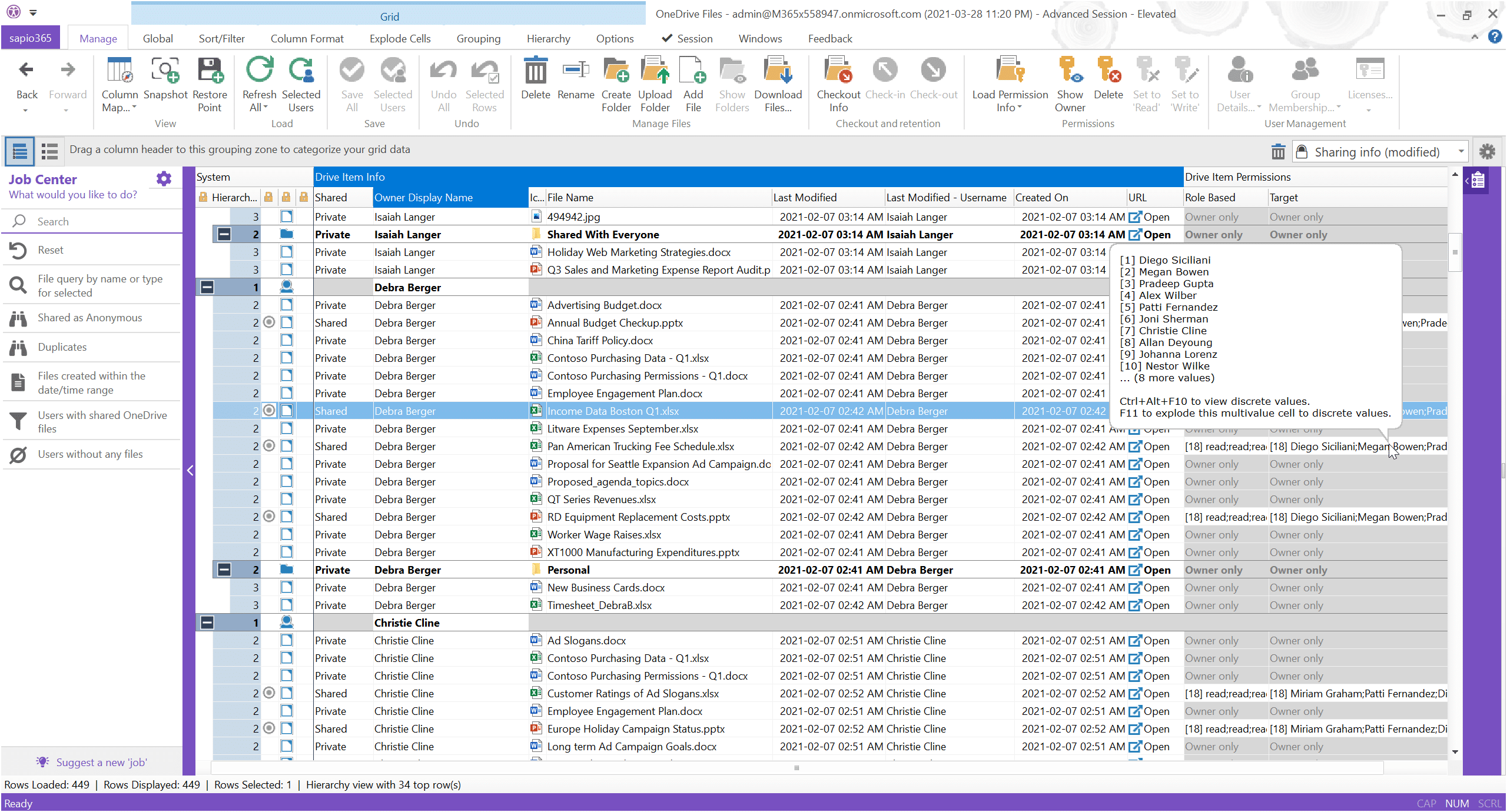
sapio365 offers an easy and thorough way to manage your OneDrive files on a large scale
Microsoft system that allows you to skip the coding and effectively work faster
Perform even the most complex OneDrive administration tasks in only a few clicks. No PowerShell needed. sapio365 offers possible automation of tasks allowing users to perform jobs easily and efficiently.
Develop and ensure better collaboration among workplace users
Make sure that file access permissions and sharing are in order all from one central place—easily—so that your organization can fully benefit from the collaboration features of Microsoft 365. With this OneDrive document management system, users will be able to find files easily without wasting time which will increase their productivity.
Keep costs down through storage audits of your document library
With a full overview of OneDrive folders and files for groups and users, you’ll be able to isolate where there could be potential storage issues, and where OneDrive adoption might not be up to speed.
Keep an eye on employee and workplace compliance
See what files have been shared, by whom, when, to what applications, and more, all in the service of ensuring that company file sharing policies are being respected.
For more information
on how to improve your Microsoft 365
OneDrive document management workflow
sapio365 makes our life easier!
With sapio365, I bring my cloud and on-premises accounts together in one place. I no longer have to search for them in one tool and then another – it really helps to avoid errors and problems. sapio365 makes our life easier!
Stéphane Bergeron – IT Director
With this document management system you have complete visibility of group and site document libraries and users’ OneDrive files, including…
General OneDrive Information
- Owner profile information
- Storage quota details
- Drive IDs
- File system information
- Drive URLs
OneDrive File Details
- Creation and modification dates
- File sharing details
- File properties and metadata
- SharePoint IDs
- Access permission details
Checkout and Retention Information
- Checkout statuses
- Retention labels applied
- Retention label application dates
- Comments
- Checkout user account names
And that’s only the beginning.
Explore other unique capabilities of sapio365
Want to know more?
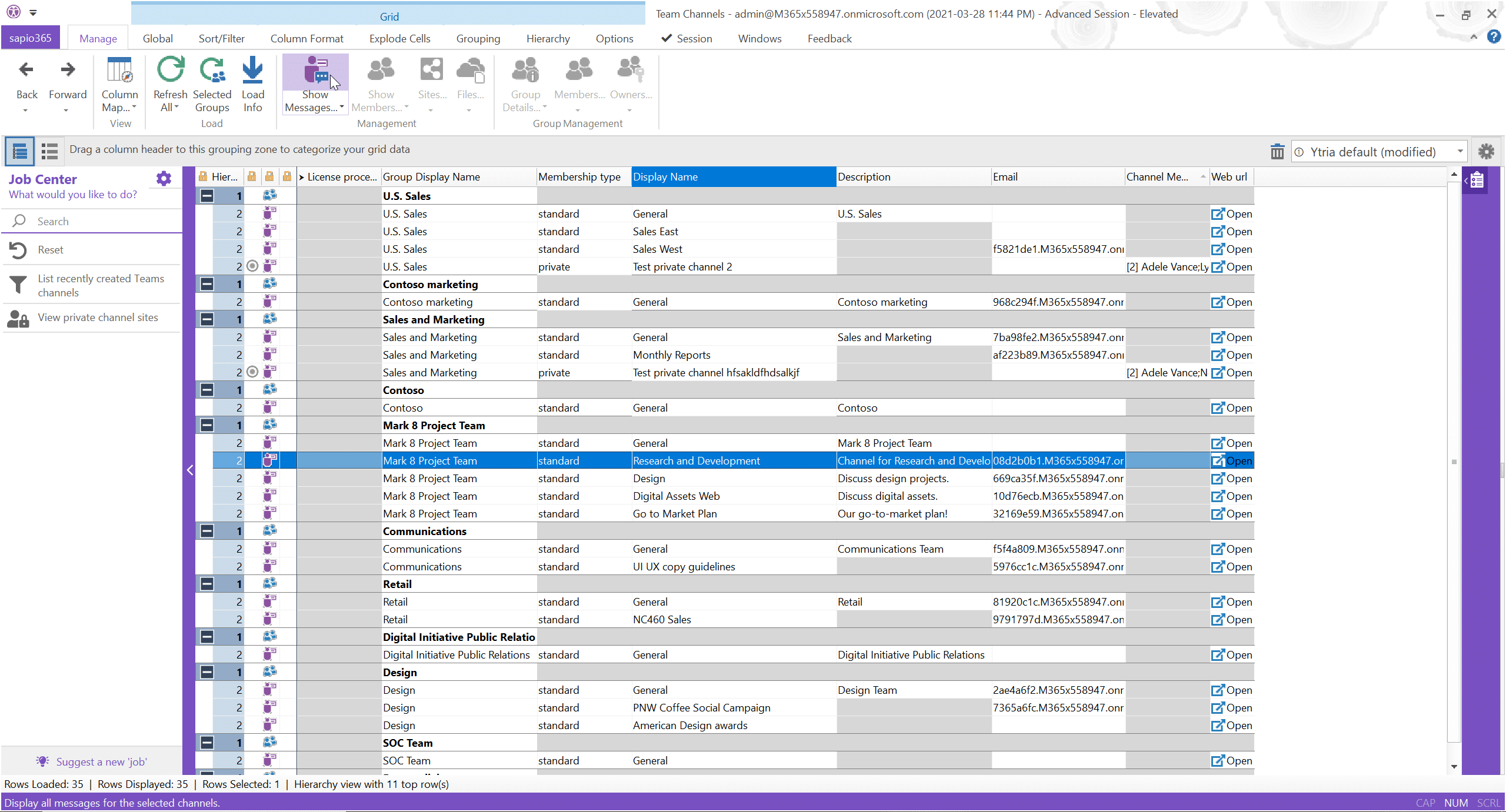
sapio365 - Team channels
Microsoft Teams Channel Management – Organize Channels and Content at Scale
Managing your large number of Microsoft Teams channels can be very demanding in the long run. No longer break your back over these never ending tasks and use sapio365 to help you make your Microsoft Team channel management more efficient!

Whether auditing all Teams and their memberships at a glance or drilling down into their channels to view messages and content, sapio365 provides you the most visibility into activity within Microsoft Teams. This software allows administrators to understand where more attention is required within their organization, giving them the opportunity to expand the company’s public awareness.
Increase your visibility within your company’s Microsoft teams channels with sapio365
All information for Microsoft Teams is available for clear and easy access in sapio365’s patented FlexyView grid. Drill down into channels, their conversations, and their document libraries for a complete view of all Teams activity. With increased visibility your team will be able to identify effective and ineffective tasks to modify current situations. In the long run this simply allows companies to invest and expand their organization further.
At Ytria, we understand how complex working online with digital platforms can be and when a company utilises Microsoft Teams there is a lot of missed information in terms of its utilisation. Using a software like sapio365 is useful for the organizations and management of Microsoft teams channels. Microsoft Teams is the premiere digital workplace solution for chat, meetings, and remote collaboration, meaning that the number of files/online activities and their placement on the cloud can get out of control. With sapio365 you’ll have the best means available to monitor and manage all aspects of this business-critical application.
Organization and management of Microsoft Teams channels with sapio365
Keep track of sensitive and private channels activity on Teams
Thoroughly monitor Teams channels and posts for sensitive content and files for safe, secure, and compliant collaboration. Rest assured that all personal information stays private and only members that have been authorized and granted access are allowed to view this information. With everything online, we take your demands of privacy and security very seriously and with the collaboration of sapio365, management of private channels is done under all security.
Handle, manage, and eliminate inactive Teams channels
It is easy to accumulate a large number of inactive team channels that are sprawling around in your server. Ensure that your tenant is as lean as it can be thanks to the ability by easily targeting and removing inactive or invalid Teams. This functionality will give you an organized platform and reduce your digital footprint.
Make sure your Microsoft Teams have accurate justification for existing
Easily isolate any Teams channels without owners assigned to them, to make sure that they aren't just sitting uncontrolled or unused. When we accumulate unessential Microsoft Teams channels we simply increase our digital footprint and create disorganization of the Teams platform for all the users involved.
User friendly software that enables you to skip the coding and work faster
Do even the most complex Team administration tasks in only a few clicks. No PowerShell needed. Sapio365 was created to be helpful to organizations so it is a user-friendly software that is easy to navigate. In addition, the process of learning how to use sapio365 is fast and simple. We have amazing customer service to help users through difficulties when needed.
sapio365 makes our life easier!
With sapio365, I bring my cloud and on-premises accounts together in one place. I no longer have to search for them in one tool and then another – it really helps to avoid errors and problems. sapio365 makes our life easier!
Stéphane Bergeron – IT Director
Dig deep into all aspects of Microsoft Teams – Organize channels efficiently using features such as…
General Teams Channel Information
- Archive statuses
- Team member settings
- Team guest settings
- Team "fun" settings
- Team messaging settings
- Private channel sites
Team Channel Information
- Display names
- Private channel members
- Channel descriptions
- Channel email addresses
- Membership types
- Private channel member count
Team Channel Message Information
- Message subjects and content
- Creation and modification dates
- Importance levels and reactions
- Attachment info and properties
- "Sent from" device / application details
Choosing Ytria for an unparalleled service experience
Rest easy with Ytria’s incredible customer service and sapio365’s extreme user-friendly abilities. We strive to collaborate with our clients to ensure their satisfaction, sapio365 is unique in this industry and a best seller amongst companies using Microsoft Teams. In its reviews, this software simply surpasses the expectations of the users.
And that’s only the beginning.
Explore other unique capabilities of sapio365

Want to know more?
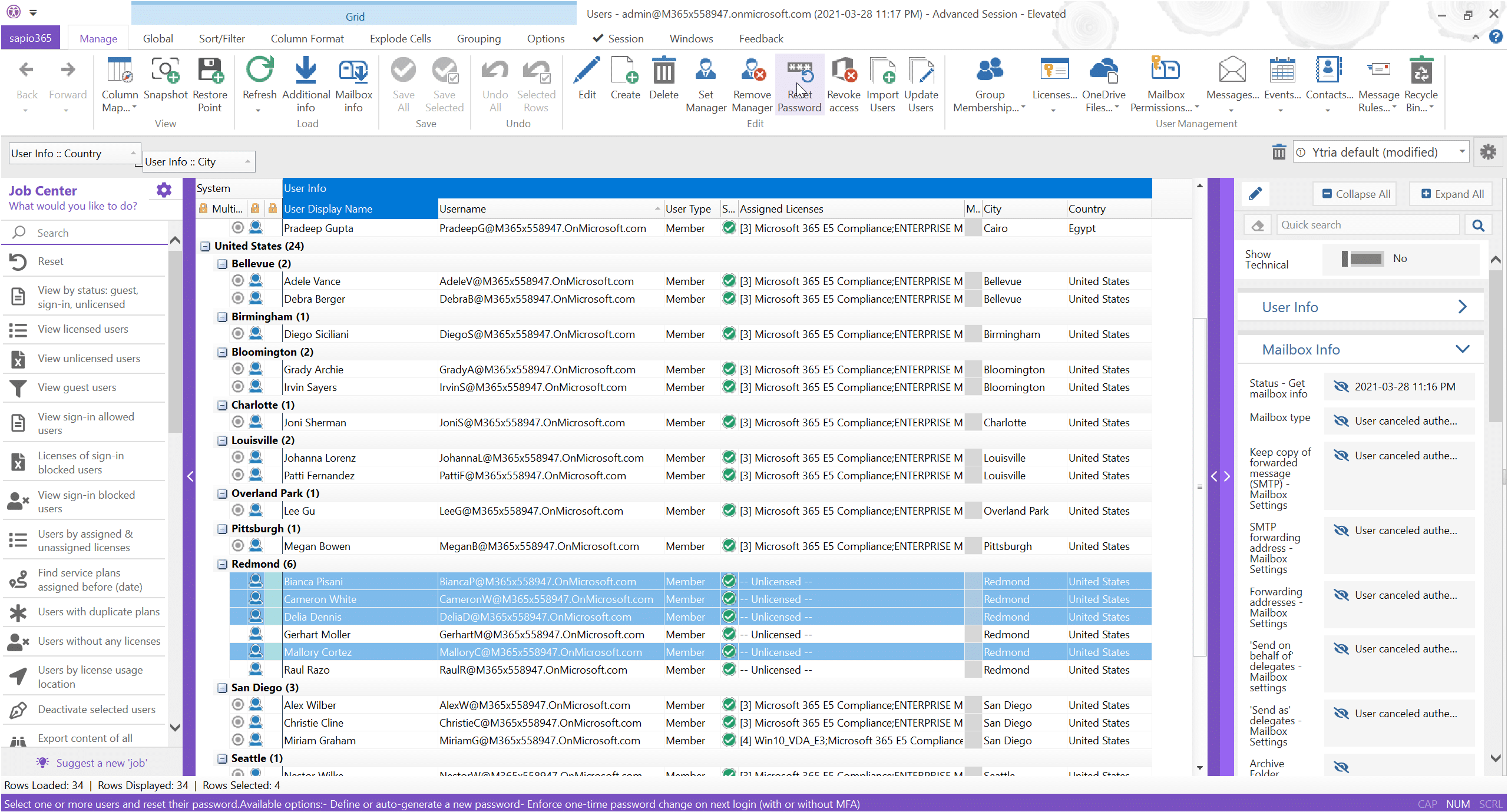
sapio365 - User management
The Most Thorough Platform for Microsoft 365 User Management – Manage all your Microsoft 365 Accounts with sapio365
Whether you need to onboard new users, offboard those who have moved on to new challenges, or simply need support to keep up with the daily tasks that come with user account management in Microsoft 365, sapio365 is your central one-stop platform.

Get full, 360-degree visibility to ensure that user accounts are set up how they need to be so effective and secure collaboration can take place. It has never been so easy to manage user accounts in your hybrid or cloud Microsoft 365 environment. Aspects such as memberships, licenses, OneDrive files, messages, calendars, and more are all available at scale in one central UI.
Don’t let the potential that Microsoft 365 offers your organization in terms of collaboration and productivity be hampered by misconfigured user accounts: manage them faster, easier, and more thoroughly with sapio365.
Centralize your Microsoft 365 user management through sapio365
Having a centralized platform from which you can access all users’ accounts can improve your management in many different ways. sapio365 offers a platform where attributes can be changed for multiple users at once, mail and calendar events can be administered, and much more without the need for tedious PowerShell scripts. Take advantage of our bulk management tool to save your IT department hours of work, by simplifying changes such as password settings and password resets.
A sure-fire productivity boost for user administration and to manage your accounts on Microsoft 365 thanks to sapio365
Gain 360-degree visibility for user accounts
sapio365 allows you to gain full visibility of your user accounts. See a full view of all user properties, their OneDrive files, memberships, mailboxes, and calendars from any angle you want. View everything from the overview to the drill down, easily. Improve your administration, organization and effectiveness thanks to 360-degree visibility.
For employers with a lot of employees, managing the accounts of all employees and active users natively in Microsoft 365 is a challenging task. sapio365 was created to provide support to Microsoft 365 users and to allow increased user account visibility and constant access to all user properties.
Automate common user administration jobs
sapio365 comes with a full range of user administration scenarios—such as seeing which users are guests, what service plans are assigned, and more—pre-programmed for you. These automation functionalities help delegate complex tasks and save substantial amounts of time.
Automation has proven to be a solid help in the modern workforce and workplace, allowing your workers and administrators to redirect their attention towards tasks that are more important. Now that certain tasks are automated, they can be completed within clicks, meaning many previously complex tasks can now be assigned to individuals from a wider range of technical skills. Such advantage facilitates greatly the management and delegation of tasks.
Skip the coding to accelerate your user account management workflow
Microsoft 365 is a complex software, for which patience and time is needed to master its functionalities. With the help of sapio365, users are now able to manage all aspects in a heartbeat. Developers have created the application to be extremely user-friendly and does not require any knowledge on coding. Do even the most complex user administration tasks in only a few clicks. No PowerShell needed.
Ensure secure organizational collaboration
Make sure that users’ group memberships and file access permissions are accurate for a seamless collaboration environment. And with the ability to drill down into users’ OneDrive file properties and sharing history, you can know if file sharing practices are secure within your business.
Your security is taken seriously at Ytria. Manage all business and personal information and give authorized access only to those who need the information. Easily report to employees concerned with structured user sharing history.
The sapio365 advantage
When you choose sapio365 as the platform to help manage your user accounts, you are taking a step forward towards efficiency and support. Throughout the entire utilization our support crew is there to assist you and answer all your questions or concerns. We believe that we offer a service providing great results for businesses using Microsoft 365.
For more information
on how to improve your Microsoft 365
user account management workflow
Manage all aspects of user management at scale with total visibility
Account administration and user management are crucial tasks performed by managers and business developers. Allow sapio365 to give you all the information that you need easily and get the support you need to expand and manage your business to its full potential. Through the account management functionalities, you will be able to access user account information, mailbox settings and on-premise user account information.
User Account Information
- User/job profile information
- Geographical data
- Organization hierarchy properties
- Consent policy settings
- Password policy settings
- Personal contact
Mailbox Settings
- Forwarding address settings
- Time and date settings
- Automatic reply settings
- Archive folder properties
- Meeting hour settings
- Inbox rules
On-Premise User Account Information
- On-premise distinguished names
- Sync information
- Domain name information
- Security IDs
- Provisioning error information
- SAM Account names
And that’s only the beginning.
Discover more user management aspects related to…
Want to know more?
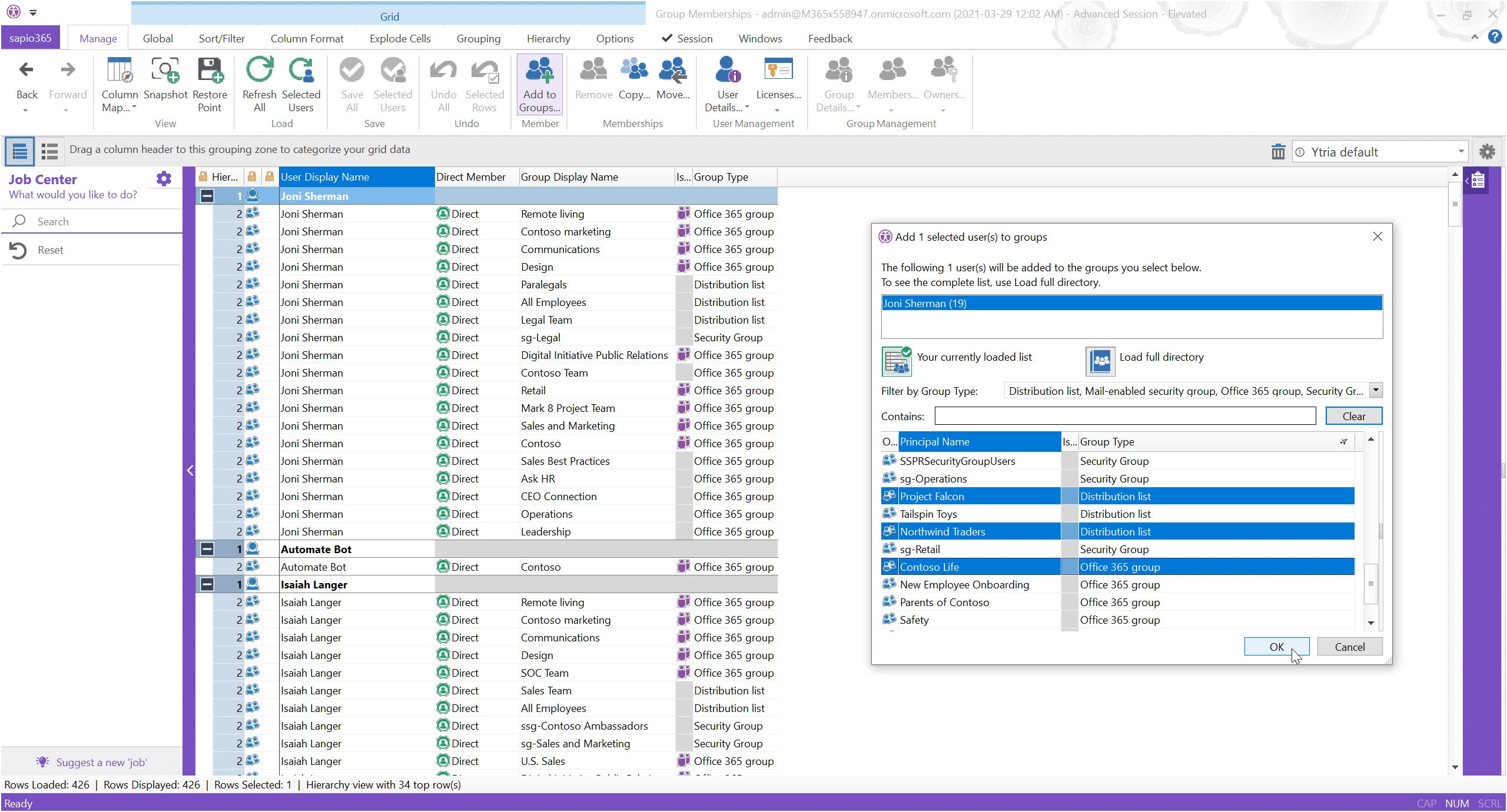
sapio365 - Microsoft 365 Management - The most powerful management platform for group governance
Microsoft 365 Management – The most powerful management platform for group governance
From doing full-scope audits and reporting of properties for the groups in your charge, to managing all the intricacies of memberships and access, sapio365 is the right solution for your admin needs. Take advantage of our platform and gain a central access point for your Microsoft 365 management. Managing from sapio365 can be done seamlessly, without having to write complicated scripts in PowerShell.
Take full advantage of Microsoft 365 with Ytria’s management platform
Efficient group governance is here: support and manage your groups from a central access point
Get full, 360-degree visibility to ensure that the groups in your cloud or hybrid environment are secure and operational in mere clicks, without any PowerShell coding. Audit and manage memberships, usage activity, and content all in one place: the patented FlexyView grid.
Microsoft 365 provides a backbone of productivity and collaboration that requires an intensive administration process to get right, not to mention cumbersome, error prone PowerShell scripts. With sapio365 your group management is faster, easier, and more accurate.
Fully manage all on-prem groups and their memberships
on your local Active Directory
If you manage a hybrid Microsoft 365 environment, groups and their members must be managed from your local Active Directory, since they will be synched to your Microsoft 365. With sapio365, you can now easily manage everything in one place, whether your groups are handled on the cloud or on your local Active Directory.
sapio365 simplifies your user management with a central view and the possibility for bulk membership changes
See which groups each of your users in your local Active Directory belongs to. From there, you can go ahead and manage in bulk your on-premises users’ memberships with the appropriate buttons.
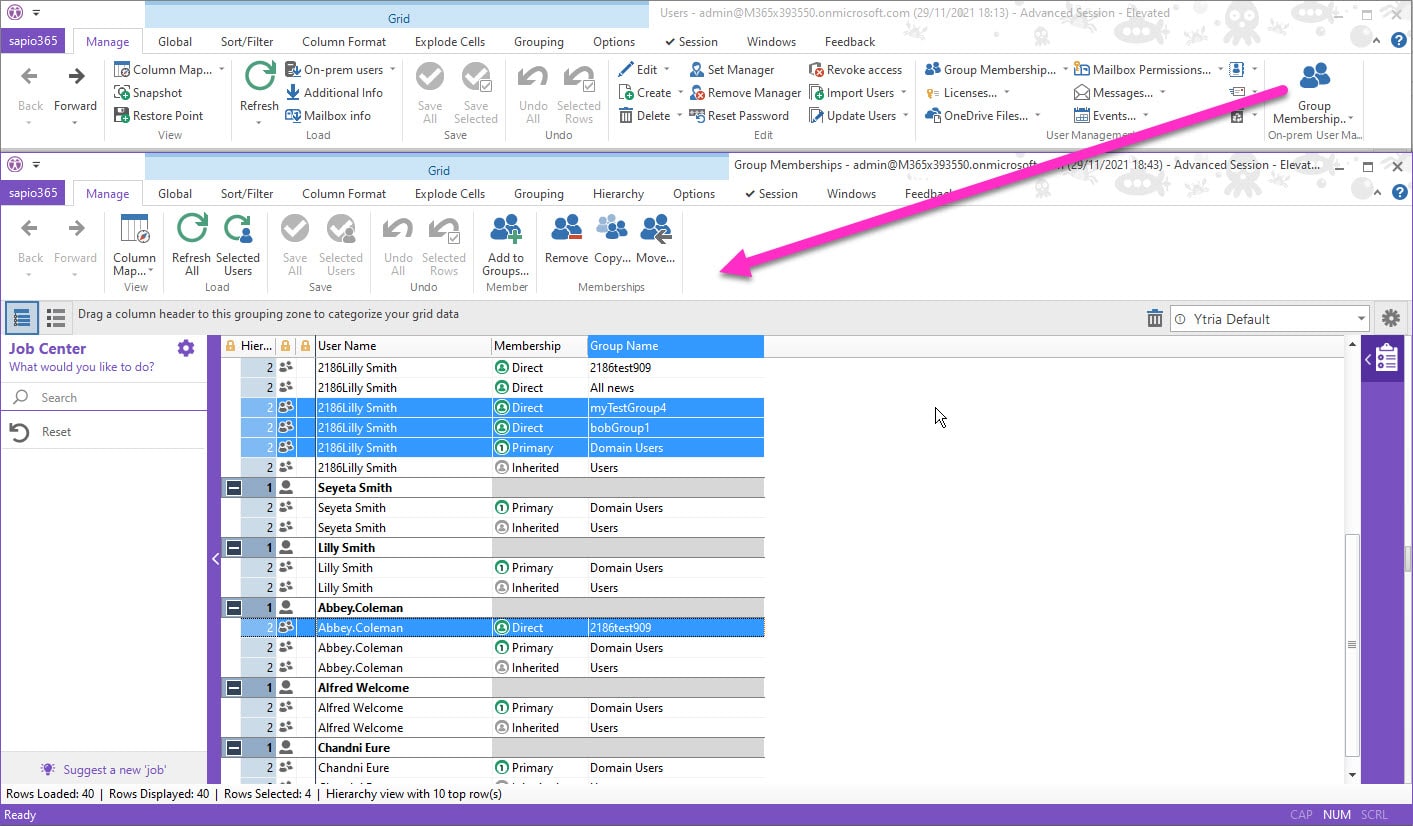
The same way, see the members of all your groups in your local Active Directory, including nested groups. It is then easy to add or remove members, promote or demote owners, all in just a few clicks!
Unparalleled productivity for you and your team
on Microsoft 365 with sapio365’s management support
Gain 360-degree group visibility
See a full view of all groups, their content, memberships, and their properties from any angle you want. View all your Microsoft 365 from the overview to the drill down easily with the support of our sapio365 platform.
Accelerate group management workflow
Perform even your most complex group and Microsoft Teams administration tasks in only a few clicks. No PowerShell needed, which means less time spent scripting and testing your work. Take full advantage of your Microsoft 365 on premises and in the cloud.
Get support by automating common management jobs
sapio365 comes with a full range of group management scenarios - such as finding groups without owners or groups about to expire-pre-programmed for you.
Blog Post: How to find Teams with less than 2 owners
Ensure secure organizational collaboration
Make sure that group memberships are accurate for a seamless collaboration and management environment. And with the ability to drill down into group content and libraries, you can know if file sharing practices are secure. Your protection is a priority for our platform.
For more information
on how to improve your group governance, management
and protection on Microsoft 365
sapio365 makes our life easier!
With sapio365, I bring my cloud and on-premises accounts together in one place. I no longer have to search for them in one tool and then another – it really helps to avoid errors and problems. sapio365 makes our life easier!
Stéphane Bergeron – IT Director
Handle all aspects of Microsoft 365 groups easily without any PowerShell coding, including…
Basic Group Information
-
- Group profile details
- Creation and modification dates
- Group type indicators
- Privacy settings
- Global expiration policy settings
- Submodule to fully manage on-premise groups’ members
Membership Information
- Membership types
- Member display names
- Group hierarchies
- Usernames
- Owner display names
- Submodule to fully manage on-premise users’ group memberships
Microsoft 365 Group Settings
- Prohibited names settings
- Classification settings
- Guest access and control settings
- Custom policy and settings
- Password rule settings
- Create a security Microsoft 365 group, useful for group-based licensing
- Ability to delete a group conversation thread
And that’s only the beginning.
Explore other unique capabilities of sapio365
Want to know more ?
sapio365 - Large Microsoft 365 communities
Optimize the management of your large Microsoft 365 communities
Sometimes, it’s just not possible to efficiently manage large user communities with standard tools. Especially when they total over 50,000 users. Organizations with a large volume of users face compounded challenges in cloud management. IT departments find themselves overwhelmed by the sheer number of user requests and massive amounts of data. sapio365 reduces the burden on your IT resources with 360-degree data visibility, task automation and delegation.
Analysing mountains of data manually is time consuming and costly.
For example, unchecked issues like unused Microsoft 365 license subscriptions can end up claiming portions of the budget that can otherwise be allocated to other projects. With just a few clicks in sapio365, you can quickly identify unused and underutilized licenses to make cost-saving decisions on your subscriptions.
Managing a growing Microsoft 365 environment makes ever-increasing demands on finite IT resources. This results in ticket resolution delays and errors. Since everything in sapio365 can be automated, tasks can be delegated to junior staff or even non-technical managers. So IT staff can reduce workload, increase user satisfaction, and focus on taking preventive measures.
See what you can do with
sapio365 unlike native tools
sapio365
 Categorize, filter, sort and analyze your entire user community and their content
Run a Deactivation automation (job) on as many users as you want
See and review changes before saving them to prevent errors
Create quick reports directly in the FlexyView grid using various tools
Combine users, groups and sites to make scopes of action as you need
Switch between tenants in one click, and keep working in all of them
Delegate any task using custom granular roles with sapio365 RBAC
Update several properties or meta information in one click. No coding needed!
Native tools
 Listing the totality of users or groups requires endless scrolling or raw exporting
Deactivating users can only be done one at a time
Errors can be introduced in PowerShell scripts for bulk operations
Report customization is limited in the portal and tedious with PowerShell
Admin Units are limited to users, and cannot be layered
Multi-tenant management requires signing in and out
Admin roles are limited in scope and Task delegation is not always secure
Need PowerShell scripts but can be complex and requires expertise
Save time and money, and prevent errors
managing large user communities
Reduce IT backlog
Prevent problems before they occur and eliminate time spent on recurrent tedious tasks with sapio365 automation, delegation and mass-scale solutions.
Verify policy adherence
Quickly generate audit reports to confirm that the identity, security and governance policies put in place are truly being respected.
Work uninterrupted
Ensure all your workers have the access they need to do their job by auditing assigned licenses and service plans, group memberships and access to shared documents.
Improve and maintain security
Prevent data leaks by always knowing what has been shared and how, and by having the tools to manage access to sensitive documents and Microsoft 365 services.
Minimize your spend
Maximize cost savings by giving staff the ability to make informed decisions fast based on the complete picture of unused and underutilized licenses thanks to sapio365’s 360-degree data visibility.
sapio365 has cut our admin task hours almost in half
I am an admin over our 365 tenant and have over 120,000 users and over 400,000 group
to manage.
Using sapio365, I have been able to get better reporting to then manage what can be changed and the impact to our tenant. We have also been able to report security issues which help with keeping our standards up to date. So far, this product has cut our admin task hours almost in half.

Brian Hanna, IT administrator
Work with ALL your big data
Oversee all your data in one place
Access more user and group properties than the portal, and all in one place. sapio365 does not limit the number of entries displayed like browser-based apps—no more endless scrolling!
Automate complex tasks
Every sapio365 feature can be automated to further optimize operations related to identity management, security and governance, Teams management and more.
Instant custom reports
It’s easy to create quick reports because the entirety of your users and their attributes is displayed regardless of volume! Use filters, sorting and various analytical tools to show your data your way.
Make bulk changes confidently
Making changes to users on a large scale in sapio365 is fast and secure since you see your changes before you actually apply them. And there’s no coding needed!
Delegate to non-technical staff
Choose from over 150 Automation Jobs Library (AJL) Jobs to distribute to staff without extensive IT knowledge like line-of-business managers or helpdesk staff.
Schedule tasks during off hours
Since large volume tasks can take some time and may require bandwidth, you can choose to schedule jobs to run after business hours. Once finished, a report is emailed to the addresses you set.
sapio365 - Microsoft 365 licenses
Management of
Microsoft 365 licenses
Moving to the Microsoft 365 cloud has many advantages for organizations but it also has challenges like managing subscription-based software licenses. Companies that have high levels of onboarding and offboarding can find license expenditures skyrocket because consumed licenses simply remain unused or underutilized because of a lack of visibility. sapio365 is the best Microsoft 365 license management tool on the market. This tool ensures you never subscribe to more licenses than you need since you can manage, control and keep track of your license inventory and how it is used at all times.
Choose sapio365 to control cost, functionality, and deployment of your Microsoft 365 licenses
Your staff uses Microsoft 365 services like Teams and Exchange Online to collaborate and deliver projects on time. sapio365 enables you to easily review license assignments and the individual state of these services for all users at once. This global vision helps to prevent work interruptions and tickets, and it ensures that essential services are available at all times!
Good practices in license management also include accessing timely, accurate and secure reports. Generating real-time data reports in sapio365 takes only a click and can be delegated to non-technical staff, which means that inventory and auditing processes are completed significantly faster. On sapio365, all assignments can be achieved under guaranteed online security. sapio365 is the ultimate tool for license management, don’t waste any more time and take advantage of a free sapio365 trial.
See what you can do with
sapio365 unlike native tools
sapio365
 The unified view of license assignments lets you know who has what assigned
Choose which licenses you wish to remove, which plans to disable
Choose additional info to include in detailed usage reports
1-click reports can be executed by non-technical staff
sapio365 custom roles include license-specific quotas
License-specific quotas can be set in roles
Native tools
 Manage directly assigned licenses and through groups can get complicated
Bulk removing of licenses is all or nothing
Usage reports lack detail and are impossible to customize
Audit reports take long and require PowerShell
Licensing roles do not include allotment quotas
Difficult to keep track of assignments for a large fluctuating user population
Minimize your Microsoft 365 license expenditures by monitoring and simplifying your software licensing assessment
Manage, control, and eliminate surplus licenses
Maximize cost savings by enabling staff to take quick informed decisions based on the complete picture and feedback of unused and underutilized licenses that sapio365 provides.
Ensure uninterrupted access
Make sure your staff can use the services they need to get work done by easily verifying and fixing license assignments and services provisioning.
Facilitate compliance audits with reports
Speed up your auditing process with ready-to-run detailed reports from the continuously growing Automation Jobs Library. These jobs can be executed by just about anyone, including line-of-business managers.
Enforce departmental accounting
Departmental license spend is easily controlled and audited by setting a limited number of assignments per department for each license thanks to sapio365 custom delegation roles.
Manage and monitor directly assigned licenses and group-based licenses in one place
Since the introduction of group-based licensing by Microsoft a few years ago, enterprise-level organizations everywhere have leveraged this method of allocating Microsoft Office 365 licenses in environments where onboarding and offboarding happens frequently and on a large scale…
Choose sapio365 to help control your Microsoft 365 licenses and get reports in just a few clicks
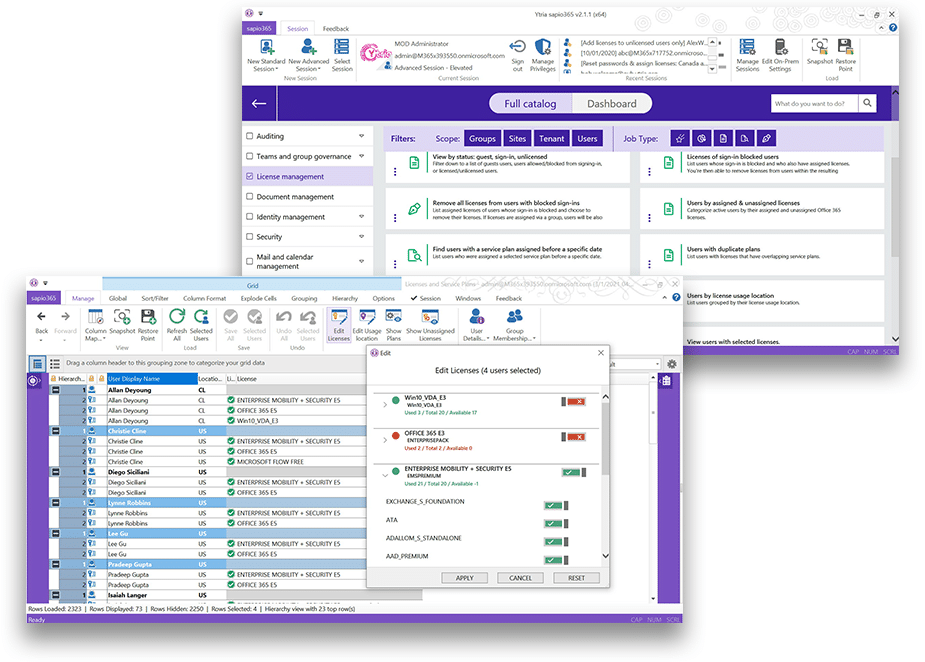
Oversee all assigned licenses
The sapio365 FlexyView grid gives you an overall vision of the state of your users and their licenses. You can quickly identify users without access who still have licenses assigned.
Audit assigned licenses in one click
Choose from several license management tasks and reports ready to run in the Automation Jobs Library. These jobs can be executed by just about anyone, including line-of-business managers.
Bulk-remove unused licenses
To control your Microsoft 365 licenses, sapio365 helps you identify inactive or deactivated users with usage reports or run reports to find users with duplicate plans, and indication of licensing overlap. Then remove specific licenses in a click!
Set Microsoft 365 license allocation
Limit license management to specific licenses and a set quantity using sapio365 role-based access control to respect department licensing budgets.
Manage group-based licensing
If you are using groups to assign Microsoft 365 licenses, find them quickly amongst all your office groups and manage their members in one place.
Schedule enriched usage reports
Securely run weekly reports on service usage with additional information like departments, geography, and other user attributes, and receive the report in the mailbox of your choosing. This helps manage and distribute reports derived from Microsoft 365, as well as assemble all the information needed.
sapio365 - Secure Management of Microsoft Office 365 – Delegate Access and IT Tasks with Access Permissions
Secure Management of Microsoft Office 365 – Delegate Access and IT Tasks with Access Permissions
With remote work having sharply risen in modern organizations today, most IT departments are overwhelmed and resort to delegate tasks. Microsoft 365’s solution to this is assigning admin roles and target scopes called Admin Units, but the role permissions given can be too broad to be secure or too limited to be effective.
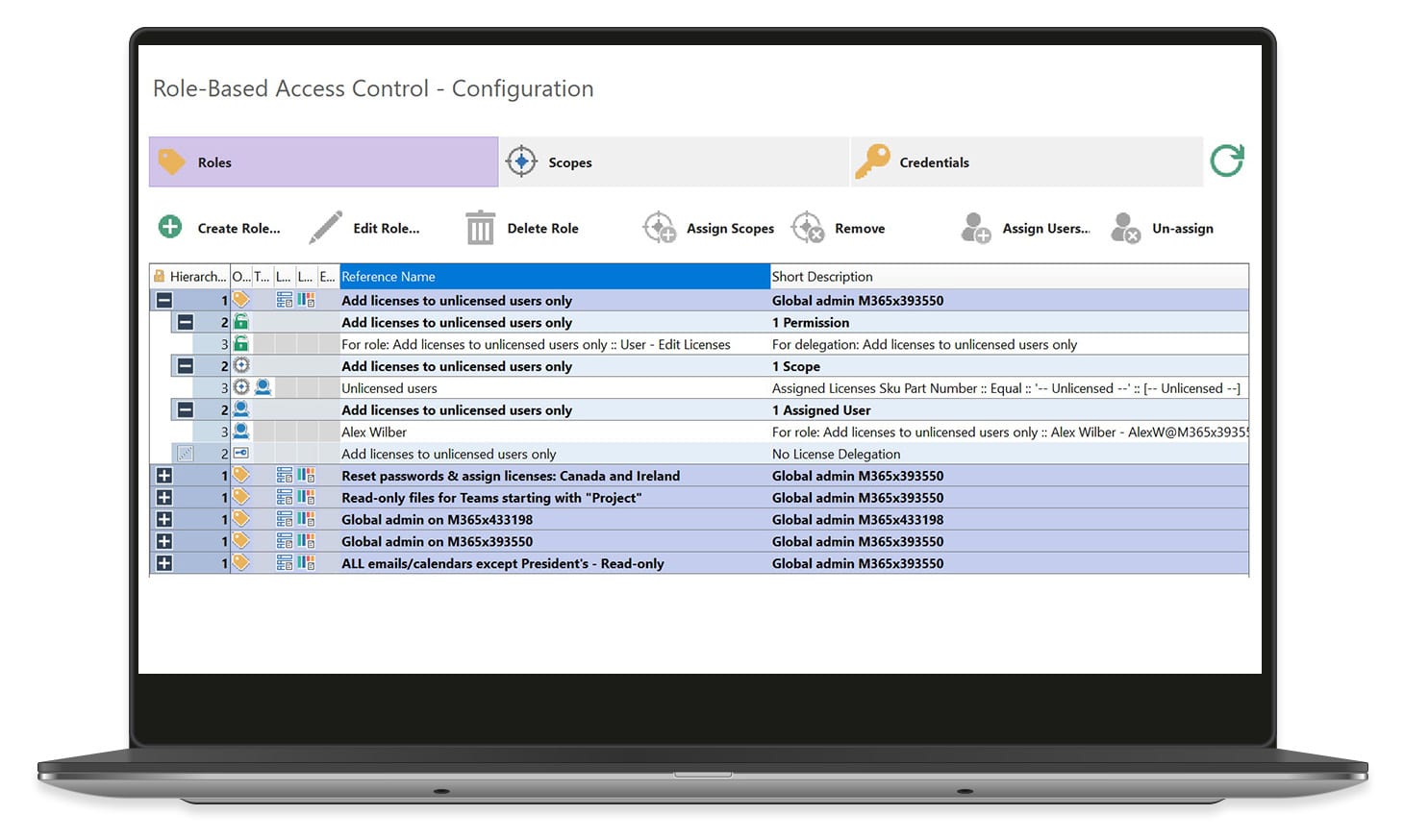
sapio365’s functionalities offer solutions to this limitation gap, with granular roles managed by a centrally controlled role-based access control (RBAC).
Securely delegate IT tasks on Microsoft Office 365 using granular roles
For example, sapio365 offers a service that lets you create a specific reporting role to an assigned user. This role might allow view-only permissions for messages and attachments, but only for users in the sales department, in Canada and the UK, except for users with a Director title. So, you can customize roles with actions and target sets that are exactly as wide or as narrow as you need.
And since sapio365 RBAC and Automation Jobs Library (AJL) tasks work together, you can assign any task, great or small, to non-technical staff including business stakeholders—giving them instant access and permission to important information and freeing up your IT resources.
See what you can do with
sapio365 unlike native tools
sapio365
A service that offers better security because roles are granular in action and scope
Any user, group or site property can be defined a dynamically populated scope
Anybody can run an Automation Jobs Library task with one click
Assign tasks across multiple tenants from a centralized sapio365 RBAC
Record all sapio365 user activity, including data views
Narrow or expand action scopes using scope combinations
License-specific quotas can be set in roles
PowerShell-based features in sapio365 can be delegated to non-admins
Native tools
Admin roles can be security risks because they are too broad
Admin Units are limited in scope, and are static sets of users
Complex tasks cannot be delegated to non-technical staff with native tools
Admin roles in multi-tenant organizations are managed separately in each tenant
Auditing admin activities is limited to changes to objects
It is not possible to layer Admin Units to restrict data sets
Licensing roles do not include allotment quotas
PowerShell-only tasks cannot be used by non-admins
Choose sapio365 to optimize deployment of IT resources
Cut down your IT team’s task load with the possibility to delegate assignments
Enable your business' IT team to do their job faster with sapio365 automation of common tasks and by delegating them to non-IT staff members. The resulting reduction in tickets and report requests enables IT staff to focus on more value-added projects.
Delegation done in all security
All actions executed in sapio365 are logged so it’s easy to identify which users have accessed or changed something and when. These logs are restricted to global admin and non-admins who are sapio365 Activity Logs Managers.
sapio365 increases stakeholder and user’s satisfaction
Both IT staff and the stakeholders they serve benefit from the option to delegate tasks because it lessens pressure on the IT department and gives instant direct access or permission to report data and actions to non-IT personnel like department heads and project leaders.
Self-serve real-time data
With this delegated access business line managers no longer have to wait for reports generated by the IT department. They can run or schedule over 150 reports and actions themselves directly in sapio365 - no technical skills required, only permission!
For more information
on how to securely delegate IT tasks
on Microsoft 365 using granular roles

It is not uncommon these days to find IT leaders striving to lighten the load of their team members by delegating simple tasks to super users and business unit owners within the organization…
Create unlimited custom roles on office 365 with sapio365’s role-based access control
Set and manage license allocation quotas
Generating roles with specific license allocations in sapio365 RBAC allows you to delegate discrete Microsoft 365 license assignments across departments for accounting purposes.
Delegate complex office 365 tasks with the Automation Jobs Library
Combine roles and Automation Jobs Library (AJL) jobs to assign technical tasks to users without any technical knowledge of Microsoft 365 like business unit managers or executive assistants.
Audit and manage delegated activities on Microsoft 365
With sapio365, you have the ability to give permission to the users you wish. When a user accesses information or performs an action in sapio365, the event is logged so you know exactly who did what and when. User Activity events are accessible to global admins or designated Activity Logs managers.
A management software allowing you to create custom roles and scopes
Define sapio365 access and permission rights and scopes of action to create granular roles with laser-like precision. Delegate only what’s necessary on specific sets of users, groups and sites.
Available user restriction to access the role-based access control
Only global admins and designated RBAC Configuration Managers can configure the roles, scopes and role assignments in sapio365 role-based access control (RBAC).
Centralize cross-domain roles according to project needs
Create roles to delegate tasks and provide permission across domains and tenants. In addition to that, you will be able to manage them all in one place. Choose from read-only permissions to bulk edit permissions to define delegation roles.
sapio365 - Automation Job Library Inspiring
Microsoft 365 automation – Improve your work with sapio365’s job automation
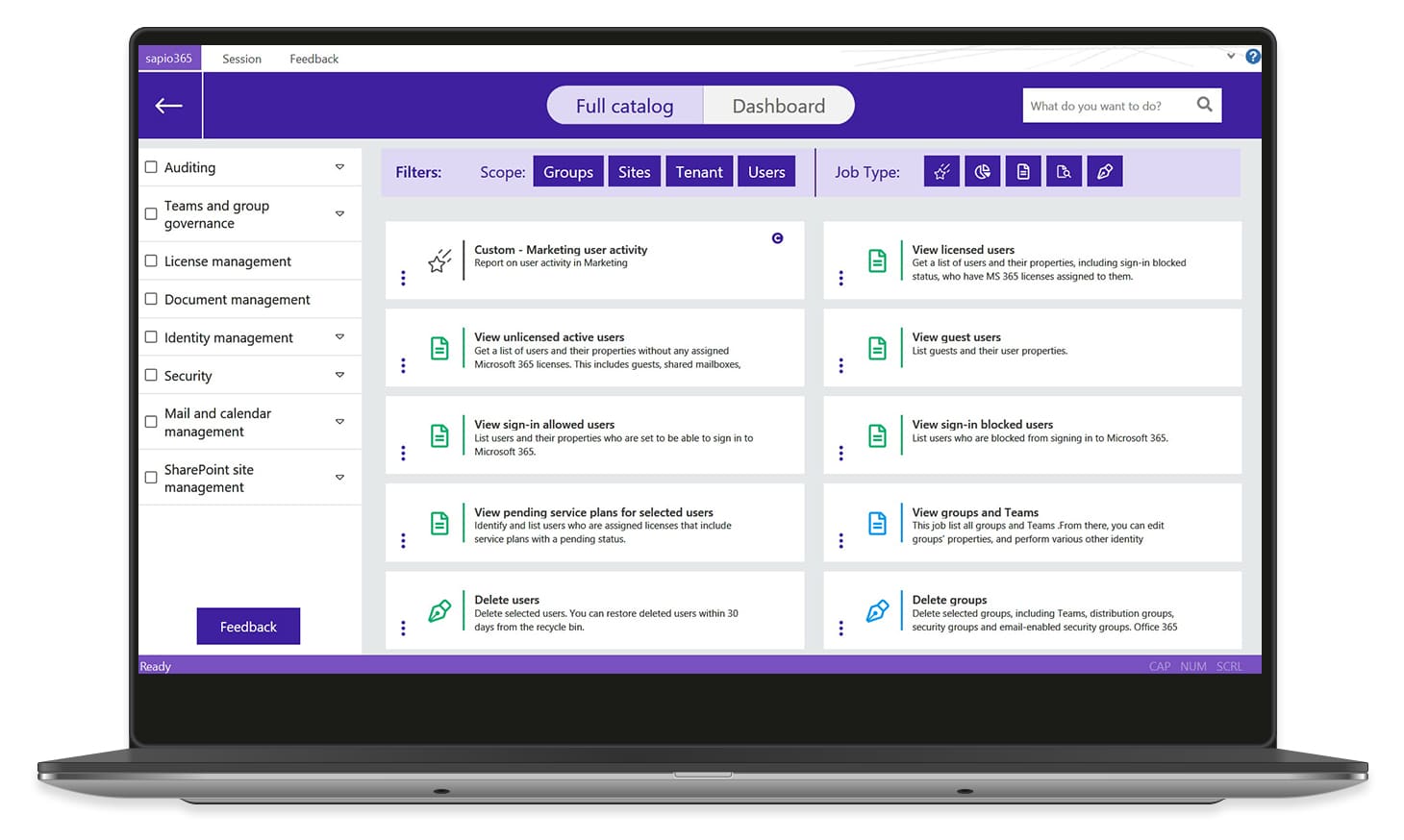
From generating reports based on real-time data to scheduling mass updates when everyone’s asleep, sapio365’s Automation Jobs Library (AJL) has you covered– every feature in sapio365 can be used in an automated task.
The Automation Jobs Library is a collection of macros or Jobs. A “Job” is a simple or complex function that can be executed with just one mouse click. Select from almost 200 Jobs that result in reports, views, or actions.

Automate what should be automated
Delegate what must be delegated
sapio365 takes automating Microsoft 365 tasks to the next level by pairing it with a granular delegation management system. The built-in role-based access control (RBAC) lets you distribute all types of Jobs to non-admin staff, freeing up your IT resources for more important projects.
See what you can do with
sapio365 unlike native tools
sapio365
Delegate tasks to non-technical staff
Create your own AJL Jobs or let us create them for you
Automated tasks do not require re-authentication and errors are mitigated
Delegate AJL Jobs with granular roles and scopes
Choose from nearly 200 ready-to-run AJL Jobs
Scheduling sapio365 AJL jobs takes just a few clicks to set up
sapio365’s AJL is growing and potentially limitless
Native tools
Simple tasks and processes can only be done by admin staff
Tools in Microsoft 365 are “one size fits all”
Using PowerShell for large volume tasks results in timeouts, errors
PowerShell scripts cannot be delegated
Task automation requires complex PowerShell scripts and expertise
Scheduling tasks in Microsoft 365 or via PowerShell is complicated
Microsoft 365 reports are limited in scope and breadth
Choose sapio365 for Microsoft 365:
automate your work to do more in less time
Increase operational efficiency through automation and delegation of tasks
sapio365 allows you to automate job tasks and delegate them to junior staff members in the office. When doing so you are increasing the effectiveness of your IT operations. When automated, even the most complex IT task or process can be executed by non-technical staff members.
Empower your staff and improve your processes
Being able to distribute a greater number of tasks via sapio365 role-based access control and the Automation Jobs Library (AJL) means giving your personnel a greater sense of accomplishment and allowing them to learn. This contributes directly to job satisfaction which in return ensures greater force retention for your business. Building on your organizational culture will impact your business positively and increase employee engagement, effectiveness, and productivity.
Customize automation tasks
Save your business time and money by transforming recurrent “manual” IT processes into sapio365 Jobs. Create department-specific Jobs to meet their unique process requirements using sapio365 AJL Editor or by taking advantage of Ytria’s custom Job creation services.
Speed up security checks
With automated tasks, the process of security checks is done much faster and effectively. By replacing tedious manual reporting like file sharing reports or user sign-in reports with sapio365 automation, your business’s IT department can identify and resolve threats and data leaks faster.
Schedule a Microsoft 365 task or create your own
Automate reports, charts & actions
Working with sapio365 to automate your Microsoft 365 tasks is extremely easy. Simple or complex, a sapio365 “Job” is executed with one mouse click on large datasets. It can result in making changes or in generating a view, a report, or chart.
Commission custom jobs
Creating scripts for sapio365’s Automation Job Library may not be your cup of tea – after all, we promised you a coding free process. With our commission custom job service, you simply work with us to define the specifications that will get you on your way to getting exactly what you want with one click!
Create your own “Automated Job Library” Jobs
If you don’t see the job you want in the automated job library and you don’t mind a bit of scripting, create it yourself! Our goal is to make the program user-friendly and efficient for all of our clients. With the opportunity to modify automate jobs, we are able to reach the needs of all our clients. sapio365 automation scripting is easy to learn – modify an existing job or write one from scratch using our extensive help.
A growing Automation Job Library catalog
The Automation Jobs Library (AJL) grows as new features are added to sapio365 and new use cases are identified from our users’ feedback. Our goal is to make sure that you find the right AJL job to accommodate your needs for the actual “job”.
Delegate to non-technical staff
With the help of automation of tasks, many companies have seen an increase in diverse delegation of tasks. Delegate AJL jobs to anyone with sapio365’s built-in role-based access control. Define sapio365 access right and scopes of action to create granular roles with laser-like precision.
Schedule jobs during off hours
Set your sapio365 automated tasks to run when your machine and network is least busy, such as at night. When the job is finished, a report is sent to a designated email address. This aspect helps employees gain an extra substantial amount of time to spend on other pressing issues during business hours.
sapio365 - Job Catalog
Job Catalog
Creation reports
View groups created within a date range
List groups with a creation date that falls between the dates (inclusively) you specify.
List recently created Teams channels
List the Teams channels that were created on and after a specific date and categorize them by their creation date and the Team they belong to.
eDiscovery
View emails sent from select mailbox owners within a date range
Retrieve email messages sent from selected mailboxes within a specified date range.
SharePoint Sites files created within the date/time range
List SharePoint sites files created within the date/time range.
Group files created within the date/time range
List groups files created within the date/time range.
Find OneDrive files created within a date range
Search users’ OneDrive and list files created within a specific date range.
Find OneDrive files by name or type for selected users
Search selected users’ OneDrive for files that match a specified name and extension type.
Find files by name or type for selected sites
Search selected SharePoint site document libraries for files that match a specified name and extension type.
Trace email using subject, sender and recipient info
Search all mailboxes for a string in the name of the sender, recipent or subject in the latest messages.
View channel chats of all Teams
List chats of all Teams. Private channel chats are included if you are part of the channel or if you have received approval from Microsoft for sapio365 to request private channel chats.
Find 0-byte files in SharePoint libraries
Search and list all SharePoint document libraries for 0-byte sizes files.
View channel chats of selected TeamsList chats of selected Teams. Private channel chats are included if you are part of the channel or if you have received approval from Microsoft for sapio365 to request private channel chats.
Find files by name or type for selected groups and Teams
Search selected group and Teams document libraries for files that match a specified name and extension type.
Email trace
Search all mailboxes and find attachments by name or type
Search all users’ mailboxes and lists attachments that match a specified file name and extension type.
View emails sent from select mailbox owners within a date range
Retrieve email messages sent from selected mailboxes within a specified date range.
Search selected users’ mailboxes and find attachments by name or type
Search mailboxes of selected users and list attachments that match a specified file name and extension type.
Find the last time groups were emailed
Search members’ mailboxes to find the last time selected groups were sent an email. Select groups from distribution groups, Teams, Office 365 groups or email-enabled security groups.
View email messages of all users
List email messages of all users in one place. Choose a date range and use advanced filters to limit your results. From this view, you can delete messages, dowload attachments and messages.
View email messages of selected users
List email messages of selected users in one place. Choose a date range and use advanced filters to limit your results. From this view, you can delete messages, download attachments and messages.
View message rules of selected users
List message rules of selected users.
Usage reports
View users’ last activity by location or department
List the last time each user was active in Office 365, and categorize them by department or location.
Get OneDrive activity usage report
List OneDrive activity in the last 180 days.
Get OneDrive usage report
List OneDrive usage in the last 180 days.
Get usage report of Teams user activity
List Teams user activity in the last 180 days.
Get usage report of Email activity
List Email activity in the last 180 days.
Get usage report of Email app activity
List Email app activity in the last 180 days.
Get Mailbox usage report
List Mailbox usage in the last 180 days.
Get usage report of Office 365 groups activity
List Office 365 groups activity in the last 180 days.
Get usage report of Office 365 active users
List Office 365 active users in the last 180 days.
Get usage report of Office 365 activations
List Office 365 activations.
Get usage report of SharePoint activity
List SharePoint activity in the last 180 days.
Get SharePoint site usage report
List SharePoint site usage in the last 180 days.
Get usage report of Skype for Business activity
List Skype for Business activity in the last 180 days.
Get usage report of Skype for Business device usage
List Skype for Business device usage in the last 180 days.
Get usage report of Yammer activity
List Yammer activity in the last 180 days.
Get Yammer device usage report
List Yammer device usage in the last 180 days.
Get usage report on Yammer groups activity
List Yammer groups activity in the last 180 days.
Export content of selected users
Select users and download their OneDrive files to your local machine. This job also exports Excel or XML reports on their group memberships, roles, assigned licenses, personal contacts, messages and inbox rules, and OneDrive file information.
View ownerless groups
List groups without assigned owners. From there, you can add new owners or promote members to those groups to ensure a healthy collaborative environment.
Groups/Teams with shared files (anonymous, guests, etc)
List Office 365 groups/Teams and their library files shared anonymously, directly with guests, or within the organization.
Users with shared files (anonymous, guests, etc)
List users and their OneDrive files shared anonymously, directly with guests, or within the organization.
Find OneDrive files created within a date range
Search users’ OneDrive and list files created within a specific date range.
Find OneDrive files by name or type for selected users
Search selected users’ OneDrive for files that match a specified name and extension type.
Find files by name or type for selected sites
Search selected SharePoint site document libraries for files that match a specified name and extension type.
View files of all groups
List documents and folders in a hierarchical view for every group and Team document library. From this view, you can upload files or delete them, and you can see file information like who last modified it, the creation date, if it was shared and how it was shared and with whom. You can also change or remove file permissions.
Groups with duplicate files
List groups that have duplicate files.
Sites with duplicate files
List sites that have duplicate files in their document library.
Users with duplicate files
List users who have duplicate OneDrive files.
SharePoint sites without any files
List SharePoint sites whose document library does not contain any files.
View OneDrive files of all users
List files and file information for all users’ OneDrive. In this view, you can download, upload or delete files, and you can manage file permissions.
View OneDrive files of selected users
List files and file information for selected users’ OneDrive. In this view, you can download, upload or delete files, and you can manage file permissions.
Find users with OneDrive files shared within the organization with a link
List all users with OneDrive files shared within the organization using a sharing link. From there, you can delete the link.
Find users’ OneDrive files shared with guests
Search users’ OneDrive and list files shared with guests.
Find users’ OneDrive files shared with many
Search all users’ OneDrive and list files that have been shared with more than a specified number of people.
Find group/Teams files shared within the organization with link
List all groups/Teams and their document library files shared within the organization using a sharing link. From there, you can delete the link.
Find groups and Teams files shared with guests
Search group and Teams document libraries and list files shared with guests.
Find group and Teams files shared with many
Search all group and Teams document libraries and list files that have been shared with more than a specified number of people.
Find site document library files shared within the organization with a link
List all sites with document library files shared within the organization using a sharing link. From there, you can delete the link.
Find site files shared with guests
Search SharePoint site document libraries and list files shared with guests.
Find site document library files shared with many
Search all SharePoint sites and list files that have been shared with more than a specified number of people.
Get OneDrive activity usage report
List OneDrive activity in the last 180 days.
Get OneDrive usage report
List OneDrive usage in the last 180 days.
View lists of all SharePoint sites
List SharePoint list information of all sites and subsites. In this view, you can access list item information and list column information.
View list items of all SharePoint site lists
List every list item for every SharePoint site list. Display site list item information like last modified by, creation date, checked out to, version, retention label, etc.
View files of selected groups
List documents and folders in a hierarchical view for selected groups and Teams document library. From this view, you can upload files or delete them, and you can see file information like who last modified it, the creation date, if it was shared and how it was shared and with whom. You can also change or remove file permissions.
Find files by name or type for selected groups and Teams
Search selected group and Teams document libraries for files that match a specified name and extension type.
Back up
Export content of selected users
Select users and download their OneDrive files to your local machine. This job also exports Excel or XML reports on their group memberships, roles, assigned licenses, personal contacts, messages and inbox rules, and OneDrive file information.
Help desk
View active users
List all users and their properties, including licensed and unlicensed users, rooms, equipment, and shared mailboxes. From there, you can edit users’ properties, reset passwords, and perform various other identity management actions.
Migration
Find 0-byte files in SharePoint libraries
Search and list all SharePoint document libraries for 0-byte sizes files.
Synchronization
View active users
List all users and their properties, including licensed and unlicensed users, rooms, equipment, and shared mailboxes. From there, you can edit users’ properties, reset passwords, and perform various other identity management actions.
Update cache of Users and Groups
Update the local cache of the Users and Groups modules.
User management
View guest users
List guests and their user properties.
Export content of selected users
Select users and download their OneDrive files to your local machine. This job also exports Excel or XML reports on their group memberships, roles, assigned licenses, personal contacts, messages and inbox rules, and OneDrive file information.
View active users
List all users and their properties, including licensed and unlicensed users, rooms, equipment, and shared mailboxes. From there, you can edit users’ properties, reset passwords, and perform various other identity management actions.
Search all mailboxes and find attachments by name or type
Search all users’ mailboxes and lists attachments that match a specified file name and extension type.
Restore deleted users
Restore a selection of user accounts deleted in the last 30 days and which can still be restored.
Find users with a service plan assigned before a specific date
List users who were assigned a selected service plan before a specific date.
Deactivate selected users
Apply various offboarding options to selected users: block sign-in, revoke access, reset password, remove licenses and delete accounts.
Search selected users’ mailboxes and find attachments by name or type
Search mailboxes of selected users and list attachments that match a specified file name and extension type.
Find OneDrive files created within a date range
Search users’ OneDrive and list files created within a specific date range.
Find OneDrive files by name or type for selected users
Search selected users’ OneDrive for files that match a specified name and extension type.
View owned Teams for selected users
Identify and list Teams owned for each user you select.
View Teams of selected users
List all the Teams each selected user belongs to.
View all Admin Audit Log entries
List all available event entries from the Admin Audit Log. You can find who initiated changes to users’ information, group and Teams memberships, and other areas of interest.
View all sign-in activity
List all available sign-in activity entries in Azure Active Directory. You can see who has attempted to sign in, the frequency of sign in attempts, sign-in location and more.
View all administrator roles
List all administrator roles in Azure Active Directory and their assigned users. From there you can add or remove assignments.
Chart of global license consumption
Show chart of global license consumption.
View users with selected licenses
Lists users who have selected licenses assigned. From there, you can remove or assign new licenses to those users.
View group memberships of all users
List every users’ group membership. From this view, you can add or remove group memberships.
View assigned licenses of all users
List licenses assigned per user. In this view, you can add or remove licenses, and enable or disable service plans.
View Licenses and service plans of all users
List licenses and service plans assigned per user. In this view, you can add or remove licenses, and enable or disable service plans.
View email messages of all users
List email messages of all users in one place. Choose a date range and use advanced filters to limit your results. From this view, you can delete messages, dowload attachments and messages.
View personal contacts of all users
List all the personal contacts and their information for every user.
View group memberships of selected users
List selected users’ group membership. From this view, you can add or remove group memberships.
View assigned licenses of selected users
List licenses assigned per selected user. In this view, you can add or remove licenses, and enable or disable service plans.
View Licenses and service plans of selected users
List licenses and service plans assigned per selected user. In this view, you can add or remove licenses, and enable or disable service plans.
View email messages of selected users
List email messages of selected users in one place. Choose a date range and use advanced filters to limit your results. From this view, you can delete messages, download attachments and messages.
View personal contacts of selected users
List all the personal contacts and their information for selected users.
View message rules of selected users
List message rules of selected users.
Find users with OneDrive files shared within the organization with a link
List all users with OneDrive files shared within the organization using a sharing link. From there, you can delete the link.
Get OneDrive activity usage report
List OneDrive activity in the last 180 days.
Get usage report of Teams user activity
List Teams user activity in the last 180 days.
Get usage report of Office 365 active users
List Office 365 active users in the last 180 days.
Get usage report of Office 365 activations
List Office 365 activations.
Get usage report of Skype for Business activity
List Skype for Business activity in the last 180 days.
Get usage report of Skype for Business device usage
List Skype for Business device usage in the last 180 days.
User offboarding
View sign-in blocked users
List users who are blocked from signing in to Microsoft 365.
Delete users
Delete selected users. You can restore deleted users within 30 days from the recycle bin.
Export content of selected users
Select users and download their OneDrive files to your local machine. This job also exports Excel or XML reports on their group memberships, roles, assigned licenses, personal contacts, messages and inbox rules, and OneDrive file information.
View active users
List all users and their properties, including licensed and unlicensed users, rooms, equipment, and shared mailboxes. From there, you can edit users’ properties, reset passwords, and perform various other identity management actions.
View deleted users
List users deleted in the last 30 days. From there you can restore or delete them permanently.
Restore deleted users
Restore a selection of user accounts deleted in the last 30 days and which can still be restored.
Remove all licenses from users with blocked sign-ins
List assigned licenses of users whose sign-in is blocked and choose to remove their licenses. If licenses are assigned via a group, users will be also removed from those groups.
View unlicensed users
List users without any licenses assigned to them.
Deactivate selected users
Apply various offboarding options to selected users: block sign-in, revoke access, reset password, remove licenses and delete accounts.
Users without managers
List users without an assigned manager. From there you can set a manager to ensure continued access to users’ content.
View users with managers
List users who have a set manager.
View all sign-in activity
List all available sign-in activity entries in Azure Active Directory. You can see who has attempted to sign in, the frequency of sign in attempts, sign-in location and more.
View users with selected licenses
Lists users who have selected licenses assigned. From there, you can remove or assign new licenses to those users.
Find users unable to use Teams
List users for whom sign-in is blocked, no Teams license is assigned, or their Teams service is disabled.
User onboarding
View unlicensed active users
Get a list of users and their properties without any assigned Microsoft 365 licenses. This includes guests, shared mailboxes, rooms and equipment.
View sign-in allowed users
List users and their properties who are set to be able to sign in to Microsoft 365.
View active users
List all users and their properties, including licensed and unlicensed users, rooms, equipment, and shared mailboxes. From there, you can edit users’ properties, reset passwords, and perform various other identity management actions.
Restore deleted users
Restore a selection of user accounts deleted in the last 30 days and which can still be restored.
Find users with a service plan assigned before a specific date
List users who were assigned a selected service plan before a specific date.
View unlicensed users
List users without any licenses assigned to them.
View users with selected licenses
Lists users who have selected licenses assigned. From there, you can remove or assign new licenses to those users.
View users’ last activity by location or department
List the last time each user was active in Office 365, and categorize them by department or location.
View licensed users
Get a list of users and their properties, including sign-in blocked status, who have MS 365 licenses assigned to them.
View unlicensed active users
Get a list of users and their properties without any assigned Microsoft 365 licenses. This includes guests, shared mailboxes, rooms and equipment.
View sign-in allowed users
List users and their properties who are set to be able to sign in to Microsoft 365.
View sign-in blocked users
List users who are blocked from signing in to Microsoft 365.
View pending service plans for selected users
Identify and list users who are assigned licenses that include service plans with a pending status.
Export content of selected users
Select users and download their OneDrive files to your local machine. This job also exports Excel or XML reports on their group memberships, roles, assigned licenses, personal contacts, messages and inbox rules, and OneDrive file information.
View by status: guest, sign-in, unlicensed
Filter down to a list of guests users, users allowed/blocked from signing-in, or licensed/unlicensed users.
Licenses of sign-in blocked users
List users whose sign-in is blocked and who also have assigned licenses. You’re then able to remove licenses from users within the resulting window.
Remove all licenses from users with blocked sign-ins
List assigned licenses of users whose sign-in is blocked and choose to remove their licenses. If licenses are assigned via a group, users will be also removed from those groups.
Users by assigned & unassigned licenses
Categorize active users by their assigned and unassigned Office 365 licenses.
Find users with a service plan assigned before a specific date
List users who were assigned a selected service plan before a specific date.
Users with duplicate plans
List users with licenses that have overlapping service plans.
View unlicensed users
List users without any licenses assigned to them.
Users by license usage location
List users grouped by their license usage location.
Chart of global license consumption
Show chart of global license consumption.
View users with selected licenses
Lists users who have selected licenses assigned. From there, you can remove or assign new licenses to those users.
Users with empty OneDrive accounts
List all users without any documents in their OneDrive.
Users with no calendar events
List all users without calendar events.
Report users by disabled service plan
List disabled service plans and the users affected by the plan.
View summary of all licenses and service plans
List all purchased licenses and the service plans within each. In this view, you will see how many licenses are consumed and if there are any suspended licenses.
View assigned licenses of all users
List licenses assigned per user. In this view, you can add or remove licenses, and enable or disable service plans.
View Licenses and service plans of all users
List licenses and service plans assigned per user. In this view, you can add or remove licenses, and enable or disable service plans.
View assigned licenses of selected users
List licenses assigned per selected user. In this view, you can add or remove licenses, and enable or disable service plans.
View Licenses and service plans of selected users
List licenses and service plans assigned per selected user. In this view, you can add or remove licenses, and enable or disable service plans.
Calendar events
View calendar events of all groups
List every group’s calendar events and event information. In this view, you can also see attachment information and delete attachments.
View users’ calendar events for a date range
List calendar events and their properties for selected users for a specific date range.
View calendar events for all users
List every users’ calendar events and event information. In this view, you can also see attachment information and delete attachments.
View calendar events for selected users
List selected users’ calendar events and event information. In this view, you can also see attachment information and delete attachments.
View calendar events of selected groups
List selected group’s calendar events and event information. In this view, you can also see attachment information and delete attachments.
Email messages
Search all mailboxes and find attachments by name or type
Search all users’ mailboxes and lists attachments that match a specified file name and extension type.
View emails sent from select mailbox owners within a date range
Retrieve email messages sent from selected mailboxes within a specified date range.
Find users with external email forwarding inbox rules
List users and their inbox rules forwarding mail to external addresses.
Search selected users’ mailboxes and find attachments by name or type
Search mailboxes of selected users and list attachments that match a specified file name and extension type.
Find the last time groups were emailed
Search members’ mailboxes to find the last time selected groups were sent an email. Select groups from distribution groups, Teams, Office 365 groups or email-enabled security groups.
Trace email using subject, sender and recipient info
Search all mailboxes for a string in the name of the sender, recipient or subject in the latest messages.
Users by auto-reply status
Categorize users by their out-of-office (auto-reply) status.
View email messages of all users
List email messages of all users in one place. Choose a date range and use advanced filters to limit your results. From this view, you can delete messages, dowload attachments and messages.
View personal contacts of all users
List all the personal contacts and their information for every user.
View email messages of selected users
List email messages of selected users in one place. Choose a date range and use advanced filters to limit your results. From this view, you can delete messages, download attachments and messages.
View personal contacts of selected users
List all the personal contacts and their information for selected users.
View message rules of selected users
List message rules of selected users.
Get usage report of Email activity
List Email activity in the last 180 days.
Get usage report of Email app activity
List Email app activity in the last 180 days.
Get Mailbox usage report
List Mailbox usage in the last 180 days.
View OneDrive files of selected users
List files and file information for selected users’ OneDrive. In this view, you can download, upload or delete files, and you can manage file permissions.
Administrator roles
Chart admin roles by user count
Create a chart of user count based on the assigned administration role.
Export admin roles by users
Export a list of directory roles by users.
Security
View licensed users
Get a list of users and their properties, including sign-in blocked status, who have MS 365 licenses assigned to them.
View unlicensed active users
Get a list of users and their properties without any assigned Microsoft 365 licenses. This includes guests, shared mailboxes, rooms and equipment.
View guest users
List guests and their user properties.
View sign-in allowed users
List users and their properties who are set to be able to sign in to Microsoft 365.
View sign-in blocked users
List users who are blocked from signing in to Microsoft 365.
View by status: guest, sign-in, unlicensed
Filter down to a list of guests users, users allowed/blocked from signing-in, or licensed/unlicensed users.
Remove all licenses from users with blocked sign-ins
List assigned licenses of users whose sign-in is blocked and choose to remove their licenses. If licenses are assigned via a group, users will be also removed from those groups.
View ownerless groups
List groups without assigned owners. From there, you can add new owners or promote members to those groups to ensure a healthy collaborative environment.
Deactivate selected users
Apply various offboarding options to selected users: block sign-in, revoke access, reset password, remove licenses and delete accounts.
View emails sent from select mailbox owners within a date range
Retrieve email messages sent from selected mailboxes within a specified date range.
Groups/Teams with shared files (anonymous, guests, etc)
List Office 365 groups/Teams and their library files shared anonymously, directly with guests, or within the organization.
Users with shared files (anonymous, guests, etc)
List users and their OneDrive files shared anonymously, directly with guests, or within the organization.
SharePoint Sites with shared files (anonymous, guests, etc)
List SharePoint sites and their library files shared anonymously, directly with guests, or within the organization.
List users with & without recent sign-in activity
List users sign-ins activity for a specific period in the last 30 days.
Groups with guest members
List groups/Teams with members who are guests (external).
View all Admin Audit Log entries
List all available event entries from the Admin Audit Log. You can find who initiated changes to users’ information, group and Teams memberships, and other areas of interest.
View all sign-in activity
List all available sign-in activity entries in Azure Active Directory. You can see who has attempted to sign in, the frequency of sign in attempts, sign-in location and more.
View all administrator roles
List all administrator roles in Azure Active Directory and their assigned users. From there you can add or remove assignments.
Trace email using subject, sender and recipient info
Search all mailboxes for a string in the name of the sender, recipient or subject in the latest messages.
View all email-enabled security groups
This job lists all email-enabled security groups with over 100 properties all in one place. In this view, you can edit groups’ properties and settings, and perform various other group management actions.
View all security groups
This job lists all security groups with over 100 properties all in one place. In this view, you can edit groups’ properties and settings, and perform various other group management actions.
Show groups/Teams with guest owners
List groups/Teams that have owners who are guests.
Groups with anonymously shared files
List groups/Teams with files that have been shared using an anonymous share link.
SharePoint sites with anonymously shared files
List SharePoint sites with files that have been shared using an anonymous share link.
Users with anonymously shared files
List users with OneDrive files that have been shared using an anonymous share link.
Find users unable to use Teams
List users for whom sign-in is blocked, no Teams license is assigned, or their Teams service is disabled.
View OneDrive files of all users
List files and file information for all users’ OneDrive. In this view, you can download, upload or delete files, and you can manage file permissions.
Clean up Teams with guest members
List Teams with guests and Teams where guests can be added, with options to change this group setting and to remove guests from those Teams.
Find users with OneDrive files shared within the organization with a link
List all users with OneDrive files shared within the organization using a sharing link. From there, you can delete the link.
Find users’ OneDrive files shared with guests
Search users’ OneDrive and list files shared with guests.
Find users’ OneDrive files shared with many
Search all users’ OneDrive and list files that have been shared with more than a specified number of people.
Find group/Teams files shared within the organization with link
List all groups/Teams and their document library files shared within the organization using a sharing link. From there, you can delete the link.
Find groups and Teams files shared with guests
Search group and Teams document libraries and list files shared with guests.
Find group and Teams files shared with many
Search all group and Teams document libraries and list files that have been shared with more than a specified number of people.
Find site document library files shared within the organization with a link
List all sites with document library files shared within the organization using a sharing link. From there, you can delete the link.
Find site files shared with guests
Search SharePoint site document libraries and list files shared with guests.
Find site document library files shared with many
Search all SharePoint sites and list files that have been shared with more than a specified number of people.
Get Teams device usage report
List Teams device usage in the last 180 days.
Get Yammer device usage report
List Yammer device usage in the last 180 days.
SharePoint sites
View group sites
List SharePoint sites and subsites of every group. From this view, you can access site information like usage quotas, lists, document library files, etc.
View list items of all group site lists
List every list item for every group SharePoint site list. Display groups’ site list item information like last modified by, creation date, checked out to, version, retention label, etc.
View list columns of all group sites
List every list column and its information of all SharePoint site lists. Get list column information of group sites like if columns are hidden, text type, calculated formulas, etc.
SharePoint sites without any files
List SharePoint sites whose document library does not contain any files.
View all SharePoint sites
List all SharePoint sites and subsites, and their information such as storage usage and quotas, creation dates, links, etc. From this view, you can access document library files and site lists.
View private channel sites
List SharePoint sites and site information of every private channel.
View all SharePoint sites & subsites by type (Teams, Yammer, private channels, etc)
Get a clearer view of your SharePoint site topology. See which sites belong to Teams, private channels, regular Office 365 groups or Yammer-linked groups.
Find group/Teams files shared within the organization with link
List all groups/Teams and their document library files shared within the organization using a sharing link. From there, you can delete the link.
Find site document library files shared within the organization with a link
List all sites with document library files shared within the organization using a sharing link. From there, you can delete the link.
Find site files shared with guests
Search SharePoint site document libraries and list files shared with guests.
Find site document library files shared with many
Search all SharePoint sites and list files that have been shared with more than a specified number of people.
Get usage report of SharePoint activity
List SharePoint activity in the last 180 days.
Get SharePoint site usage report
List SharePoint site usage in the last 180 days.
View lists of all SharePoint sites
List SharePoint list information of all sites and subsites. In this view, you can access list item information and list column information.
View list items of all SharePoint site lists
List every list item for every SharePoint site list. Display site list item information like last modified by, creation date, checked out to, version, retention label, etc.
View list columns for all SharePoint site lists
List every list column and its information of all SharePoint site lists.
View sites of selected Office 365 groups
List SharePoint sites and subsites of selected Office 365 groups. From this view, you can access site information like usage quotas, lists, document library files, etc.
View list items of selected Office 365 groups sites
List every list item for selected Office 365 groups SharePoint site list. Display groups’ site list item information like last modified by, creation date, checked out to, version, retention label, etc.
View list columns of selected Office 365 groups sites
List every list column and its information of selected Office 365 groups SharePoint site lists. Get list column information of group sites like if columns are hidden, text type, calculated formulas, etc.
Storage
Groups with duplicate files
List groups that have duplicate files.
Sites with duplicate files
List sites that have duplicate files in their document library.
Users with duplicate files
List users who have duplicate OneDrive files.
SharePoint sites without any files
List SharePoint sites whose document library does not contain any files.
View private channel sites
List SharePoint sites and site information of every private channel.
Get SharePoint site usage report
List SharePoint site usage in the last 180 days.
Back up
Export content of selected groups
Select groups or Teams, and download their document library files and group conversation attachments to your local machine. Export Excel or XML reports on group members and owners, Team channels and chats, group conversation threads and calendar events, and document library file information.
Group management
View groups and Teams
This job list all groups and Teams .From there, you can edit groups’ properties, and perform various other identity management actions.
Delete groups
Delete selected groups, including Teams, distribution groups, security groups and email-enabled security groups. Office 365 type groups (Teams) will be available to restore from the recycle bin. All other groups are deleted permanently.
Export content of selected groups
Select groups or Teams, and download their document library files and group conversation attachments to your local machine. Export Excel or XML reports on group members and owners, Team channels and chats, group conversation threads and calendar events, and document library file information.
View deleted groups
List groups deleted in the last 30 days. From there you can restore or delete them permanently.
View Archived Teams
List Teams that have been archived. You may restore them from this view.
Get memberships of a selected group
List the groups that your selected group (nested) is a member of.
Restore deleted groups
Restore a selection of groups or Teams deleted in the last 30 days and which can still be restored.
Remove all licenses from users with blocked sign-ins
List assigned licenses of users whose sign-in is blocked and choose to remove their licenses. If licenses are assigned via a group, users will be also removed from those groups.
Find ownerless/memberless groups
List groups without owners or without members or neither.
View groups created within a date range
List groups with a creation date that falls between the dates (inclusively) you specify.
Find groups about to expire
List Office 365 groups and Teams that are set to expire within a specific date range.
View ownerless groups
List groups without assigned owners. From there, you can add new owners or promote members to those groups to ensure a healthy collaborative environment.
Find memberless groups
List groups without any members. This includes Office 365 groups, Teams, distribution groups, security groups and email-enabled security groups.
Find ownerless AND memberless groups
“List groups that have no owners nor members. This includes Office 365 groups, Teams, distribution groups, security groups and email-enabled security groups.”
Groups/Teams with shared files (anonymous, guests, etc)
List Office 365 groups/Teams and their library files shared anonymously, directly with guests, or within the organization.
Find files by name or type for selected sites
Search selected SharePoint site document libraries for files that match a specified name and extension type.
Add non-member owners as members for selected groups or Teams
Ensure the current owners of the groups or Teams you select are also members to ensure access to all Microsoft services. If they are not already members, they are added to their relative groups.
View group sites
List SharePoint sites and subsites of every group. From this view, you can access site information like usage quotas, lists, document library files, etc.
View lists of all group sites
List SharePoint list information of all group sites and subsites. In this view, you can access list item information and list column information.
Add selected users as owners to groups
Add selected users as owners to all the groups in your tenant. Applicable groups types include: distribution groups, Office 365 groups or email-enabled security groups.
Find the last time groups were emailed
Search members’ mailboxes to find the last time selected groups were sent an email. Select groups from distribution groups, Teams, Office 365 groups or email-enabled security groups.
Groups with guest members
List groups/Teams with members who are guests (external).
View all Admin Audit Log entries
List all available event entries from the Admin Audit Log. You can find who initiated changes to users’ information, group and Teams memberships, and other areas of interest.
View calendar events of all groups
List every group’s calendar events and event information. In this view, you can also see attachment information and delete attachments.
View files of all groups
List documents and folders in a hierarchical view for every group and Team document library. From this view, you can upload files or delete them, and you can see file information like who last modified it, the creation date, if it was shared and how it was shared and with whom. You can also change or remove file permissions.
View all Office 365 groups
List all Office 365 groups, including Teams, with over 100 properties all in one place. In this view, you can edit groups’ properties and settings, and perform various other group management actions.
View all distribution lists
List all distribution groups in Azure Active Directory with over 100 properties all in one place. In this view, you can edit groups’ properties and settings, and perform various other group management actions.
View all email-enabled security groups
This job lists all email-enabled security groups with over 100 properties all in one place. In this view, you can edit groups’ properties and settings, and perform various other group management actions.
View all security groups
This job lists all security groups with over 100 properties all in one place. In this view, you can edit groups’ properties and settings, and perform various other group management actions.
View channels of all Teams
List channels and channel information of all Teams. In this view, access chats, private channel memberships, private channel sites and files.
View conversations of all Office 365 groups
List conversation posts and replies of every Office 365 group. From this view, you can delete posts, or download or delete attachments.
View members of all groups and Teams
List members of every group, including Teams, Office 365 groups, security groups, email-enabled security groups, and distribution groups. From this view, you can add or remove members and owners.
Show groups/Teams with guest owners
List groups/Teams that have owners who are guests.
Find Teams where members can add, edit or delete channels
List Teams with member settings enabled to add, edit or delete channels.
Update cache of Users and Groups
Update the local cache of the Users and Groups modules.
Groups with empty document library
List groups/Teams that have a document library with no documents.
Groups with no calendar events
List all groups/Teams without any calendar events.
View groups’ calendar events within a date range
List calendar events for selected groups that are set between dates you specify.
View group memberships of all users
List every users’ group membership. From this view, you can add or remove group memberships.
View group memberships of selected users
List selected users’ group membership. From this view, you can add or remove group memberships.
Clean up Teams with guest members
List Teams with guests and Teams where guests can be added, with options to change this group setting and to remove guests from those Teams.
Disable Giphy in Teams
Disable the setting that allows the use of Giphy in all existing Teams.
View all SharePoint sites & subsites by type (Teams, Yammer, private channels, etc)
Get a clearer view of your SharePoint site topology. See which sites belong to Teams, private channels, regular Office 365 groups or Yammer-linked groups.
Email owners of inactive Teams
This job finds Teams without any activity during a period and sends a notification email to each owner.
Find group/Teams files shared within the organization with link
List all groups/Teams and their document library files shared within the organization using a sharing link. From there, you can delete the link.
Find groups and Teams files shared with guests
Search group and Teams document libraries and list files shared with guests.
Find group and Teams files shared with many
Search all group and Teams document libraries and list files that have been shared with more than a specified number of people.
Get usage report of Office 365 groups activity
List Office 365 groups activity in the last 180 days.
Get usage report of Yammer activity
List Yammer activity in the last 180 days.
Get Yammer device usage report
List Yammer device usage in the last 180 days.
Get usage report on Yammer groups activity
List Yammer groups activity in the last 180 days.
View files of selected groups
List documents and folders in a hierarchical view for selected groups and Teams document library. From this view, you can upload files or delete them, and you can see file information like who last modified it, the creation date, if it was shared and how it was shared and with whom. You can also change or remove file permissions.
View calendar events of selected groups
List selected group’s calendar events and event information. In this view, you can also see attachment information and delete attachments.
View channels of selected Teams
List channels and channel information of selected Teams. In this view, access chats, private channel memberships, private channel sites and files.
View sites of selected Office 365 groups
List SharePoint sites and subsites of selected Office 365 groups. From this view, you can access site information like usage quotas, lists, document library files, etc.
View lists of selected Office 365 groups sites
List SharePoint list information of selected Office 365 groups sites and subsites. In this view, you can access list item information and list column information.
View conversations of selected Office 365 groups
List conversation posts and replies of selected Office 365 groups. From this view, you can delete posts, or download or delete attachments.
Find files by name or type for selected groups and Teams
Search selected group and Teams document libraries for files that match a specified name and extension type.
Teams management
View groups and Teams
This job list all groups and Teams .From there, you can edit groups’ properties, and perform various other identity management actions.
Delete groups
Delete selected groups, including Teams, distribution groups, security groups and email-enabled security groups. Office 365 type groups (Teams) will be available to restore from the recycle bin. All other groups are deleted permanently.
Export content of selected groups
Select groups or Teams, and download their document library files and group conversation attachments to your local machine. Export Excel or XML reports on group members and owners, Team channels and chats, group conversation threads and calendar events, and document library file information.
View deleted groups
List groups deleted in the last 30 days. From there you can restore or delete them permanently.
View Archived Teams
List Teams that have been archived. You may restore them from this view.
Find groups about to expire
List Office 365 groups and Teams that are set to expire within a specific date range.
View ownerless groups
List groups without assigned owners. From there, you can add new owners or promote members to those groups to ensure a healthy collaborative environment.
Find memberless groups
List groups without any members. This includes Office 365 groups, Teams, distribution groups, security groups and email-enabled security groups.
Find ownerless AND memberless groups
List groups that have no owners nor members. This includes Office 365 groups, Teams, distribution groups, security groups and email-enabled security groups.
Groups/Teams with shared files (anonymous, guests, etc)
List Office 365 groups/Teams and their library files shared anonymously, directly with guests, or within the organization.
Find files by name or type for selected sites
Search selected SharePoint site document libraries for files that match a specified name and extension type.
Add non-member owners as members for selected groups or Teams
Ensure the current owners of the groups or Teams you select are also members to ensure access to all Microsoft services. If they are not already members, they are added to their relative groups.
Add selected users as owners to groups
Add selected users as owners to all the groups in your tenant. Applicable groups types include: distribution groups, Office 365 groups or email-enabled security groups.
View owned Teams for selected users
Identify and list Teams owned for each user you select.
View Teams of selected users
List all the Teams each selected user belongs to.
Find the last time groups were emailed
Search members’ mailboxes to find the last time selected groups were sent an email. Select groups from distribution groups, Teams, Office 365 groups or email-enabled security groups.
View all Admin Audit Log entries
List all available event entries from the Admin Audit Log. You can find who initiated changes to users’ information, group and Teams memberships, and other areas of interest.
View files of all groups
List documents and folders in a hierarchical view for every group and Team document library. From this view, you can upload files or delete them, and you can see file information like who last modified it, the creation date, if it was shared and how it was shared and with whom. You can also change or remove file permissions.
View all Office 365 groups
List all Office 365 groups, including Teams, with over 100 properties all in one place. In this view, you can edit groups’ properties and settings, and perform various other group management actions.
View channel chats of all Teams
List chats of all Teams. Private channel chats are included if you are part of the channel or if you have received approval from Microsoft for sapio365 to request private channel chats.
View members of all groups and Teams
List members of every group, including Teams, Office 365 groups, security groups, email-enabled security groups, and distribution groups. From this view, you can add or remove members and owners.
Show groups/Teams with guest owners
List groups/Teams that have owners who are guests.
Update cache of Users and Groups
Update the local cache of the Users and Groups modules.
View groups’ calendar events within a date range
List calendar events for selected groups that are set between dates you specify.
View private channel sites
List SharePoint sites and site information of every private channel.
View group memberships of all users
List every users’ group membership. From this view, you can add or remove group memberships.
View group memberships of selected users
List selected users’ group membership. From this view, you can add or remove group memberships.
List recently created Teams channels
List the Teams channels that were created on and after a specific date and categorize them by their creation date and the Team they belong to.
List recently created Teams by department
List the Teams that were created since the date you specify and categorize them by the department of the user who created it.
Clean up Teams with guest members
List Teams with guests and Teams where guests can be added, with options to change this group setting and to remove guests from those Teams.
Disable Giphy in Teams
Disable the setting that allows the use of Giphy in all existing Teams.
View all SharePoint sites & subsites by type (Teams, Yammer, private channels, etc)
Get a clearer view of your SharePoint site topology. See which sites belong to Teams, private channels, regular Office 365 groups or Yammer-linked groups.
Find group/Teams files shared within the organization with link
List all groups/Teams and their document library files shared within the organization using a sharing link. From there, you can delete the link.
Find groups and Teams files shared with guests
Search group and Teams document libraries and list files shared with guests.
Find group and Teams files shared with many
Search all group and Teams document libraries and list files that have been shared with more than a specified number of people.
Get Teams device usage report
List Teams device usage in the last 180 days.
Get usage report of Teams user activity
List Teams user activity in the last 180 days.
Get usage report of Office 365 groups activity
List Office 365 groups activity in the last 180 days.
View files of selected groups
List documents and folders in a hierarchical view for selected groups and Teams document library. From this view, you can upload files or delete them, and you can see file information like who last modified it, the creation date, if it was shared and how it was shared and with whom. You can also change or remove file permissions.
View channel chats of selected Teams
List chats of selected Teams. Private channel chats are included if you are part of the channel or if you have received approval from Microsoft for sapio365 to request private channel chats.
Find files by name or type for selected groups and Teams
Search selected group and Teams document libraries for files that match a specified name and extension type.
sapio365 - Discover sapio365 2.0
Discover sapio365 2.0
The next generation IT management platform for
Microsoft 365
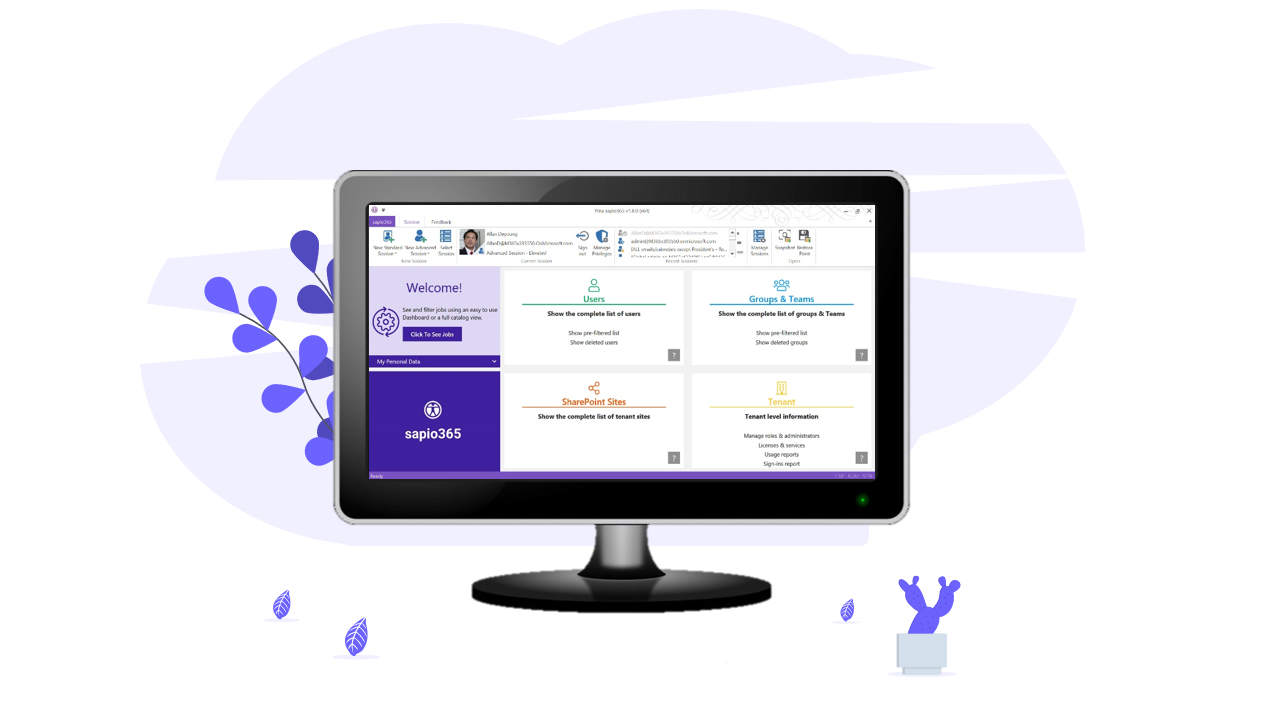
Ytria is proud to release sapio365 2.0, its next generation IT management platform for Microsoft 365 environments. This release is more than just a collection of new features.
sapio365 2.0 is a modular and configurable platform for the efficient management of Microsoft 365 environments.
Here are the highlights

1. sapio365 2.0 platform
A new, more convivial, user interface!
2. FlexyView Grid
A lot of new powerful features in our FlexyView Grid data explorer
3. Automation Jobs Library – AJL
The introduction of the Automation Jobs Library (AJL) and companion sapio365 2.0 AJL License which allow complex functions to be packaged in Jobs and executed with one click. This allows the delegation of many tasks (even to non- admin staff) without requiring a full-featured license (the sapio365 2.0 Pro License)
4. Specific modules
Support for collaborative and hybrid environments (2.1 release)
Click on each section to learn more about what this means for you
Configure YOUR sapio365 2.0 platform

The new sapio365 2.0 platform has been reimagined to bring you a scalable solution for your changing business practices and the financial flexibility to make it a reality.
We have segmented the numerous functionalities of sapio365 to help you maximize your return when you invest in sapio365. You choose if you want the ability to collaborate and delegate across various machines, access the Automation Jobs Library (AJL), or if you wish to manage on-premises Active Directory and Azure Active Directory in one place.
sapio365 2.0 allows you to tailor the right sapio365 solution to meet your exact needs in Microsoft 365 identity management, group and Teams governance, and various aspects of security.
When you adopt sapio365, you enable your IT team to gain greater visibility, control of your organization’s infrastructure, and early problem detection resulting in faster service delivery and fewer service calls. Install sapio365 in just a few minutes and watch your IT team almost instantly jump start productivity of the departments it serves.
The most powerful modular IT management platform for Microsoft 365
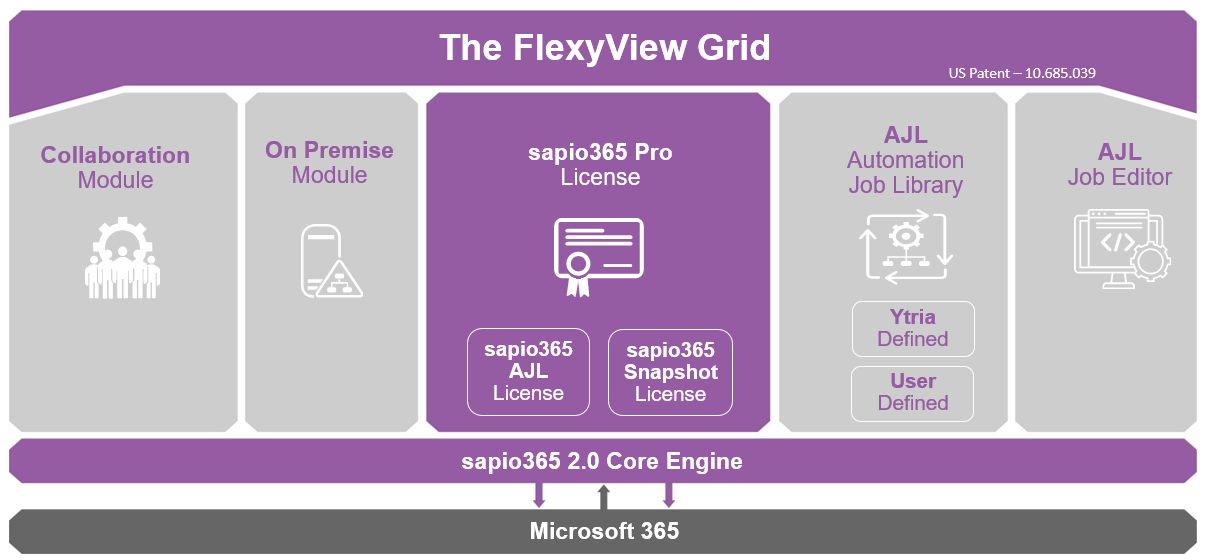
sapio365 Pro – Access all the features
The heart of sapio365 for Microsoft 365 management, sapio365 Pro is your access pass to all the features of the platform to manage everything on Azure Active Directory related to users and groups and Teams, including their licenses, mailboxes, documents, usage reports, settings, and more.

sapio365 2.0 Automation Jobs Library (AJL or “agile”) – Run complex functions with one click and without PowerShell
The Automation Jobs Library (pronounced “agile”) is the repository for the automation Jobs. A “Job” is an administration task combining several sapio365 functions. A Job can be simple or complex. Ytria provides many Jobs commonly needed by IT administrators. The AJL is integrated in sapio365 2.0 via a friendly interface.
You can choose from over 140 Jobs spanning security, identity management, groups and Team management, and other areas of interest. Get one for your helpdesk, and another for your Exchange admin – give them exactly what they need to carry out their tasks in an easy, effective way.
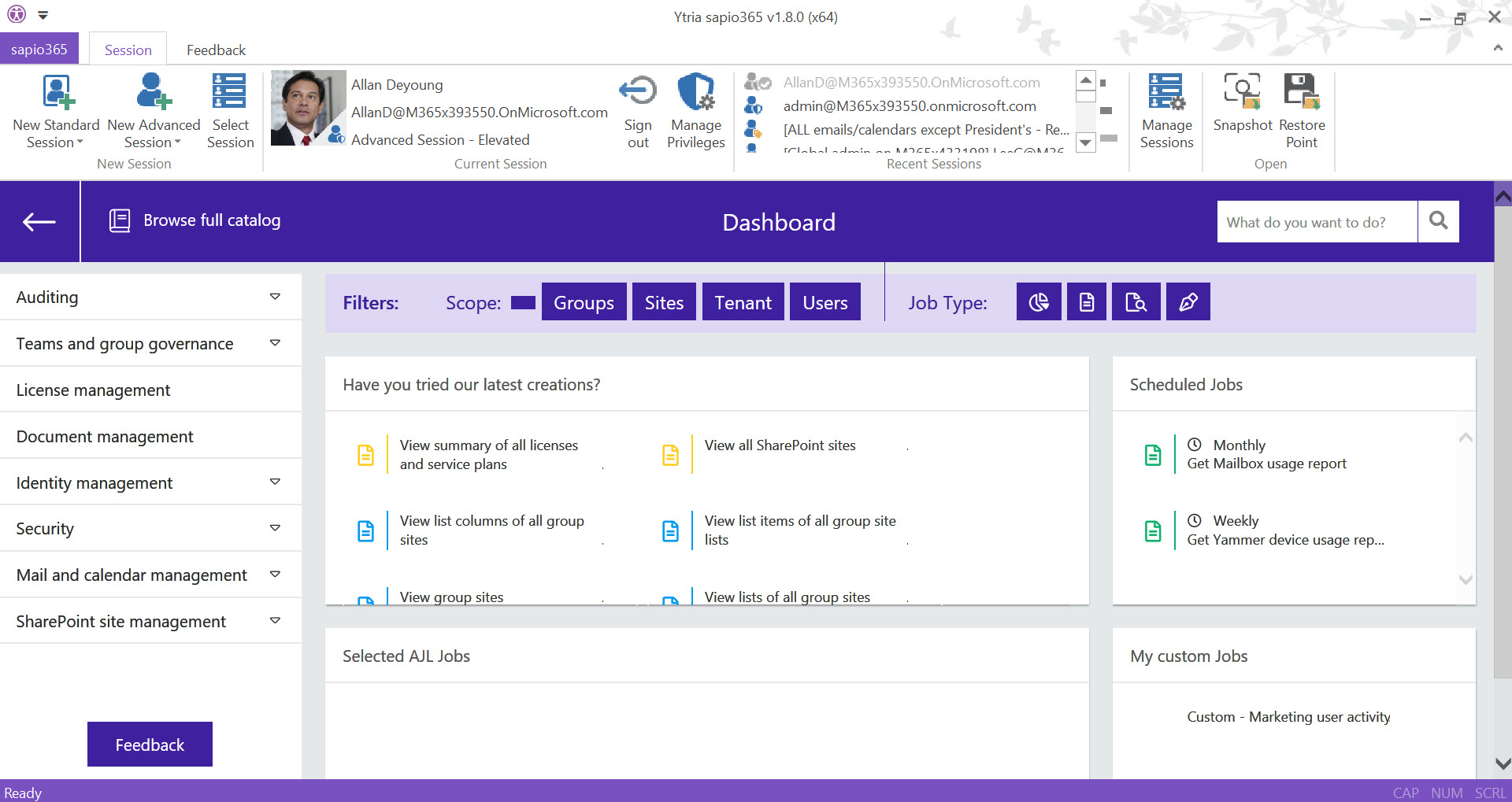
sapio365 2.0 AJL License – Execute Automation Jobs Library (AJL) Jobs
An AJL license has only one purpose and one capability: executing Jobs in the AJL, regardless of the complexity of the Jobs. Because of its unique purpose, an AJL license has a much lower cost than a full Pro license. It can also be activated by a non-IT staff thus promoting delegation of tasks throughout an organization. For instance, a department manager could produce complex reports (provided there is a Job to do that) without making a request to the IT department.


sapio365 2.0 AJL Job Editor – Create your own Jobs and extend the power of sapio365 2.0
Do you need a specific Job that is not already in the AJL? You can create it yourself with the sapio365 2.0 AJL Editor. Each Job can be executed with a simple click of the mouse either with a Pro or AJL license. The combination of the AJL License and AJL Editor allows you to extend the breath of functionalities available with sapio365 2.0 and delegate a lot of routine functions to junior admin staff of even non-admin staff.
sapio365 2.0 Collaboration Module
Share the richness of the sapio365 platform with your team members. Delegate tasks that are as permissive or as restrictive as you need them to be on specific data sets. The Collaboration Module permits you to centralize all this information in your Azure Cosmos DB.


On-Premises Module
If your organization has a hybrid configuration, combine your sapio365 2.0 Pro with the On-Premises Module to directly manage users and groups, both in your Azure Active Directory and in your local Active Directory in one place.
sapio365 Snapshot – Share data with team members
Once you have leveraged the power of our FlexyView Grid to display information the way you want, take a Snapshot of your dataset to compare it with others at different points in time or share it with colleagues. The sapio365 2.0 Snapshot License also allows you to continue where you left off using Restore Points – you can even work offline and save your changes later!
Do more in the FlexyView Grid
Speed up filtering, grouping and other data manipulation
When you work with a massive amount of data, the FlexyView Grid is robust enough to handle it all, but any time you filter or sort or do any kind of manipulation, it takes time to process because it is directly related to the amount of data processed.
You now have two ways to lighten the load: permanently remove rows and columns that you don’t need. These will remain absent until the next refresh or a new launch
Remove filtered and hidden rows
If you have ever hidden or filtered out rows and wished that those rows remained gone, you can now do so using two options; ‘Unload filtered entries’ will make sure that filtered entries (in black) stay out of sight even when you clear all filters, while ‘Unload hidden entries’ ensure that manually hidden entries (in brown) never come back. ‘Refresh All’ to get them all back.
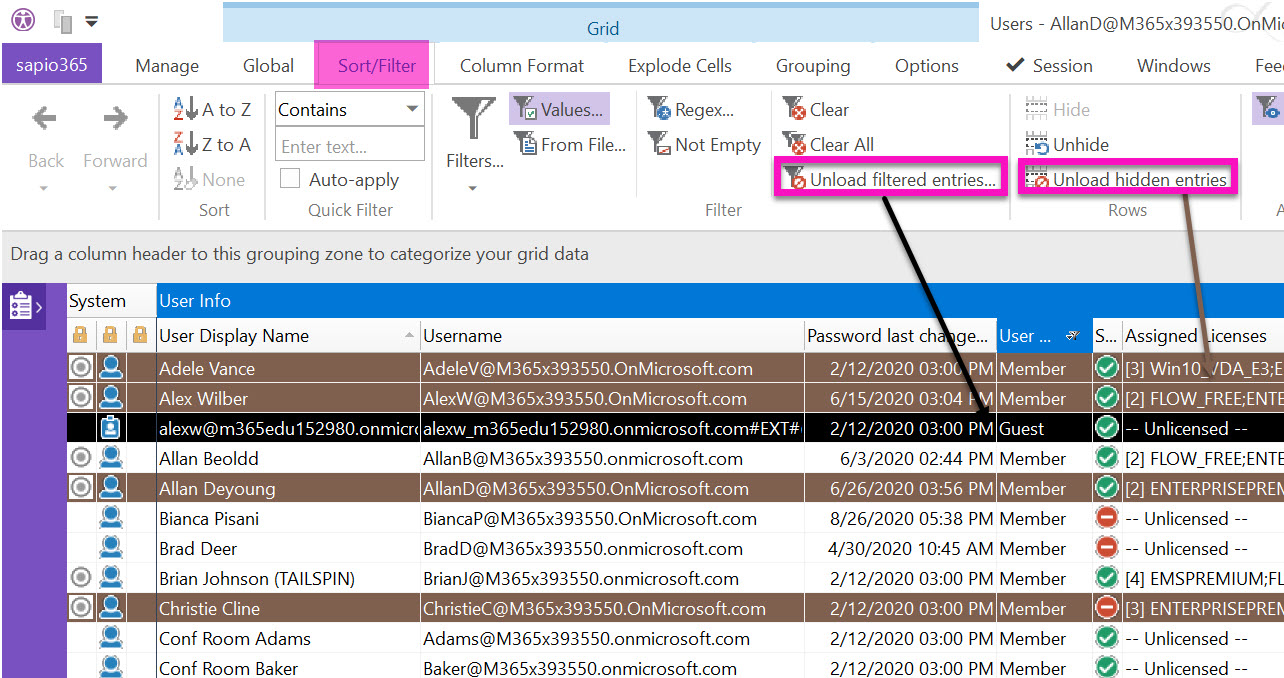
Transform columns into ghosts
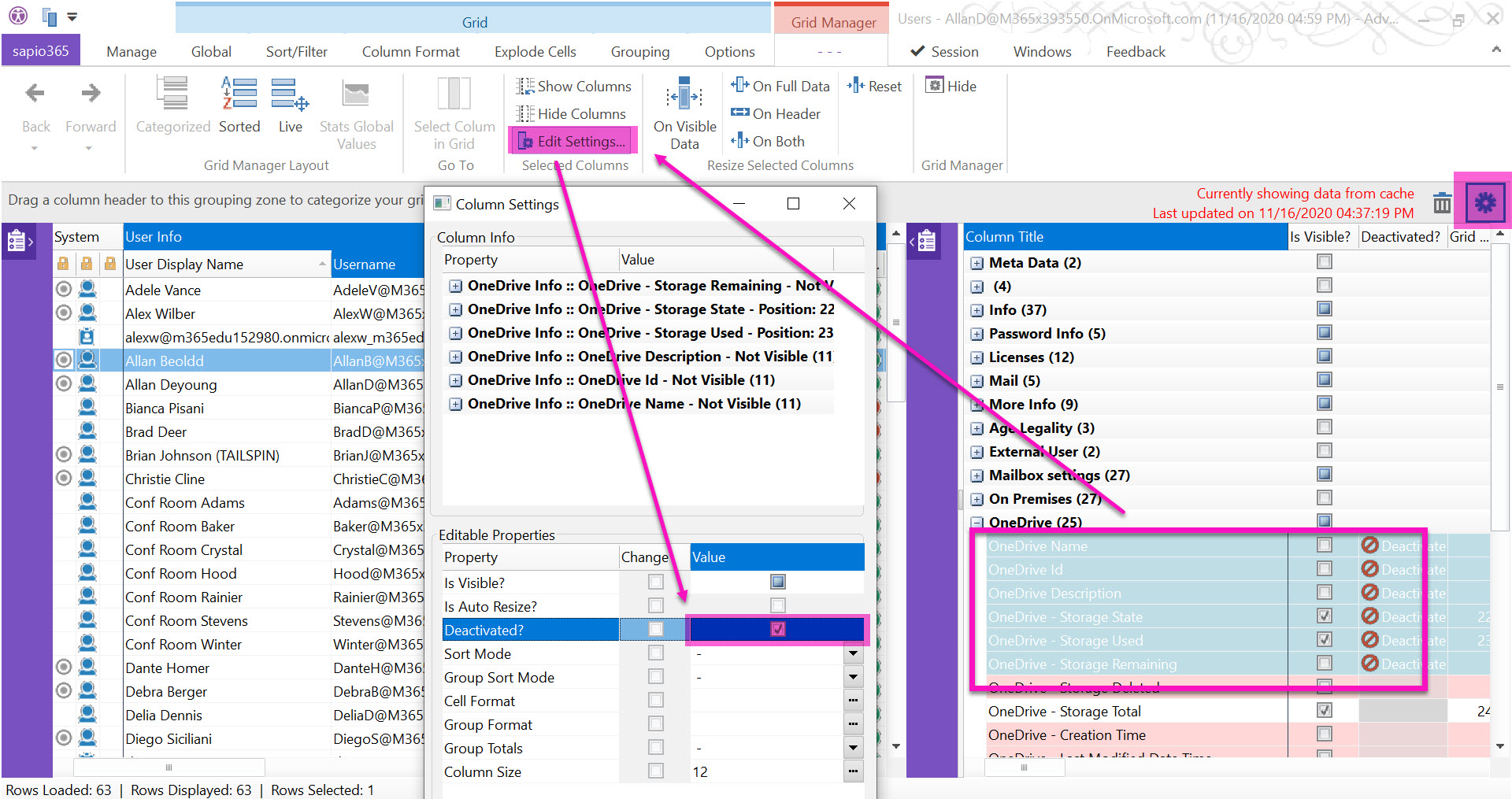
Another way to speed up your FlexyView Grid work is to eliminate columns you don’t need – turn them into “ghosts” so that the values in those columns are no longer there. For example, if OneDrive storage state is of no importance to you in the Users module, simply edit column settings to mark it as ‘Deactivated’. You can do this in one shot for several columns in the Grid Manager using the right-click menu.
Launching a new module from cache or from the server will restore these deactivated columns.
Save and load your data with Snapshots
Instead of comparing this week’s exported report to the one from last week, you can now altogether skip the exporting of your data that you painstakingly organized, and just save Snapshots of your FlexyView Grid data.
Snapshots are files that you can save locally (1) and load (2) in sapio365 to view your data as it was displayed at a specific point in time. You can even send that Snapshot file over to a colleague who can, in turn, load it in his sapio365 application and reorganize the information for a different kind of report.
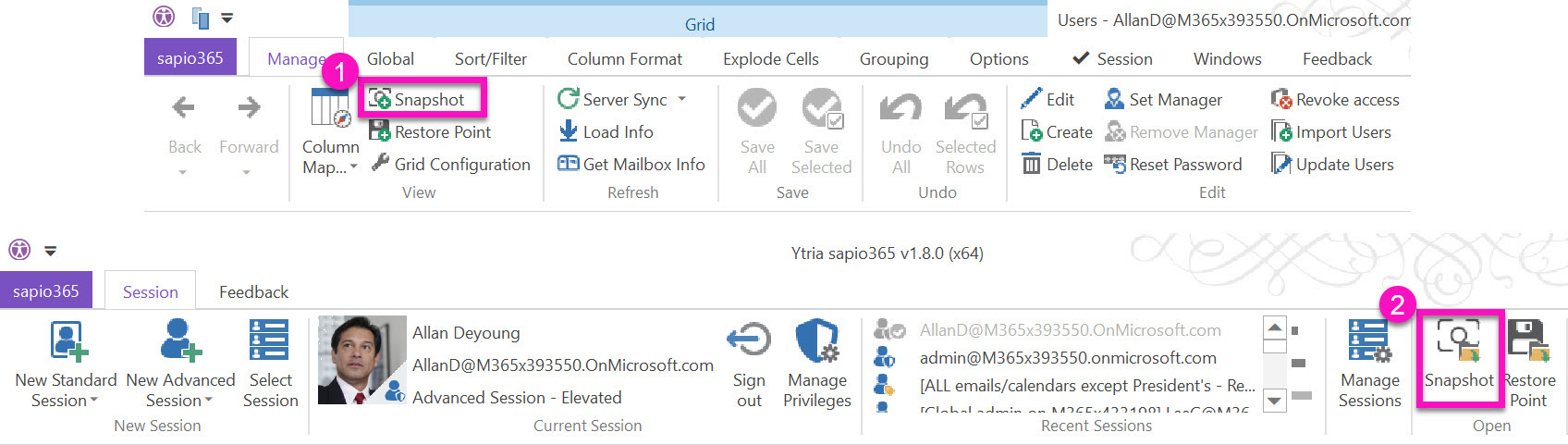
Use Restore Points in your workflow
Restore Points are snapshots that can be edited once they are loaded (2) to sapio365. This means that you can continue working where you left off, or even send it to a colleague to finish up. For example, a data entry staff member can update all the missing employee information in sapio365, create a Restore Point (1), send it to HR for review. The HR person can then send it to an admin who has dedicated rights to save those changes.
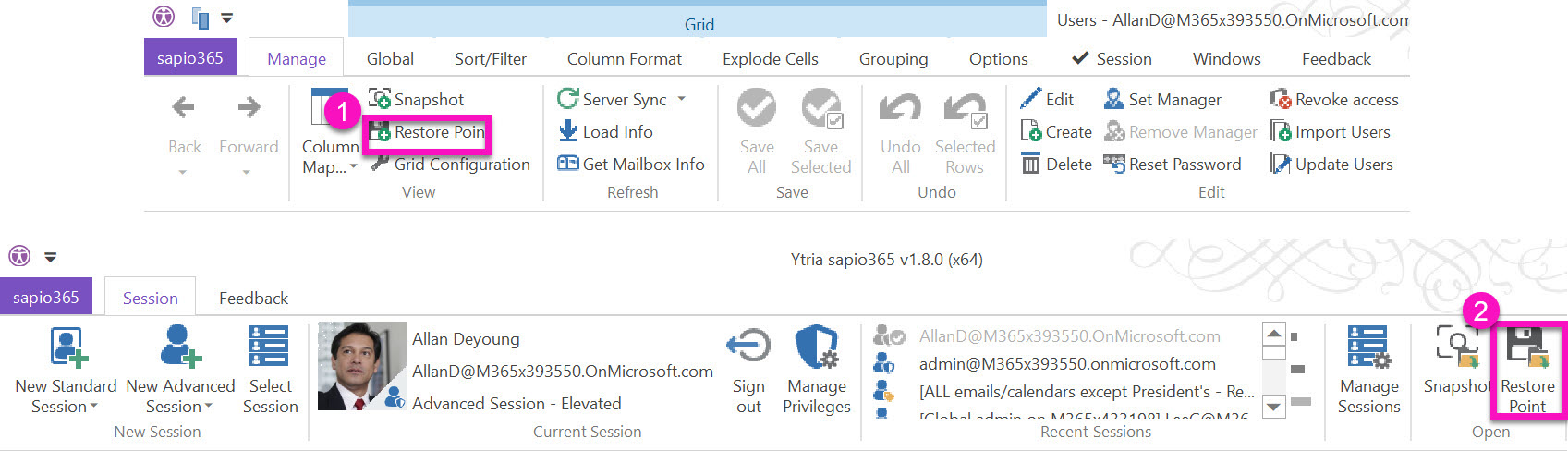
View your data vertically with the Data Viewer
There is now a reader-friendly way to see all the column properties for a row entry. For example, select a user and open up the Data Viewer on the right side of the FlexyView Grid, and you get an instant profile card. For multiple selections, only values that are common to all the selected entries will be shown.
Properties organized by sections and a type-ahead search function help you find what you’re looking for quickly. You also have the option to launch an edition dialog directly from the Data Viewer. The Data viewer is available in every FlexyView Grid.
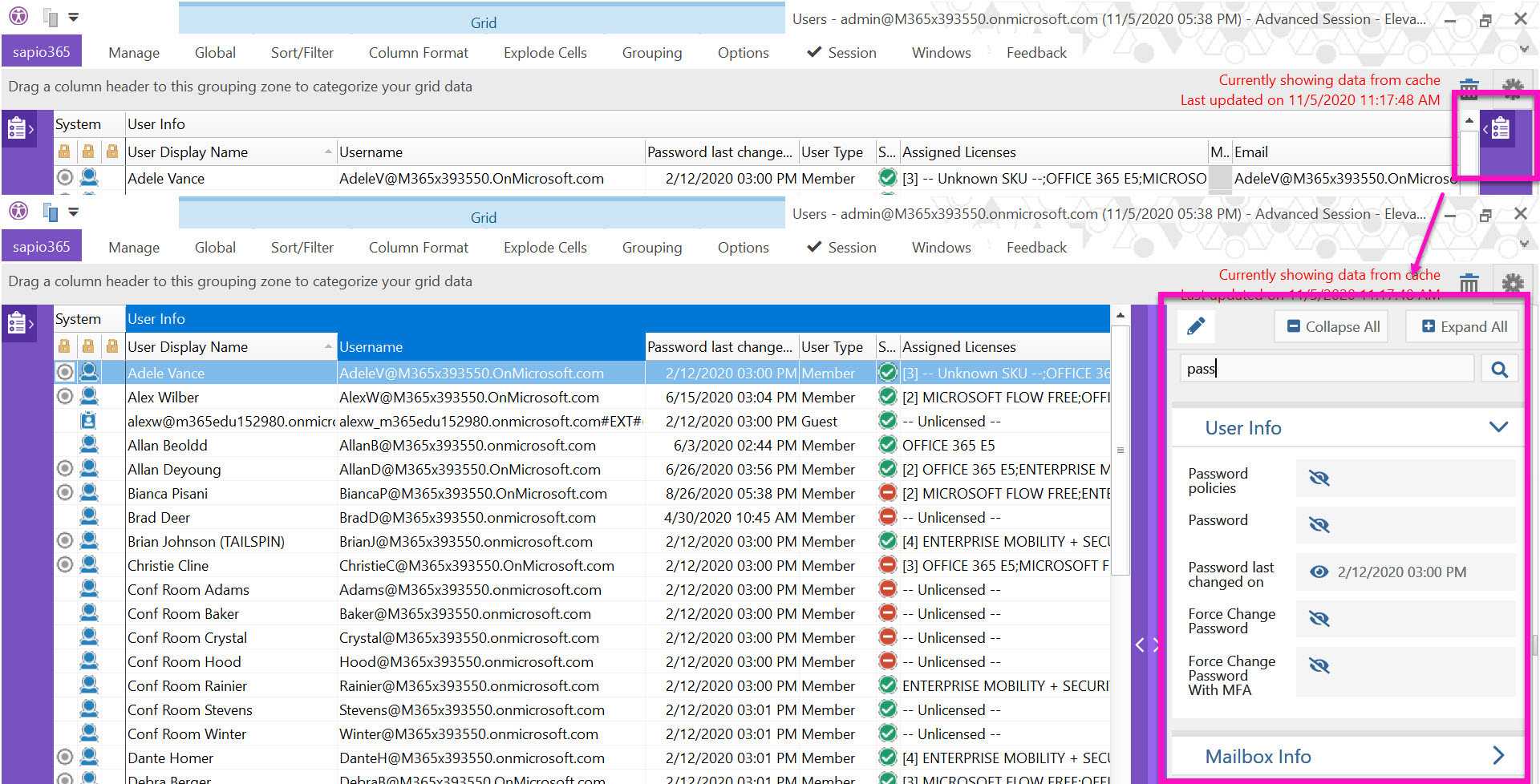
Other major improvements
When you are working with large volumes of users and groups, working with the whole data set may not be ideal. You can now speed up the process of doing a fresh load of users and groups by narrowing down the request to meet the criteria you set in a pre-filter. For example, load only guests by selecting ‘User Type’ set to ‘Guests’. You can even create filter combinations.
For Users, the list of available pre-filters includes the following: Sign-in status, City, Country, Department, User Display Name, Employee ID, External User Status, First name, Job title, Email, Email nickname, Immutable ID – On Premises, Other Mails, Aliases, State, Last name, Location for License Usage, Username, User Type.
For Groups, the list of available pre-filters includes the following: Group Display Name, Email, Email nickname, Last Sync – On Premises, Sync Enabled – On Premises, SMTP Address, Security Enabled.
Retrieve cached data more efficiently with pre-filters
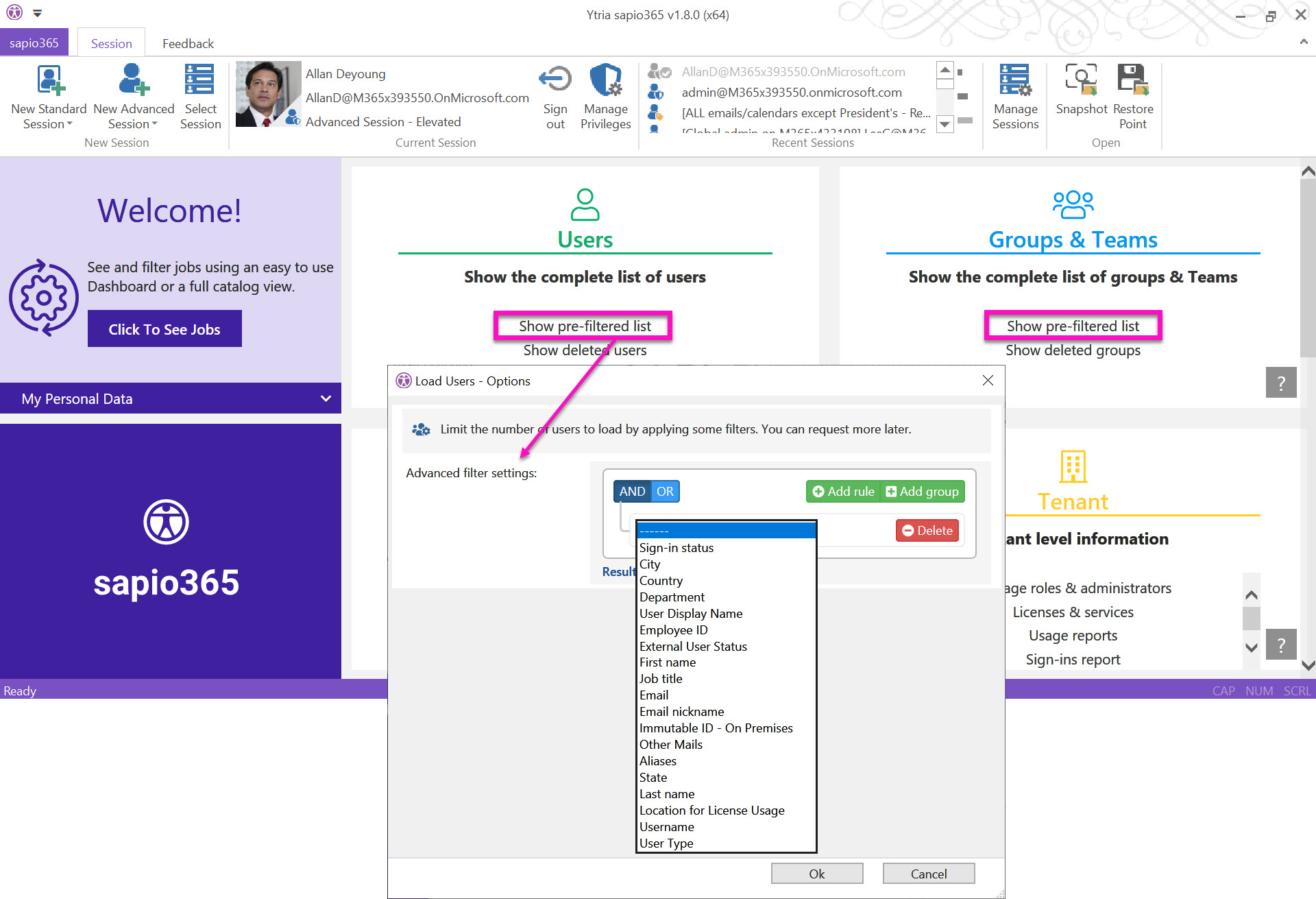
Read and write to cache more efficiently
We have greatly enhanced cache processing and the communications between sapio365 and your machine, which means that loading cached data for Users or Groups is faster than ever!
In fact, sapio365 now uses a delta operation when fetching cache data which translates to a quicker updating of the grid after saving bulk changes in large workloads.
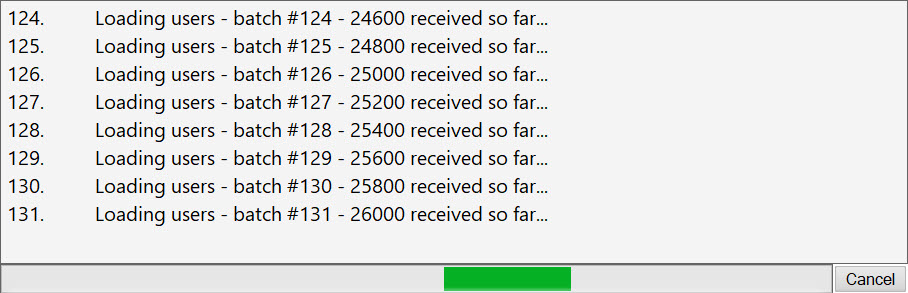
See a unified view of Mail Folders with Messages
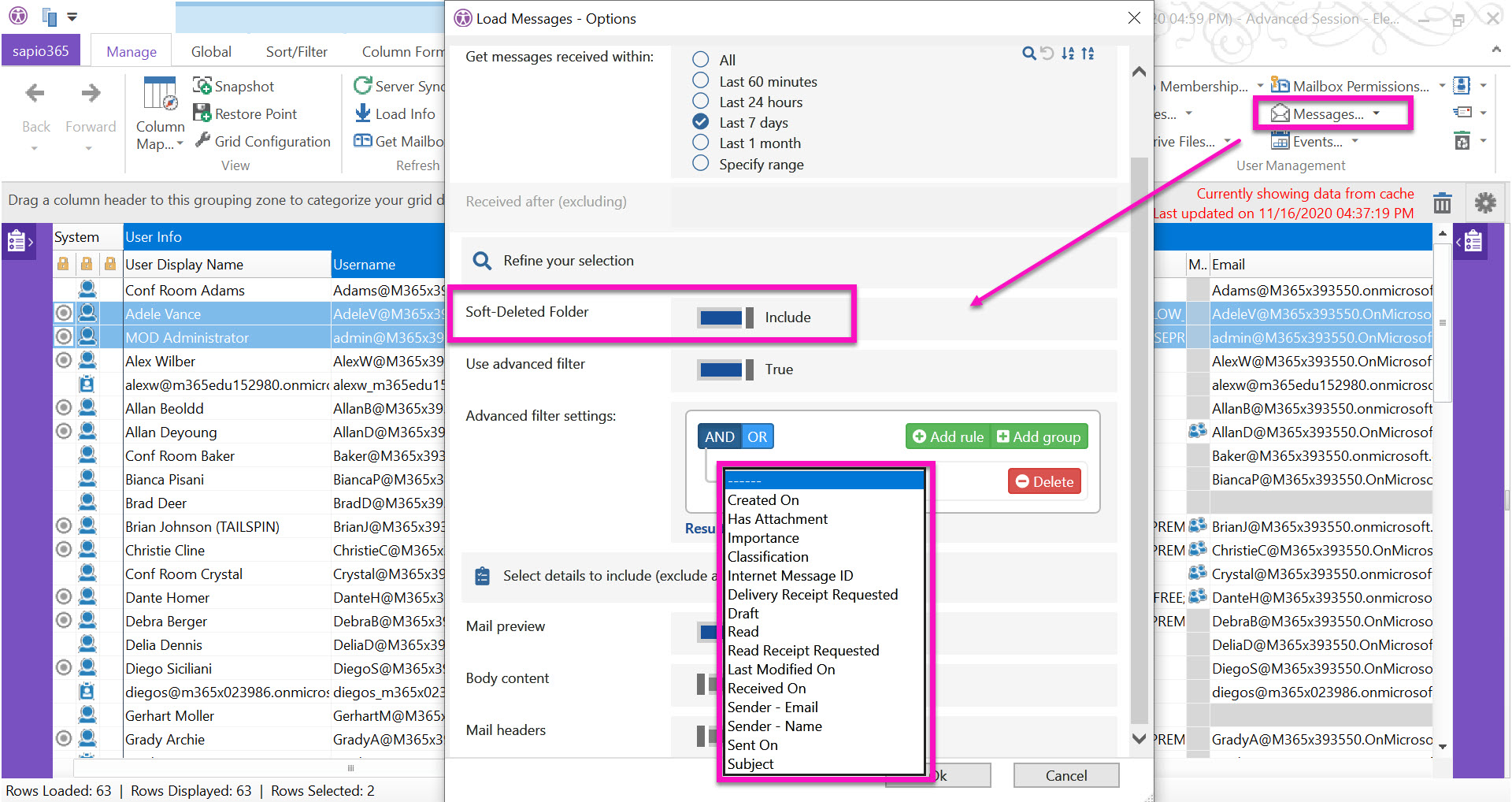
Mail folders and messages are now shown together in one single view when you launch Messages. When you retrieve mail messages for selected user mailboxes, you will see that they are listed hierarchically within the folder they belong to.
Besides the available time range options to narrow down your request, you also have the option to use advanced filters to narrow down mail message queries based on message information like importance, classification, sender, send dates, etc. You can also choose to include messages in the soft-deleted folder. The Mail Folders window has been removed from sapio365 since its merge with Messages.
Work with friendly names of Microsoft licenses and services
sapio365 now displays user-friendly names of Microsoft licenses and service plans when possible in the FlexyView Grid and when changing license assignments and service plan activations. SKU part names remain available in the grid, and they are displayed in the edition dialog alongside the new names.
We do our best to regularly update our database with publicly verified names of licenses and plans. In the event, sapio365 does not have an equivalent name, the SKU part name will be displayed instead.
If you have suggestions for missing license and service names, please share them with us (and include their equivalent SKU part names) at support@ytria.com.
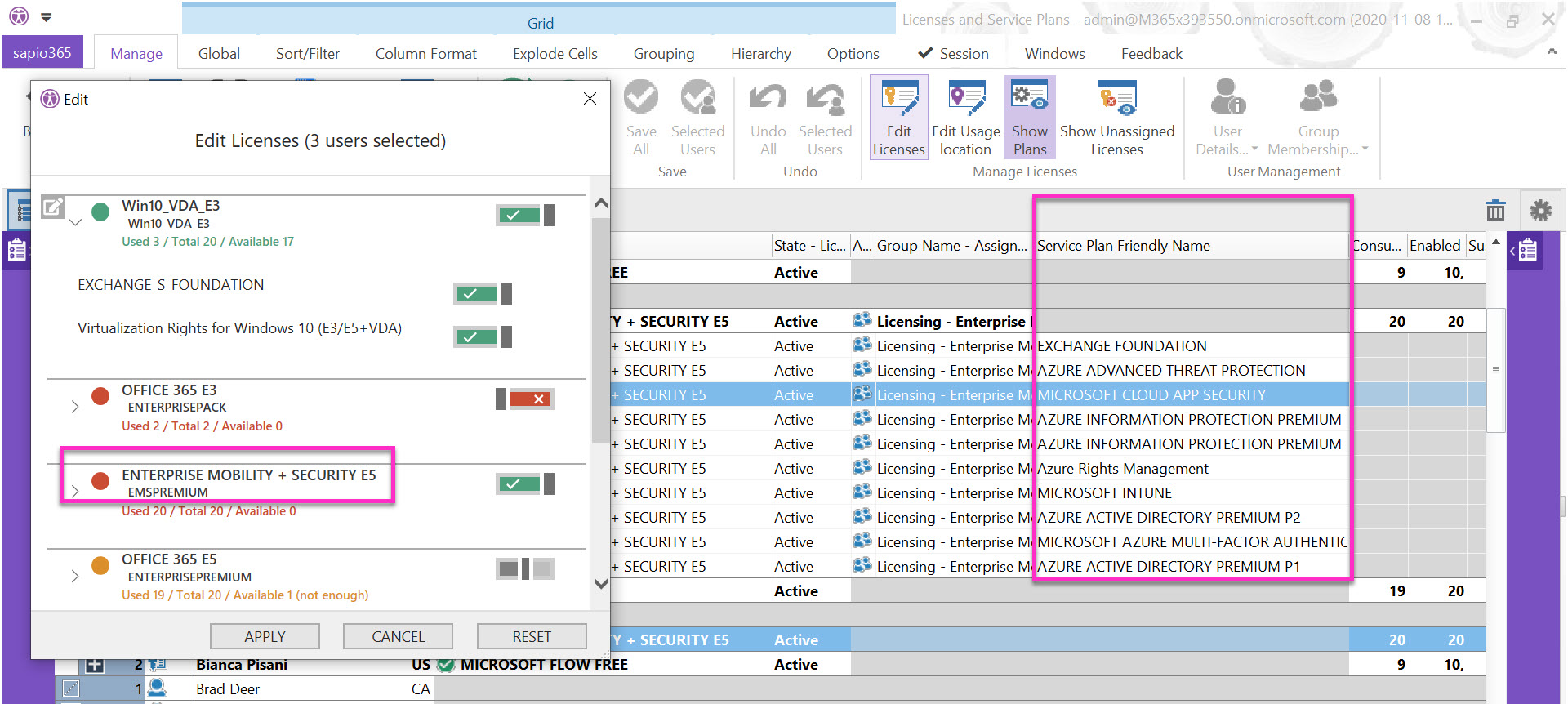

sapio365 - Contact us - Demo
Contact us for a demo
You would like to see sapio365 in action and see how it handles your environment?
Request a demo now!
Get in touch with us!
Phone
Ytria: +1 514-844-2373
Toll free (North America): +1 888 987 4299
Pricing and all other inquiries:
customer@ytria.com
Technical Support
Location
417 St-Pierre, Suite 804
Montreal, QC H2Y 2M4
Canada
Please complete the form below and we will be in touch shortly.
Fields marked with an * are required